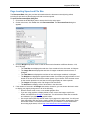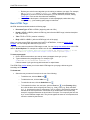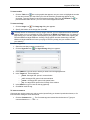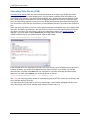
1
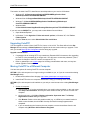
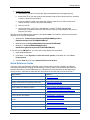
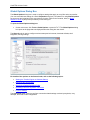
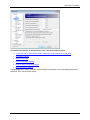
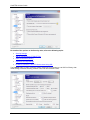
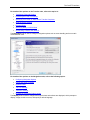
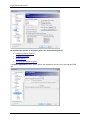
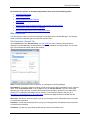
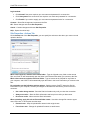
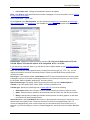
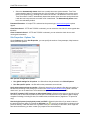
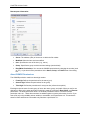
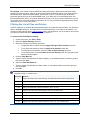
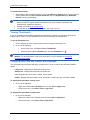
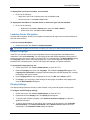
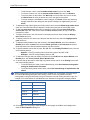
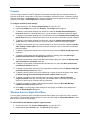
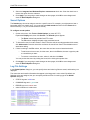
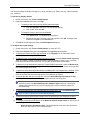
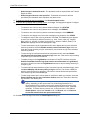
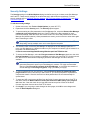
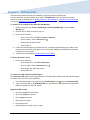
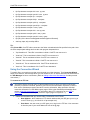
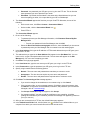
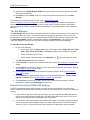
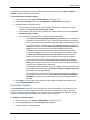
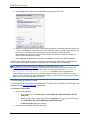
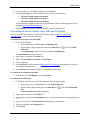
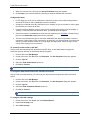
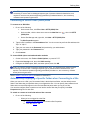
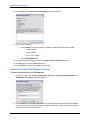
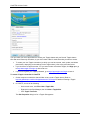
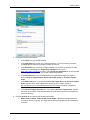
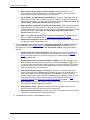
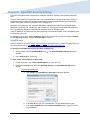
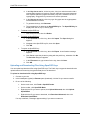
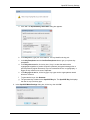
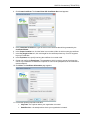
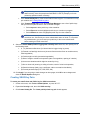
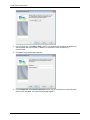
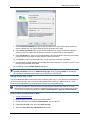
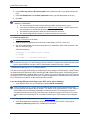
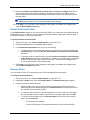
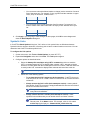
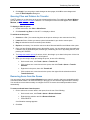
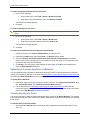
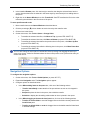
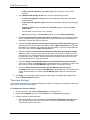
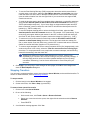
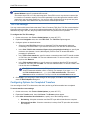
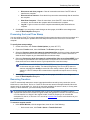
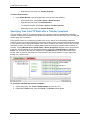
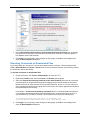
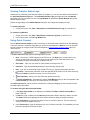
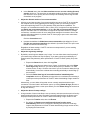
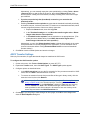
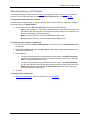
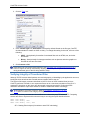
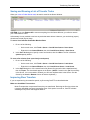
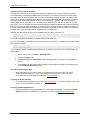
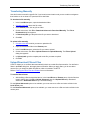
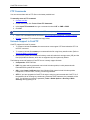
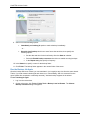
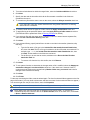
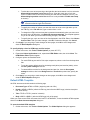
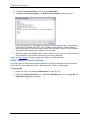
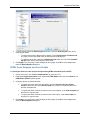
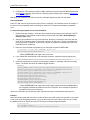
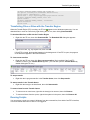
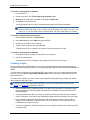
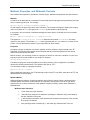
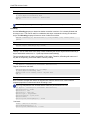
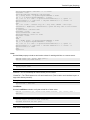
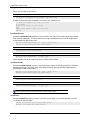
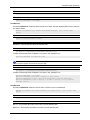
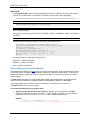
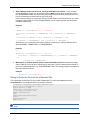
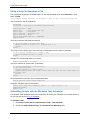
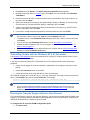
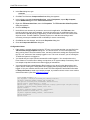
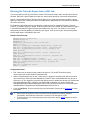
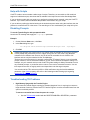
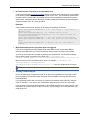
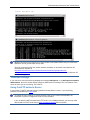
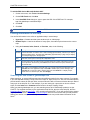
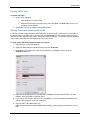
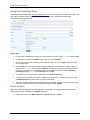
SSH2 Connections (SFTP) The private key password is stored in the registry using strong encryption. For added security, leave the passphrase fields blank. CuteFTP prompts you for the private key password when necessary. • Click Create identity file to create a new Public/Private key pair. For instructions on key pair creation see Creating SSH2 key pairs. • Click Trusted identity list to open the Certificate Manager to see a list of public keys that you have accepted as valid. In the Certificate manager: Select Import to add a public key to the trusted list. Select Export to send a highlighted public key to a location or program. Select Remove to delete a highlighted public key from the trusted list. SSH2 connections require at least one authentication method, but may require more than one. Check with your server administrator when in doubt. To use public key authentication, you must send your public key to the server administrator before making an SSH2 connection. 9. Select the Enable SSH operation logging with verbosity level check box, then specify one of the following levels: • 0, 1, 2) Software malfunctions (0-2 should also be logged using log event) • 3) External non-fatal high level errors (incorrect format received from an outside source; failed negotiation) • 4) Positive high level info (succeeded negotiation) • 5) Start of a high or middle level operation (start of a negotiation; opening of a device) • 6) Uncommon situations which might be caused by a bug • 7) Nice-to-know info (entering or exiting a function; result of a low level operation, • 8) Data block dumps (hash, keys, certificates, other non-massive data blocks) • 9) Protocol packet dumps (TCP, UDP, ESP, AH) 10. Click Apply if you are going to make changes to other pages; click OK to save changes and close the Global Options dialog box. Creating SSH2 Key Pairs To create your own Private and Public key for SSH2 connections 1. On the main menu, click Tools > Global Options, or press ALT+F7. 2. Expand the Security node, then click SSH2 security. 3. Click Create identity file. The Create public/private key pair wizard appears. 111