1
CuteFTP® v9 User Guide
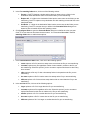
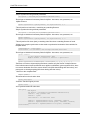
Alternatively, you can manually empty the queue periodically by clicking Tools > Queue
> Remove All or by right-clicking in the queue, then clicking Remove All, but if the
browse session is being used for transfers, manually removing items from Queue might
prove difficult.
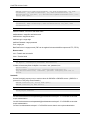
•
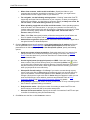
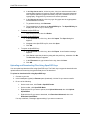
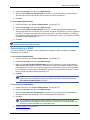
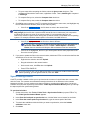
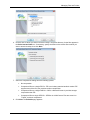
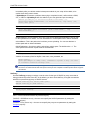
If you have a particularly fast (broadband) connection, you can delete the
thumbnail cache:
•
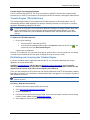
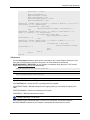
Enabling Thumbnail cache expiration ensures that the thumbnail cache will periodically
be cleared; however, it also will cause the FTP session to re-download thumbnails, which
can take a significant amount of time on a dial-up connection.
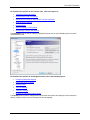
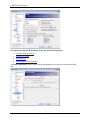
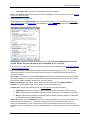
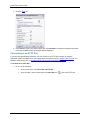
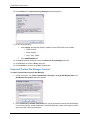
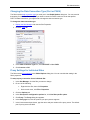
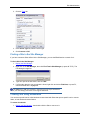
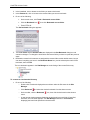
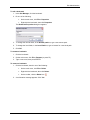
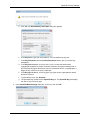
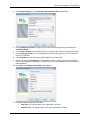
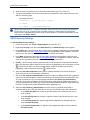
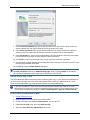
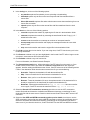
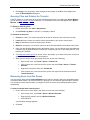
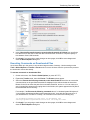
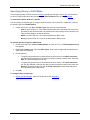
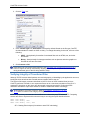
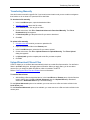
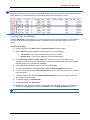
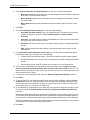
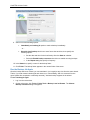
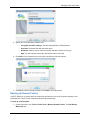
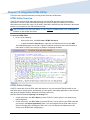
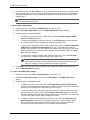
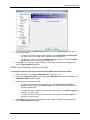
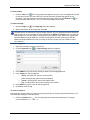
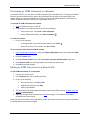
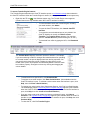
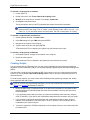
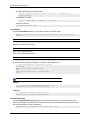
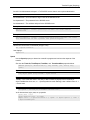
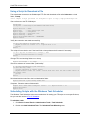
1. Expand the General node, then click Log Files.
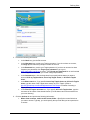
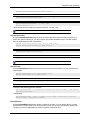
2. In the Thumbnail settings area, set When the transfer engine exits to Delete
images older than the value specified.
3. In Thumbnail cache expiration, set the expiration to an appropriate time. (This
setting becomes editable after you set When the transfer engine exits to
Delete images older than the value specified.)
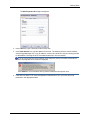
Alternatively, you can click Delete thumbnail cache to delete all thumbnails in the cache
except those that are currently displayed in the application. (Turn off thumbnail view or
close all connections before clicking Delete thumbnail cache to ensure all thumbnail
files are deleted.)
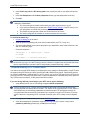
2. Click OK to close the Global Options and save the changes.
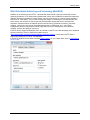
ASCII Transfer Settings
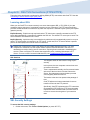
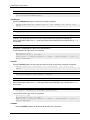
Select, by file extension, file types that should always be transferred in ASCII mode.
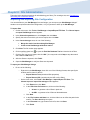
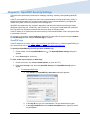
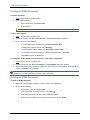
To configure the ASCII transfer options
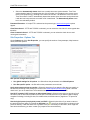
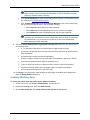
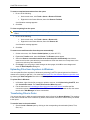
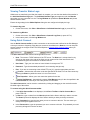
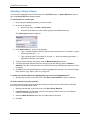
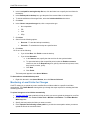
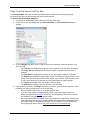
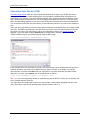
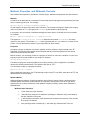
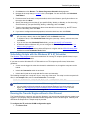
1. On the main menu, click Tools > Global Options (or press ALT+F7).
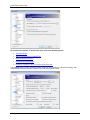
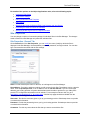
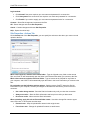
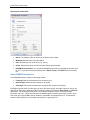
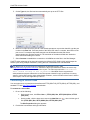
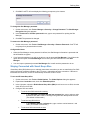
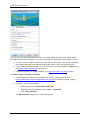
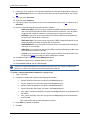
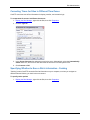
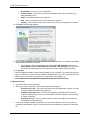
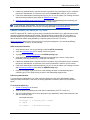
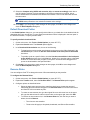
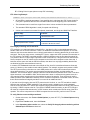
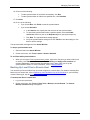
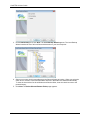
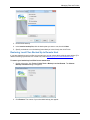
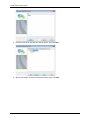
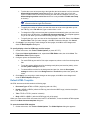
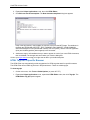
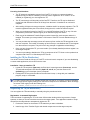
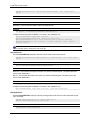
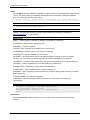
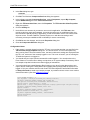
2. Expand the Transfer node, then click ASCII Types. The ASCII Types options appear.
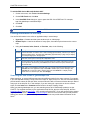
3. Configure options as described below.
•
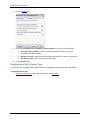
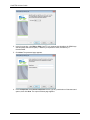
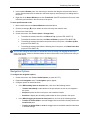
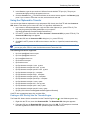
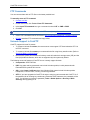
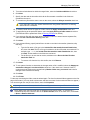
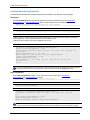
In the ASCII extensions box, type the file extension for files you want to transfer in ASCII
mode, then click Add to add the extension to the list.
•
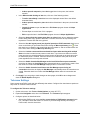
To remove an extension from the list (to send files of this type in binary mode), click the
extension in the list, then click Remove.
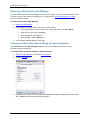
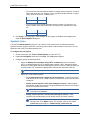
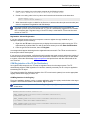
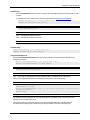
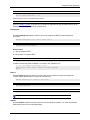
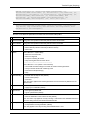
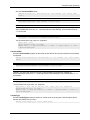
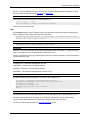
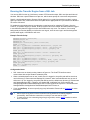
You can specify a Transfer type from the main menu (see Transferring files in
binary or ASCII mode). You can also specify a Transfer type for an individual Site
by highlighting the Site in the Site Manager, clicking the Type tab, and choosing
from the Transfer list. Auto is the default transfer type, and sends files in the
mode specified for each file's extension. All extensions are sent in binary mode
unless they are listed in the ASCII Extensions list.
4. Click Apply if you are going to make changes to other pages; click OK to save changes and
close the Global Options dialog box.
140