1
Transferring Files and Folders
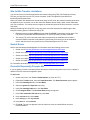
•
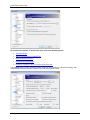
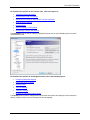
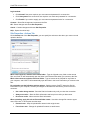
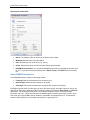
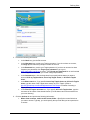
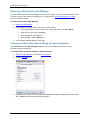
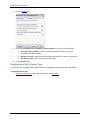
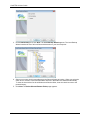
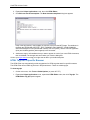
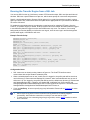
To use the Print Working Directory (PWD) command to determine which remote folder is
currently open on the server, select the Use PWD to determine current folder check box.
Clear this check box and CuteFTP attempts to determine the current remote folder based
upon the relative location from the root login folder. If your server does not support PWD,
clear this check box.
•
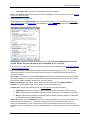
To send the absolute path to the file to complete delete, download, or upload file operations,
select the Use absolute paths for DELE, RETR, and STOR commands check box (e.g.,
"RETR /pub/cuteftp/cuteftp.exe"). If your server does not support absolute path names for
these commands, clear this check box, and CuteFTP will send the relative path to the file
instead (e.g., "RETR cuteftp.exe").
•
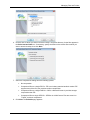
To use the complete absolute path to retrieve the listings for a folder, select the Use
absolute paths for the LIST command check box. For example: "LIST /pub/cuteftp". If your
server does not support absolute path names for the LIST command, clear this check box,
and CuteFTP will use the relative file path to retrieve the listings for a folder (e.g., "LIST").
•
To retrieve a list of just file names for each folder, select the Use NLST instead of LIST
(retrieves an abbreviated listing) check box. The list does not include time stamps, file
size, or other details. Clear this check box to use the LIST command and retrieve a list with
details for each file and folder. (Applies to FTP protocols only.)
•
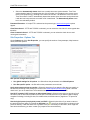
To continue login attempts if the server returns permanent errors (5xx) inappropriately, such
as when the server is full or busy, select the Treat 5xx errors as 4xx errors during login
check box. To accept permanent errors, stop further connection attempts, and avoid being
banned for hammering, clear this check box.
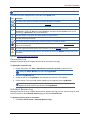
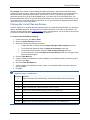
Selecting this option may result in being banned from a server. CuteFTP will
repeatedly try to connect to the server (according to retry and retry delay settings). If
the retry delay period is set too low, these repeated attempts may end up being
considered "hammering," and the server administrator or service may ban your
accounts.
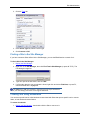
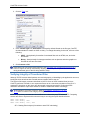
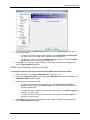
4. Click Apply if you are going to make changes to other pages; click OK to save changes and
close the Global Options dialog box.
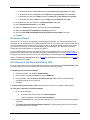
Stopping Transfers
You can stop in-progress transfers, remove items from the Queue Window, and reset failed transfers. To
resume or restart a transfer, refer to Resuming Transfers.
To stop a transfer
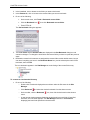
1. Click the item(s) in the Queue Window to be stopped.
2. On the main menu, click View > Stop (or press ESC).
To remove items queued for transfer
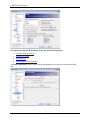
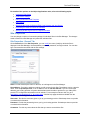
1. Click an item in the Queue Window.
2. Do one of the following:
•
On the main menu, click Tools > Queue > Remove Selected.
•
Select one or more items in the queue, then right-click the selection and click Remove
Selected.
•
Press DELETE.
3. A confirmation message appears. Click Yes.
129