1
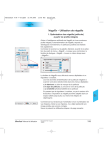
6. Activating SilverFastSRD Click onto the SRD icon to open the SilverFastSRD dialogue. In case you have a scanner with hardware supported descratch function such as DIGITAL ICE technologies, you can switch between e.g. DIGITAL ICE technologies and SilverFastSRD. All other scanners will only have SilverFastSRD. The upper of the two buttons is intended to switch SilverFastSRD off. When opening SilverFastSRD the first time you will see an empty Navigator window. Please follow the instruction inside the Navigator window: a) Clicking on “Preview” initiates a preview scan, whose resolution is related to the output resolution that has been set. SRD Dialogue in SilverFastAi SilverFast® Manual b) Clicking on “Auto” analyses the image with SRD automatic. Artifacts will be recognized and highlighted with red. After you have deactivated SilverFastSRD and then reactivate the function, the previous preview scan will come up again, with all previous settings inside the control window. In case the previous preview is not the one you want, since you would like to work with another image which is already in the normal SilverFast preview window, you have to: a) Click onto the SRD “Preview”, and initiate a new preview scan and b) click on “Auto”, to start an new SRD automatic. 6.13 • SilverFast SRD / iSRD 375