1
Page 14.
Viewing Select Samples from Different Gels Together:
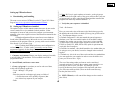
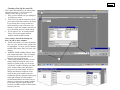
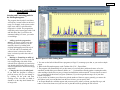
In order to view a specific sample that is located in several gels in a gel folder, you can use ‘Open Case’
to select specific samples to view together:
1.
2.
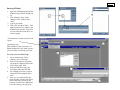
In the Gel Queue window click ‘Open Case’ and a window (like one below) will appear.
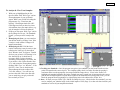
Type in the name of the sample that you want to view and click ‘Add’. The Sample List will
show all the gels that contain that sample. Use ‘Remove’ by selecting any samples that you do
not want to view and click ‘Remove”.
3. Once you have finished click ‘OK’ and an Electropherogram will appear that only contains the
lanes specified.
Superimposing Lanes in a Multi-Lane Electropherogram:
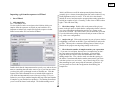
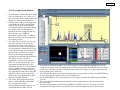
If you have two lanes in a gel that you want to view one on top of the other you can use the Multi-Lane Electropherogram function:
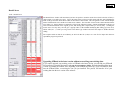
1. In the Electropherogram click ‘View’ and ‘Multi-Lane Electropherogram’. A Lane Selection box should pop up.
2.
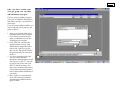
In the Lane Selection box click under the lanes of interest select the dye color of the peaks that you want to superimpose. (In this example I want to see
the blue peaks all together from lanes 2, 7 and 10.) Click ‘OK’ and the MultiLane box will appear.
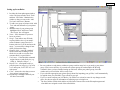
3. On the left of the MultiLane box it lists all the dye colors possible for the lanes that were selected. The dye colors designated by a full colored box are shown,
the half-colored boxes are not. All lanes selected for the same dye color will be represented by a different shade for ease of viewing (e.g. since only blue was
selected for lanes 2, 7, and 10 they are shown as blue for lane 2, purple for lane 7, and pink for lane 10). The X and Y switches will shrink or stretch the image
horizontally or vertically, respectively.