1
Page 2.
Setting up STRand software.
A. Downloading and installing
The most recent version of STRand is on the UC Davis VGL Home
Page at http://www.vgl.ucdavis.edu/informatics/STRand/
B. Setting up STRand once installed.
The updated version of this manual assumes that users do not need to
create a matrix file or dye standards for their machine. If that
assumption is incorrect and you need to configure your instrument
manually, refer to the original version of the instruction manual for the
information.
STRand configuration files are stored in an Access database
found in the STRand directory. Microsoft Access is not needed for
normal use of the program. However, you may wish to work with the
files directly if you run into a bug.
Note: Updating the STRand preferences and configuration is
an iterative process – in other words, you usually need to exit the
program and restart it for the changes that you have made to take
effect in the STRand program.
1. Computer environment Change your display settings (if needed)
to at least 1280 x 768 resolution – lower resolution can result in
program difficulties.
2. Start STRand, and choose a user name
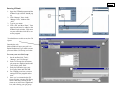
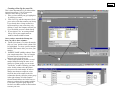
3. Create a gel group for your data (or one for each set of data,
as this will keep things organized)
- Tools > Manage > Gel groups
- Add
- Enter the name for each unique gel group (or folder of
*.fsa files that come off a capillary sequencer) that
you wish to keep separate in your analysis
- Done
** Note: We’ll say it again: updates are iterative, so the gel groups
window in the lower right corner of the screen will not show your new
gel groups until you have exited from STRand and then restarted the
program from the newly modified database. **
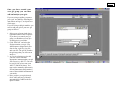
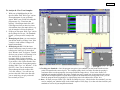
4. Verify that your sequencer is identified
Tools > Preferences
Here you can set the color of the traces (dye labels) that you prefer,
the default path to the folders in which you keep your gel files and so
on. The important things to set are:
a) Default configuration – this must match the general sequencer
platform (even if the exact model number is not available) and the
complete dye set that you are using. In our case, we have an ABI
3130XL which is not included in the default list, but the ABI 3700
FVNPL (6-FAM, VIC, NED, PET & LIZ) option is equivalent and
works just fine for analyses.
b) Default size standard – this should match the size standard that you
are using to score your alleles, but can be changed in the test that is
applied.
c) Default test – this is the set of locus rules and the size standard that
you want applied to your samples in order to score the allelic sizes
(once you set locus rules – Pg 4).
The rest of the settings under preferences can be considered
personal preferences, but these three settings must generally be set
correctly in order to score your data. For example, you can
specify the directory from your data will be imported, and where
you will want results exported. (These can be the same directory,
but they don’t have to be).
8. EXIT STRand (we will want all the changes we have made to
take effect)