1
x
x
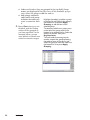
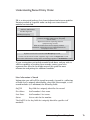
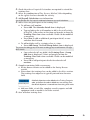
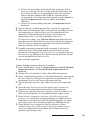
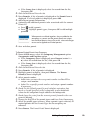
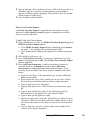
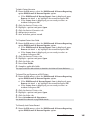
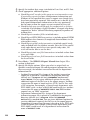
x Select "Prompt to replace with the station, shift and unit from
the staff master record if specified and different" to prompt the
user to choose between the default Station/Shift/Unit value or
the Station/Shift/Unit value associated with staff member record
when the values are specified in the staff member record and are
different than the defaults in the activity/training/schedule
record.
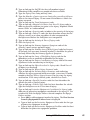
x Select "Always default the station, shift and unit from the staff
master record if specified" to use the Station/Shift/Unit value
from the staff member’s record if available without prompting
the user. The Station/Shift/Unit defaults from the
activity/training/schedule record is used if a Station/Shift/Unit
value is not specified in the staff member record.
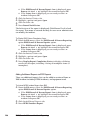
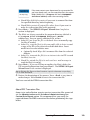
Check Prompt to add history record when rank, status or hire date
changes to prompt to add a history record when a staff member's
Rank, Status, or Hire Date are changed and the record is saved.
x Specify a Default History Code value to automatically default a
Staff Member History code for staff history records created when
prompted following a change.
Press OK.
To Setup LOSAP Values
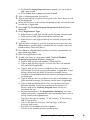
x Select the Administration menu, Administrative Options option.
x Click the Staff tab, General tab.
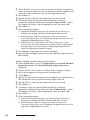
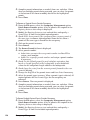
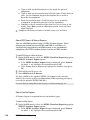
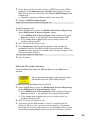
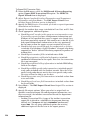
x Press Setup LOSAP Values to set up values to use for the Length of
Service Awards report. Press F1 to display the ‘Setup Length of
Service Awards (LOSAP) Report Setup’ topic for more information.
x Press OK.
To Specify Staff Administrative Options
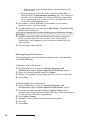
x Select the Administration menu, Administrative Options option.
x Click the Staff tab, Activities & Training tab.
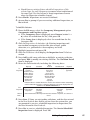
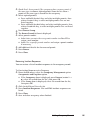
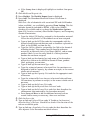
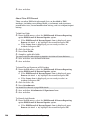
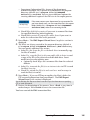
x Select Activity and training hours printed format. This controls the
activity and training activity hours on printed reports only. All time
values in FH data entry forms are decimal only.
x "Display as a decimal number” displays hours in decimal format.
For example, 1 hour and 30 minutes is displayed as 1.5 hours.
x "Display as hours, minutes” displays hours and minutes. For
example, 1 hour and 30 minutes is displayed as 1:30.
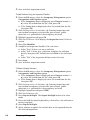
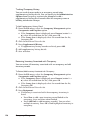
x Check Auto-Calculate activity & training hours paid from start and
end date/time to calculate and insert activity and training hours for
new records (Hours Paid and Hours Worked).
Specifying Administrative Options
57