1
Chapter 11: Stylizing Your Map for Presentations and Publishing
Working with Layouts
Creating Multiple Views of the Same Map
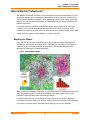
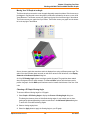
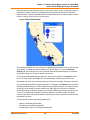
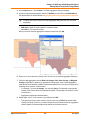
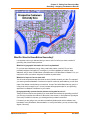
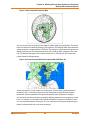
One very popular way to display maps is to have a detailed map with an inset of an overview map
representing the general area. For example, government planners have a detailed flood plain map
thematically shaded for an area around a major city. They want to include an inset map showing the
location of that city in relation to the entire region. We can simulate this exercise with the
WORLD.TAB table included with MapInfo Professional.
L
Some of the files described in this example may refer to MapInfo Professional Tutorial data,
which is available on the Pitney Bowes Software Inc. web site,
http://go.pbinsight.com/webtutorials.
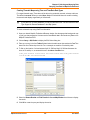
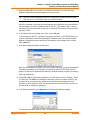
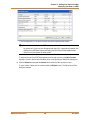
To create multiple views of the same map:
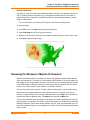
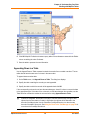
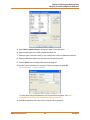
1. Open the WORLD.tab and WORLDCAP.TAB tables from the MapInfo/Data/World directory. The
tables display in a Map window.
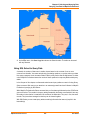
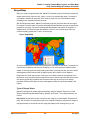
2. Choose the area you want to show in detail and zoom in on it. The Map window contains the
detailed view.
3. As stated previously, there must be a separate Map window for each view you want to include in
a layout. Instead of re-opening the tables to re-create the Map window, on the Map menu, click
Clone View to create a duplicate Map window.
4. A new Map window displays. Zoom out on this map to create the overview map.
MapInfo Professional 10.5
309
User Guide