1
Chapter 11: Stylizing Your Map for Presentations and Publishing
Labeling Your Map
Labeling with a Column
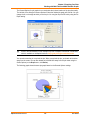
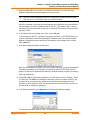
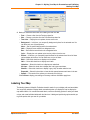
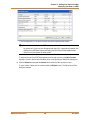
The content of labels is controlled in the Label with drop-down list in the Label Options dialog box.
You can label an object with any column from its associated table. For example, you can label the
STATES table with the state name, abbreviation, 1990 population, or any other field in the STATES
table. Simply choose a column from the list, and the objects in that layer will be labeled with the
information contained in that column.
L
You can only set a Label with expression on a single layer. After selecting multiple layers in
the Layer list, the Label with list disables and shows a message that says Mixed.
Labeling with Expressions
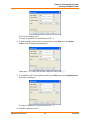
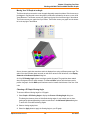
You can also label objects with an expression. Select Expression from the drop-down list in the
Label Options dialog box. Create the expression in the Expression dialog box. You can type the
expression directly or use the drop-down lists to create it. For example, you want to label the
countries of Africa with their name and population density on two lines. Your table contains the
country names and population figures for each country. To figure the population density, divide
population by each country’s area. You can let MapInfo Professional calculate the area of each
country using the Area function in the Expression dialog box. To create the expression, in Layer
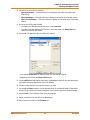
Control, double-click the Africa layer and click the Label Display tab. Select Expression from the
Label with drop-down list. The Expression dialog box displays. Using the drop-down lists, create the
following expression:
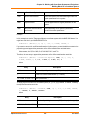
Country + Chr$(13) + POPULATION / Area(Object, “sq mi”)
The Chr$(13) function adds a carriage return to the first line. Using the Label tool, click a country.
MapInfo Professional labels it with the result of the expression.
•
For instructions and examples of this topic, see Creating Labels using Expressions in the Help
System.
Saving Labels to a Workspace
Both automatic and interactive labels are saved as part of a workspace.
To save your objects:
1. Choose File > Save Workspace. The Save Workspace dialog box displays. The Save
Workspace dialog box allows you to save information about the tables and windows used in your
current session.
2. Select the drive, folder, and file where you want the workspace saved.
3. Type a name for your workspace.
4. Click Save.
MapInfo Professional 10.5
296
User Guide