1
Chapter 7: Drawing and Editing Objects
Editing Objects
3
4
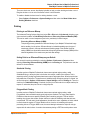
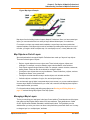
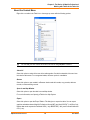
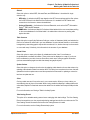
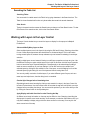
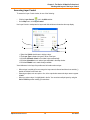
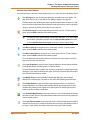
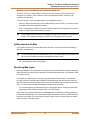
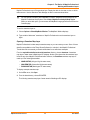
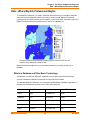
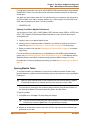
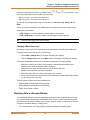
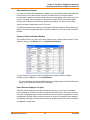
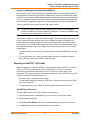
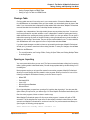
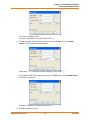
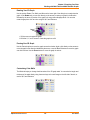
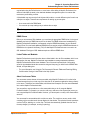
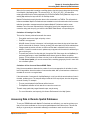
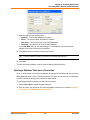
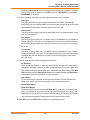
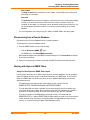
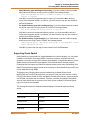
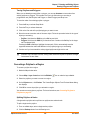
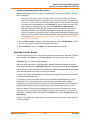
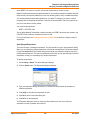
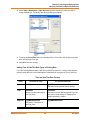
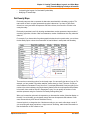
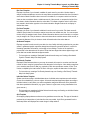
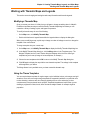
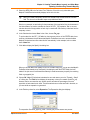
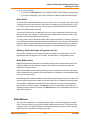
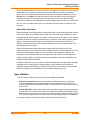
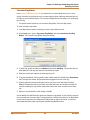
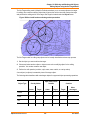
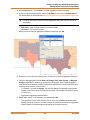
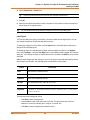
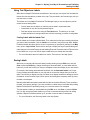
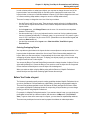
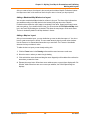
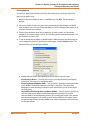
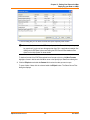
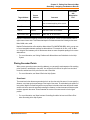
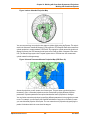
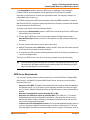
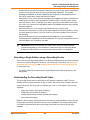
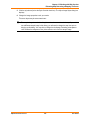
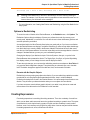
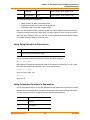
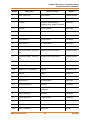
3 Choose Copy and Paste to display the new objects with edit handles.
4 Click and drag the object to move to another location.
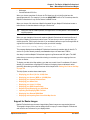
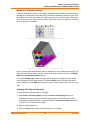
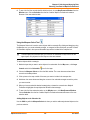
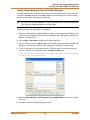
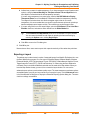
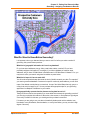
To reshape an object (such as the state of Kentucky):
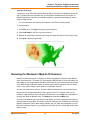
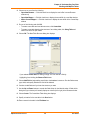
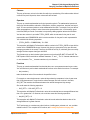
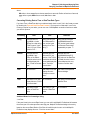
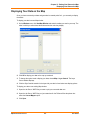
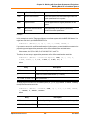
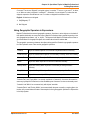
1. Select Kentucky to enable Reshape mode.
2. Select the first node with the Select tool. Shift-click the last node to be copied. MapInfo
Professional selects all nodes between following the shortest route. (To select all nodes except
those between the shortest distance, use Ctrl-click with the Select tool.)
3. On the Edit menu, click Copy to copy the nodes to the clipboard.
4. Paste the duplicate nodes onto the map. On the File menu, click Paste. The object you copied is
drawn on top of the original object as a polyline.
5. To move the polyline click it and drag the polyline to a new location.
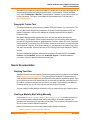
Using “Snap To” to Select Nodes and Centroids
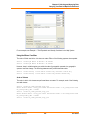
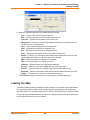
You can use nodes to reshape an object and align objects with each another. MapInfo Professional
refers to this process as snapping to a node. In the Map window, regions, polylines, lines, arcs and
rectangles all have nodes that can be attached (or snapped) to each other. When the Snap mode is
enabled, MapInfo Professional searches for nodes and centroids as you move around a window.
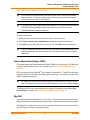
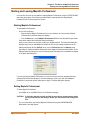
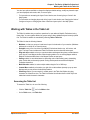
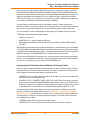
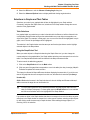
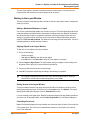
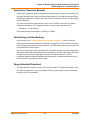
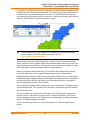
MapInfo Professional automatically snaps the cursor to a node or centroid when the cursor comes
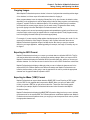
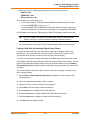
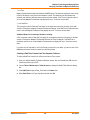
within the snap tolerance of the node. The crosshairs display when the node is “snapped to”.
L
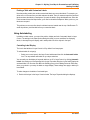
You can also use the snap to capability to snap to visible centroids in region objects.
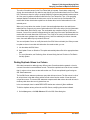
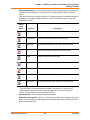
To toggle Snap to Nodes, press the S key. The Status Bar displays with the word “SNAP” when
Snap mode is activated. When you activate the Snap mode, a circle displays around your cursor
showing the size of the tolerance of the Snap mode in pixels. The S key acts like a toggle on/off
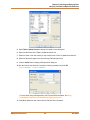
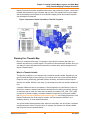
switch. You can set the snap tolerance in pixels in the Map Window Preferences dialog box. The
Snap Tolerance field allows you to specify a tolerance. If you set the snap tolerance to 3 pixels,
whenever you move the cursor within 3 pixels of a node, the cursor will snap to the node.
Snap mode works in the Map Window and Layout window (but not raster layers). It works with all
MapInfo Professional tools in the Main and Drawing toolbars except Pan, Drag Map, and Text tool.
Additionally, snap mode works on object types, including regions, points, multipoints, collection
objects, lines and polylines, rectangles, and arcs. It is not available for text objects, ellipses, and
rounded rectangles. You set the Snap in one window at a time and can save it with your workspace.
MapInfo Professional 10.5
177
User Guide