1
System Configuration
Creating OPC Server and OPC Channels
·
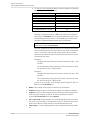
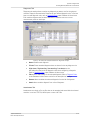
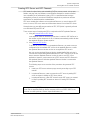
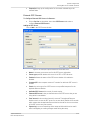
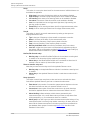
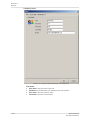
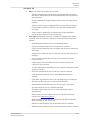
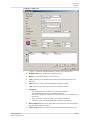
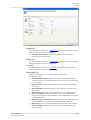
Tag is the unique tag name specified by the OPC server vendor that you wish to
use. Note that tags have to be created in the OPC server itself. For further
information on how to create tags in OPC server, refer to your OPC server's
manual.
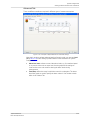
Once OPC input channels have been created, the next step is to create OPC
measurement points for them. To do this, refer to Setting up Measurement Points and
Alarms in System Configuration.
The most common problem when troubleshooting connections to OPC servers is the
security. OPC makes use of DCOM which can be quite difficult to configure if you are not
familiar with it. Ask your IT-personnel to assist you when setting up the OPC
configuration.
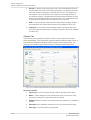
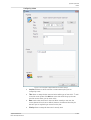
Setting up Measurement Points and Alarms
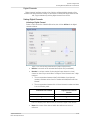
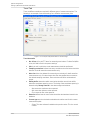
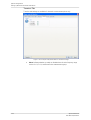
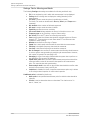
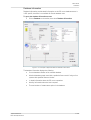
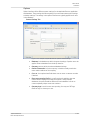
The system allows to add new measurement points, and edit or delete existing
measurement points on machines and sub machines.
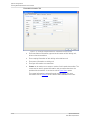
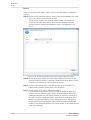
To add a measurement point:
1.
First, select a machine or a sub machine to which a measurement point is to be
added in the hierarchy view.
2. Click on the right mouse button, select Add, then Meas. point.
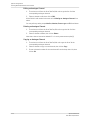
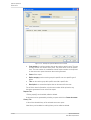
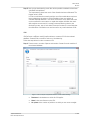
To edit a measurement point:
1.
First select a measurement point to be edited in the hierarchy view.
2. Perform one of the following options.
·
Click on the right mouse button, then select Properties.
·
Double click on the measurement point.
·
Click on Edit on the toolbar, then select Properties.
·
Click on
Properties icon on the toolbar.
To delete a measurement point:
1.
First, select a measurement point to be deleted from the hierarchy view.
2. Click on the right mouse button, then select Delete.
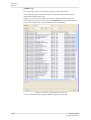
You can also use any one of the following wizards to help you with add and edit
measurement point processes:
@ptitude Observer
User Manual, Revision I
·
Machine copy wizard. Refer to Machine Copy Wizard in System Configuration.
·
Multiple point update wizard. Refer to Multiple Point Update Wizard in System
Configuration.
3-43