1
Administration, Category Maintenance
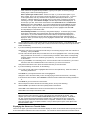
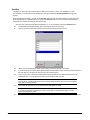
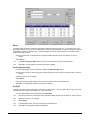
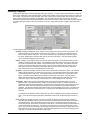
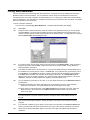
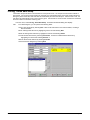
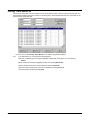
This provides a listing of each of the categories you use to classify merchandise in inventory. These categories are
Departments, Types, Sub-Types, Price-Points and up to four user-defined categories. Even though the third and
fourth user-defined categories can have different names, they share the same pick list. That is why the Inventory
Categories window only shows 3 user-defined categories. The fourth category has the same pick list as the third
category. The user-defined categories are set in the File, Options. The Departments, Types and Sub-Types are all
linked. Therefore, when you highlight a particular department, only the types within that department will be listed.
Similarly, when you highlight a particular type, only the sub-types belonging to that type are displayed.
Price Points can be entered both on the Inventory Categories window and when you enter new styles. However, if
you have selected the Use Automatic Price Points option through File, Options, you can enter price points in the
Auto Price Points window.
Adding an Inventory Category
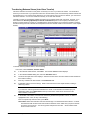
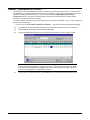
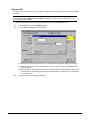
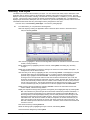
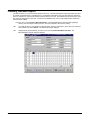
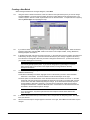
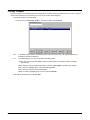
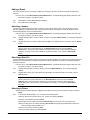
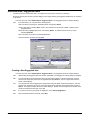
From the menu, select Administration, Category Maintenance. The Inventory Categories window displays
with a list of the inventory categories you have previously entered.
245.
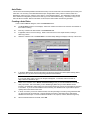
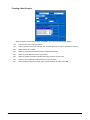
While viewing the Inventory Categories window, select the column tab for the inventory category you want
to add a category field name.
246.
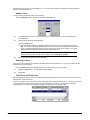
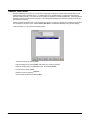
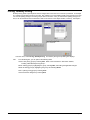
Move to the bottom of the column, and select New. The New [Department/Type/Sub Type, Price Point,
Season, etc] dialog box displays.
247.
In the field, enter the new category field name, then select OK.
248.
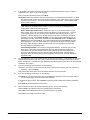
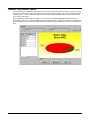
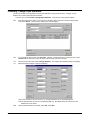
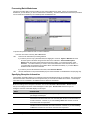
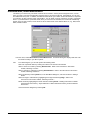
To enable the Quick Find feature for use at the point of sale, click in the check box next to the applicable
department. When the checkbox is selected, that department is available use the Quick Find function at
the point-of-sale to locate an item. If you want to enable this feature for an entire department, select all
check boxes.
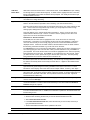
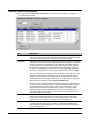
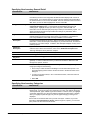
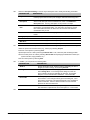
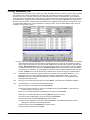
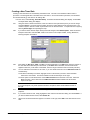
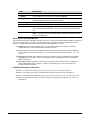
FIELD
DESCRIPTION
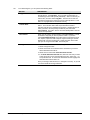
New
Add a new inventory category by selecting New
Delete
Delete an item by highlighting the category, and selecting Delete. Deleting
categories does not delete the categories from the inventory. Styles attached to a
category will remain in inventory under the deleted category name.
Image
Attach an image to an item by selecting Image.
Print
Print a breakdown all inventory categories by selecting Print
Exit
Close and exit the window by selecting Exit
76 • Move.It! Module
Run.It! Retail Software System