1
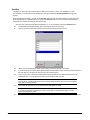
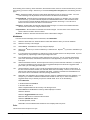
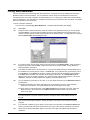
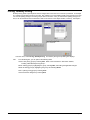
To view inventory reports, do the following:
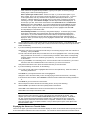
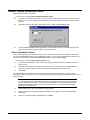
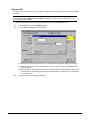
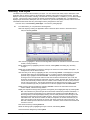
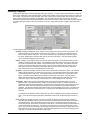
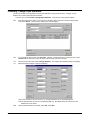
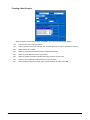
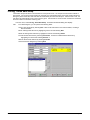
From the menu, select Inventory, Reports. The Inventory Reports window displays.
159.
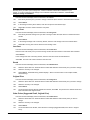
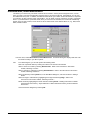
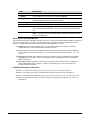
Select the button for the type of report you want to view (On Hand, History, On Order, To Reorder, Fill In).
160.
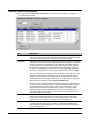
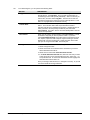
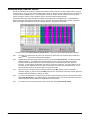
In the fields provided, enter any criteria with which you want to limit the report information. You may further
limit On Hand, History, and On Order reports by selecting on the Show only what’s in stock checkbox. For
the Fill In report, enter the range of transaction dates in the Transaction Dates fields.
161.
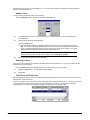
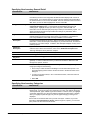
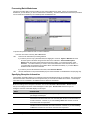
If you select Combine Stores, the report will not be broken-down by stores and therefore the quantities for
each style will be a total for all stores.
162.
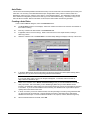
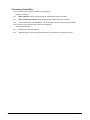
For the On Hand, History, On Order and Fill In reports you have the option to Hide Costs and Totals. If this
is selected, no costs appear on the report and neither will the Total Retail Value.
163.
For these four reports, you also have the option of showing the full category breakdown for each style on
the report. If you want the categories displayed on the report, select Show Categories.
164.
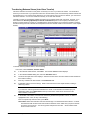
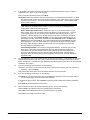
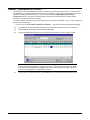
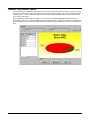
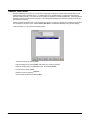
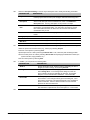
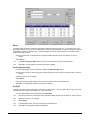
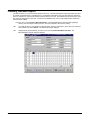
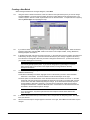
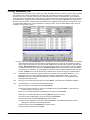
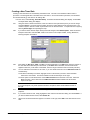
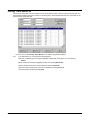
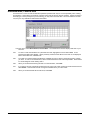
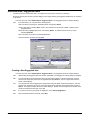
When you are ready to view the desired report, select Run Report. A new window is opened and your
report displays (looking something like that shown below).
Run.It! Retail Software System
Move.It! Module • 51