1
the importation mechanisms explained in this section.
4.2.1. Import process
The usual way to enter data into the data base is by importing them from sources external to EQ-Control. Electronic
worksheets, data bases, palm files or other files can become data sources. Importation process is rather simple, just
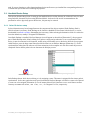
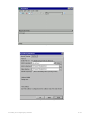
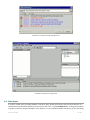
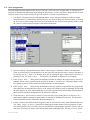
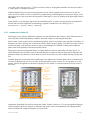
locate the files and/or folders you wish to import and drag them over EQ-Control, Import data dialog will show up
as in Illustration 13, here you’ll be able to check the files’ list before importation process begin.
When the import list is rather large or the files are distributed in many folders, one may drag a directory over the
program’s main screen. EQ-Control will go over the directory and folders adding the files that can be imported.
Searching inside many levels of folders is known as recursive scan and can be enabled in the Options tab in the
"Import data" dialog.
By clicking the check box next to any of the files you may exclude it from importation. Once all files are ready for
import, press the Import button. EQ-Control will import them one at a time in the same order as they were listed,
then as the process goes on it’ll show an event log at the bottom of the screen. New data will be shown in the
Collected data panel.
Illustration 13: Import data dialog
4.2.2. Import restrictions
The files you wish to import need to comply with certain restrictions. EQ-Control allows only three file formats:
comma separated values (.csv), palm (.pdb) and text records (.eqea) files. Microsoft Excel 97-2003 (.xls),
OpenDocument Spreadsheet (.ods), Stata (.dta) and possibly SQLite3 (.db3) files may be supported in the future.
A comma separated values file (CSV) is a table transferred to a text file, each line is a row and each column is
separated by a comma. A CSV file’s first line is special and has the names of the columns. Below is a hypothetical
4.Survey control
14 / 24