1
Installation
Topaz ReMask
User Manual
Topaz ReMask is a plug-in, which means it won’t run by
itself and requires a compatible host editor.
Installation
1. Exit Photoshop or any other image editing program if
it is open.
2. Open the Topaz ReMask .dmg or .exe file, doubleclick on the Topaz ReMask installer and then follow the
on-screen instructions.
Mac Dmg Windows Exe
Entering your license key
1. To activate the program, open ReMask and select
Menu-> Enter Key (bottom left corner).
2. Enter or copy & paste your 30-digit license key to
start your trial or activate the program. (Be sure that
you have not copied any extra spaces).
3. If you are running trial mode, to switch to the full
version all you need to do is enter your full license key.
You do not need to uninstall the current software as
the only difference between the full and trial version is
the key used to activate the program.
To install ReMask on a second computer, you will need to download Topaz ReMask from topazlabs.com/downloads and then
enter your license key.
3. After installation is complete, open Photoshop and
ReMask will be located in the Filter menu.
4. See our FAQ’s (page 56) for additional support.
Please see our knowledge base at topazlabs.com/support should you need any additional installation assistance not answered in the FAQ’s.
Important Note:
While the Topaz plug-ins work in a variety of host editors, ReMask is not compatible with Lightroom, Aperture or iPhoto, as it requires layers and transparency
to function. Therefore, ReMask will not appear in the
external editor Fusion Express.
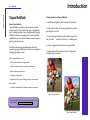
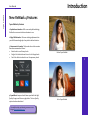
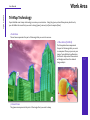
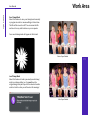
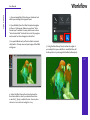
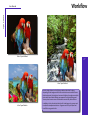
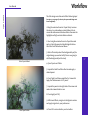
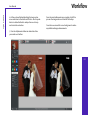
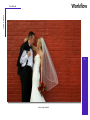
Before Topaz ReMask
After Topaz ReMask
The Topaz plug-ins require that your image be 8bit or 16bit
and in RGB mode. The plug-in will be greyed out in the Filter
menu if your image is not in this mode. To change it, in Ps go
to Image-> Mode.
3