1
Topaz ReMask
User Manual
“I need a Topaz ReMask 4 trial key.”
Visit www.topazlabs.com/checkout for a trial key.
If you need more time to evaluate, please contact us at:
http://www.topazlabs.com/support for an extended
trial key.
“I can’t find Topaz ReMask 4 in the Photoshop Filters
menu.”
For Windows:
1. Please go to your preferences menu in Photoshop
and select Plug-ins.
2. Check/enable the Additional Plug-ins Folder option
then click Choose.
3. After that, please navigate to: C: \ Program Files and
select the Topaz Labs folder.
4. Then click Choose (or it may say Save/OK) to save
this back to Photoshop.
5. Click OK to save your changes, then restart Photoshop. Once Photoshop opens, go to your Filter
menu and you should be able to access Topaz.
For Mac:
1. Please go to your preferences menu in Photoshop
and select Plug-ins.
2. Check/enable the Additional Plug-ins Folder option
then click Choose.
3. After that, please navigate to: Computer -> Macintosh HD -> Library -> Application Support and select
the Topaz Labs folder.
4. Then click Choose (or it may say Save/OK) to save
this back to Photoshop.
5. Click OK to save your changes, then restart Photoshop. Once Photoshop opens, go to your Filter
menu and you should be able to access Topaz.
Frequently Asked Questions
“If I use the 30-day trial version will I need to uninstall
the trial version before I upgrade to a full version?”
No, there is no difference between the trial and full
version, except for the license key used to activate the
program. To take yourself off trial mode, simply enter
your full license key under Menu-> Enter Key.
“Do you have any other ReMask tutorials?”
Yes, we have plenty of tutorial videos on our YouTube
channel at youtube.com/topazlabs. Also be sure to
check out our tutorials page at blog.topazlabs.com/
tutorials
56
“When I fill my red (cut) areas on my tri-map the
whole image filled with red.”
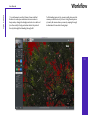
There is most likely a gap somewhere in blue (compute) outline. The blue outline acts like a barrier in order to ensure accurate masking results. Use your undo
button to go back a step then zoom in and pan your
image to find the opening in your blue outline. Once
you locate it, select your blue brush tool and close it
off. Then you can select your red flood fill tool and fill
in the parts of your image that you would like to cut.
I get the error: “You have not selected Compute Mask
to compute your selections. Please click OK to go
back and select Refine Mask. To exit without making
changes to your image please select cancel.”
This is because your tri-map selections have not been
analyzed. You will need to click on the Compute but-