1
Uninstalling
Topaz ReMask
User Manual
To uninstall Topaz ReMask follow these instructions:
3. Select Programs, then Uninstall a Program.
Mac
1. Quit Photoshop (or other editing program).
4. Select Topaz ReMask and click remove.
2. Navigate to Macintosh HD -> Library -> Application
Support -> Topaz Labs. *To find this, go to your desktop and click on Go-> Computer (top menu)
Windows 7*
1. Quit Photoshop (or other editing program).
3. Locate the Topaz ReMask file and move it to the
trash. You will need to enter your system password
to OK this change.
4. Navigate to your Photoshop plug-ins folder located
at: Applications -> Photoshop -> Plug-ins
5. Locate any leftover Topaz ReMask files and move
them to the trash.
2. Click on the Start Menu and select Control Panel ->
Programs -> Programs and Features.
3. Select Topaz ReMask and click uninstall.
*Please note that if you also have the 64-bit version of
ReMask installed, then you will need to first uninstall
this version before you can uninstall the regular version.
Windows XP*
1. Quit Photoshop (or other editing program).
2. Click on the Start Menu and select Control Panel.
3. Double-click on Add / Remove programs.
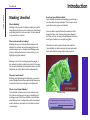
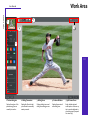
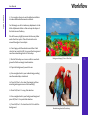
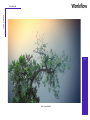
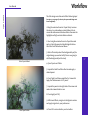
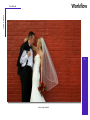
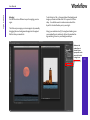
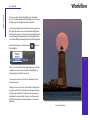
Before Topaz ReMask
4. Select Topaz ReMask and click remove.
Windows Vista*
1. Quit Photoshop (or other editing program).
2. Click on the Start Menu and select Control Panel.
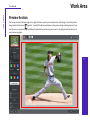
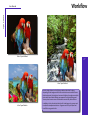
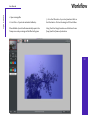
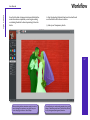
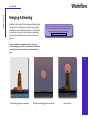
After Topaz ReMask
5