1
System
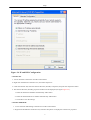
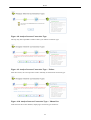
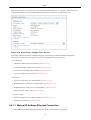
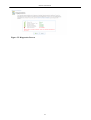
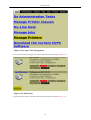
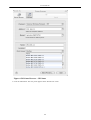
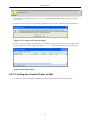
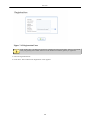
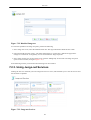
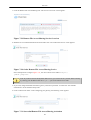
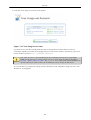
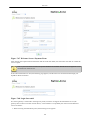
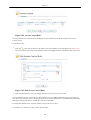
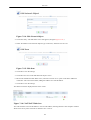
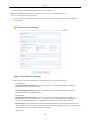
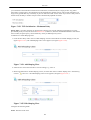
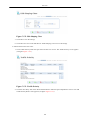
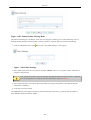
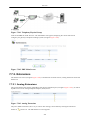
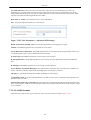
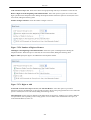
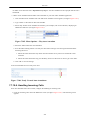
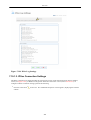
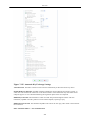
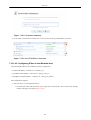
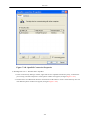
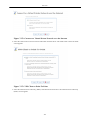
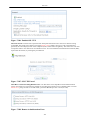
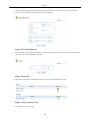
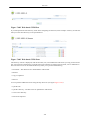
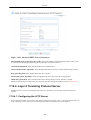
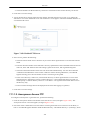
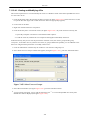
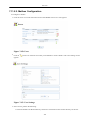
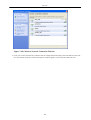
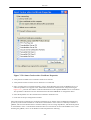
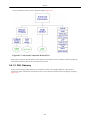
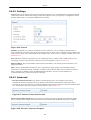
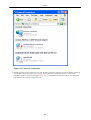
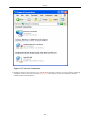
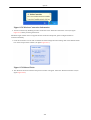
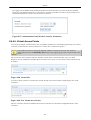
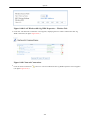
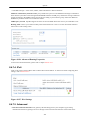
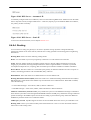
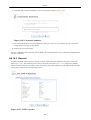
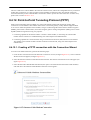
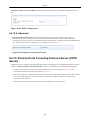
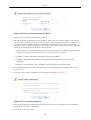
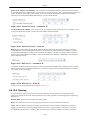
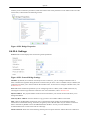
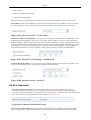
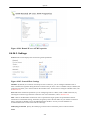
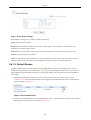
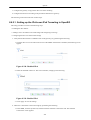
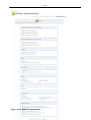
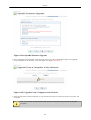
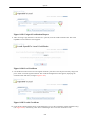
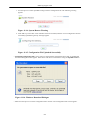
Figure 8.75. Available Wireless Connections
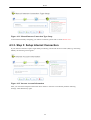
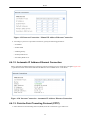
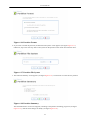
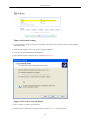
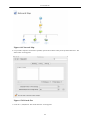
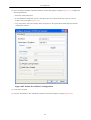
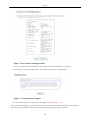
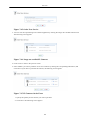
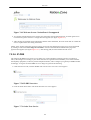
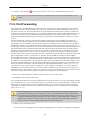
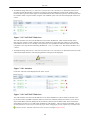
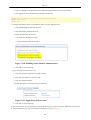
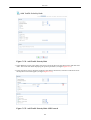
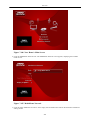
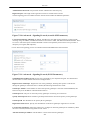
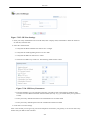
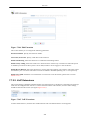
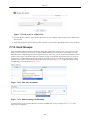
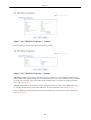
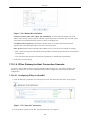
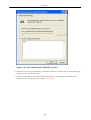
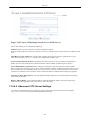
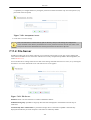
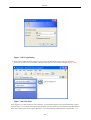
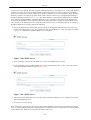
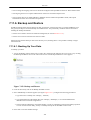
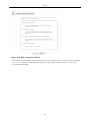
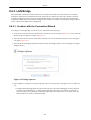
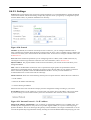
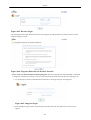
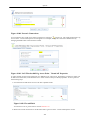
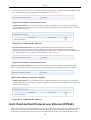
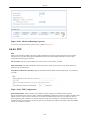
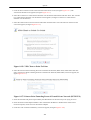
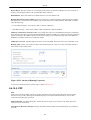
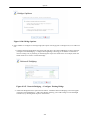
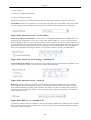
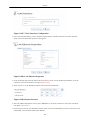
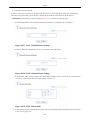
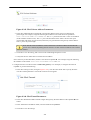
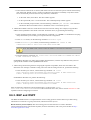
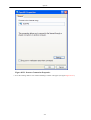
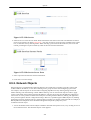
3. Click the connection once to mark it and then press the 'Connect' button at the bottom of the screen. The
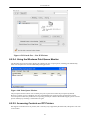
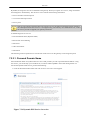
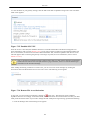
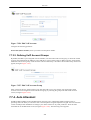
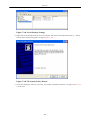
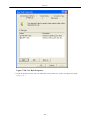
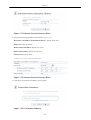
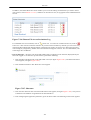
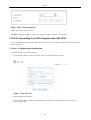
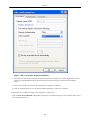
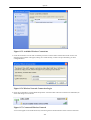
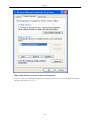
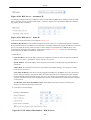
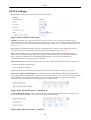
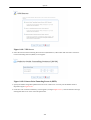
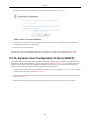
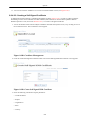
following login window will appear, asking for a 'Network Key', which is the pre-shared key you have
configured above.
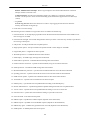
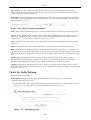
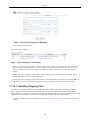
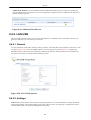
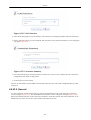
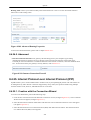
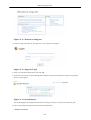
Figure 8.76. Wireless Network Connection Login
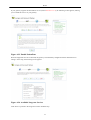
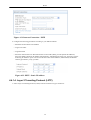
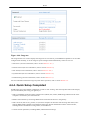
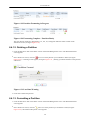
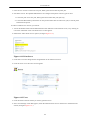
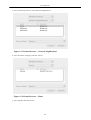
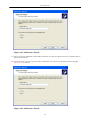
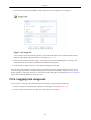
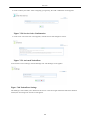
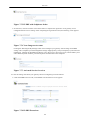
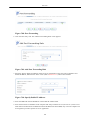
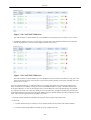
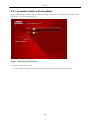
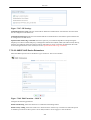
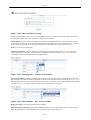
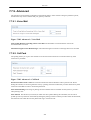
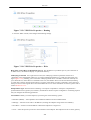
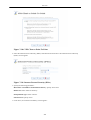
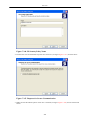
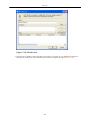
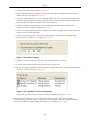
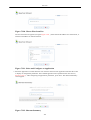
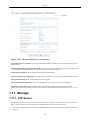
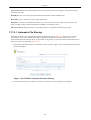
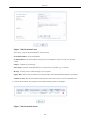
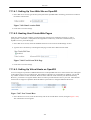
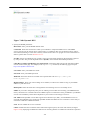
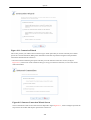
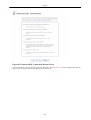
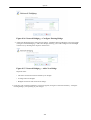
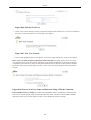
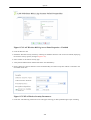
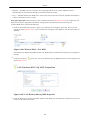
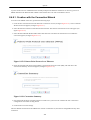
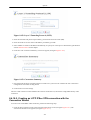
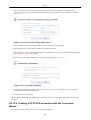
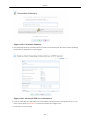
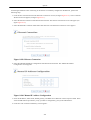
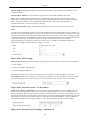
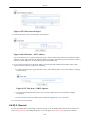
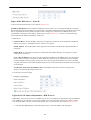
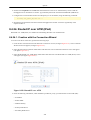
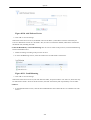
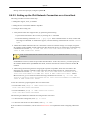
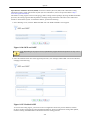
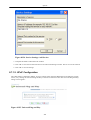
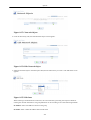
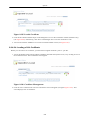
4. Enter the pre-shared key in both fields and press the 'Connect' button. After the connection is established, its
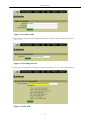
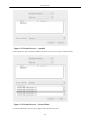
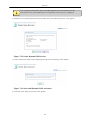
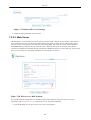
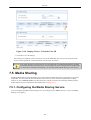
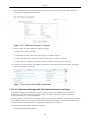
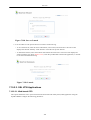
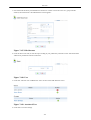
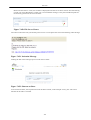
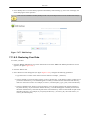
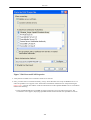
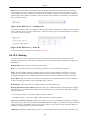
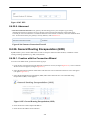
status will change to 'Connected':
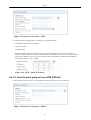
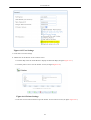
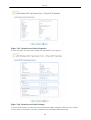
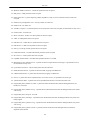
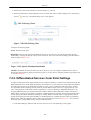
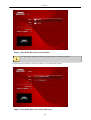
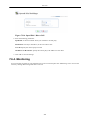
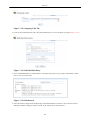
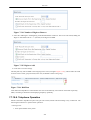
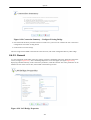
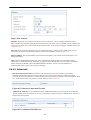
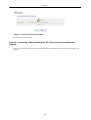
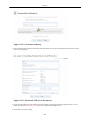
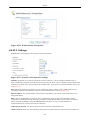
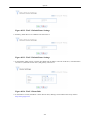
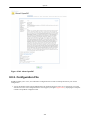
Figure 8.77. Connected Wireless Network
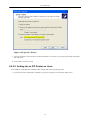
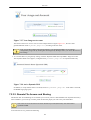
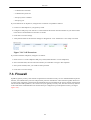
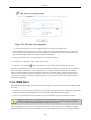
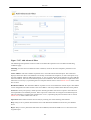
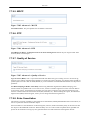
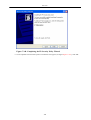
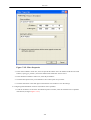
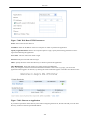
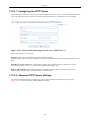
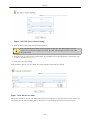
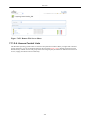
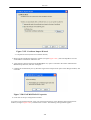
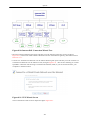
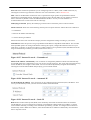
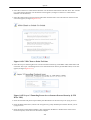
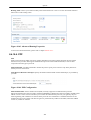
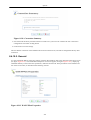
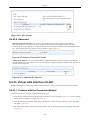
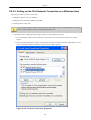
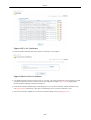
An icon will appear in the notification area, announcing the successful initiation of the wireless connection.
443