1
REVISED DECEMBER 2007
COMMON CONCERNS
CONSULT YOUR USERS MANUAL FOR COMPLETE LISTINGS
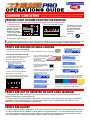
PRINTER IS NOT IN HOME POSITION FOR PRINTING
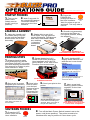
1. Using the User Interface Manually set the printer into it’s home position.
1. Arrow over to
MODE SELECT
the Mode Select
screen. Press the
--------------- - dial to point to
--------------------- -------- -- --------------------------- --- ---MANUAL Mode.
This is also where you HOME
to select the
amount of print passes.
2. Press the right arrow.
MANUAL
AUTO
Pad
Enabled
1
5
2
6
3
7
4
8
Progress:
3. Press the HOME button.
vious screen. Set
the Mode Select
back to AUTO to
continue
printing.
AUTO
MANUAL MECHANISM MOVEMENT UTILITY
JOG
POSITION
FOR.
REV.
HOME
INDEX
NEST
--------------- - - --------------------- - -------- -- ------------- --------------- --- ---- ------ ---------------- - - --------------------- - -------- -- ------------- --------------- --- ---- ------ --
0%
PASS SELECT
----------- - --- - ---------------- - -------- -- -------------
HOME
4. Return to the pre-
“AUTO” MODE
The printer will go to it’s Home position.
2. If Solution #1 did not work, check the LCD Screen for an error: Ink Cartridge Ready, Empty, No
Cartridge or No Maintenance Tank. Consult the Troubleshooting chapter of the Users Manual.
PRINTS ARE WASHED OR WEAK LOOKING
2. Wait for Cleaning to finish.
CLEANING
1. Perform a Head Cleaning.
1
1. On the LCD Control Panel, press and hold the Right/Enter Key for 3 seconds.
2. Perform a Nozzle Check.
1. Confirm that the printer is in it’s Home
Position. If it isn’t, see steps above.
2. On the LCD Control Panel,
press the Left Arrow Button twice.
The LCD Display will read
READY with a SHEET icon.
READY
1
* This is the only setting that will allow
you to move the printer assembly freely.
3. Set the User Mode to MANUAL
(see first step on this page).
4. On the User Interface, arrow over
to the MAINTENANCE MECHANISM
MOVEMENT UTILITY screen.
MANUAL MECHANISM MOVEMENT UTILITY
JOG
POSITION
FOR.
REV.
HOME
INDEX
NEST
--------------- - - --------------------- - -------- -- ------------- --------------- --- ---- ------ ---------------- - - --------------------- - -------- -- ------------- --------------- --- ---- ------ --
HOME
“AUTO” MODE
5. Lay a sheet of film (included
with kit) on the shirtboard
closest to the front of
the machine.
10. Press the RIGHT arrow.
TEST PRINT
NOZZLE CHECK
NOTE: Make sure that the sticky side of film
is up or ink won’t stick.
6. Go back to the User
Interface and press the
INDEX button.
INDEX
7. Next, on the LCD Control Panel,
press the left arrow button twice.
The LCD Display will read
READY with a ROLL icon.
READY
1
8. Press the RIGHT arrow.
11. Press the RIGHT arrow.
NOZZLE CHECK
PRINT
12. Press the RIGHT arrow again
to start the Nozzle Check.
PRINTING
1
13. The printout should look like picture below.
If there are missing areas, perform another
head cleaning or 2 and another nozzle check.
PRINTER SETUP
9. Press the DOWN arrow.
TEST PRINT
14. If nozzle checks are still bad, you may need
to use cleaning cartridges or perform a Power
Cleaning. See User’s Manual for details.
PRINTS ARE OUT OF REGISTER OR HAVE LINES (BANDING)
1. Clean Encoder Strip and Spit Tray (see maintenance section). Check Capping Station and
Wiper for build-up or loose fibers etc.
2. If above did not solve problem, the printer may need a head alignment. Has the printer been
bumped or move around lately or has the print head come in contact with any object? See
manual for print head alignment instructions.
PRINTS ARE BLURRY
1. Clean Capping Station and Wiper, Spit Tray and the Print Head Area (see maintenance section).
2. If above did not solve problem, check platen to head clearance. The print head may be too far
from the garment to get a sharp print. Adjust as needed but always keep at least 3mm of clearance (see manual for details on adjusting the Platen to Head Clearance).