1
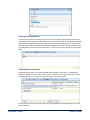
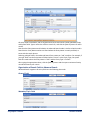
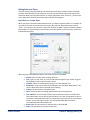
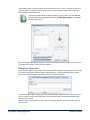
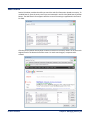
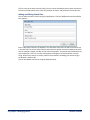
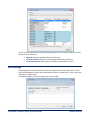
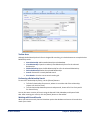
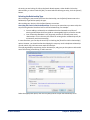
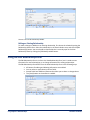
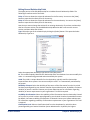
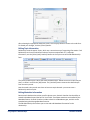
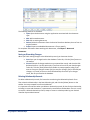
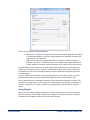
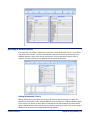
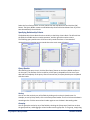
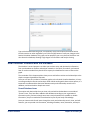
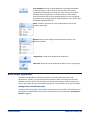
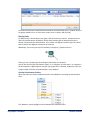
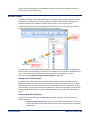
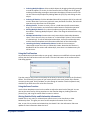
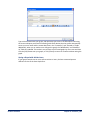
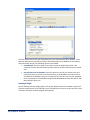
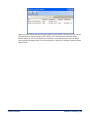
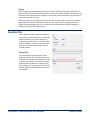
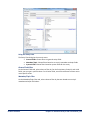
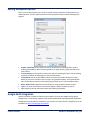
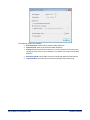
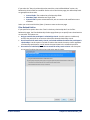
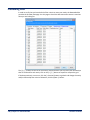
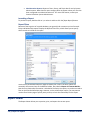
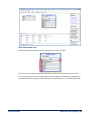
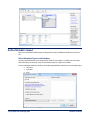
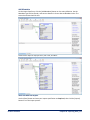
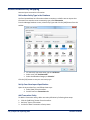
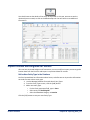
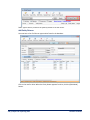
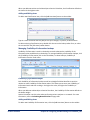
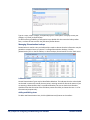
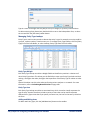
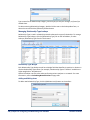
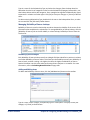
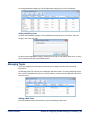
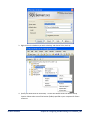
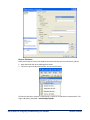
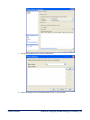
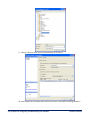
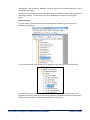
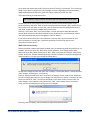
You can filter your data by up to three sets of Type/Entity Type filters. In the Type field, select the Metadata Type on which you want to filter. Next, enter a value in the Value field. Finally, select the Entity Type to which the filter applies. For example, if your database has both mobile phones and land-line phones, then perhaps you might want to display only mobile phones. In other words, you want to filter out everything except mobile phones: in the TYPE field, choose “Type of Phone” in the VALUE field, enter: Mobile in the ENTITY TYPE field, choose “Phone Number” In other words, apply the “mobile” type of phone filter against entity types that are phone numbers. Using the CONDITION option, you could add a second filter with AND or OR. Perhaps you want to see fax machines in addition to mobile phones. So, for Condition, choose “OR” and then in the TYPE field, choose “Type of Phone” in the VALUE field, enter: Facsimile in the ENTITY TYPE field, choose “Phone Number” You can also filter by Topic in this tab. Simply check or uncheck Topic values to create your Topic filter. Enabling and Disabling the Entity Filter To enable your filter, check the [Enable] checkbox. All entities that do not match the criteria you defined are hidden from view. Uncheck the [Enable] checkbox and all entities reappear. It is important to note that the filter merely shows and hides entities—it does not delete them from the graph, nor does it have any impact on the entity saved in the database. Relationship Filter Similarly, you can filter out relationships based on a variety of criteria. Click the [Define] hyperlink and the Define Relationship Filter form appears. 116 Chapter 11: Advanced Analysis and Visualization Sentinel Visualizer