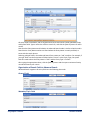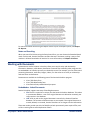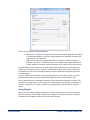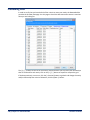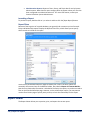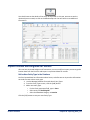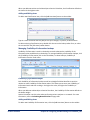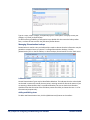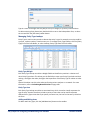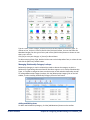
1
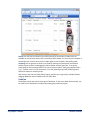
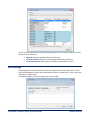
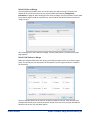
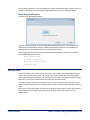
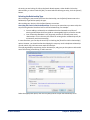
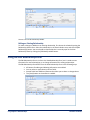
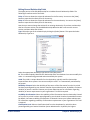
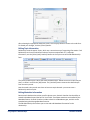
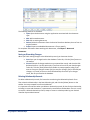
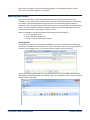
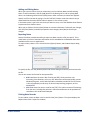
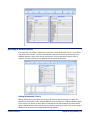
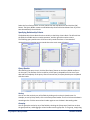
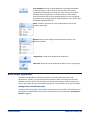
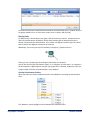
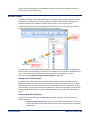
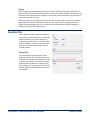
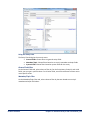
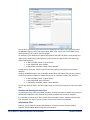
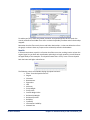
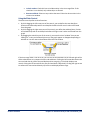
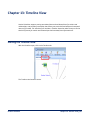
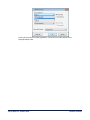
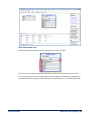
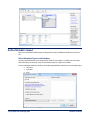
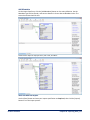
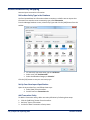
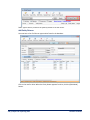
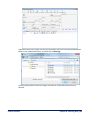
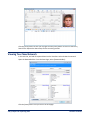
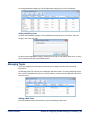
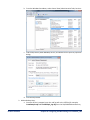
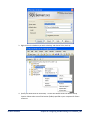
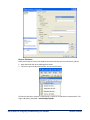
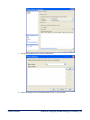
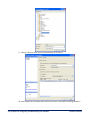
Viewing or Editing a Relationship Click on a relationship in the Search Results area to select it. Once the relationship is selected, you can view or edit the relationship either by double-clicking on it, or by clicking the appropriate button on the toolbar. Deleting a Relationship You can delete a relationship by selecting it in the Search Results grid, and clicking the [Delete] button on the toolbar. It is important to know that when you delete a relationship record, all data for that relationship, including its notes and documents, is permanently removed from the database. There is no way to recover a deleted relationship record, except to revert to a backup made by your Sentinel Visualizer System Administrator. Grid Options A variety of options are available for the search results grid. Sorting Sort on any field by clicking on the column’s header. For example, to sort by Classification Level, simply click on the Classification Level header. The first click sorts the data in ascending order. Click the same column header again to sort the data in descending order. Grouping You can group the results by any of the fields. First, check the [Group Area] check box to show the group area bar. Then click on a column header and drag it to the group area. To un-group, drag the column header back to the row of column headers. You can group on multiple fields by dragging additional column headers onto the Group Area. Each group appears with a [+] / [−] button next to it. Click the button, or use the [Expand groups] and [Collapse groups] links to expand or collapse groups. You can also sort fields with grouping. Table versus Card View The default view for the grid is Table View. To see more details about a particular relationship, you can switch from Table View to Card View by selecting the [CardView] option. Then use the [Expand groups] and [Collapse groups] options to see an expanded or condensed view of the data. Viewing Relationship Information The View Relationship form shows a complete list of information available for the relationship. You can open the View Relationship form through a variety of program functions: From the Relationship Search form, double-click on any relationship in the Search Results. From the Visualizer, double-click on any relationship in the display. On various other forms in the system, click the [View Relationship] button. When you open the View Relationship form, you can see that it is organized into several key areas that help categorize information about the relationship. 50 Chapter 6: Relationships Sentinel Visualizer