1
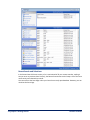
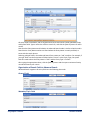
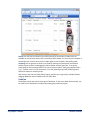
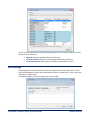
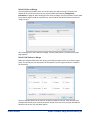
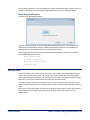
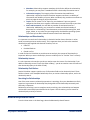
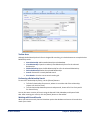
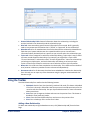
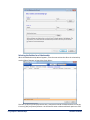
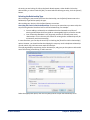
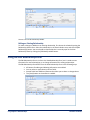
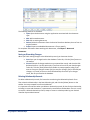
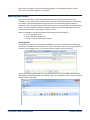
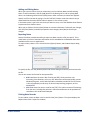
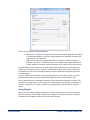
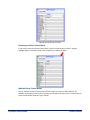
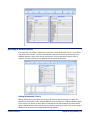
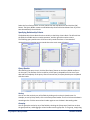
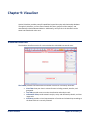
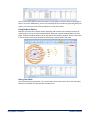
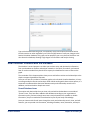
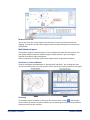
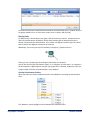
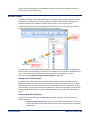
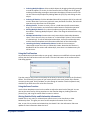
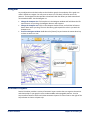
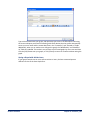
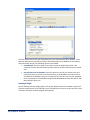
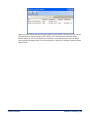
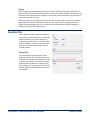
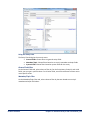
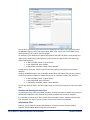
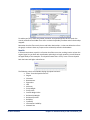
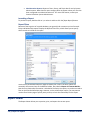
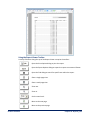
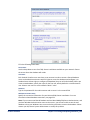
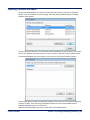
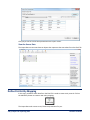
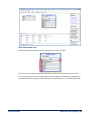
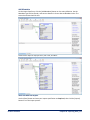
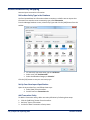
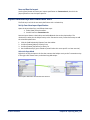
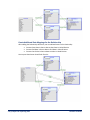
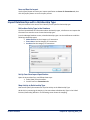
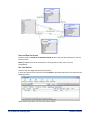
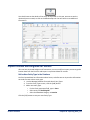
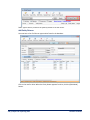
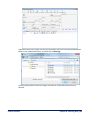
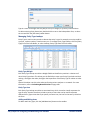
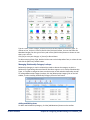
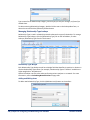
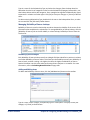
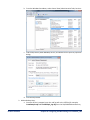
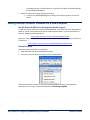
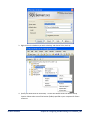
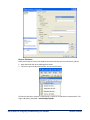
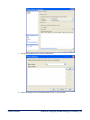
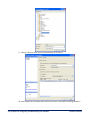
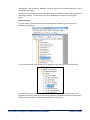
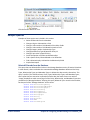
Chapter 5: Compare, Merge and Clone Entities As you work with entities, you may find similar or duplicate data. This chapter describes how to compare, merge, and clone entities. Entity Compare The Entity Compare tool allows you to see the metadata records for two or more entities side by side. This is useful when you are looking for similarity between entities or trying to find potential duplicate entities. By looking at metadata side by side, you can see patterns such as two different entities having the same driver’s license number or phone number. Choose the Entities to Compare To run Entity Compare, click [Entity Compare] from the Start Page. Use the [Add Entity] button to add two or more entities for comparison. This opens the standard Entity Picker form that uses the search features described in Viewing Entity Information on page 20. Each entity you add appears in the Selected Entities area of the form. You can use the [Clear Entity] button to remove the selected entity from the list, or the [Clear All] button to remove all entities from the list and start the selection process over. Comparison Results After selecting the entities to compare, click the [OK] button. Sentinel Visualizer compares the metadata values for the entities and displays the results in a grid. Sentinel Visualizer Chapter 5: Compare, Merge and Clone Entities 41