1
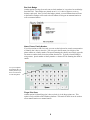
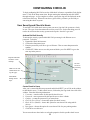
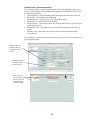
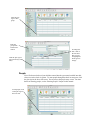
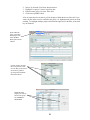
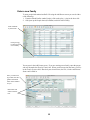
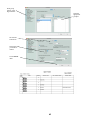
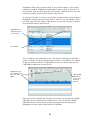
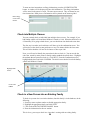
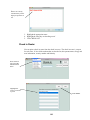
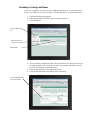
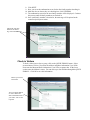
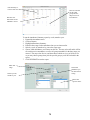
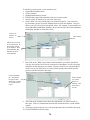
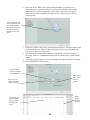
Highlight the family that is present to check in. Press the Next button. A list of family
members is presented. Highlight the students that are there to check in. Note the “List
only Children” check box in the lower left of this window. Mark this box if you are only
checking in children. Press the NEXT button to check them in.
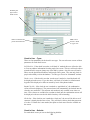
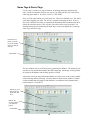
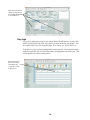
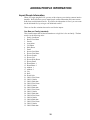
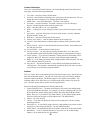
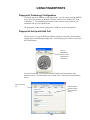
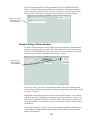
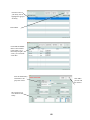
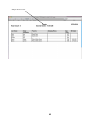
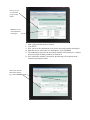
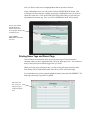
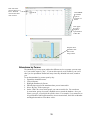
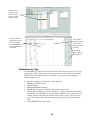
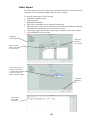
If “return by individual” is selected, a list of people with that last name will be displayed.
Highlight the students that are present to check in. Note the “List only Children” check
box in the lower left of this window. Mark this box if you are only checking in children.
Press the NEXT button to check them in.
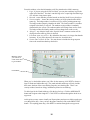
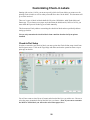
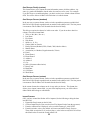
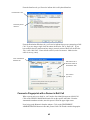
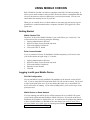
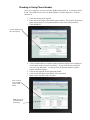
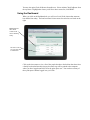
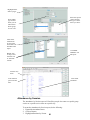
Highlight the students that are present to check in.
Click NEXT.
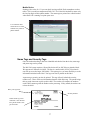
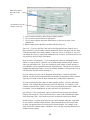
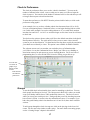
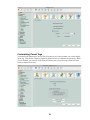
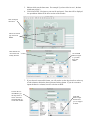
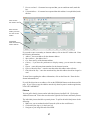
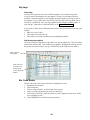
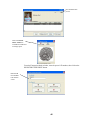
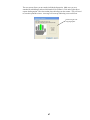
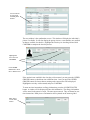
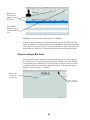
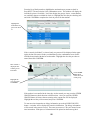
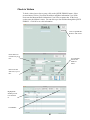
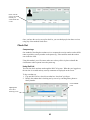
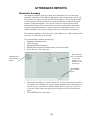
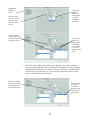
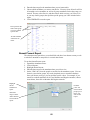
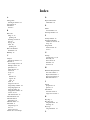
The next window is the confirmation screen. This window will display the individual’s
picture if available. It will also display the groups, classes, events that they are enrolled
in, that are available for check in. Highlight the class they are checking into and click
CONFIRM to complete the check in process.
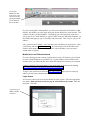
Highlight the class
she is checking into,
then click CONFIRM.
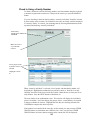
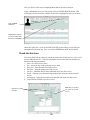
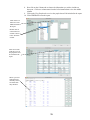
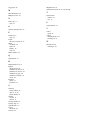
Click OTHER
GROUPS to
see all classes
meeting at
this time.
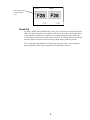
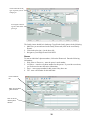
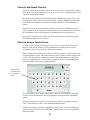
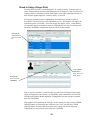
If the student is not enrolled in the class they wish to attend, you may press the OTHER
GROUPS button, to check them into a different class. Once you press the OTHER
GROUPS button, all classes that are meeting at the current time will be displayed.
Highlight the one they wish to attend, and press CONFIRM
51