1
ONESOURCE ®
ONESOURCE TAX PROVISION
CHAPTER 2: CATEGORIES SET-UP
Unit Sub-Consolidations
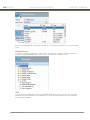
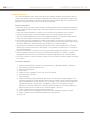
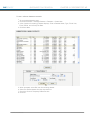
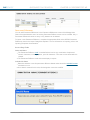
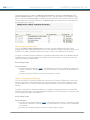
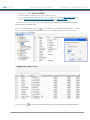
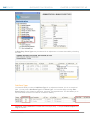
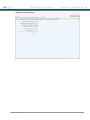
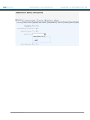
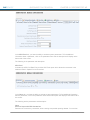
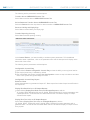
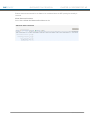
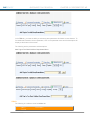
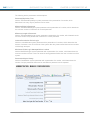
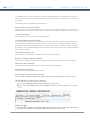
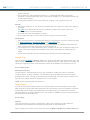
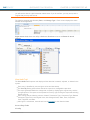
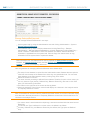
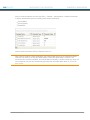
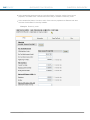
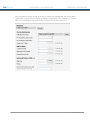
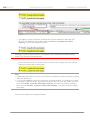
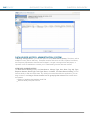
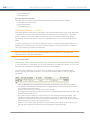
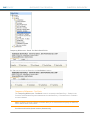
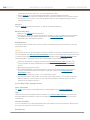
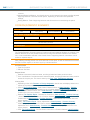
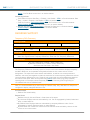
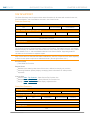
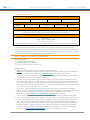
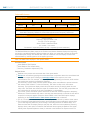
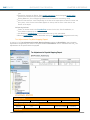
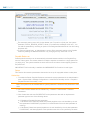
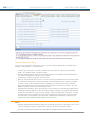
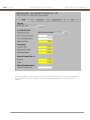
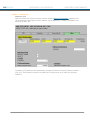
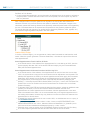
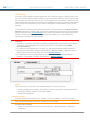
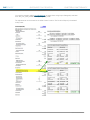
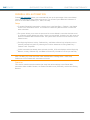
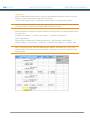
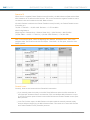
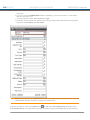
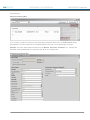
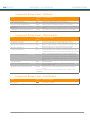
You can add, update, and Delete sub-consolidations in the Unit Sub-Consolidations screen of the
manage units folder in the administration area. An existing sub-consolidation name, as well as the
associated units, can be modified. Sub-consolidations can be deleted, but use care because they
are not recoverable.
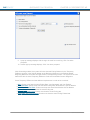
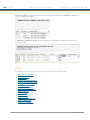
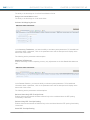
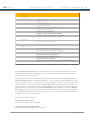
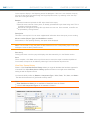
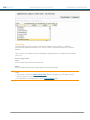
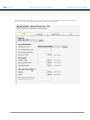
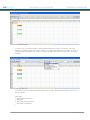
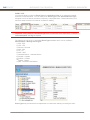
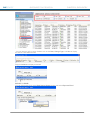
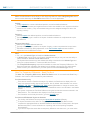
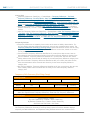
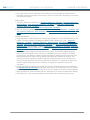
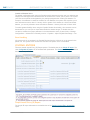
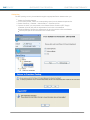
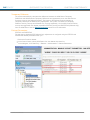
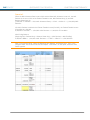
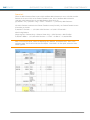
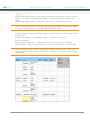
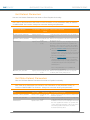
To import a new Sub-Consolidation, complete the appropriate fields on the #CSC#
SubConsolidations sheet in the Import Categories template. Additionally, you can create a sheet
named #CSC2#, which allows the ability to create and populate multiple sub-consolidations for a
unit. Column A should have the Unit Code and Columns B through IV should have the CSCs in
which the unit should be included.
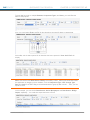
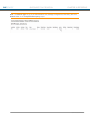
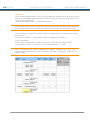
Existing unit designation in a CSC is replaced, not appended, when the #CSC2# is imported. This
sheet does not export when categories are exported and is not in the standard template for import
categories. For more information on importing, refer to the Importing Templates documentation.
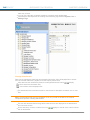
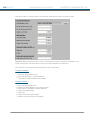
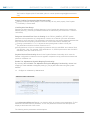
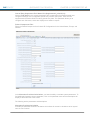
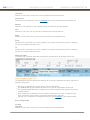
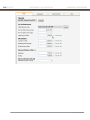
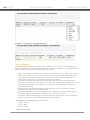
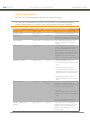
Screen Entry Fields
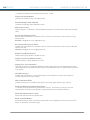
Description
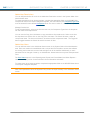
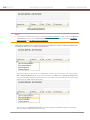
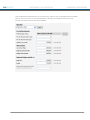
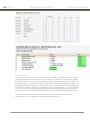
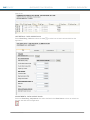
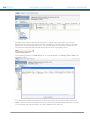
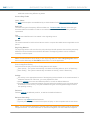
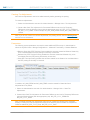
The name is user-defined and can be any combination of alpha and numeric characters, including
spaces, up to 60 characters. The name can be edited after it is created.
The name displays in the Report Level of the Control Center and the header of reports for subconsolidation.
There is no limit to the number of sub-consolidations that can be created.
CSC Sub-Consolidations have specific naming requirements.
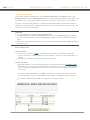
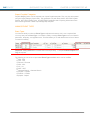
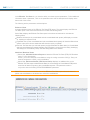
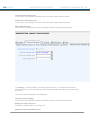
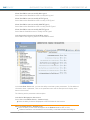
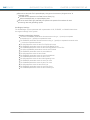
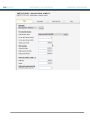
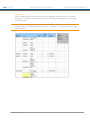
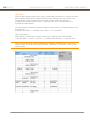
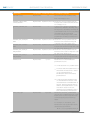
Member?
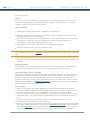
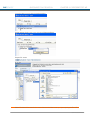
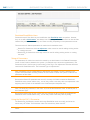
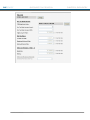
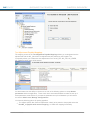
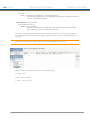
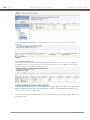
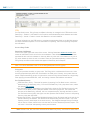
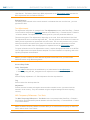
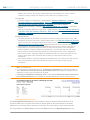
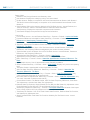
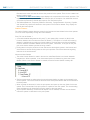
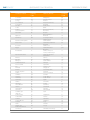
Each unit must be assigned to the Sub-Consolidation either by clicking the Member? check box or
by creating a new line on the Import template.
52
® 2011 Thomson Reuters