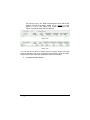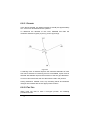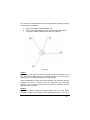
1
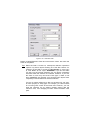
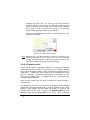
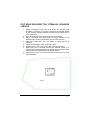
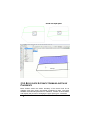
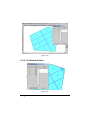
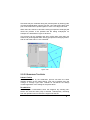
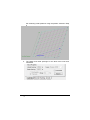
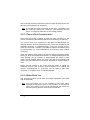
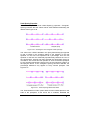
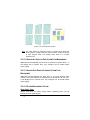
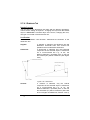
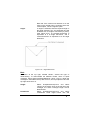
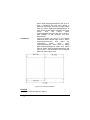
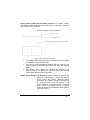
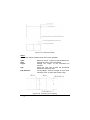
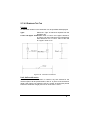
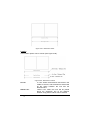
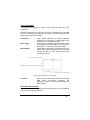
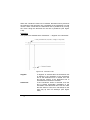
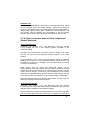
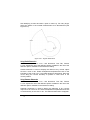
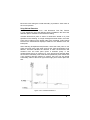
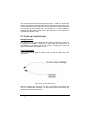
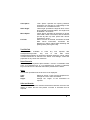
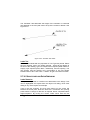
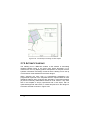
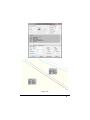
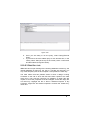
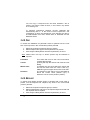
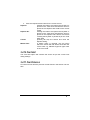
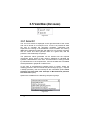
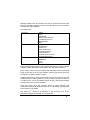
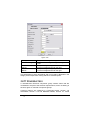
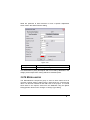
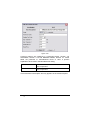
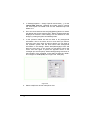
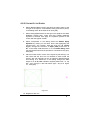
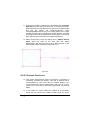
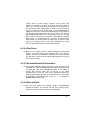
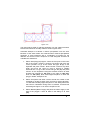
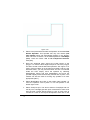
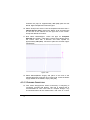
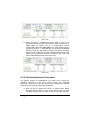
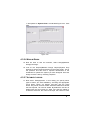
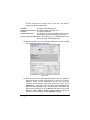
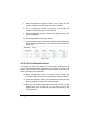
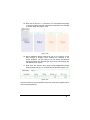
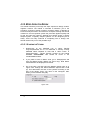
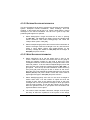
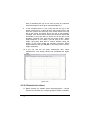
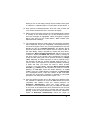
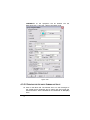
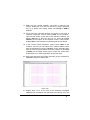
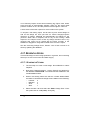
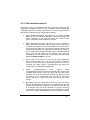
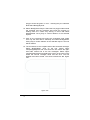
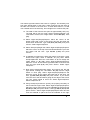
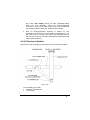
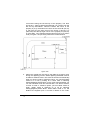
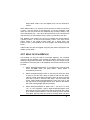
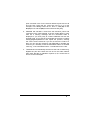
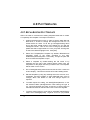
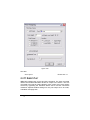
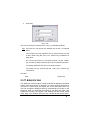
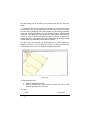
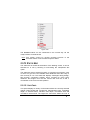
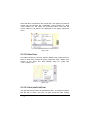
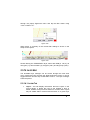
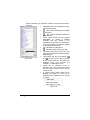
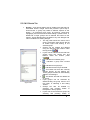
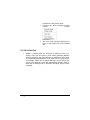
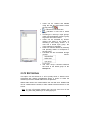
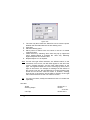
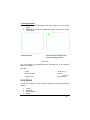
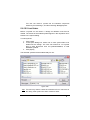
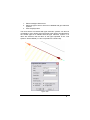
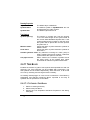
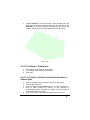
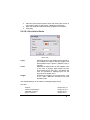
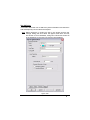
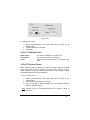
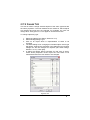
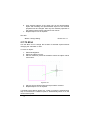
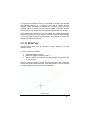
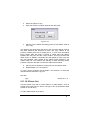
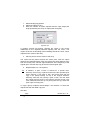
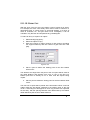
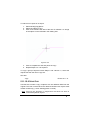
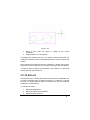
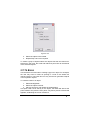
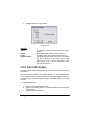
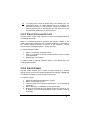
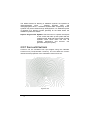
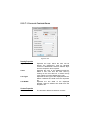
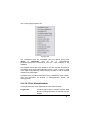
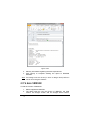
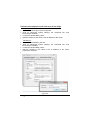
2. Select Right-click|Snaps|Perpendicular. 3. Click the target object. 4. Now set the starting point of the line. Click to place the starting point. If the user requires the starting end of the constrained line to move freely on the target object, click any point without using a snap command. Then a rubberband line connects the target object to the cursor. This line moves and Stretches as the user moves the cursor, always maintaining a perpendicular relationship between the rubberband line and the target object. If the user wants the perpendicular line to originate on a specified point on the target object or elsewhere use another snap command to start the line. The snap determines a fixed starting point of the new line, which is free to Stretch along its axis, but not move laterally. 5. Click a point to terminate the line, or type a required length of the line. See also: Section 5.1.3 Snaps 5.1.3.5 PERCENT Use the Right-click|Snaps|Percent command when a required point is located along an object at a distance from the end equal to a specified percentage of the length of the target object. This can be used on lines, continuous lines, and arcs available from the Draw Menu. To use the Percent command: 1. When prompted for a point in any command, select Rightclick|Snaps|Percent. 2. Click the target object on which the point is to be set. The end nearest the point picked is the 0% end of the target object, and the opposite end is the 100% end. 3. Type the required percent of the length of the target object. Click [OK]. 4. Click on the target line near the end the user wishes the percentage to be measured from. Tips: Do not type the percent symbol (%). IRRICAD User Guide Tool and Command Reference 483