1
NXPowerLite is able to remove this data
while leaving a valid PDF file and without
compromising the visual quality of the file.
Some editing features may be disabled,
but often the PDF file can still be edited
in Illustrator or Photoshop since those
applications can read PDF natively.
In most cases, we recommend enabling this
option as it is likely to produce substantial
size reductions in some PDF files.
Checking the 'Don't ask me this question
again'
box will prevent NXPowerLite
from asking you whether you want to
delete private application data in future.
NXPowerLite will remember whether you
selected 'Yes' or 'No' and use this as the
default setting. You can change the default
setting at any time by selecting 'Settings'
from NXPowerLite's 'Tools' menu and
clicking on the 'Hidden Content' tab.
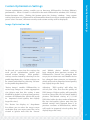
Custom Optimization Settings
PDF: Delete private application data
PDF editing applications such as Adobe
Acrobat,
InDesign,
Illustrator
and
Photoshop can store editing information
inside a PDF file which can considerably
increase the file size.
Optimized Files Tab
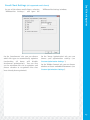
By default, NXPowerLite will save an
optimized file in the same folder as the
original and add '(NXPowerLite)' to the
optimized file's name. You can change
this behavior by selecting 'Settings' from
NXPowerLite's 'Tools' menu and clicking
on the 'Optimized Files' tab, or by clicking
the 'Edit' button in the 'Settings' area of the
main NXPowerLite window.
If you'd prefer to save your optimized files in
a different folder, select 'Single folder'.
The address bar and 'Browse...' button will
then become active. Type the new folder
path or click the 'Browse..' button and
browse to the folder.
Check the 'Save optimized file with same
name as original' box if you'd like to keep
the original file name.
Clicking the 'Naming...' button opens the
'Optimized File Naming' window:
7.