1
If you installed NXPowerLite with a 'Typical'
or 'Complete' setup (or ticked the 'Outlook®
Integration' box during a 'Custom' setup),
Microsoft® Outlook® integration will be
enabled.
Whenever you send an email with an
attachment that NXPowerLite can optimize,
it will be automatically optimized as the
email is sent.
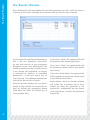
If you don't want NXPowerLite to optimize
an attachment, click the 'NXPowerLite
On' button that appears on Outlook®'s
'Message' and 'NXPowerLite' tabs.
The button text will change to 'NXPowerLite
Off' and optimization will be temporarily
disabled. It will be re-enabled the next time
you send an email.
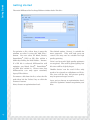
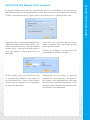
Clicking the 'NXPowerLite Settings' button on
the 'NXPowerLite' tab (or clicking the dialog
box launcher on the 'NXPowerLite' button)
will open the 'NXPowerLite Settings' window:
On the window's 'Attachments' tab, you can
choose which file types to automatically
optimize (unchecking all boxes will disable
attachment optimization). You can also
set the minimum file size to optimize and
choose whether to re-optimize files that
have already been optimized.
On the 'Optimization Level' tab, you can
choose your optimization settings (see
'Custom Optimization Settings' ).
Email Client Integration: Microsoft® Outlook® 2007
Microsoft® Outlook® Integration (Outlook® 2007)
On the 'Embedded Documents' tab, you can
choose whether to flatten embedded documents
(see 'Flattening Embedded Documents').
11.