1
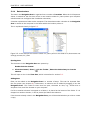
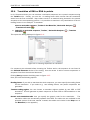
CLC Sequence Viewer
Manual for
CLC Sequence Viewer 6.5
Windows, Mac OS X and Linux
January 26, 2011
This software is for research purposes only.
CLC bio
Finlandsgade 10-12
DK-8200 Aarhus N
Denmark
Contents
I
Introduction
7
1 Introduction to CLC Sequence Viewer
8
1.1
Contact information . . . . . . . . . . . . . . . . . . . . . . . . . . . . . . . . .
9
1.2
Download and installation . . . . . . . . . . . . . . . . . . . . . . . . . . . . . .
9
1.3
System requirements . . . . . . . . . . . . . . . . . . . . . . . . . . . . . . . .
12
1.4
About CLC Workbenches
. . . . . . . . . . . . . . . . . . . . . . . . . . . . . .
12
1.5
When the program is installed: Getting started . . . . . . . . . . . . . . . . . . .
14
1.6
Plug-ins . . . . . . . . . . . . . . . . . . . . . . . . . . . . . . . . . . . . . . . .
15
1.7
Network configuration . . . . . . . . . . . . . . . . . . . . . . . . . . . . . . . .
18
1.8
The format of the user manual . . . . . . . . . . . . . . . . . . . . . . . . . . .
19
2 Tutorials
II
20
2.1
Tutorial: Getting started . . . . . . . . . . . . . . . . . . . . . . . . . . . . . . .
20
2.2
Tutorial: View sequence . . . . . . . . . . . . . . . . . . . . . . . . . . . . . . .
22
2.3
Tutorial: Side Panel Settings . . . . . . . . . . . . . . . . . . . . . . . . . . . .
23
2.4
Tutorial: GenBank search and download . . . . . . . . . . . . . . . . . . . . . .
27
2.5
Tutorial: Align protein sequences . . . . . . . . . . . . . . . . . . . . . . . . . .
28
2.6
Tutorial: Create and modify a phylogenetic tree . . . . . . . . . . . . . . . . . .
29
2.7
Tutorial: Find restriction sites . . . . . . . . . . . . . . . . . . . . . . . . . . . .
31
Core Functionalities
34
3 User interface
35
3.1
Navigation Area . . . . . . . . . . . . . . . . . . . . . . . . . . . . . . . . . . .
36
3.2
View Area . . . . . . . . . . . . . . . . . . . . . . . . . . . . . . . . . . . . . . .
43
3
CONTENTS
4
3.3
Zoom and selection in View Area . . . . . . . . . . . . . . . . . . . . . . . . . .
49
3.4
Toolbox and Status Bar . . . . . . . . . . . . . . . . . . . . . . . . . . . . . . .
50
3.5
Workspace . . . . . . . . . . . . . . . . . . . . . . . . . . . . . . . . . . . . . .
52
3.6
List of shortcuts . . . . . . . . . . . . . . . . . . . . . . . . . . . . . . . . . . .
53
4 User preferences and settings
56
4.1
General preferences . . . . . . . . . . . . . . . . . . . . . . . . . . . . . . . . .
56
4.2
Default view preferences . . . . . . . . . . . . . . . . . . . . . . . . . . . . . .
57
4.3
Advanced preferences . . . . . . . . . . . . . . . . . . . . . . . . . . . . . . . .
60
4.4
Export/import of preferences . . . . . . . . . . . . . . . . . . . . . . . . . . . .
60
4.5
View settings for the Side Panel
61
. . . . . . . . . . . . . . . . . . . . . . . . . .
5 Printing
64
5.1
Selecting which part of the view to print . . . . . . . . . . . . . . . . . . . . . .
65
5.2
Page setup . . . . . . . . . . . . . . . . . . . . . . . . . . . . . . . . . . . . . .
66
5.3
Print preview . . . . . . . . . . . . . . . . . . . . . . . . . . . . . . . . . . . . .
67
6 Import/export of data and graphics
6.1
Bioinformatic data formats . . . . . . . . . . . . . . . . . . . . . . . . . . . . .
68
6.2
External files . . . . . . . . . . . . . . . . . . . . . . . . . . . . . . . . . . . . .
75
6.3
Export graphics to files . . . . . . . . . . . . . . . . . . . . . . . . . . . . . . .
75
6.4
Export graph data points to a file . . . . . . . . . . . . . . . . . . . . . . . . . .
80
6.5
Copy/paste view output . . . . . . . . . . . . . . . . . . . . . . . . . . . . . . .
81
7 History log
7.1
Element history . . . . . . . . . . . . . . . . . . . . . . . . . . . . . . . . . . .
8 Batching and result handling
8.1
III
68
How to handle results of analyses . . . . . . . . . . . . . . . . . . . . . . . . .
Bioinformatics
9 Viewing and editing sequences
82
82
84
84
87
88
9.1
View sequence . . . . . . . . . . . . . . . . . . . . . . . . . . . . . . . . . . . .
88
9.2
Circular DNA . . . . . . . . . . . . . . . . . . . . . . . . . . . . . . . . . . . . .
94
CONTENTS
5
9.3
Working with annotations . . . . . . . . . . . . . . . . . . . . . . . . . . . . . .
96
9.4
Element information . . . . . . . . . . . . . . . . . . . . . . . . . . . . . . . . . 101
9.5
View as text . . . . . . . . . . . . . . . . . . . . . . . . . . . . . . . . . . . . . 102
9.6
Creating a new sequence . . . . . . . . . . . . . . . . . . . . . . . . . . . . . . 102
9.7
Sequence Lists
. . . . . . . . . . . . . . . . . . . . . . . . . . . . . . . . . . . 103
10 Online database search
107
10.1 GenBank search . . . . . . . . . . . . . . . . . . . . . . . . . . . . . . . . . . . 107
11 General sequence analyses
111
11.1 Shuffle sequence . . . . . . . . . . . . . . . . . . . . . . . . . . . . . . . . . . 111
11.2 Sequence statistics . . . . . . . . . . . . . . . . . . . . . . . . . . . . . . . . . 113
11.3 Join sequences . . . . . . . . . . . . . . . . . . . . . . . . . . . . . . . . . . . 118
12 Nucleotide analyses
120
12.1 Convert DNA to RNA . . . . . . . . . . . . . . . . . . . . . . . . . . . . . . . . . 120
12.2 Convert RNA to DNA . . . . . . . . . . . . . . . . . . . . . . . . . . . . . . . . . 121
12.3 Reverse complements of sequences . . . . . . . . . . . . . . . . . . . . . . . . 122
12.4 Translation of DNA or RNA to protein . . . . . . . . . . . . . . . . . . . . . . . . 123
12.5 Find open reading frames . . . . . . . . . . . . . . . . . . . . . . . . . . . . . . 124
13 Restriction site analyses
127
13.1 Dynamic restriction sites . . . . . . . . . . . . . . . . . . . . . . . . . . . . . . 127
13.2 Restriction site analysis from the Toolbox . . . . . . . . . . . . . . . . . . . . . 131
13.3 Restriction enzyme lists . . . . . . . . . . . . . . . . . . . . . . . . . . . . . . . 136
14 Sequence alignment
139
14.1 Create an alignment . . . . . . . . . . . . . . . . . . . . . . . . . . . . . . . . . 139
14.2 View alignments . . . . . . . . . . . . . . . . . . . . . . . . . . . . . . . . . . . 142
14.3 Edit alignments . . . . . . . . . . . . . . . . . . . . . . . . . . . . . . . . . . . 144
14.4 Bioinformatics explained: Multiple alignments . . . . . . . . . . . . . . . . . . . 146
15 Phylogenetic trees
148
15.1 Inferring phylogenetic trees . . . . . . . . . . . . . . . . . . . . . . . . . . . . . 148
15.2 Bioinformatics explained: phylogenetics . . . . . . . . . . . . . . . . . . . . . . 151
CONTENTS
IV
Appendix
6
156
A More features
157
B Full list of features
158
C Graph preferences
163
D Working with tables
165
D.1
Filtering tables . . . . . . . . . . . . . . . . . . . . . . . . . . . . . . . . . . . . 166
E Formats for import and export
168
E.1
List of bioinformatic data formats . . . . . . . . . . . . . . . . . . . . . . . . . . 168
E.2
List of graphics data formats . . . . . . . . . . . . . . . . . . . . . . . . . . . . 171
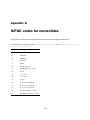
F IUPAC codes for amino acids
172
G IUPAC codes for nucleotides
174
Bibliography
175
V
177
Index
Part I
Introduction
7
Chapter 1
Introduction to CLC Sequence Viewer
Contents
1.1
1.2
Contact information . . . . . . . . . . . . . . . . . . . . . . . . . . . . . . . .
9
Download and installation . . . . . . . . . . . . . . . . . . . . . . . . . . . .
9
1.2.1
Program download . . . . . . . . . . . . . . . . . . . . . . . . . . . . . .
9
1.2.2
Installation on Microsoft Windows . . . . . . . . . . . . . . . . . . . . .
9
1.2.3
Installation on Mac OS X . . . . . . . . . . . . . . . . . . . . . . . . . .
10
1.2.4
Installation on Linux with an installer . . . . . . . . . . . . . . . . . . . .
11
1.2.5
Installation on Linux with an RPM-package . . . . . . . . . . . . . . . . .
12
1.3
System requirements . . . . . . . . . . . . . . . . . . . . . . . . . . . . . . .
12
1.4
About CLC Workbenches . . . . . . . . . . . . . . . . . . . . . . . . . . . . .
12
1.5
1.6
1.4.1
1.4.2
New program feature request . . . . . . . . . . . . . . . . . . . . . . . .
Report program errors . . . . . . . . . . . . . . . . . . . . . . . . . . . .
13
13
1.4.3
CLC Sequence Viewer vs. Workbenches . . . . . . . . . . . . . . . . . .
13
When the program is installed: Getting started . . . . . . . . . . . . . . . . .
14
1.5.1
Quick start . . . . . . . . . . . . . . . . . . . . . . . . . . . . . . . . . .
14
1.5.2
Import of example data . . . . . . . . . . . . . . . . . . . . . . . . . . .
15
Plug-ins
. . . . . . . . . . . . . . . . . . . . . . . . . . . . . . . . . . . . . .
15
1.6.1
Installing plug-ins . . . . . . . . . . . . . . . . . . . . . . . . . . . . . .
15
1.6.2
Uninstalling plug-ins . . . . . . . . . . . . . . . . . . . . . . . . . . . . .
16
1.6.3
Updating plug-ins . . . . . . . . . . . . . . . . . . . . . . . . . . . . . .
17
1.6.4
Resources . . . . . . . . . . . . . . . . . . . . . . . . . . . . . . . . . .
18
1.7
Network configuration
. . . . . . . . . . . . . . . . . . . . . . . . . . . . . .
18
1.8
The format of the user manual . . . . . . . . . . . . . . . . . . . . . . . . . .
19
1.8.1
Text formats . . . . . . . . . . . . . . . . . . . . . . . . . . . . . . . . .
19
Welcome to CLC Sequence Viewer --- a software package supporting your daily bioinformatics
work.
We strongly encourage you to read this user manual in order to get the best possible basis for
working with the software package.
This software is for research purposes only.
8
CHAPTER 1. INTRODUCTION TO CLC SEQUENCE VIEWER
1.1
9
Contact information
The CLC Sequence Viewer is developed by:
CLC bio A/S
Science Park Aarhus
Finlandsgade 10-12
8200 Aarhus N
Denmark
http://www.clcbio.com
VAT no.: DK 28 30 50 87
Telephone: +45 70 22 55 09
Fax: +45 70 22 55 19
E-mail: [email protected]
If you have questions or comments regarding the program, you are welcome to contact our
support function:
E-mail: [email protected]
1.2
Download and installation
The CLC Sequence Viewer is developed for Windows, Mac OS X and Linux. The software for either
platform can be downloaded from http://www.clcbio.com/download.
Furthermore the program can be sent on a CD-Rom by regular mail. To receive the program by
regular mail, please write an e-mail to [email protected], including your postal address.
1.2.1
Program download
The program is available for download on http://www.clcbio.com/download.
Before you download the program you are asked to fill in the Download dialog.
In the dialog you must choose:
• Which operating system you use
• Whether you would like to receive information about future releases
Depending on your operating system and your Internet browser, you are taken through some
download options.
When the download of the installer (an application which facilitates the installation of the
program) is complete, follow the platform specific instructions below to complete the installation
procedure.
1.2.2
Installation on Microsoft Windows
Starting the installation process is done in one of the following ways:
CHAPTER 1. INTRODUCTION TO CLC SEQUENCE VIEWER
10
If you have downloaded an installer:
Locate the downloaded installer and double-click the icon.
The default location for downloaded files is your desktop.
If you are installing from a CD:
Insert the CD into your CD-ROM drive.
Choose the "Install CLC Sequence Viewer" from the menu displayed.
Installing the program is done in the following steps:
• On the welcome screen, click Next.
• Read and accept the License agreement and click Next.
• Choose where you would like to install the application and click Next.
• Choose a name for the Start Menu folder used to launch CLC Sequence Viewer and click
Next.
• Choose if CLC Sequence Viewer should be used to open CLC files and click Next.
• Choose where you would like to create shortcuts for launching CLC Sequence Viewer and
click Next.
• Choose if you would like to associate .clc files to CLC Sequence Viewer. If you check this
option, double-clicking a file with a "clc" extension will open the CLC Sequence Viewer.
• Wait for the installation process to complete, choose whether you would like to launch CLC
Sequence Viewer right away, and click Finish.
When the installation is complete the program can be launched from the Start Menu or from one
of the shortcuts you chose to create.
1.2.3
Installation on Mac OS X
Starting the installation process is done in one of the following ways:
If you have downloaded an installer:
Locate the downloaded installer and double-click the icon.
The default location for downloaded files is your desktop.
If you are installing from a CD:
Insert the CD into your CD-ROM drive and open it by double-clicking on the CD icon on your
desktop.
Launch the installer by double-clicking on the "CLC Sequence Viewer" icon.
Installing the program is done in the following steps:
• On the welcome screen, click Next.
• Read and accept the License agreement and click Next.
CHAPTER 1. INTRODUCTION TO CLC SEQUENCE VIEWER
11
• Choose where you would like to install the application and click Next.
• Choose if CLC Sequence Viewer should be used to open CLC files and click Next.
• Choose whether you would like to create desktop icon for launching CLC Sequence Viewer
and click Next.
• Choose if you would like to associate .clc files to CLC Sequence Viewer. If you check this
option, double-clicking a file with a "clc" extension will open the CLC Sequence Viewer.
• Wait for the installation process to complete, choose whether you would like to launch CLC
Sequence Viewer right away, and click Finish.
When the installation is complete the program can be launched from your Applications folder, or
from the desktop shortcut you chose to create. If you like, you can drag the application icon to
the dock for easy access.
1.2.4
Installation on Linux with an installer
Navigate to the directory containing the installer and execute it. This can be done by running a
command similar to:
# sh CLCSequenceViewer_6_JRE.sh
If you are installing from a CD the installers are located in the "linux" directory.
Installing the program is done in the following steps:
• On the welcome screen, click Next.
• Read and accept the License agreement and click Next.
• Choose where you would like to install the application and click Next.
For a system-wide installation you can choose for example /opt or /usr/local. If you do not
have root privileges you can choose to install in your home directory.
• Choose where you would like to create symbolic links to the program
DO NOT create symbolic links in the same location as the application.
Symbolic links should be installed in a location which is included in your environment PATH.
For a system-wide installation you can choose for example /usr/local/bin. If you do not have
root privileges you can create a 'bin' directory in your home directory and install symbolic
links there. You can also choose not to create symbolic links.
• Wait for the installation process to complete and click Finish.
If you choose to create symbolic links in a location which is included in your PATH, the program
can be executed by running the command:
# clcseqview6
Otherwise you start the application by navigating to the location where you choose to install it
and running the command:
# ./clcseqview6
CHAPTER 1. INTRODUCTION TO CLC SEQUENCE VIEWER
1.2.5
12
Installation on Linux with an RPM-package
Navigate to the directory containing the rpm-package and install it using the rpm-tool by running
a command similar to:
# rpm -ivh CLCSequenceViewer_6_JRE.rpm
If you are installing from a CD the rpm-packages are located in the "RPMS" directory.
Installation of RPM-packages usually requires root-privileges.
When the installation process is finished the program can be executed by running the command:
# clcseqview6
1.3
System requirements
The system requirements of CLC Sequence Viewer are these:
• Windows 2000, Windows XP, Windows Vista or Windows 7
• Mac OS X 10.4 or newer
• Linux: Redhat or SuSE
• 32 or 64 bit
• 256 MB RAM required
• 512 MB RAM recommended
• 1024 x 768 display recommended
1.4
About CLC Workbenches
In November 2005 CLC bio released two Workbenches: CLC Free Workbench and CLC Protein
Workbench. CLC Protein Workbench is developed from the free version, giving it the well-tested
user friendliness and look & feel. However, the CLC Protein Workbench includes a range of more
advanced analyses.
In March 2006, CLC DNA Workbench (formerly CLC Gene Workbench) and CLC Main Workbench
were added to the product portfolio of CLC bio. Like CLC Protein Workbench, CLC DNA Workbench
builds on CLC Free Workbench. It shares some of the advanced product features of CLC Protein
Workbench, and it has additional advanced features. CLC Main Workbench holds all basic and
advanced features of the CLC Workbenches.
In June 2007, CLC RNA Workbench was released as a sister product of CLC Protein Workbench
and CLC DNA Workbench. CLC Main Workbench now also includes all the features of CLC RNA
Workbench.
In March 2008, the CLC Free Workbench changed name to CLC Sequence Viewer.
In June 2008, the first version of the CLC Genomics Workbench was released due to an
extraordinary demand for software capable of handling sequencing data from the new highthroughput sequencing systems like 454, Illumina Genome Analyzer and SOLiD.
CHAPTER 1. INTRODUCTION TO CLC SEQUENCE VIEWER
13
For an overview of which features all the applications include, see http://www.clcbio.com/
features.
In December 2006, CLC bio released a Software Developer Kit which makes it possible for
anybody with a knowledge of programming in Java to develop plug-ins. The plug-ins are fully
integrated with the CLC Workbenches and the Viewer and provide an easy way to customize and
extend their functionalities.
All our software will be improved continuously. If you are interested in receiving news about
updates, you should register your e-mail and contact data on http://www.clcbio.com, if you
haven't already registered when you downloaded the program.
1.4.1
New program feature request
The CLC team is continuously improving the CLC Sequence Viewer with our users' interests in
mind. Therefore, we welcome all requests and feedback from users, and hope suggest new
features or more general improvements to the program on [email protected].
1.4.2
Report program errors
CLC bio is doing everything possible to eliminate program errors. Nevertheless, some errors
might have escaped our attention. If you discover an error in the program, you can use the
Report a Program Error function in the Help menu of the program to report it. In the Report a
Program Error dialog you are asked to write your e-mail address (optional). This is because we
would like to be able to contact you for further information about the error or for helping you with
the problem.
Note! No personal information is sent via the error report. Only the information which can be
seen in the Program Error Submission Dialog is submitted.
You can also write an e-mail to [email protected]. Remember to specify how the program error
can be reproduced.
All errors will be treated seriously and with gratitude.
We appreciate your help.
Start in safe mode
If the program becomes unstable on start-up, you can start it in Safe mode. This is done by
pressing and holding down the Shift button while the program starts.
When starting in safe mode, the user settings (e.g. the settings in the Side Panel) are deleted
and cannot be restored. Your data stored in the Navigation Area is not deleted. When started in
safe mode, some of the functionalities are missing, and you will have to restart the CLC Sequence
Viewer again (without pressing Shift).
1.4.3
CLC Sequence Viewer vs. Workbenches
The advanced analyses of the commercial workbenches, CLC Protein Workbench, CLC RNA
Workbench and CLC DNA Workbench are not present in CLC Sequence Viewer. Likewise, some
CHAPTER 1. INTRODUCTION TO CLC SEQUENCE VIEWER
14
advanced analyses are available in CLC DNA Workbench but not in CLC RNA Workbench or CLC
Protein Workbench, and vice versa. All types of basic and advanced analyses are available in CLC
Main Workbench.
However, the output of the commercial workbenches can be viewed in all other workbenches.
This allows you to share the result of your advanced analyses from e.g. CLC Main Workbench,
with people working with e.g. CLC Sequence Viewer. They will be able to view the results of your
analyses, but not redo the analyses.
The CLC Workbenches and the CLC Sequence Viewer are developed for Windows, Mac and Linux
platforms. Data can be exported/imported between the different platforms in the same easy way
as when exporting/importing between two computers with e.g. Windows.
1.5
When the program is installed: Getting started
CLC Sequence Viewer includes an extensive Help function, which can be found in the Help menu
of the program's Menu bar. The Help can also be shown by pressing F1. The help topics are
sorted in a table of contents and the topics can be searched.
We also recommend our Online presentations where a product specialist from CLC bio demonstrates our software. This is a very easy way to get started using the program. Read more about
online presentations here: http://clcbio.com/presentation.
1.5.1
Quick start
When the program opens for the first time, the background of the workspace is visible. In the
background are three quick start shortcuts, which will help you getting started. These can be
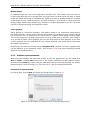
seen in figure 1.1.
Figure 1.1: Three available Quick start short cuts, available in the background of the workspace.
The function of the three quick start shortcuts is explained here:
• Import data. Opens the Import dialog, which you let you browse for, and import data from
your file system.
• New sequence. Opens a dialog which allows you to enter your own sequence.
• Read tutorials. Opens the tutorials menu with a number of tutorials. These are also
available from the Help menu in the Menu bar.
CHAPTER 1. INTRODUCTION TO CLC SEQUENCE VIEWER
15
Below these three quick start shortcuts, you will see a text: "Looking for more features?" Clicking
this text will take you to a page on http://www.clcbio.com where you can read more about
how to get more functionalities into CLC Sequence Viewer.
1.5.2
Import of example data
It might be easier to understand the logic of the program by trying to do simple operations on
existing data. Therefore CLC Sequence Viewer includes an example data set.
When downloading CLC Sequence Viewer you are asked if you would like to import the example
data set. If you accept, the data is downloaded automatically and saved in the program. If you
didn't download the data, or for some other reason need to download the data again, you have
two options:
You can click Install Example Data ( ) in the Help menu of the program. This installs the data
automatically. You can also go to http://www.clcbio.com/download and download the
example data from there.
If you download the file from the website, you need to import it into the program. See chapter
6.1 for more about importing data.
1.6
Plug-ins
When you install CLC Sequence Viewer, it has a standard set of features. However, you can
upgrade and customize the program using a variety of plug-ins.
As the range of plug-ins is continuously updated and expanded, they will not be listed here. Instead
we refer to http://www.clcbio.com/plug-ins for a full list of plug-ins with descriptions of
their functionalities.
1.6.1
Installing plug-ins
Plug-ins are installed using the plug-in manager1 :
Help in the Menu Bar | Plug-ins and Resources... (
or Plug-ins (
)
) in the Toolbar
The plug-in manager has four tabs at the top:
• Manage Plug-ins. This is an overview of plug-ins that are installed.
• Download Plug-ins. This is an overview of available plug-ins on CLC bio's server.
• Manage Resources. This is an overview of resources that are installed.
• Download Resources. This is an overview of available resources on CLC bio's server.
To install a plug-in, click the Download Plug-ins tab. This will display an overview of the plug-ins
that are available for download and installation (see figure 1.2).
1
In order to install plug-ins on Windows Vista, the Workbench must be run in administrator mode: Right-click the
program shortcut and choose "Run as Administrator". Then follow the procedure described below. When you start the
Workbench after installing the plug-in, it should also be run in administrator mode.
CHAPTER 1. INTRODUCTION TO CLC SEQUENCE VIEWER
16
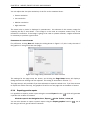
Figure 1.2: The plug-ins that are available for download.
Clicking a plug-in will display additional information at the right side of the dialog. This will also
display a button: Download and Install.
Click the plug-in and press Download and Install. A dialog displaying progress is now shown, and
the plug-in is downloaded and installed.
If the plug-in is not shown on the server, and you have it on your computer (e.g. if you have
downloaded it from our web-site), you can install it by clicking the Install from File button at the
bottom of the dialog. This will open a dialog where you can browse for the plug-in. The plug-in file
should be a file of the type ".cpa".
When you close the dialog, you will be asked whether you wish to restart the CLC Sequence
Viewer. The plug-in will not be ready for use before you have restarted.
1.6.2
Uninstalling plug-ins
Plug-ins are uninstalled using the plug-in manager:
Help in the Menu Bar | Plug-ins and Resources... (
or Plug-ins (
)
) in the Toolbar
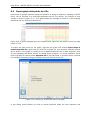
This will open the dialog shown in figure 1.3.
The installed plug-ins are shown in this dialog. To uninstall:
Click the plug-in | Uninstall
If you do not wish to completely uninstall the plug-in but you don't want it to be used next time
you start the Workbench, click the Disable button.
When you close the dialog, you will be asked whether you wish to restart the workbench. The
plug-in will not be uninstalled before the workbench is restarted.
CHAPTER 1. INTRODUCTION TO CLC SEQUENCE VIEWER
17
Figure 1.3: The plug-in manager with plug-ins installed.
1.6.3
Updating plug-ins
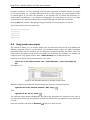
If a new version of a plug-in is available, you will get a notification during start-up as shown in
figure 1.4.
Figure 1.4: Plug-in updates.
In this list, select which plug-ins you wish to update, and click Install Updates. If you press
CHAPTER 1. INTRODUCTION TO CLC SEQUENCE VIEWER
18
Cancel you will be able to install the plug-ins later by clicking Check for Updates in the Plug-in
manager (see figure 1.3).
1.6.4
Resources
Resources are downloaded, installed, un-installed and updated the same way as plug-ins. Click
the Download Resources tab at the top of the plug-in manager, and you will see a list of available
resources (see figure 1.5).
Figure 1.5: Resources available for download.
Currently, the only resources available are PFAM databases (for use with CLC Protein Workbench
and CLC Main Workbench).
Because procedures for downloading, installation, uninstallation and updating are the same as
for plug-ins see section 1.6.1 and section 1.6.2 for more information.
1.7
Network configuration
If you use a proxy server to access the Internet you must configure CLC Sequence Viewer to use
this. Otherwise you will not be able to perform any online activities (e.g. searching GenBank).
CLC Sequence Viewer supports the use of a HTTP-proxy and an anonymous SOCKS-proxy.
To configure your proxy settings, open CLC Sequence Viewer, and go to the Advanced-tab of the
Preferences dialog (figure 1.6) and enter the appropriate information. The Preferences dialog is
opened from the Edit menu.
You have the choice between a HTTP-proxy and a SOCKS-proxy. CLC Sequence Viewer only
supports the use of a SOCKS-proxy that does not require authorization.
If you have any problems with these settings you should contact your systems administrator.
CHAPTER 1. INTRODUCTION TO CLC SEQUENCE VIEWER
19
Figure 1.6: Adjusting proxy preferences.
1.8
The format of the user manual
This user manual offers support to Windows, Mac OS X and Linux users. The software is very
similar on these operating systems. In areas where differences exist, these will be described
separately. However, the term "right-click" is used throughout the manual, but some Mac users
may have to use Ctrl+click in order to perform a "right-click" (if they have a single-button mouse).
The most recent version of the user manuals can be downloaded from http://www.clcbio.
com/usermanuals.
The user manual consists of four parts.
• The first part includes the introduction and some tutorials showing how to apply the most
significant functionalities of CLC Sequence Viewer.
• The second part describes in detail how to operate all the program's basic functionalities.
• The third part digs deeper into some of the bioinformatic features of the program. In this
part, you will also find our "Bioinformatics explained" sections. These sections elaborate on
the algorithms and analyses of CLC Sequence Viewer and provide more general knowledge
of bioinformatic concepts.
• The fourth part is the Appendix and Index.
Each chapter includes a short table of contents.
1.8.1
Text formats
In order to produce a clearly laid-out content in this manual, different formats are applied:
• A feature in the program is in bold starting with capital letters. ( Example: Navigation Area)
• An explanation of how a particular function is activated, is illustrated by "|" and bold. (E.g.:
select the element | Edit | Rename)
Chapter 2
Tutorials
Contents
2.1
Tutorial: Getting started . . . . . . . . . . . . . .
2.1.1
Creating a a folder . . . . . . . . . . . . . . .
2.1.2
Import data . . . . . . . . . . . . . . . . . .
2.2
Tutorial: View sequence . . . . . . . . . . . . . .
2.3
Tutorial: Side Panel Settings . . . . . . . . . . . .
2.3.1
Saving the settings in the Side Panel . . . . .
2.3.2
Applying saved settings . . . . . . . . . . . .
2.4
Tutorial: GenBank search and download . . . . . .
2.4.1
Searching for matching objects . . . . . . . .
2.4.2
Saving the sequence . . . . . . . . . . . . .
2.5
Tutorial: Align protein sequences . . . . . . . . .
2.5.1
The alignment dialog . . . . . . . . . . . . .
2.6
Tutorial: Create and modify a phylogenetic tree .
2.6.1
Tree layout . . . . . . . . . . . . . . . . . . .
2.7
Tutorial: Find restriction sites . . . . . . . . . . .
2.7.1
The Side Panel way of finding restriction sites
2.7.2
The Toolbox way of finding restriction sites .
.
.
.
.
.
.
.
.
.
.
.
.
.
.
.
.
.
.
.
.
.
.
.
.
.
.
.
.
.
.
.
.
.
.
.
.
.
.
.
.
.
.
.
.
.
.
.
.
.
.
.
.
.
.
.
.
.
.
.
.
.
.
.
.
.
.
.
.
.
.
.
.
.
.
.
.
.
.
.
.
.
.
.
.
.
.
.
.
.
.
.
.
.
.
.
.
.
.
.
.
.
.
.
.
.
.
.
.
.
.
.
.
.
.
.
.
.
.
.
.
.
.
.
.
.
.
.
.
.
.
.
.
.
.
.
.
.
.
.
.
.
.
.
.
.
.
.
.
.
.
.
.
.
.
.
.
.
.
.
.
.
.
.
.
.
.
.
.
.
.
.
.
.
.
.
.
.
.
.
.
.
.
.
.
.
.
.
.
.
.
.
.
.
.
.
.
.
.
.
.
.
.
.
.
.
.
.
.
.
.
.
.
.
.
.
.
.
.
.
.
.
.
.
.
.
.
.
.
.
.
.
.
.
.
.
.
.
.
.
.
.
.
.
.
.
.
.
.
.
.
.
.
.
.
.
20
21
22
22
23
24
26
27
28
28
28
28
29
30
31
31
32
This chapter contains tutorials representing some of the features of CLC Sequence Viewer. The
first tutorials are meant as a short introduction to operating the program. The last tutorials give
examples of how to use some of the main features of CLC Sequence Viewer.
tutorials at http://www.clcbio.com/tutorials.
2.1
Watch video
Tutorial: Getting started
This brief tutorial will take you through the most basic steps of working with CLC Sequence Viewer.
The tutorial introduces the user interface, shows how to create a folder, and demonstrates how
to import your own existing data into the program.
When you open CLC Sequence Viewer for the first time, the user interface looks like figure 2.1.
20
CHAPTER 2. TUTORIALS
21
Figure 2.1: The user interface as it looks when you start the program for the first time. (Windows
version of CLC Sequence Viewer. The interface is similar for Mac and Linux.)
At this stage, the important issues are the Navigation Area and the View Area.
The Navigation Area to the left is where you keep all your data for use in the program. Most
analyses of CLC Sequence Viewer require that the data is saved in the Navigation Area. There
are several ways to get data into the Navigation Area, and this tutorial describes how to import
existing data.
The View Area is the main area to the right. This is where the data can be 'viewed'. In general,
a View is a display of a piece of data, and the View Area can include several Views. The Views
are represented by tabs, and can be organized e.g. by using 'drag and drop'.
2.1.1
Creating a a folder
When CLC Sequence Viewer is started there is one element in the Navigation Area called
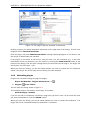
CLC_Data1 . This element is a Location. A location points to a folder on your computer where
your data for use with CLC Sequence Viewer is stored.
The data in the location can be organized into folders. Create a folder:
File | New | Folder ( )
or Ctrl + Shift + N ( + Shift + N on Mac)
Name the folder 'My folder' and press Enter.
1
If you have downloaded the example data, this will be placed as a folder in CLC_Data
CHAPTER 2. TUTORIALS
2.1.2
22
Import data
Next, we want to import a sequence called HUMDINUC.fsa (FASTA format) from our own Desktop
into the new 'My folder'. (This file is chosen for demonstration purposes only - you may have
another file on your desktop, which you can use to follow this tutorial. You can import all kinds
of files.)
In order to import the HUMDINUC.fsa file:
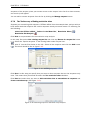
Select 'My folder' | Import (
desktop | Select
) in the Toolbar | navigate to HUMDINUC.fsa on the
The sequence is imported into the folder that was selected in the Navigation Area, before you
clicked Import. Double-click the sequence in the Navigation Area to view it. The final result looks
like figure 2.2.
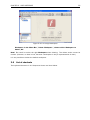
Figure 2.2: The HUMDINUC file is imported and opened.
2.2
Tutorial: View sequence
This brief tutorial will take you through some different ways to display a sequence in the program.
The tutorial introduces zooming on a sequence, dragging tabs, and opening selection in new
view.
We will be working with the sequence called pcDNA3-atp8a1 located in the 'Cloning' folder in the
Example data. Double-click the sequence in the Navigation Area to open it. The sequence is
displayed with annotations above it. (See figure 2.3).
As default, CLC Sequence Viewer displays a sequence with annotations (colored arrows on
the sequence like the green promoter region annotation in figure 2.3) and zoomed to see the
residues.
In this tutorial we want to have an overview of the whole sequence. Hence;
CHAPTER 2. TUTORIALS
23
Figure 2.3: Sequence pcDNA3-atp8a1 opened in a view.
click Zoom Out (
sequence
) in the Toolbar | click the sequence until you can see the whole
This sequence is circular, which is indicated by << and >> at the beginning and the end of the
sequence.
In the following we will show how the same sequence can be displayed in two different views one linear view and one circular view. First, zoom in to see the residues again by using the Zoom
In ( ) or the 100% ( ). Then we make a split view by:
press and hold the Ctrl-button on the keyboard (
( ) at the bottom of the view
on Mac) | click Show as Circular
This opens an additional view of the vector with a circular display, as can be seen in figure 2.4.
Make a selection on the circular sequence (remember to switch to the Selection (
tool bar) and note that this selection is also reflected in the linear view above.
2.3
) tool in the
Tutorial: Side Panel Settings
This brief tutorial will show you how to use the Side Panel to change the way your sequences,
alignments and other data are shown. You will also see how to save the changes that you made
in the Side Panel .
Open the protein alignment located under Protein orthologs in the Example data. The initial
view of the alignment has colored the residues according to the Rasmol color scheme, and the
alignment is automatically wrapped to fit the width of the view (shown in figure 2.5).
Now, we are going to modify how this alignment is displayed. For this, we use the settings in
the Side Panel to the right. All the settings are organized into groups, which can be expanded
/ collapsed by clicking the name of the group. The first group is Sequence Layout which is
CHAPTER 2. TUTORIALS
24
Figure 2.4: The resulting two views which are split horizontally.
expanded by default.
First, select No wrap in the Sequence Layout. This means that each sequence in the alignment
is kept on the same line. To see more of the alignment, you now have to scroll horizontally.
Next, expand the Annotation Layout group and select Show Annotations. Set the Offset to
"More offset" and set the Label to "Stacked".
Expand the Annotation Types group. Here you will see a list of the types annotation that are
carried by the sequences in the alignment (see figure 2.6).
Check the "Region" annotation type, and you will see the regions as red annotations on the
sequences.
Next, we will change the way the residues are colored. Click the Alignment Info group and under
Conservation, check "Background color". This will use a gradient as background color for the
residues. You can adjust the coloring by dragging the small arrows above the color box.
2.3.1
Saving the settings in the Side Panel
Now the alignment should look similar to figure 2.7.
At this point, if you just close the view, the changes made to the Side Panel will not be saved.
CHAPTER 2. TUTORIALS
25
Figure 2.5: The protein alignment as it looks when you open it with background color according to
the Rasmol color scheme and automatically wrapped.
Figure 2.6: The Annotation Layout and the Annotation Types in the Side Panel.
This means that you would have to perform the changes again next time you open the alignment.
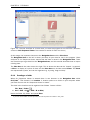
To save the changes to the Side Panel, click the Save/Restore Settings button ( ) at the top
of the Side Panel and click Save Settings (see figure 2.8).
This will open the dialog shown in figure 2.9.
In this way you can save the current state of the settings in the Side Panel so that you can apply
them to alignments later on. If you check Always apply these settings, these settings will be
applied every time you open a view of the alignment.
Type "My settings" in the dialog and click Save.
CHAPTER 2. TUTORIALS
26
Figure 2.7: The alignment when all the above settings have been changed.
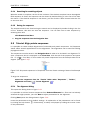
Figure 2.8: Saving the settings of the Side Panel.
Figure 2.9: Dialog for saving the settings of the Side Panel.
2.3.2
Applying saved settings
When you click the Save/Restore Settings button ( ) again and select Apply Saved Settings,
you will see "My settings" in the menu together with some pre-defined settings that the CLC
Sequence Viewer has created for you (see figure 2.10).
Figure 2.10: Menu for applying saved settings.
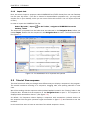
Whenever you open an alignment, you will be able to apply these settings. Each kind of view has
its own list of settings that can be applied.
At the bottom of the list you will see the "CLC Standard Settings" which are the default settings
CHAPTER 2. TUTORIALS
27
for the view.
2.4
Tutorial: GenBank search and download
The CLC Sequence Viewer allows you to search the NCBI GenBank database directly from the
program, giving you the opportunity to both open, view, analyze and save the search results
without using any other applications. To conduct a search in NCBI GenBank from CLC Sequence
Viewer you must be connected to the Internet.
This tutorial shows how to find a complete human hemoglobin DNA sequence in a situation where
you do not know the accession number of the sequence.
To start the search:
Search | Search for Sequences at NCBI (
)
This opens the search view. We are searching for a DNA sequence, hence:
Nucleotide
Now we are going to adjust parameters for the search. By clicking Add search parameters you
activate an additional set of fields where you can enter search criteria. Each search criterion
consists of a drop down menu and a text field. In the drop down menu you choose which part of
the NCBI database to search, and in the text field you enter what to search for:
Click Add search parameters until three search criteria are available | choose
Organism in the first drop down menu | write 'human' in the adjoining text field |
choose All Fields in the second drop down menu | write 'hemoglobin' in the adjoining
text field | choose All Fields in the third drop down menu | write 'complete' in the
adjoining text field
Figure 2.11: NCBI search view.
Click Start search (
) to commence the search in NCBI.
CHAPTER 2. TUTORIALS
2.4.1
28
Searching for matching objects
When the search is complete, the list of hits is shown. If the desired complete human hemoglobin
DNA sequence is found, the sequence can be viewed by double-clicking it in the list of hits from
the search. If the desired sequence is not shown, you can click the 'More' button below the list
to see more hits.
2.4.2
Saving the sequence
The sequences which are found during the search can be displayed by double-clicking in the list
of hits. However, this does not save the sequence. You can save one or more sequence by
selecting them and:
click Download and Save
or drag the sequences into the Navigation Area
2.5
Tutorial: Align protein sequences
It is possible to create multiple alignments of nucleotide and protein sequences. CLC Sequence
Viewer offers several opportunities to view alignments. The alignments can be used for building
phylogenetic trees.
The sequences must be saved in the Navigation Area in order to be included in an alignment. To
save a sequence which is displayed in the View Area, click the tab of the sequence and press
Ctrl + S (or + S on Mac). In this tutorial six protein sequences from the Example data will be
aligned. (See figure 2.12).
Figure 2.12: Six protein sequences in 'Sequences' from the 'Protein orthologs' folder of the Example
data.
To align the sequences:
select the sequences from the 'Protein' folder under 'Sequences' | Toolbox |
Alignments and Trees ( ) | Create Alignment ( )
2.5.1
The alignment dialog
This opens the dialog shown in figure 2.13.
It is possible to add and remove sequences from Selected Elements list. Since we had already
selected the eight proteins, just click Next to adjust parameters for the alignment.
Clicking Next opens the dialog shown in figure 2.14.
Leave the parameters at their default settings. An explanation of the parameters can be found
by clicking the help button ( ). Alternatively, a tooltip is displayed by holding the mouse cursor
on the parameters.
CHAPTER 2. TUTORIALS
29
Figure 2.13: The alignment dialog displaying the six protein sequences.
Figure 2.14: The alignment dialog displaying the available parameters which can be adjusted.
Click Finish to start the alignment process which is shown in the Toolbox under the Processes
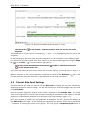
tab. When the program is finished calculating it displays the alignment (see fig. 2.15):
Note! The new alignment is not saved automatically.
To save the alignment, drag the tab of the alignment view into the Navigation Area.
If you wish to use other alignment algorithms (like e.g. ClustalW), please download the Additional
Alignments Module from http://www.clcbio.com/plugins.
2.6
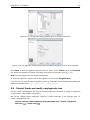
Tutorial: Create and modify a phylogenetic tree
You can make a phylogenetic tree from an existing alignment. (See how to create an alignment
in the tutorial: "Align protein sequences").
We use the 'ATPase protein alignment' located in 'Protein orthologs' in the Example data. To
create a phylogenetic tree:
click the 'ATPase protein alignment' in the Navigation Area | Toolbox | Alignments
and Trees ( ) | Create Tree ( )
CHAPTER 2. TUTORIALS
30
Figure 2.15: The resulting alignment.
A dialog opens where you can confirm your selection of the alignment. Click Next to move to
the next step in the dialog where you can choose between the neighbor joining and the UPGMA
algorithms for making trees. You also have the option of including a bootstrap analysis of the
result. Leave the parameters at their default, and click Finish to start the calculation, which can
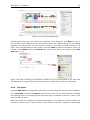
be seen in the Toolbox under the Processes tab. After a short while a tree appears in the View
Area (figure 2.16).
Figure 2.16: After choosing which algorithm should be used, the tree appears in the View Area.
The Side panel in the right side of the view allows you to adjust the way the tree is displayed.
2.6.1
Tree layout
Using the Side Panel (in the right side of the view), you can change the way the tree is displayed.
Click Tree Layout and open the Layout drop down menu. Here you can choose between standard
and topology layout. The topology layout can help to give an overview of the tree if some of the
branches are very short.
When the sequences include the appropriate annotation, it is possible to choose between the
accession number and the species names at the leaves of the tree. Sequences downloaded
CHAPTER 2. TUTORIALS
31
from GenBank, for example, have this information. The Labels preferences allows these different
node annotations as well as different annotation on the branches.
The branch annotation includes the bootstrap value, if this was selected when the tree was
calculated. It is also possible to annotate the branches with their lengths.
2.7
Tutorial: Find restriction sites
This tutorial will show you how to find restriction sites and annotate them on a sequence.
There are two ways of finding and showing restriction sites. In many cases, the dynamic restriction
sites found in the Side Panel of sequence views will be useful, since it is a quick and easy way
of showing restriction sites. In the Toolbox you will find the other way of doing restriction site
analyses. This way provides more control of the analysis and gives you more output options, e.g.
a table of restriction sites and a list of restriction enzymes that can be saved for later use. In this
tutorial, the first section describes how to use the Side Panel to show restriction sites, whereas
the second section describes the restriction map analysis performed from the Toolbox.
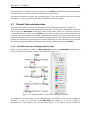
2.7.1
The Side Panel way of finding restriction sites
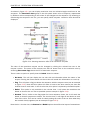
When you open a sequence, there is a Restriction sites setting in the Side Panel. By default, 10
of the most popular restriction enzymes are shown (see figure 2.17).
Figure 2.17: Showing restriction sites of ten restriction enzymes.
The restriction sites are shown on the sequence with an indication of cut site and recognition
sequence. In the list of enzymes in the Side Panel, the number of cut sites is shown in
parentheses for each enzyme (e.g. SalI cuts three times). If you wish to see the recognition
CHAPTER 2. TUTORIALS
32
sequence of the enzyme, place your mouse cursor on the enzyme in the list for a short moment,
and a tool tip will appear.
You can add or remove enzymes from the list by clicking the Manage enzymes button.
2.7.2
The Toolbox way of finding restriction sites
Suppose you are working with sequence 'ATP8a1 mRNA' from the example data, and you wish to
know which restriction enzymes will cut this sequence exactly once and create a 3' overhang. Do
the following:
select the ATP8a1 mRNA | Toolbox in the Menu Bar | Restriction Sites (
Restriction Site Analysis ( )
) |
Click Next to set parameters for the restriction map analysis.
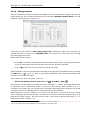
In this step first select Use existing enzyme list and click the Browse for enzyme list button
( ). Select the 'Popular enzymes' in the Cloning folder under Enzyme lists.
Then write 3' into the filter below to the left. Select all the enzymes and click the Add button
( ). The result should be like in figure 2.18.
Figure 2.18: Selecting enzymes.
Click Next. In this step you specify that you want to show enzymes that cut the sequence only
once. This means that you should de-select the Two restriction sites checkbox.
Click Next and select that you want to Add restriction sites as annotations on sequence and
Create restriction map. (See figure 2.19).
Figure 2.19: Selecting output for restriction map analysis.
CHAPTER 2. TUTORIALS
33
Click Finish to start the restriction map analysis.
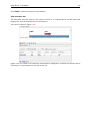
View restriction site
The restriction sites are shown in two views: one view is in a tabular format and the other view
displays the sites as annotations on the sequence.
The result is shown in figure 2.20.
Figure 2.20: The result of the restriction map analysis is displayed in a table at the bottom and as
annotations on the sequence in the view at the top.
Part II
Core Functionalities
34
Chapter 3
User interface
Contents
3.1
3.2
3.3
3.4
3.5
Navigation Area . . . . . . . . . . . . . . . . . . . . . . . . . . . . . . . . . .
36
3.1.1
Data structure . . . . . . . . . . . . . . . . . . . . . . . . . . . . . . . .
37
3.1.2
Create new folders
. . . . . . . . . . . . . . . . . . . . . . . . . . . . .
38
3.1.3
Sorting folders . . . . . . . . . . . . . . . . . . . . . . . . . . . . . . . .
38
3.1.4
3.1.5
Multiselecting elements . . . . . . . . . . . . . . . . . . . . . . . . . . .
Moving and copying elements . . . . . . . . . . . . . . . . . . . . . . . .
38
38
3.1.6
Change element names . . . . . . . . . . . . . . . . . . . . . . . . . . .
40
3.1.7
Delete elements . . . . . . . . . . . . . . . . . . . . . . . . . . . . . . .
41
3.1.8
Show folder elements in a table . . . . . . . . . . . . . . . . . . . . . .
41
View Area . . . . . . . . . . . . . . . . . . . . . . . . . . . . . . . . . . . . .
43
3.2.1
Open view . . . . . . . . . . . . . . . . . . . . . . . . . . . . . . . . . .
43
3.2.2
Show element in another view . . . . . . . . . . . . . . . . . . . . . . .
44
3.2.3
Close views . . . . . . . . . . . . . . . . . . . . . . . . . . . . . . . . .
44
3.2.4
Save changes in a view . . . . . . . . . . . . . . . . . . . . . . . . . . .
45
3.2.5
Undo/Redo
. . . . . . . . . . . . . . . . . . . . . . . . . . . . . . . . .
46
3.2.6
Arrange views in View Area . . . . . . . . . . . . . . . . . . . . . . . . .
46
3.2.7
Side Panel . . . . . . . . . . . . . . . . . . . . . . . . . . . . . . . . . .
48
Zoom and selection in View Area . . . . . . . . . . . . . . . . . . . . . . . .
49
3.3.1
Zoom In . . . . . . . . . . . . . . . . . . . . . . . . . . . . . . . . . . .
49
3.3.2
Zoom Out . . . . . . . . . . . . . . . . . . . . . . . . . . . . . . . . . .
49
3.3.3
Fit Width . . . . . . . . . . . . . . . . . . . . . . . . . . . . . . . . . . .
50
3.3.4
Zoom to 100%
. . . . . . . . . . . . . . . . . . . . . . . . . . . . . . .
50
3.3.5
Move . . . . . . . . . . . . . . . . . . . . . . . . . . . . . . . . . . . . .
50
3.3.6
Selection . . . . . . . . . . . . . . . . . . . . . . . . . . . . . . . . . . .
50
Toolbox and Status Bar . . . . . . . . . . . . . . . . . . . . . . . . . . . . . .
50
3.4.1
Processes . . . . . . . . . . . . . . . . . . . . . . . . . . . . . . . . . .
50
3.4.2
Toolbox . . . . . . . . . . . . . . . . . . . . . . . . . . . . . . . . . . . .
51
3.4.3
Status Bar . . . . . . . . . . . . . . . . . . . . . . . . . . . . . . . . . .
52
Workspace . . . . . . . . . . . . . . . . . . . . . . . . . . . . . . . . . . . . .
52
3.5.1
Create Workspace . . . . . . . . . . . . . . . . . . . . . . . . . . . . . .
35
52
CHAPTER 3. USER INTERFACE
3.6
36
3.5.2
Select Workspace . . . . . . . . . . . . . . . . . . . . . . . . . . . . . .
52
3.5.3
Delete Workspace . . . . . . . . . . . . . . . . . . . . . . . . . . . . . .
52
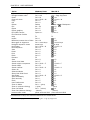
List of shortcuts . . . . . . . . . . . . . . . . . . . . . . . . . . . . . . . . . .
53
This chapter provides an overview of the different areas in the user interface of CLC Sequence
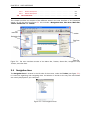
Viewer. As can be seen from figure 3.1 this includes a Navigation Area, View Area, Menu Bar,
Toolbar, Status Bar and Toolbox.
Figure 3.1: The user interface consists of the Menu Bar, Toolbar, Status Bar, Navigation Area,
Toolbox, and View Area.
3.1
Navigation Area
The Navigation Area is located in the left side of the screen, under the Toolbar (see figure 3.2).
It is used for organizing and navigating data. Its behavior is similar to the way files and folders
are usually displayed on your computer.
Figure 3.2: The Navigation Area.
CHAPTER 3. USER INTERFACE
3.1.1
37
Data structure
The data in the Navigation Area is organized into a number of Locations. When the CLC Sequence
Viewer is started for the first time, there is one location called CLC_Data (unless your computer
administrator has configured the installation otherwise).
A location represents a folder on the computer: The data shown under a location in the Navigation
Area is stored on the computer in the folder which the location points to.
This is explained visually in figure 3.3.
Figure 3.3: In this example the location called 'CLC_Data' points to the folder at C:\Documents and
settings\clcuser\CLC_Data.
Opening data
The elements in the Navigation Area are opened by :
Double-click the element
or Click the element | Show ( ) in the Toolbar | Select the desired way to view the
element
This will open a view in the View Area, which is described in section 3.2.
Adding data
Data can be added to the Navigation Area in a number of ways. Files can be imported from
the file system (see chapter 6). Furthermore, an element can be added by dragging it into the
Navigation Area. This could be views that are open, elements on lists, e.g. search hits or
sequence lists, and files located on your computer.
If a file or another element is dropped on a folder, it is placed at the bottom of the folder. If it is
dropped on another element, it will be placed just below that element.
If the element already exists in the Navigation Area, you will be asked whether you wish to create
a copy.
CHAPTER 3. USER INTERFACE
3.1.2
38
Create new folders
In order to organize your files, they can be placed in folders. Creating a new folder can be done
in two ways:
right-click an element in the Navigation Area | New | Folder (
or File | New | Folder (
)
)
If a folder is selected in the Navigation Area when adding a new folder, the new folder is added
at the bottom of this folder. If an element is selected, the new folder is added right above that
element.
You can move the folder manually by selecting it and dragging it to the desired destination.
3.1.3
Sorting folders
You can sort the elements in a folder alphabetically:
right-click the folder | Sort Folder
On Windows, subfolders will be placed at the top of the folder, and the rest of the elements will
be listed below in alphabetical order. On Mac, both subfolders and other elements are listed
together in alphabetical order.
3.1.4
Multiselecting elements
Multiselecting elements means that you select more than one element at the same time. This
can be done in the following ways:
• Holding down the <Ctrl> key ( on Mac) while clicking on multiple elements selects the
elements that have been clicked.
• Selecting one element, and selecting another element while holding down the <Shift> key
selects all the elements listed between the two locations (the two end locations included).
• Selecting one element, and moving the curser with the arrow-keys while holding down the
<Shift> key, enables you to increase the number of elements selected.
3.1.5
Moving and copying elements
Elements can be moved and copied in several ways:
• Using Copy (
• Using Ctrl + C (
• Using Copy (
), Cut (
) and Paste (
+ C on Mac), Ctrl + X (
), Cut (
) and Paste (
) from the Edit menu.
+ X on Mac) and Ctrl + V (
+ V on Mac).
) in the Toolbar.
• Using drag and drop to move elements.
• Using drag and drop while pressing Ctrl / Command to copy elements.
In the following, all of these possibilities for moving and copying elements are described in further
detail.
CHAPTER 3. USER INTERFACE
39
Copy, cut and paste functions
Copies of elements and folders can be made with the copy/paste function which can be applied
in a number of ways:
select the files to copy | right-click one of the selected files | Copy (
the location to insert files into | Paste ( )
or select the files to copy | Ctrl + C (
+ P ( + P on Mac)
) | right-click
+ C on Mac) | select where to insert files | Ctrl
or select the files to copy | Edit in the Menu Bar | Copy (
files | Edit in the Menu Bar | Paste ( )
) | select where to insert
If there is already an element of that name, the pasted element will be renamed by appending a
number at the end of the name.
Elements can also be moved instead of copied. This is done with the cut/paste function:
select the files to cut | right-click one of the selected files | Cut (
the location to insert files into | Paste ( )
or select the files to cut | Ctrl + X (
+ V ( + V on Mac)
) | right-click
+ X on Mac) | select where to insert files | Ctrl
When you have cut the element, it is "greyed out" until you activate the paste function. If you
change your mind, you can revert the cut command by copying another element.
Note that if you move data between locations, the original data is kept. This means that you are
essentially doing a copy instead of a move operation.
Move using drag and drop
Using drag and drop in the Navigation Area, as well as in general, is a four-step process:
click the element | click on the element again, and hold left mouse button | drag
the element to the desired location | let go of mouse button
This allows you to:
• Move elements between different folders in the Navigation Area
• Drag from the Navigation Area to the View Area: A new view is opened in an existing View
Area if the element is dragged from the Navigation Area and dropped next to the tab(s) in
that View Area.
• Drag from the View Area to the Navigation Area: The element, e.g. a sequence, alignment,
search report etc. is saved where it is dropped. If the element already exists, you are asked
whether you want to save a copy. You drag from the View Area by dragging the tab of the
desired element.
Use of drag and drop is supported throughout the program, also to open and re-arrange views
(see section 3.2.6).
Note that if you move data between locations, the original data is kept. This means that you are
essentially doing a copy instead of a move operation.
CHAPTER 3. USER INTERFACE
40
Copy using drag and drop
To copy instead of move using drag and drop, hold the Ctrl (
on Mac) key while dragging:
click the element | click on the element again, and hold left mouse button | drag
the element to the desired location | press Ctrl ( on Mac) while you let go of
mouse button release the Ctrl/ button
3.1.6
Change element names
This section describes two ways of changing the names of sequences in the Navigation Area. In
the first part, the sequences themselves are not changed - it's their representation that changes.
The second part describes how to change the name of the element.
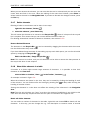
Change how sequences are displayed
Sequence elements can be displayed in the Navigation Area with different types of information:
• Name (this is the default information to be shown).
• Accession (sequences downloaded from databases like GenBank have an accession
number).
• Latin name.
• Latin name (accession).
• Common name.
• Common name (accession).
Whether sequences can be displayed with this information depends on their origin. Sequences
that you have created yourself or imported might not include this information, and you will only be
able to see them represented by their name. However, sequences downloaded from databases
like GenBank will include this information. To change how sequences are displayed:
right-click any element or folder in the Navigation Area | Sequence Representation
| select format
This will only affect sequence elements, and the display of other types of elements, e.g.
alignments, trees and external files, will be not be changed. If a sequence does not have this
information, there will be no text next to the sequence icon.
Rename element
Renaming a folder or an element in the Navigation Area can be done in three different ways:
select the element | Edit in the Menu Bar | Rename
or select the element | F2
click the element once | wait one second | click the element again
CHAPTER 3. USER INTERFACE
41
When you can rename the element, you can see that the text is selected and you can move the
cursor back and forth in the text. When the editing of the name has finished; press Enter or
select another element in the Navigation Area. If you want to discard the changes instead, press
the Esc-key.
3.1.7
Delete elements
Deleting a folder or an element can be done in two ways:
right-click the element | Delete (
)
or select the element | press Delete key
This will cause the element to be moved to the Recycle Bin ( ) where it is kept until the recycle
bin is emptied. This means that you can recover deleted elements later on.
For deleting annotations instead of folders or elements, see section 9.3.2.
Restore Deleted Elements
The elements in the Recycle Bin ( ) can be restored by dragging the elements with the mouse
into the folder where they used to be.
If you have deleted large amounts of data taking up very much disk space, you can free this disk
space by emptying the Recycle Bin ( ):
Edit in the Menu Bar | Empty Recycle Bin (
)
Note! This cannot be undone, and you will therefore not be able to recover the data present in
the recycle bin when it was emptied.
3.1.8
Show folder elements in a table
A location or a folder might contain large amounts of elements. It is possible to view their
elements in the View Area:
select a folder or location | Show (
) in the Toolbar | Contents (
)
An example is shown in figure 3.4.
When the elements are shown in the view, they can be sorted by clicking the heading of each
of the columns. You can further refine the sorting by pressing Ctrl ( on Mac) while clicking the
heading of another column.
Sorting the elements in a view does not affect the ordering of the elements in the Navigation
Area.
Note! The view only displays one "layer" at a time: the content of subfolders is not visible in this
view. Also note that only sequences have the full span of information like organism etc.
Batch edit folder elements
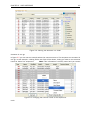
You can select a number of elements in the table, right-click and choose Edit to batch edit the
elements. In this way, you can change the e.g. the description or common name of several
CHAPTER 3. USER INTERFACE
42
Figure 3.4: Viewing the elements in a folder.
elements in one go.
In figure 3.5 you can see an example where the common name of five sequence are renamed in
one go. In this example, a dialog with a text field will be shown, letting you enter a new common
name for these five sequences.
Note! This information is directly saved and you cannot
Figure 3.5: Changing the common name of five sequences.
undo.
CHAPTER 3. USER INTERFACE
3.2
43
View Area
The View Area is the right-hand part of the screen, displaying your current work. The View Area
may consist of one or more Views, represented by tabs at the top of the View Area.
This is illustrated in figure 3.6.
Figure 3.6: A View Area can enclose several views, each view is indicated with a tab (see right view,
which shows protein P68225). Furthermore, several views can be shown at the same time (in this
example, four views are displayed).
The tab concept is central to working with CLC Sequence Viewer, because several operations can
be performed by dragging the tab of a view, and extended right-click menus can be activated from
the tabs.
This chapter deals with the handling of views inside a View Area. Furthermore, it deals with
rearranging the views.
Section 3.3 deals with the zooming and selecting functions.
3.2.1
Open view
Opening a view can be done in a number of ways:
double-click an element in the Navigation Area
or select an element in the Navigation Area | File | Show | Select the desired way to
view the element
or select an element in the Navigation Area | Ctrl + O (
+ B on Mac)
Opening a view while another view is already open, will show the new view in front of the other
view. The view that was already open can be brought to front by clicking its tab.
Note! If you right-click an open tab of any element, click Show, and then choose a different view
of the same element, this new view is automatically opened in a split-view, allowing you to see
both views.
CHAPTER 3. USER INTERFACE
44
See section 3.1.5 for instructions on how to open a view using drag and drop.
3.2.2
Show element in another view
Each element can be shown in different ways. A sequence, for example, can be shown as linear,
circular, text etc.
In the following example, you want to see a sequence in a circular view. If the sequence is
already open in a view, you can change the view to a circular view:
Click Show As Circular (
) at the lower left part of the view
The buttons used for switching views are shown in figure 3.7).
Figure 3.7: The buttons shown at the bottom of a view of a nucleotide sequence. You can click the
buttons to change the view to e.g. a circular view or a history view.
If the sequence is already open in a linear view (
linear view, you can split the views very easily:
), and you wish to see both a circular and a
Press Ctrl ( on Mac) while you | Click Show As Circular ( ) at the lower left part
of the view
This will open a split view with a linear view at the bottom and a circular view at the top (see 9.5).
You can also show a circular view of a sequence without opening the sequence first:
Select the sequence in the Navigation Area | Show (
3.2.3
) | As Circular (
)
Close views
When a view is closed, the View Area remains open as long as there is at least one open view.
A view is closed by:
right-click the tab of the View | Close
or select the view | Ctrl + W
or hold down the Ctrl-button | Click the tab of the view while the button is pressed
By right-clicking a tab, the following close options exist. See figure 3.8
• Close. See above.
• Close Tab Area. Closes all tabs in the tab area.
• Close All Views. Closes all tabs, in all tab areas. Leaves an empty workspace.
• Close Other Tabs. Closes all other tabs in the particular tab area.
CHAPTER 3. USER INTERFACE
45
Figure 3.8: By right-clicking a tab, several close options are available.
3.2.4
Save changes in a view
When changes are made in a view, the text on the tab appears bold and italic (on Mac it is
indicated by an * before the name of the tab). This indicates that the changes are not saved.
The Save function may be activated in two ways:
Click the tab of the view you want to save | Save (
) in the toolbar.
or Click the tab of the view you want to save | Ctrl + S (
+ S on Mac)
If you close a view containing an element that has been changed since you opened it, you are
asked if you want to save.
When saving a new view that has not been opened from the Navigation Area (e.g. when opening
a sequence from a list of search hits), a save dialog appears (figure 3.9).
Figure 3.9: Save dialog.
In the dialog you select the folder in which you want to save the element.
After naming the element, press OK
CHAPTER 3. USER INTERFACE
3.2.5
46
Undo/Redo
If you make a change in a view, e.g. remove an annotation in a sequence or modify a tree, you
can undo the action. In general, Undo applies to all changes you can make when right-clicking in
a view. Undo is done by:
Click undo (
or Edit | Undo (
) in the Toolbar
)
or Ctrl + Z
If you want to undo several actions, just repeat the steps above. To reverse the undo action:
Click the redo icon in the Toolbar
or Edit | Redo (
)
or Ctrl + Y
Note! Actions in the Navigation Area, e.g. renaming and moving elements, cannot be undone.
However, you can restore deleted elements (see section 3.1.7).
You can set the number of possible undo actions in the Preferences dialog (see section 4).
3.2.6
Arrange views in View Area
Views are arranged in the View Area by their tabs. The order of the views can be changed using
drag and drop. E.g. drag the tab of one view onto the tab of a another. The tab of the first view is
now placed at the right side of the other tab.
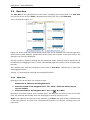
If a tab is dragged into a view, an area of the view is made gray (see fig. 3.10) illustrating that
the view will be placed in this part of the View Area.
Figure 3.10: When dragging a view, a gray area indicates where the view will be shown.
The results of this action is illustrated in figure 3.11.
You can also split a View Area horizontally or vertically using the menus.
Splitting horisontally may be done this way:
CHAPTER 3. USER INTERFACE
47
Figure 3.11: A horizontal split-screen. The two views split the View Area.
right-click a tab of the view | View | Split Horizontally (
)
This action opens the chosen view below the existing view. (See figure 3.12). When the split is
made vertically, the new view opens to the right of the existing view.
Figure 3.12: A vertical split-screen.
Splitting the View Area can be undone by dragging e.g. the tab of the bottom view to the tab of
the top view. This is marked by a gray area on the top of the view.
Maximize/Restore size of view
The Maximize/Restore View function allows you to see a view in maximized mode, meaning a
mode where no other views nor the Navigation Area is shown.
Maximizing a view can be done in the following ways:
select view | Ctrl + M
CHAPTER 3. USER INTERFACE
48
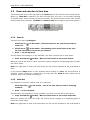
Figure 3.13: A maximized view. The function hides the Navigation Area and the Toolbox.
or select view | View | Maximize/restore View (
)
)
or select view | right-click the tab | View | Maximize/restore View (
or double-click the tab of view
The following restores the size of the view:
Ctrl + M
or View | Maximize/restore View (
)
or double-click title of view
3.2.7
Side Panel
The Side Panel allows you to change the way the contents of a view are displayed. The options
in the Side Panel depend on the kind of data in the view, and they are described in the relevant
sections about sequences, alignments, trees etc.
Side Panel are activated in this way:
select the view | Ctrl + U (
+ U on Mac)
or right-click the tab of the view | View | Show/Hide Side Panel (
)
Note! Changes made to the Side Panel will not be saved when you save the view. See how to
save the changes in the Side Panel in chapter 4 .
The Side Panel consists of a number of groups of preferences (depending on the kind of data
being viewed), which can be expanded and collapsed by clicking the header of the group. You
can also expand or collapse all the groups by clicking the icons ( )/ ( ) at the top.
CHAPTER 3. USER INTERFACE
3.3
49
Zoom and selection in View Area
The mode toolbar items in the right side of the Toolbar apply to the function of the mouse pointer.
When e.g. Zoom Out is selected, you zoom out each time you click in a view where zooming
is relevant (texts, tables and lists cannot be zoomed). The chosen mode is active until another
mode toolbar item is selected. (Fit Width and Zoom to 100% do not apply to the mouse pointer.)
Figure 3.14: The mode toolbar items.
3.3.1
Zoom In
There are four ways of Zooming In:
Click Zoom In (
zoom in on
) in the toolbar | click the location in the view that you want to.
or Click Zoom In ( ) in the toolbar | click-and-drag a box around a part of the view |
the view now zooms in on the part you selected
or Press '+' on your keyboard
The last option for zooming in is only available if you have a mouse with a scroll wheel:
or Press and hold Ctrl (
on Mac) | Move the scroll wheel on your mouse forward
When you choose the Zoom In mode, the mouse pointer changes to a magnifying glass to reflect
the mouse mode.
Note! You might have to click in the view before you can use the keyboard or the scroll wheel to
zoom.
If you press the Shift button on your keyboard while clicking in a View, the zoom function is
reversed. Hence, clicking on a sequence in this way while the Zoom In mode toolbar item is
selected, zooms out instead of zooming in.
3.3.2
Zoom Out
It is possible to zoom out, step by step, on a sequence:
Click Zoom Out ( ) in the toolbar | click in the view until you reach a satisfying.
zoomlevel
or Press '-' on your keyboard
The last option for zooming out is only available if you have a mouse with a scroll wheel:
or Press and hold Ctrl (
on Mac) | Move the scroll wheel on your mouse backwards
When you choose the Zoom Out mode, the mouse pointer changes to a magnifying glass to
reflect the mouse mode.
Note! You might have to click in the view before you can use the keyboard or the scroll wheel to
CHAPTER 3. USER INTERFACE
50
zoom.
If you want to get a quick overview of a sequence or a tree, use the Fit Width function instead of
the Zoom Out function.
If you press Shift while clicking in a View, the zoom function is reversed. Hence, clicking on a
sequence in this way while the Zoom Out mode toolbar item is selected, zooms in instead of
zooming out.
3.3.3
Fit Width
The Fit Width ( ) function adjusts the content of the View so that both ends of the sequence,
alignment, or tree is visible in the View in question. (This function does not change the mode of
the mouse pointer.)
3.3.4
Zoom to 100%
The Zoom to 100% ( ) function zooms the content of the View so that it is displayed with the
highest degree of detail. (This function does not change the mode of the mouse pointer.)
3.3.5
Move
The Move mode allows you to drag the content of a View. E.g. if you are studying a sequence,
you can click anywhere in the sequence and hold the mouse button. By moving the mouse you
move the sequence in the View.
3.3.6
Selection
The Selection mode ( ) is used for selecting in a View (selecting a part of a sequence, selecting
nodes in a tree etc.). It is also used for moving e.g. branches in a tree or sequences in an
alignment.
When you make a selection on a sequence or in an alignment, the location is shown in the bottom
right corner of the screen. E.g. '23 24' means that the selection is between two residues. '23'
means that the residue at position 23 is selected, and finally '23..25' means that 23, 24 and
25 are selected. By holding ctrl /
you can make multiple selections.
3.4
Toolbox and Status Bar
The Toolbox is placed in the left side of the user interface of CLC Sequence Viewer below the
Navigation Area.
The Toolbox shows a Processes tab and a Toolbox tab.
3.4.1
Processes
By clicking the Processes tab, the Toolbox displays previous and running processes, e.g. an
NCBI search or a calculation of an alignment. The running processes can be stopped, paused,
and resumed by clicking the small icon ( ) next to the process (see figure 3.15).
CHAPTER 3. USER INTERFACE
51
Running and paused processes are not deleted.
Figure 3.15: A database search and an alignment calculation are running. Clicking the small icon
next to the process allow you to stop, pause and resume processes.
Besides the options to stop, pause and resume processes, there are some extra options for a
selected number of the tools running from the Toolbox:
• Show results. If you have chosen to save the results (see section 8.1), you will be able to
open the results directly from the process by clicking this option.
• Find results. If you have chosen to save the results (see section 8.1), you will be able to
high-light the results in the Navigation Area.
• Show Log Information. This will display a log file showing progress of the process. The
log file can also be shown by clicking Show Log in the "handle results" dialog where you
choose between saving and opening the results.
• Show Messages. Some analyses will give you a message when processing your data.
The messages are the black dialogs shown in the lower left corner of the Workbench that
disappear after a few seconds. You can reiterate the messages that have been shown by
clicking this option.
The terminated processes can be removed by:
View | Remove Terminated Processes (
)
If you close the program while there are running processes, a dialog will ask if you are sure that
you want to close the program. Closing the program will stop the process, and it cannot be
restarted when you open the program again.
3.4.2
Toolbox
The content of the Toolbox tab in the Toolbox corresponds to Toolbox in the Menu Bar.
The Toolbox can be hidden, so that the Navigation Area is enlarged and thereby displays more
elements:
View | Show/Hide Toolbox
The tools in the toolbox can be accessed by double-clicking or by dragging elements from the
Navigation Area to an item in the Toolbox.
CHAPTER 3. USER INTERFACE
3.4.3
52
Status Bar
As can be seen from figure 3.1, the Status Bar is located at the bottom of the window. In the
left side of the bar is an indication of whether the computer is making calculations or whether it
is idle. The right side of the Status Bar indicates the range of the selection of a sequence. (See
chapter 3.3.6 for more about the Selection mode button.)
3.5
Workspace
If you are working on a project and have arranged the views for this project, you can save this
arrangement using Workspaces. A Workspace remembers the way you have arranged the views,
and you can switch between different workspaces.
The Navigation Area always contains the same data across Workspaces. It is, however, possible
to open different folders in the different Workspaces. Consequently, the program allows you to
display different clusters of the data in separate Workspaces.
All Workspaces are automatically saved when closing down CLC Sequence Viewer. The next time
you run the program, the Workspaces are reopened exactly as you left them.
Note! It is not possible to run more than one version of CLC Sequence Viewer at a time. Use two
or more Workspaces instead.
3.5.1
Create Workspace
When working with large amounts of data, it might be a good idea to split the work into two
or more Workspaces. As default the CLC Sequence Viewer opens one Workspace. Additional
Workspaces are created in the following way:
Workspace in the Menu Bar) | Create Workspace | enter name of Workspace | OK
When the new Workspace is created, the heading of the program frame displays the name of
the new Workspace. Initially, the selected elements in the Navigation Area is collapsed and the
View Area is empty and ready to work with. (See figure 3.16).
3.5.2
Select Workspace
When there is more than one Workspace in the CLC Sequence Viewer, there are two ways to
switch between them:
Workspace (
) in the Toolbar | Select the Workspace to activate
or Workspace in the Menu Bar | Select Workspace (
to activate | OK
) | choose which Workspace
The name of the selected Workspace is shown after "CLC Sequence Viewer" at the top left corner
of the main window, in figure 3.16 it says: (default).
3.5.3
Delete Workspace
Deleting a Workspace can be done in the following way:
CHAPTER 3. USER INTERFACE
53
Figure 3.16: An empty Workspace.
Workspace in the Menu Bar | Delete Workspace | choose which Workspace to
delete | OK
Note! Be careful to select the right Workspace when deleting. The delete action cannot be
undone. (However, no data is lost, because a workspace is only a representation of data.)
It is not possible to delete the default workspace.
3.6
List of shortcuts
The keyboard shortcuts in CLC Sequence Viewer are listed below.
CHAPTER 3. USER INTERFACE
Action
Adjust selection
Change between tabs1
Close
Close all views
Copy
Cut
Delete
Exit
Export
Export graphics
Find Next Conflict
Find Previous Conflict
Help
Import
Maximize/restore size of View
Move gaps in alignment
Navigate sequence views
New Folder
New Sequence
View
Paste
Print
Redo
Rename
Save
Search local data
Search within a sequence
Search NCBI
Search UniProt
Select All
Selection Mode
Show/hide Side Panel
Sort folder
Split Horizontally
Split Vertically
Undo
User Preferences
Zoom In Mode
Zoom In (without clicking)
Zoom Out Mode
Zoom Out (without clicking)
Inverse zoom mode
54
Windows/Linux
Shift + arrow keys
Ctrl + tab
Ctrl + W
Ctrl + Shift + W
Ctrl + C
Ctrl + X
Delete
Alt + F4
Ctrl + E
Ctrl + G
Space or .
,
F1
Ctrl + I
Ctrl + M
Ctrl + arrow keys
arrow keys
Ctrl + Shift + N
Ctrl + N
Ctrl + O
Ctrl + V
Ctrl + P
Ctrl + Y
F2
Ctrl + S
Ctrl + F
Ctrl + Shift + F
Ctrl + B
Ctrl + Shift + U
Ctrl + A
Ctrl + 2
Ctrl + U
Ctrl + Shift + R
Ctrl + T
Ctrl + J
Ctrl + Z
Ctrl + K
Ctrl + + (plus)
+ (plus)
Ctrl + - (minus)
- (minus)
press and hold Shift
Mac OS X
Shift + arrow keys
Ctrl + Page Up/Down
+W
+ Shift + W
+C
+X
Delete or
+ Backspace
+Q
+E
+G
Space or .
,
F1
+I
+M
+ arrow keys
arrow keys
+ Shift + N
+N
+O
+V
+P
+Y
F2
+S
+F
+ Shift + F
+B
+ Shift + U
+A
+2
+U
+ Shift + R
+T
+J
+Z
+;
+3
+ (plus)
+4
- (minus)
press and hold Shift
Combinations of keys and mouse movements are listed below.
1
On Linux changing tabs is accomplished using Ctrl + Page Up/Page Down
CHAPTER 3. USER INTERFACE
55
Action
Windows/Linux Mac OS X Mouse movement
Maximize View
Double-click the tab of the View
Restore View
Double-click the View title
"ElReverse zoom function
Shift
Shift
Click in view
Select multiple elements Ctrl
Click elements
Select multiple elements Shift
Shift
Click elements
ements" in this context refers to elements and folders in the Navigation Area selections on
sequences, and rows in tables.
Chapter 4
User preferences and settings
Contents
4.1
General preferences . . . . . . . . . . . . . . . . . . . . . . . . . . . . . . . .
56
4.2
Default view preferences . . . . . . . . . . . . . . . . . . . . . . . . . . . . .
57
4.2.1
Import and export Side Panel settings . . . . . . . . . . . . . . . . . . .
4.3
Advanced preferences
4.4
Export/import of preferences
4.4.1
4.5
. . . . . . . . . . . . . . . . . . . . . . . . . . . . . .
. . . . . . . . . . . . . . . . . . . . . . . . . .
58
60
60
The different options for export and importing . . . . . . . . . . . . . . .
60
View settings for the Side Panel . . . . . . . . . . . . . . . . . . . . . . . . .
61
4.5.1
Floating Side Panel . . . . . . . . . . . . . . . . . . . . . . . . . . . . .
63
The first three sections in this chapter deal with the general preferences that can be set for CLC
Sequence Viewer using the Preferences dialog. The next section explains how the settings in the
Side Panel can be saved and applied to other views. Finally, you can learn how to import and
export the preferences.
The Preferences dialog offers opportunities for changing the default settings for different features
of the program.
The Preferences dialog is opened in one of the following ways and can be seen in figure 4.1:
Edit | Preferences (
or Ctrl + K (
4.1
)
+ ; on Mac)
General preferences
The General preferences include:
• Undo Limit. As default the undo limit is set to 500. By writing a higher number in this field,
more actions can be undone. Undo applies to all changes made on sequences, alignments
or trees. See section 3.2.5 for more on this topic.
• Audit Support. If this option is checked, all manual editing of sequences will be marked
with an annotation on the sequence (see figure 4.2). Placing the mouse on the annotation
56
CHAPTER 4. USER PREFERENCES AND SETTINGS
57
Figure 4.1: Preferences include General preferences, View preferences, Colors preferences, and
Advanced settings.
will reveal additional details about the change made to the sequence (see figure 4.3). Note
that no matter whether Audit Support is checked or not, all changes are also recorded in
the History ( ) (see section 7).
• Number of hits. The number of hits shown in CLC Sequence Viewer, when e.g. searching
NCBI. (The sequences shown in the program are not downloaded, until they are opened or
dragged/saved into the Navigation Area.
• Locale Setting. Specify which country you are located in. This determines how punctation
is used in numbers all over the program.
• Show Dialogs. A lot of information dialogs have a checkbox: "Never show this dialog
again". When you see a dialog and check this box in the dialog, the dialog will not be shown
again. If you regret and wish to have the dialog displayed again, click the button in the
General Preferences: Show Dialogs. Then all the dialogs will be shown again.
Figure 4.2: Annotations added when the sequence is edited.
Figure 4.3: Details of the editing.
4.2
Default view preferences
There are five groups of default View settings:
1. Toolbar
2. Side Panel Location
CHAPTER 4. USER PREFERENCES AND SETTINGS
58
3. New View
4. View Format
5. User Defined View Settings.
In general, these are default settings for the user interface.
The Toolbar preferences let you choose the size of the toolbar icons, and you can choose whether
to display names below the icons.
The Side Panel Location setting lets you choose between Dock in views and Float in window.
When docked in view, view preferences will be located in the right side of the view of e.g. an
alignment. When floating in window, the side panel can be placed everywhere in your screen,
also outside the workspace, e.g. on a different screen. See section 4.5 for more about floating
side panels.
The New view setting allows you to choose whether the View preferences are to be shown
automatically when opening a new view. If this option is not chosen, you can press (Ctrl + U (
+ U on Mac)) to see the preferences panels of an open view.
The View Format allows you to change the way the elements appear in the Navigation Area. The
following text can be used to describe the element:
• Name (this is the default information to be shown).
• Accession (sequences downloaded from databases like GenBank have an accession
number).
• Latin name.
• Latin name (accession).
• Common name.
• Common name (accession).
The User Defined View Settings gives you an overview of the different Side Panel settings that
are saved for each view. See section 4.5 for more about how to create and save style sheets.
If there are other settings beside CLC Standard Settings, you can use this overview to choose
which of the settings should be used per default when you open a view (see an example in
figure 4.4).
In this example, the CLC Standard Settings is chosen as default.
4.2.1
Import and export Side Panel settings
If you have created a special set of settings in the Side Panel that you wish to share with other
CLC users, you can export the settings in a file. The other user can then import the settings.
To export the Side Panel settings, first select the views that you wish to export settings for. Use
Ctrl+click ( + click on Mac) or Shift+click to select multiple views. Next click the Export...button.
CHAPTER 4. USER PREFERENCES AND SETTINGS
59
Figure 4.4: Selecting the default view setting.
Note that there is also another export button at the very bottom of the dialog, but this will export
the other settings of the Preferences dialog (see section 4.4).
A dialog will be shown (see figure 4.5) that allows you to select which of the settings you wish to
export.
Figure 4.5: Exporting all settings for circular views.
When multiple views are selected for export, all the view settings for the views will be shown
in the dialog. Click Export and you will now be able to define a save folder and name for the
exported file. The settings are saved in a file with a .vsf extension (View Settings File).
To import a Side Panel settings file, make sure you are at the bottom of the View panel of the
Preferences dialog, and click the Import... button. Note that there is also another import button
at the very bottom of the dialog, but this will import the other settings of the Preferences dialog
(see section 4.4).
The dialog asks if you wish to overwrite existing Side Panel settings, or if you wish to merge the
imported settings into the existing ones (see figure 4.6).
Note! If you choose to overwrite the existing settings, you will loose all the Side Panel settings
that you have previously saved.
To avoid confusion of the different import and export options, here is an overview:
• Import and export of bioinformatics data such as sequences, alignments etc. (described
CHAPTER 4. USER PREFERENCES AND SETTINGS
60
Figure 4.6: When you import settings, you are asked if you wish to overwrite existing settings or if
you wish to merge the new settings into the old ones.
in section 6.1.1).
• Graphics export of the views which creates image files in various formats (described in
section 6.3).
• Import and export of Side Panel Settings as described above.
• Import and export of all the Preferences except the Side Panel settings. This is described
in the previous section.
4.3
Advanced preferences
The Advanced settings include the possibility to set up a proxy server. This is described in
section 1.7.
4.4
Export/import of preferences
The user preferences of the CLC Sequence Viewer can be exported to other users of the program,
allowing other users to display data with the same preferences as yours. You can also use the
export/import preferences function to backup your preferences.
To export preferences, open the Preferences dialog (Ctrl + K (
+ ; on Mac)) and do the following:
Export | Select the relevant preferences | Export | Choose location for the exported
file | Enter name of file | Save
Note! The format of exported preferences is .cpf. This notation must be submitted to the name
of the exported file in order for the exported file to work.
Before exporting, you are asked about which of the different settings you want to include in the
exported file. One of the items in the list is "User Defined View Settings". If you export this, only
the information about which of the settings is the default setting for each view is exported. If you
wish to export the Side Panel Settings themselves, see section 4.2.1.
The process of importing preferences is similar to exporting:
Press Ctrl + K ( + ; on Mac) to open Preferences | Import | Browse to and select
the .cpf file | Import and apply preferences
4.4.1
The different options for export and importing
To avoid confusion of the different import and export options, here is an overview:
CHAPTER 4. USER PREFERENCES AND SETTINGS
61
• Import and export of bioinformatics data such as sequences, alignments etc. (described
in section 6.1.1).
• Graphics export of the views which creates image files in various formats (described in
section 6.3).
• Import and export of Side Panel Settings as described in the next section.
• Import and export of all the Preferences except the Side Panel settings. This is described
above.
4.5
View settings for the Side Panel
The Side Panel is shown to the right of all views that are opened in CLC Sequence Viewer. By
using the settings in the Side Panel you can specify how the layout and contents of the view.
Figure 4.7 is an example of the Side Panel of a sequence view.
Figure 4.7: The Side Panel of a sequence contains several groups: Sequence layout, Annotation
types, Annotation layout, etc. Several of these groups are present in more views. E.g. Sequence
layout is also in the Side Panel of alignment views.
By clicking the black triangles or the corresponding headings, the groups can be expanded or
collapsed. An example is shown in figure 4.8 where the Sequence layout is expanded.
The content of the groups is described in the sections where the functionality is explained. E.g.
Sequence Layout for sequences is described in chapter 9.1.1.
When you have adjusted a view of e.g. a sequence, your settings in the Side Panel can be saved.
When you open other sequences, which you want to display in a similar way, the saved settings
can be applied. The options for saving and applying are available in the top of the Side Panel
(see figure 4.9).
To save and apply the saved settings, click (
the following options are available:
) seen in figure 4.9. This opens a menu, where
• Save Settings. This brings up a dialog as shown in figure 4.10 where you can enter a name
for your settings. Furthermore, by clicking the checkbox Always apply these settings, you
can choose to use these settings every time you open a new view of this type. If you wish
CHAPTER 4. USER PREFERENCES AND SETTINGS
62
Figure 4.8: The Sequence layout is expanded.
Figure 4.9: At the top of the Side Panel you can: Expand all groups, Collapse all preferences,
Dock/Undock preferences, Help, and Save/Restore preferences.
to change which settings should be used per default, open the Preferences dialog (see
section 4.2).
• Delete Settings. Opens a dialog to select which of the saved settings to delete.
• Apply Saved Settings. This is a submenu containing the settings that you have previously
saved. By clicking one of the settings, they will be applied to the current view. You will
also see a number of pre-defined view settings in this submenu. They are meant to be
examples of how to use the Side Panel and provide quick ways of adjusting the view to
common usages. At the bottom of the list of settings you will see CLC Standard Settings
which represent the way the program was set up, when you first launched it.
Figure 4.10: The save settings dialog.
The settings are specific to the type of view. Hence, when you save settings of a circular view,
they will not be available if you open the sequence in a linear view.
CHAPTER 4. USER PREFERENCES AND SETTINGS
63
Figure 4.11: Applying saved settings.
If you wish to export the settings that you have saved, this can be done in the Preferences dialog
under the View tab (see section 4.2.1).
The remaining icons of figure 4.9 are used to; Expand all groups, Collapse all groups, and
Dock/Undock Side Panel. Dock/Undock Side Panel is to make the Side Panel "floating" (see
below).
4.5.1
Floating Side Panel
The Side Panel of the views can be placed in the right side of a view, or it can be floating (see
figure 4.12).
Figure 4.12: The floating Side Panel can be moved out of the way, e.g. to allow for a wider view of
a table.
By clicking the Dock icon ( ) the floating Side Panel reappear in the right side of the view. The
size of the floating Side Panel can be adjusted by dragging the hatched area in the bottom right.
Chapter 5
Printing
Contents
5.1
Selecting which part of the view to print . . . . . . . . . . . . . . . . . . . .
65
5.2
Page setup . . . . . . . . . . . . . . . . . . . . . . . . . . . . . . . . . . . . .
66
5.2.1
5.3
Header and footer . . . . . . . . . . . . . . . . . . . . . . . . . . . . . .
67
Print preview . . . . . . . . . . . . . . . . . . . . . . . . . . . . . . . . . . . .
67
CLC Sequence Viewer offers different choices of printing the result of your work.
This chapter deals with printing directly from CLC Sequence Viewer. Another option for using the
graphical output of your work, is to export graphics (see chapter 6.3) in a graphic format, and
then import it into a document or a presentation.
All the kinds of data that you can view in the View Area can be printed. The CLC Sequence Viewer
uses a WYSIWYG principle: What You See Is What You Get. This means that you should use the
options in the Side Panel to change how your data, e.g. a sequence, looks on the screen. When
you print it, it will look exactly the same way on print as on the screen.
For some of the views, the layout will be slightly changed in order to be printer-friendly.
It is not possible to print elements directly from the Navigation Area. They must first be opened
in a view in order to be printed. To print the contents of a view:
select relevant view | Print (
) in the toolbar
This will show a print dialog (see figure 5.1).
In this dialog, you can:
• Select which part of the view you want to print.
• Adjust Page Setup.
• See a print Preview window.
These three options are described in the three following sections.
64
CHAPTER 5. PRINTING
65
Figure 5.1: The Print dialog.
5.1
Selecting which part of the view to print
In the print dialog you can choose to:
• Print visible area, or
• Print whole view
These options are available for all views that can be zoomed in and out. In figure 5.2 is a view of
a circular sequence which is zoomed in so that you can only see a part of it.
Figure 5.2: A circular sequence as it looks on the screen.
When selecting Print visible area, your print will reflect the part of the sequence that is visible in
the view. The result from printing the view from figure 5.2 and choosing Print visible area can be
seen in figure 5.3.
Figure 5.3: A print of the sequence selecting Print visible area.
On the other hand, if you select Print whole view, you will get a result that looks like figure 5.4.
This means that you also print the part of the sequence which is not visible when you have
zoomed in.
CHAPTER 5. PRINTING
66
Figure 5.4: A print of the sequence selecting Print whole view. The whole sequence is shown, even
though the view is zoomed in on a part of the sequence.
5.2
Page setup
No matter whether you have chosen to print the visible area or the whole view, you can adjust
page setup of the print. An example of this can be seen in figure 5.5
Figure 5.5: Page Setup.
In this dialog you can adjust both the setup of the pages and specify a header and a footer by
clicking the tab at the top of the dialog.
You can modify the layout of the page using the following options:
• Orientation.
Portrait. Will print with the paper oriented vertically.
Landscape. Will print with the paper oriented horizontally.
• Paper size. Adjust the size to match the paper in your printer.
• Fit to pages. Can be used to control how the graphics should be split across pages (see
figure 5.6 for an example).
Horizontal pages. If you set the value to e.g. 2, the printed content will be broken
up horizontally and split across 2 pages. This is useful for sequences that are not
wrapped
Vertical pages. If you set the value to e.g. 2, the printed content will be broken up
vertically and split across 2 pages.
Note! It is a good idea to consider adjusting view settings (e.g. Wrap for sequences), in the
Side Panel before printing. As explained in the beginning of this chapter, the printed material will
look like the view on the screen, and therefore these settings should also be considered when
adjusting Page Setup.
CHAPTER 5. PRINTING
67
Figure 5.6: An example where Fit to pages horizontally is set to 2, and Fit to pages vertically is set
to 3.
5.2.1
Header and footer
Click the Header/Footer tab to edit the header and footer text. By clicking in the text field
for either Custom header text or Custom footer text you can access the auto formats for
header/footer text in Insert a caret position. Click either Date, View name, or User name to
include the auto format in the header/footer text.
Click OK when you have adjusted the Page Setup. The settings are saved so that you do not
have to adjust them again next time you print. You can also change the Page Setup from the File
menu.
5.3
Print preview
The preview is shown in figure 5.7.
Figure 5.7: Print preview.
The Print preview window lets you see the layout of the pages that are printed. Use the arrows
in the toolbar to navigate between the pages. Click Print ( ) to show the print dialog, which lets
you choose e.g. which pages to print.
The Print preview window is for preview only - the layout of the pages must be adjusted in the
Page setup.
Chapter 6
Import/export of data and graphics
Contents
6.1
6.2
6.3
Bioinformatic data formats . . . . . . . . . . . . . . . . . . . . . . . . . . . .
68
6.1.1
Import of bioinformatic data . . . . . . . . . . . . . . . . . . . . . . . . .
69
6.1.2
Import Vector NTI data
. . . . . . . . . . . . . . . . . . . . . . . . . . .
70
6.1.3
Export of bioinformatics data . . . . . . . . . . . . . . . . . . . . . . . .
73
External files . . . . . . . . . . . . . . . . . . . . . . . . . . . . . . . . . . . .
75
Export graphics to files . . . . . . . . . . . . . . . . . . . . . . . . . . . . . .
75
6.3.1
Which part of the view to export
. . . . . . . . . . . . . . . . . . . . . .
75
6.3.2
Save location and file formats . . . . . . . . . . . . . . . . . . . . . . .
77
6.3.3
Graphics export parameters . . . . . . . . . . . . . . . . . . . . . . . . .
78
6.3.4
Exporting protein reports . . . . . . . . . . . . . . . . . . . . . . . . . .
79
6.4
Export graph data points to a file . . . . . . . . . . . . . . . . . . . . . . . .
80
6.5
Copy/paste view output . . . . . . . . . . . . . . . . . . . . . . . . . . . . .
81
CLC Sequence Viewer handles a large number of different data formats. All data stored in the
Workbench are available in the Navigation Area. The data of the Navigation Area can be divided
into two groups. The data is either one of the different bioinformatic data formats, or it can be an
'external file'. Bioinformatic data formats are those formats which the program can work with,
e.g. sequences, alignments and phylogenetic trees. External files are files or links which are
stored in CLC Sequence Viewer, but are opened by other applications, e.g. pdf-files, Microsoft
Word files, Open Office spreadsheet files, or links to programs and web-pages etc.
This chapter first deals with importing and exporting data in bioinformatic data formats and as
external files. Next comes an explanation of how to export graph data points to a file, and how
export graphics.
6.1
Bioinformatic data formats
The different bioinformatic data formats are imported in the same way, therefore, the following
description of data import is an example which illustrates the general steps to be followed,
regardless of which format you are handling.
68
CHAPTER 6. IMPORT/EXPORT OF DATA AND GRAPHICS
6.1.1
69
Import of bioinformatic data
CLC Sequence Viewer has support for a wide range of bioinformatic data such as sequences,
alignments etc. See a full list of the data formats in section E.1.
The CLC Sequence Viewer offers a lot of possibilities to handle bioinformatic data. Read the next
sections to get information on how to import different file formats or to import data from a Vector
NTI database.
Import using the import dialog
Before importing a file, you must decide where you want to import it, i.e. which location or folder.
The imported file ends up in the location or folder you selected in the Navigation Area.
select location or folder | click Import (
) in the Toolbar
This will show a dialog similar to figure 6.1 (depending on which platform you use). You can
change which kind of file types that should be shown by selecting a file format in the Files of
type box.
Figure 6.1: The import dialog.
Next, select one or more files or folders to import and click Select.
The imported files are placed at the location which was selected when the import was initiated.
E.g. if you right-click on a file in the Navigation Area and choose import, the imported files are
placed immediately below the selected file. If you right-click a folder, the imported files are placed
as the last file in that folder. If you right-click a folder, the imported files are placed as the last
elements in this folder.
If you import one or more folders, the contents of the folder is automatically imported and placed
in that folder in the Navigation Area. If the folder contains subfolders, the whole folder structure
is imported.
In the import dialog (figure 6.1), there are three import options:
CHAPTER 6. IMPORT/EXPORT OF DATA AND GRAPHICS
70
Automatic import This will import the file and CLC Sequence Viewer will try to determine the
format of the file. The format is determined based on the file extension (e.g. SwissProt
files have .swp at the end of the file name) in combination with a detection of elements in
the file that are specific to the individual file formats. If the file type is not recognized, it
will be imported as an external file. In most cases, automatic import will yield a successful
result, but if the import goes wrong, the next option can be helpful:
Force import as type This option should be used if CLC Sequence Viewer cannot successfully
determine the file format. By forcing the import as a specific type, the automatic
determination of the file format is bypassed, and the file is imported as the type specified.
Force import as external file This option should be used if a file is imported as a bioinformatics
file when it should just have been external file. It could be an ordinary text file which is
imported as a sequence.
Import using drag and drop
It is also possible to drag a file from e.g. the desktop into the Navigation Area of CLC Sequence
Viewer. This is equivalent to importing the file using the Automatic import option described
above. If the file type is not recognized, it will be imported as an external file.
Import using copy/paste of text
If you have e.g. a text file or a browser displaying a sequence in one of the formats that can
be imported by CLC Sequence Viewer, there is a very easy way to get this sequence into the
Navigation Area:
Copy the text from the text file or browser | Select a folder in the Navigation Area
| Paste ( )
This will create a new sequence based on the text copied. This operation is equivalent to saving
the text in a text file and importing it into the CLC Sequence Viewer.
If the sequence is not formatted, i.e. if you just have a text like this: "ATGACGAATAGGAGTTCTAGCTA" you can also paste this into the Navigation Area.
Note! Make sure you copy all the relevant text - otherwise CLC Sequence Viewer might not be
able to interpret the text.
6.1.2
Import Vector NTI data
There are several ways of importing your Vector NTI data into the CLC Workbench. The best way
to go depends on how your data is currently stored in Vector NTI:
• Your data is stored in the Vector NTI Local Database which can be accessed through Vector
NTI Explorer. This is described in the first section below.
• Your data is stored as single files on your computer (just like Word documents etc.). This
is described in the second section below.
CHAPTER 6. IMPORT/EXPORT OF DATA AND GRAPHICS
71
Import from the Vector NTI Local Database
If your Vector NTI data are stored in a Vector NTI Local Database (as the one shown in figure 6.2),
you can import all the data in one step, or you can import selected parts of it.
Figure 6.2: Data stored in the Vector NTI Local Database accessed through Vector NTI Explorer.
Importing the entire database in one step
From the Workbench, there is a direct import of the whole database (see figure 6.3):
File | Import Vector NTI Database
Figure 6.3: Import the whole Vector NTI Database.
This will bring up a dialog letting you choose to import from the default location of the database,
or you can specify another location. If the database is installed in the default folder, like e.g.
C:\VNTI Database, press Yes. If not, click No and specify the database folder manually.
When the import has finished, the data will be listed in the Navigation Area of the Workbench as
shown in figure 6.4.
If something goes wrong during the import process, please report the problem to sup-
CHAPTER 6. IMPORT/EXPORT OF DATA AND GRAPHICS
72
Figure 6.4: The Vector NTI Data folder containing all imported sequences of the Vector NTI
Database.
[email protected]. To circumvent the problem, see the following section on how to import
parts of the database. It will take a few more steps, but you will most likely be able to import
this way.
Importing parts of the database
Instead of importing the whole database automatically, you can export parts of the database
from Vector NTI Explorer and subsequently import into the Workbench. First, export a selection
of files as an archive as shown in figure 6.5.
Figure 6.5: Select the relevant files and export them as an archive through the File menu.
This will produce a file with a ma4-, pa4- or oa4-extension. Back in the CLC Workbench, click
Import ( ) and select the file.
Importing single files
In Vector NTI, you can save a sequence in a file instead of in the database (see figure 6.6).
This will give you file with a .gb extension. This file can be easily imported into the CLC Workbench:
Import (
) | select the file | Select
CHAPTER 6. IMPORT/EXPORT OF DATA AND GRAPHICS
73
Figure 6.6: Saving a sequence as a file in Vector NTI.
You don't have to import one file at a time. You can simply select a bunch of files or an entire
folder, and the CLC Workbench will take care of the rest. Even if the files are in different formats.
You can also simply drag and drop the files into the Navigation Area of the CLC Workbench.
The Vector NTI import is a plug-in which is pre-installed in the Workbench. It can be uninstalled
and updated using the plug-in manager (see section 1.6).
6.1.3
Export of bioinformatics data
CLC Sequence Viewer can export bioinformatic data in most of the formats that can be imported.
There are a few exceptions. See section 6.1.1.
To export a file:
select the element to export | Export (
'File of type' | enter name of file | Save
) | choose where to export to | select
When exporting to CSV and tab delimited files, decimal numbers are formatted according to the
Locale setting of the Workbench (see section 4.1). If you open the CSV or tab delimited file
with spreadsheet software like Excel, you should make sure that both the Workbench and the
spreadsheet software are using the same Locale.
Note! The Export dialog decides which types of files you are allowed to export into, depending
on what type of data you want to export. E.g. protein sequences can be exported into GenBank,
Fasta, Swiss-Prot and CLC-formats.
Export of folders and multiple elements
The .zip file type can be used to export all kinds of files and is therefore especially useful in
these situations:
• Export of one or more folders including all underlying elements and folders.
CHAPTER 6. IMPORT/EXPORT OF DATA AND GRAPHICS
74
• If you want to export two or more elements into one file.
Export of folders is similar to export of single files. Exporting multiple files (of different formats)
is done in .zip-format. This is how you export a folder:
select the folder to export | Export ( ) | choose where to export to | enter name |
Save
You can export multiple files of the same type into formats other than ZIP (.zip). E.g. two DNA
sequences can be exported in GenBank format:
select the two sequences by <Ctrl>-click ( -click on Mac) or <Shift>-click | Export
( ) | choose where to export to | choose GenBank (.gbk) format | enter name the
new file | Save
Export of dependent elements
When exporting e.g. an alignment, CLC Sequence Viewer can export the alignment including all
the sequences that were used to create it. This way, when sending your alignment (with the
dependent sequences), your colleagues can reproduce your findings with adjusted parameters, if
desired. To export with dependent files:
select the element in Navigation Area | File in Menu Bar | Export with Dependent
Elements | enter name of of the new file | choose where to export to | Save
The result is a folder containing the exported file with dependent elements, stored automatically
in a folder on the desired location of your desk.
Export history
To export an element's history:
select the element in Navigation Area Export (
choose where to export to | Save
) | select History PDF(.pdf) |
The entire history of the element is then exported in pdf format.
The CLC format
CLC Sequence Viewer keeps all bioinformatic data in the CLC format. Compared to other formats,
the CLC format contains more information about the object, like its history and comments. The
CLC format is also able to hold several elements of different types (e.g. an alignment, a graph and
a phylogenetic tree). This means that if you are exporting your data to another CLC Workbench,
you can use the CLC format to export several elements in one file, and you will preserve all the
information.
Note! CLC files can be exported from and imported into all the different CLC Workbenches.
Backup
If you wish to secure your data from computer breakdowns, it is advisable to perform regular
backups of your data. Backing up data in the CLC Sequence Viewer is done in two ways:
CHAPTER 6. IMPORT/EXPORT OF DATA AND GRAPHICS
75
• Making a backup of each of the folders represented by the locations in the Navigation
Area.
• Selecting all locations in the Navigation Area and export ( ) in .zip format. The resulting
file will contain all the data stored in the Navigation Area and can be imported into CLC
Sequence Viewer if you wish to restore from the back-up at some point.
No matter which method is used for backup, you may have to re-define the locations in the
Navigation Area if you restore your data from a computer breakdown.
6.2
External files
In order to help you organize your research projects, CLC Sequence Viewer lets you import all
kinds of files. E.g. if you have Word, Excel or pdf-files related to your project, you can import
them into the Navigation Area of CLC Sequence Viewer. Importing an external file creates a copy
of the file which is stored at the location you have chosen for import. The file can now be opened
by double-clicking the file in the Navigation Area. The file is opened using the default application
for this file type (e.g. Microsoft Word for .doc-files and Adobe Reader for .pdf).
External files are imported and exported in the same way as bioinformatics files (see section 6.1.1). Bioinformatics files not recognized by CLC Sequence Viewer are also treated as
external files.
6.3
Export graphics to files
CLC Sequence Viewer supports export of graphics into a number of formats. This way, the visible
output of your work can easily be saved and used in presentations, reports etc. The Export
Graphics function ( ) is found in the Toolbar.
CLC Sequence Viewer uses a WYSIWYG principle for graphics export: What You See Is What You
Get. This means that you should use the options in the Side Panel to change how your data, e.g.
a sequence, looks in the program. When you export it, the graphics file will look exactly the same
way.
It is not possible to export graphics of elements directly from the Navigation Area. They must
first be opened in a view in order to be exported. To export graphics of the contents of a view:
select tab of View | Graphics (
) on Toolbar
This will display the dialog shown in figure 6.7.
6.3.1
Which part of the view to export
In this dialog you can choose to:
• Export visible area, or
• Export whole view
These options are available for all views that can be zoomed in and out. In figure 6.8 is a view of
a circular sequence which is zoomed in so that you can only see a part of it.
CHAPTER 6. IMPORT/EXPORT OF DATA AND GRAPHICS
76
Figure 6.7: Selecting to export whole view or to export only the visible area.
Figure 6.8: A circular sequence as it looks on the screen.
When selecting Export visible area, the exported file will only contain the part of the sequence
that is visible in the view. The result from exporting the view from figure 6.8 and choosing Export
visible area can be seen in figure 6.9.
Figure 6.9: The exported graphics file when selecting Export visible area.
On the other hand, if you select Export whole view, you will get a result that looks like figure 6.10.
This means that the graphics file will also include the part of the sequence which is not visible
when you have zoomed in.
Click Next when you have chosen which part of the view to export.
CHAPTER 6. IMPORT/EXPORT OF DATA AND GRAPHICS
77
Figure 6.10: The exported graphics file when selecting Export whole view. The whole sequence is
shown, even though the view is zoomed in on a part of the sequence.
6.3.2
Save location and file formats
In this step, you can choose name and save location for the graphics file (see figure 6.11).
Figure 6.11: Location and name for the graphics file.
CLC Sequence Viewer supports the following file formats for graphics export:
Format
Portable Network Graphics
JPEG
Tagged Image File
PostScript
Encapsulated PostScript
Portable Document Format
Scalable Vector Graphics
Suffix
.png
.jpg
.tif
.ps
.eps
.pdf
.svg
Type
bitmap
bitmap
bitmap
vector graphics
vector graphics
vector graphics
vector graphics
These formats can be divided into bitmap and vector graphics. The difference between these two
categories is described below:
CHAPTER 6. IMPORT/EXPORT OF DATA AND GRAPHICS
78
Bitmap images
In a bitmap image, each dot in the image has a specified color. This implies, that if you zoom in
on the image there will not be enough dots, and if you zoom out there will be too many. In these
cases the image viewer has to interpolate the colors to fit what is actually looked at. A bitmap
image needs to have a high resolution if you want to zoom in. This format is a good choice for
storing images without large shapes (e.g. dot plots). It is also appropriate if you don't have the
need for resizing and editing the image after export.
Vector graphics
Vector graphic is a collection of shapes. Thus what is stored is e.g. information about where a
line starts and ends, and the color of the line and its width. This enables a given viewer to decide
how to draw the line, no matter what the zoom factor is, thereby always giving a correct image.
This format is good for e.g. graphs and reports, but less usable for e.g. dot plots. If the image is
to be resized or edited, vector graphics are by far the best format to store graphics. If you open
a vector graphics file in an application like e.g. Adobe Illustrator, you will be able to manipulate
the image in great detail.
Graphics files can also be imported into the Navigation Area. However, no kinds of graphics files
can be displayed in CLC Sequence Viewer. See section 6.2 for more about importing external
files into CLC Sequence Viewer.
6.3.3
Graphics export parameters
When you have specified the name and location to save the graphics file, you can either click
Next or Finish. Clicking Next allows you to set further parameters for the graphics export,
whereas clicking Finish will export using the parameters that you have set last time you made a
graphics export in that file format (if it is the first time, it will use default parameters).
Parameters for bitmap formats
For bitmap files, clicking Next will display the dialog shown in figure 6.12.
Figure 6.12: Parameters for bitmap formats: size of the graphics file.
CHAPTER 6. IMPORT/EXPORT OF DATA AND GRAPHICS
79
You can adjust the size (the resolution) of the file to four standard sizes:
• Screen resolution
• Low resolution
• Medium resolution
• High resolution
The actual size in pixels is displayed in parentheses. An estimate of the memory usage for
exporting the file is also shown. If the image is to be used on computer screens only, a low
resolution is sufficient. If the image is going to be used on printed material, a higher resolution
is necessary to produce a good result.
Parameters for vector formats
For pdf format, clicking Next will display the dialog shown in figure 6.13 (this is only the case if
the graphics is using more than one page).
Figure 6.13: Page setup parameters for vector formats.
The settings for the page setup are shown, and clicking the Page Setup button will display a
dialog where these settings can ba adjusted. This dialog is described in section 5.2.
The page setup is only available if you have selected to export the whole view - if you have chosen
to export the visible area only, the graphics file will be on one page with no headers or footers.
6.3.4
Exporting protein reports
It is possible to export a protein report using the normal Export function (
a pdf file with a table of contents:
Click the report in the Navigation Area | Export (
) which will generate
) in the Toolbar | select pdf
You can also choose to export a protein report using the Export graphics function (
this way you will not get the table of contents.
), but in
CHAPTER 6. IMPORT/EXPORT OF DATA AND GRAPHICS
6.4
80
Export graph data points to a file
Data points for graphs displayed along the sequence or along an alignment, mapping or BLAST
result, can be exported to a semicolon-separated text file (csv format). An example of such
a graph is shown in figure 6.14. This graph shows the coverage of reads of a read mapping
(produced with CLC Genomics Workbench).
Figure 6.14: A graph displayed along the mapped reads. Right-click the graph to export the data
points to a file.
To export the data points for the graph, right-click the graph and choose Export Graph to
Comma-separated File. Depending on what kind of graph you have selected, different options
will be shown: If the graph is covering a set of aligned sequences with a main sequence, such
as read mappings and BLAST results, the dialog shown in figure 6.15 will be displayed. These
kinds of graphs are located under Alignment info in the Side Panel. In all other cases, a normal
file dialog will be shown letting you specify name and location for the file.
Figure 6.15: Choosing to include data points with gaps
In this dialog, select whether you wish to include positions where the main sequence (the
CHAPTER 6. IMPORT/EXPORT OF DATA AND GRAPHICS
81
reference sequence for read mappings and the query sequence for BLAST results) has gaps.
If you are exporting e.g. coverage information from a read mapping, you would probably want
to exclude gaps, if you want the positions in the exported file to match the reference (i.e.
chromosome) coordinates. If you export including gaps, the data points in the file no longer
corresponds to the reference coordinates, because each gap will shift the coordinates.
Clicking Next will present a file dialog letting you specify name and location for the file.
The output format of the file is like this:
"Position";"Value";
"1";"13";
"2";"16";
"3";"23";
"4";"17";
...
6.5
Copy/paste view output
The content of tables, e.g. in reports, folder lists, and sequence lists can be copy/pasted into
different programs, where it can be edited. CLC Sequence Viewer pastes the data in tabulator
separated format which is useful if you use programs like Microsoft Word and Excel. There is a
huge number of programs in which the copy/paste can be applied. For simplicity, we include one
example of the copy/paste function from a Folder Content view to Microsoft Excel.
First step is to select the desired elements in the view:
click a line in the Folder Content view | hold Shift-button | press arrow down/up
key
See figure 6.16.
Figure 6.16: Selected elements in a Folder Content view.
When the elements are selected, do the following to copy the selected elements:
right-click one of the selected elements | Edit | Copy (
)
Then:
right-click in the cell A1 | Paste (
)
The outcome might appear unorganized, but with a few operations the structure of the view in
CLC Sequence Viewer can be produced. (Except the icons which are replaced by file references
in Excel.)
Note that all tables can also be Exported (
) directly in Excel format.
Chapter 7
History log
Contents
7.1
Element history . . . . . . . . . . . . . . . . . . . . . . . . . . . . . . . . . .
7.1.1
Sharing data with history . . . . . . . . . . . . . . . . . . . . . . . . . .
82
83
CLC Sequence Viewer keeps a log of all operations you make in the program. If e.g. you rename a
sequence, align sequences, create a phylogenetic tree or translate a sequence, you can always
go back and check what you have done. In this way, you are able to document and reproduce
previous operations.
This can be useful in several situations: It can be used for documentation purposes, where
you can specify exactly how your data has been created and modified. It can also be useful if
you return to a project after some time and want to refresh your memory on how the data was
created. Also, if you have performed an analysis and you want to reproduce the analysis on
another element, you can check the history of the analysis which will give you all parameters you
set.
This chapter will describe how to use the History functionality of CLC Sequence Viewer.
7.1
Element history
You can view the history of all elements in the Navigation Area except files that are opened in
other programs (e.g. Word and pdf-files). The history starts when the element appears for the
first time in CLC Sequence Viewer. To view the history of an element:
Select the element in the Navigation Area | Show (
or If the element is already open | History (
) in the Toolbar | History (
)
) at the bottom left part of the view
This opens a view that looks like the one in figure 7.1.
When opening an element's history is opened, the newest change is submitted in the top of the
view. The following information is available:
• Title. The action that the user performed.
• Date and time. Date and time for the operation. The date and time are displayed according
82
CHAPTER 7. HISTORY LOG
83
Figure 7.1: An element's history.
to your locale settings (see section 4.1).
• User. The user who performed the operation. If you import some data created by another
person in a CLC Workbench, that persons name will be shown.
• Parameters. Details about the action performed. This could be the parameters that was
chosen for an analysis.
• Origins from. This information is usually shown at the bottom of an element's history. Here,
you can see which elements the current element origins from. If you have e.g. created an
alignment of three sequences, the three sequences are shown here. Clicking the element
selects it in the Navigation Area, and clicking the 'history' link opens the element's own
history.
• Comments. By clicking Edit you can enter your own comments regarding this entry in the
history. These comments are saved.
7.1.1
Sharing data with history
The history of an element is attached to that element, which means that exporting an element
in CLC format (*.clc) will export the history too. In this way, you can share folders and files
with others while preserving the history. If an element's history includes source elements (i.e.
if there are elements listed in 'Origins from'), they must also be exported in order to see the
full history. Otherwise, the history will have entries named "Element deleted". An easy way to
export an element with all its source elements is to use the Export Dependent Elements function
described in section 6.1.3.
The history view can be printed. To do so, click the Print icon (
exported as a pdf file:
Select the element in the Navigation Area | Export (
History PDF | Save
). The history can also be
) | in "File of type" choose
Chapter 8
Batching and result handling
Contents
8.1
8.1
How to handle results of analyses . . . . . . . . . . . . . . . . . . . . . . . .
84
8.1.1
Table outputs . . . . . . . . . . . . . . . . . . . . . . . . . . . . . . . .
85
8.1.2
Batch log . . . . . . . . . . . . . . . . . . . . . . . . . . . . . . . . . . .
86
How to handle results of analyses
This section will explain how results generated from tools in the Toolbox are handled by CLC
Sequence Viewer. Note that this also applies to tools not running in batch mode (see above). All
the analyses in the Toolbox are performed in a step-by-step procedure. First, you select elements
for analyses, and then there are a number of steps where you can specify parameters (some of
the analyses have no parameters, e.g. when translating DNA to RNA). The final step concerns
the handling of the results of the analysis, and it is almost identical for all the analyses so we
explain it in this section in general.
Figure 8.1: The last step of the analyses exemplified by Translate DNA to RNA.
In this step, shown in figure 8.1, you have two options:
84
CHAPTER 8. BATCHING AND RESULT HANDLING
85
• Open. This will open the result of the analysis in a view. This is the default setting.
• Save. This means that the result will not be opened but saved to a folder in the Navigation
Area. If you select this option, click Next and you will see one more step where you can
specify where to save the results (see figure 8.2). In this step, you also have the option of
creating a new folder or adding a location by clicking the buttons ( )/ ( ) at the top of
the dialog.
Figure 8.2: Specify a folder for the results of the analysis.
8.1.1
Table outputs
Some analyses also generate a table with results, and for these analyses the last step looks like
figure 8.3.
Figure 8.3: Analyses which also generate tables.
In addition to the Open and Save options you can also choose whether the result of the analysis
should be added as annotations on the sequence or shown on a table. If both options are
selected, you will be able to click the results in the table and the corresponding region on the
sequence will be selected.
CHAPTER 8. BATCHING AND RESULT HANDLING
86
If you choose to add annotations to the sequence, they can be removed afterwards by clicking
Undo ( ) in the Toolbar.
8.1.2
Batch log
For some analyses, there is an extra option in the final step to create a log of the batch process
(see e.g. figure 8.3). This log will be created in the beginning of the process and continually
updated with information about the results. See an example of a log in figure 8.4. In this
example, the log displays information about how many open reading frames were found.
Figure 8.4: An example of a batch log when finding open reading frames.
The log will either be saved with the results of the analysis or opened in a view with the results,
depending on how you chose to handle the results.
Part III
Bioinformatics
87
Chapter 9
Viewing and editing sequences
Contents
9.1
View sequence . . . . . . . . . . . . . . . . . . . . . . . .
9.1.1
Sequence settings in Side Panel . . . . . . . . . . . .
9.1.2
Restriction sites in the Side Panel . . . . . . . . . . .
9.1.3
Selecting parts of the sequence . . . . . . . . . . . .
9.1.4
Editing the sequence . . . . . . . . . . . . . . . . . .
9.1.5
Sequence region types . . . . . . . . . . . . . . . . .
9.2
Circular DNA . . . . . . . . . . . . . . . . . . . . . . . . . .
9.2.1
Using split views to see details of the circular molecule
9.2.2
Mark molecule as circular and specify starting point . .
9.3
Working with annotations . . . . . . . . . . . . . . . . . .
9.3.1
Viewing annotations . . . . . . . . . . . . . . . . . . .
9.3.2
Removing annotations . . . . . . . . . . . . . . . . . .
9.4
Element information . . . . . . . . . . . . . . . . . . . . . .
9.5
View as text . . . . . . . . . . . . . . . . . . . . . . . . . .
9.6
Creating a new sequence . . . . . . . . . . . . . . . . . . .
9.7
Sequence Lists . . . . . . . . . . . . . . . . . . . . . . . .
9.7.1
Graphical view of sequence lists . . . . . . . . . . . .
9.7.2
Sequence list table . . . . . . . . . . . . . . . . . . .
9.7.3
Extract sequences . . . . . . . . . . . . . . . . . . . .
.
.
.
.
.
.
.
.
.
.
.
.
.
.
.
.
.
.
.
.
.
.
.
.
.
.
.
.
.
.
.
.
.
.
.
.
.
.
.
.
.
.
.
.
.
.
.
.
.
.
.
.
.
.
.
.
.
.
.
.
.
.
.
.
.
.
.
.
.
.
.
.
.
.
.
.
.
.
.
.
.
.
.
.
.
.
.
.
.
.
.
.
.
.
.
.
.
.
.
.
.
.
.
.
.
.
.
.
.
.
.
.
.
.
.
.
.
.
.
.
.
.
.
.
.
.
.
.
.
.
.
.
.
.
.
.
.
.
.
.
.
.
.
.
.
.
.
.
.
.
.
.
.
.
.
.
.
.
.
.
.
.
.
.
.
.
.
.
.
.
.
.
.
.
.
.
.
.
.
.
.
.
.
.
.
.
.
.
.
.
88
89
92
92
93
94
94
96
96
96
97
100
101
102
102
103
105
105
105
CLC Sequence Viewer offers five different ways of viewing and editing single sequences as
described in the first five sections of this chapter. Furthermore, this chapter also explains how
to create a new sequence and how to gather several sequences in a sequence list.
9.1
View sequence
When you double-click a sequence in the Navigation Area, the sequence will open automatically,
and you will see the nucleotides or amino acids. The zoom options described in section 3.3 allow
you to e.g. zoom out in order to see more of the sequence in one view. There are a number
of options for viewing and editing the sequence which are all described in this section. All the
options described in this section also apply to alignments (further described in section 14.2).
88
CHAPTER 9. VIEWING AND EDITING SEQUENCES
9.1.1
89
Sequence settings in Side Panel
Each view of a sequence has a Side Panel located at the right side of the view (see figure 9.1.
Figure 9.1: Overview of the Side Panel which is always shown to the right of a view.
When you make changes in the Side Panel the view of the sequence is instantly updated. To
show or hide the Side Panel:
select the View | Ctrl + U
or Click the ( ) at the top right corner of the Side Panel to hide | Click the gray
Side Panel button to the right to show
Below, each group of settings will be explained. Some of the preferences are not the same
for nucleotide and protein sequences, but the differences will be explained for each group of
settings.
Note! When you make changes to the settings in the Side Panel, they are not automatically
saved when you save the sequence. Click Save/restore Settings ( ) to save the settings (see
section 4.5 for more information).
Sequence Layout
These preferences determine the overall layout of the sequence:
• Spacing. Inserts a space at a specified interval:
No spacing. The sequence is shown with no spaces.
Every 10 residues. There is a space every 10 residues, starting from the beginning of
the sequence.
Every 3 residues, frame 1. There is a space every 3 residues, corresponding to the
reading frame starting at the first residue.
Every 3 residues, frame 2. There is a space every 3 residues, corresponding to the
reading frame starting at the second residue.
Every 3 residues, frame 3. There is a space every 3 residues, corresponding to the
reading frame starting at the third residue.
CHAPTER 9. VIEWING AND EDITING SEQUENCES
90
• Wrap sequences. Shows the sequence on more than one line.
No wrap. The sequence is displayed on one line.
Auto wrap. Wraps the sequence to fit the width of the view, not matter if it is zoomed
in our out (displays minimum 10 nucleotides on each line).
Fixed wrap. Makes it possible to specify when the sequence should be wrapped. In
the text field below, you can choose the number of residues to display on each line.
• Double stranded. Shows both strands of a sequence (only applies to DNA sequences).
• Numbers on sequences. Shows residue positions along the sequence. The starting point
can be changed by setting the number in the field below. If you set it to e.g. 101, the first
residue will have the position of -100. This can also be done by right-clicking an annotation
and choosing Set Numbers Relative to This Annotation.
• Numbers on plus strand. Whether to set the numbers relative to the positive or the negative
strand in a nucleotide sequence (only applies to DNA sequences).
• Follow selection. When viewing the same sequence in two separate views, "Follow
selection" will automatically scroll the view in order to follow a selection made in the other
view.
• Lock numbers. When you scroll vertically, the position numbers remain visible. (Only
possible when the sequence is not wrapped.)
• Lock labels. When you scroll horizontally, the label of the sequence remains visible.
• Sequence label. Defines the label to the left of the sequence.
Name (this is the default information to be shown).
Accession (sequences downloaded from databases like GenBank have an accession
number).
Latin name.
Latin name (accession).
Common name.
Common name (accession).
Annotation Layout and Annotation Types
See section 9.3.1.
Restriction sites
See section 9.1.2.
Motifs
See section ??.
CHAPTER 9. VIEWING AND EDITING SEQUENCES
91
Residue coloring
These preferences make it possible to color both the residue letter and set a background color
for the residue.
• Non-standard residues. For nucleotide sequences this will color the residues that are not
C, G, A, T or U. For amino acids only B, Z, and X are colored as non-standard residues.
Foreground color. Sets the color of the letter. Click the color box to change the color.
Background color. Sets the background color of the residues. Click the color box to
change the color.
• Rasmol colors. Colors the residues according to the Rasmol color scheme.
See http://www.openrasmol.org/doc/rasmol.html
Foreground color. Sets the color of the letter. Click the color box to change the color.
Background color. Sets the background color of the residues. Click the color box to
change the color.
• Polarity colors (only protein). Colors the residues according to the polarity of amino acids.
Foreground color. Sets the color of the letter. Click the color box to change the color.
Background color. Sets the background color of the residues. Click the color box to
change the color.
• Trace colors (only DNA). Colors the residues according to the color conventions of
chromatogram traces: A=green, C=blue, G=black, and T=red.
Foreground color. Sets the color of the letter.
Background color. Sets the background color of the residues.
Find
The Find function can also be invoked by pressing Ctrl + Shift + F (
+ Shift + F on Mac).
The Find function can be used for searching the sequence. Clicking the find button will search for
the first occurrence of the search term. Clicking the find button again will find the next occurrence
and so on. If the search string is found, the corresponding part of the sequence will be selected.
• Search term. Enter the text to search for. The search function does not discriminate
between lower and upper case characters.
• Sequence search. Search the nucleotides or amino acids. For amino acids, the single
letter abbreviations should be used for searching. The sequence search also has a set of
advanced search parameters:
Include negative strand. This will search on the negative strand as well.
Treat ambiguous characters as wildcards in search term. If you search for e.g. ATN,
you will find both ATG and ATC. If you wish to find literally exact matches for ATN (i.e.
only find ATN - not ATG), this option should not be selected.
CHAPTER 9. VIEWING AND EDITING SEQUENCES
92
Treat ambiguous characters as wildcards in sequence. If you search for e.g. ATG, you
will find both ATG and ATN. If you have large regions of Ns, this option should not be
selected.
Note that if you enter a position instead of a sequence, it will automatically switch to
position search.
• Annotation search. Searches the annotations on the sequence. The search is performed
both on the labels of the annotations, but also on the text appearing in the tooltip that you
see when you keep the mouse cursor fixed. If the search term is found, the part of the
sequence corresponding to the matching annotation is selected. Below this option you can
choose to search for translations as well. Sequences annotated with coding regions often
have the translation specified which can lead to undesired results.
• Position search. Finds a specific position on the sequence. In order to find an interval, e.g.
from position 500 to 570, enter "500..570" in the search field. This will make a selection
from position 500 to 570 (both included). Notice the two periods (..) between the start an
end number (see section ??). You can also enter positions separated by commas or dots
(like 123,345 - in this case the comma will just be ignored)
• Include negative strand. When searching the sequence for nucleotides or amino acids, you
can search on both strands.
• Name search. Searches for sequence names. This is useful for searching sequence lists,
mapping results and BLAST results.
This concludes the description of the View Preferences. Next, the options for selecting and
editing sequences are described.
Text format
These preferences allow you to adjust the format of all the text in the view (both residue letters,
sequence name and translations if they are shown).
• Text size. Five different sizes.
• Font. Shows a list of Fonts available on your computer.
• Bold residues. Makes the residues bold.
9.1.2
Restriction sites in the Side Panel
Please see section 13.1.
9.1.3
Selecting parts of the sequence
You can select parts of a sequence:
Click Selection ( ) in Toolbar | Press and hold down the mouse button on the
sequence where you want the selection to start | move the mouse to the end of
the selection while holding the button | release the mouse button
CHAPTER 9. VIEWING AND EDITING SEQUENCES
93
Alternatively, you can search for a specific interval using the find function described above.
If you have made a selection and wish to adjust it:
drag the edge of the selection (you can see the mouse cursor change to a horizontal
arrow
or press and hold the Shift key while using the right and left arrow keys to adjust the
right side of the selection.
If you wish to select the entire sequence:
double-click the sequence name to the left
Selecting several parts at the same time (multiselect)
You can select several parts of sequence by holding down the Ctrl button while making selections.
Holding down the Shift button lets you extend or reduce an existing selection to the position you
clicked.
To select a part of a sequence covered by an annotation:
right-click the annotation | Select annotation
or double-click the annotation
To select a fragment between two restriction sites that are shown on the sequence:
double-click the sequence between the two restriction sites
(Read more about restriction sites in section 9.1.2.)
Open a selection in a new view
A selection can be opened in a new view and saved as a new sequence:
right-click the selection | Open selection in New View (
)
This opens the annotated part of the sequence in a new view. The new sequence can be saved
by dragging the tab of the sequence view into the Navigation Area.
The process described above is also the way to manually translate coding parts of sequences
(CDS) into protein. You simply translate the new sequence into protein. This is done by:
right-click the tab of the new sequence | Toolbox | Nucleotide Analyses (
Translate to Protein ( )
A selection can also be copied to the clipboard and pasted into another program:
make a selection | Ctrl + C (
+ C on Mac)
Note! The annotations covering the selection will not be copied.
A selection of a sequence can be edited as described in the following section.
9.1.4
Editing the sequence
When you make a selection, it can be edited by:
) |
CHAPTER 9. VIEWING AND EDITING SEQUENCES
right-click the selection | Edit Selection (
94
)
A dialog appears displaying the sequence. You can add, remove or change the text and click
OK. The original selected part of the sequence is now replaced by the sequence entered in the
dialog. This dialog also allows you to paste text into the sequence using Ctrl + V ( + V on Mac).
If you delete the text in the dialog and press OK, the selected text on the sequence will also be
deleted. Another way to delete a part of the sequence is to:
right-click the selection | Delete Selection (
)
If you wish to only correct only one residue, this is possible by simply making the selection only
cover one residue and then type the new residue.
9.1.5
Sequence region types
The various annotations on sequences cover parts of the sequence. Some cover an interval,
some cover intervals with unknown endpoints, some cover more than one interval etc. In the
following, all of these will be referred to as regions. Regions are generally illustrated by markings
(often arrows) on the sequences. An arrow pointing to the right indicates that the corresponding
region is located on the positive strand of the sequence. Figure 9.2 is an example of three
regions with separate colors.
Figure 9.2: Three regions on a human beta globin DNA sequence (HUMHBB).
Figure 9.3 shows an artificial sequence with all the different kinds of regions.
9.2
Circular DNA
A sequence can be shown as a circular molecule:
select a sequence in the Navigation Area | Show in the Toolbar | As Circular (
)
or If the sequence is already open | Click Show As Circular ( ) at the lower left part
of the view
This will open a view of the molecule similar to the one in figure 9.4.
This view of the sequence shares some of the properties of the linear view of sequences as
described in section 9.1, but there are some differences. The similarities and differences are
listed below:
• Similarities:
The editing options.
Options for adding, editing and removing annotations.
Restriction Sites, Annotation Types, Find and Text Format preferences groups.
CHAPTER 9. VIEWING AND EDITING SEQUENCES
95
Figure 9.3: Region #1: A single residue, Region #2: A range of residues including both endpoints,
Region #3: A range of residues starting somewhere before 30 and continuing up to and including
40, Region #4: A single residue somewhere between 50 and 60 inclusive, Region #5: A range of
residues beginning somewhere between 70 and 80 inclusive and ending at 90 inclusive, Region #6:
A range of residues beginning somewhere between 100 and 110 inclusive and ending somewhere
between 120 and 130 inclusive, Region #7: A site between residues 140 and 141, Region #8:
A site between two residues somewhere between 150 and 160 inclusive, Region #9: A region
that covers ranges from 170 to 180 inclusive and 190 to 200 inclusive, Region #10: A region on
negative strand that covers ranges from 210 to 220 inclusive, Region #11: A region on negative
strand that covers ranges from 230 to 240 inclusive and 250 to 260 inclusive.
Figure 9.4: A molecule shown in a circular view.
• Differences:
In the Sequence Layout preferences, only the following options are available in the
circular view: Numbers on plus strand, Numbers on sequence and Sequence label.
You cannot zoom in to see the residues in the circular molecule. If you wish to see
these details, split the view with a linear view of the sequence
In the Annotation Layout, you also have the option of showing the labels as Stacked.
This means that there are no overlapping labels and that all labels of both annotations
and restriction sites are adjusted along the left and right edges of the view.
CHAPTER 9. VIEWING AND EDITING SEQUENCES
9.2.1
96
Using split views to see details of the circular molecule
In order to see the nucleotides of a circular molecule you can open a new view displaying a
circular view of the molecule:
Press and hold the Ctrl button (
on Mac) | click Show Sequence ( ) at the
bottom of the view
This will open a linear view of the sequence below the circular view. When you zoom in on the
linear view you can see the residues as shown in figure 9.5.
Figure 9.5: Two views showing the same sequence. The bottom view is zoomed in.
Note! If you make a selection in one of the views, the other view will also make the corresponding
selection, providing an easy way for you to focus on the same region in both views.
9.2.2
Mark molecule as circular and specify starting point
You can mark a DNA molecule as circular by right-clicking its name in either the sequence view or
the circular view. In the right-click menu you can also make a circular molecule linear. A circular
molecule displayed in the normal sequence view, will have the sequence ends marked with a .
The starting point of a circular sequence can be changed by:
make a selection starting at the position that you want to be the new starting
point | right-click the selection | Move Starting Point to Selection Start
Note! This can only be done for sequence that have been marked as circular.
9.3
Working with annotations
Annotations provide information about specific regions of a sequence. A typical example is the
annotation of a gene on a genomic DNA sequence.
Annotations derive from different sources:
• Sequences downloaded from databases like GenBank are annotated.
CHAPTER 9. VIEWING AND EDITING SEQUENCES
97
• In some of the data formats that can be imported into CLC Sequence Viewer, sequences
can have annotations (GenBank, EMBL and Swiss-Prot format).
• The result of a number of analyses in CLC Sequence Viewer are annotations on the sequence
(e.g. finding open reading frames and restriction map analysis).
Note! Annotations are included if you export the sequence in GenBank, Swiss-Prot, EMBL or CLC
format. When exporting in other formats, annotations are not preserved in the exported file.
9.3.1
Viewing annotations
Annotations can be viewed in a number of different ways:
• As arrows or boxes in the sequence views:
Linear and circular view of sequences (
Alignments (
)/ (
).
).
Graphical view of sequence lists (
• In the table of annotations (
).
).
• In the text view of sequences (
)
In the following sections, these view options will be described in more detail.
In all the views except the text view (
following sections.
), annotations can be deleted. This is described in the
View Annotations in sequence views
Figure 9.6 shows an annotation displayed on a sequence.
Figure 9.6: An annotation showing a coding region on a genomic dna sequence.
The various sequence views listed in section 9.3.1 have different default settings for showing
annotations. However, they all have two groups in the Side Panel in common:
• Annotation Layout
• Annotation Types
CHAPTER 9. VIEWING AND EDITING SEQUENCES
98
Figure 9.7: Changing the layout of annotations in the Side Panel.
The two groups are shown in figure 9.7.
In the Annotation layout group, you can specify how the annotations should be displayed (notice
that there are some minor differences between the different sequence views):
• Show annotations. Determines whether the annotations are shown.
• Position.
On sequence. The annotations are placed on the sequence. The residues are visible
through the annotations (if you have zoomed in to 100%).
Next to sequence. The annotations are placed above the sequence.
Separate layer. The annotations are placed above the sequence and above restriction
sites (only applicable for nucleotide sequences).
• Offset. If several annotations cover the same part of a sequence, they can be spread out.
Piled. The annotations are piled on top of each other. Only the one at front is visible.
Little offset. The annotations are piled on top of each other, but they have been offset
a little.
CHAPTER 9. VIEWING AND EDITING SEQUENCES
99
More offset. Same as above, but with more spreading.
Most offset. The annotations are placed above each other with a little space between.
This can take up a lot of space on the screen.
• Label. The name of the annotation can shown as a label. Additional information about the
sequence is shown if you place the mouse cursor on the annotation and keep it still.
No labels. No labels are displayed.
On annotation. The labels are displayed in the annotation's box.
Over annotation. The labels are displayed above the annotations.
Before annotation. The labels are placed just to the left of the annotation.
Flag. The labels are displayed as flags at the beginning of the annotation.
Stacked. The labels are offset so that the text of all labels is visible. This means that
there is varying distance between each sequence line to make room for the labels.
• Show arrows. Displays the end of the annotation as an arrow. This can be useful to see
the orientation of the annotation (for DNA sequences). Annotations on the negative strand
will have an arrow pointing to the left.
• Use gradients. Fills the boxes with gradient color.
In the Annotation Types group, you can choose which kinds of annotations that should be
displayed. This group lists all the types of annotations that are attached to the sequence(s) in the
view. For sequences with many annotations, it can be easier to get an overview if you deselect
the annotation types that are not relevant.
Unchecking the checkboxes in the Annotation Layout will not remove this type of annotations
them from the sequence - it will just hide them from the view.
Besides selecting which types of annotations that should be displayed, the Annotation Types
group is also used to change the color of the annotations on the sequence. Click the colored
square next to the relevant annotation type to change the color.
This will display a dialog with three tabs: Swatches, HSB, and RGB. They represent three different
ways of specifying colors. Apply your settings and click OK. When you click OK, the color settings
cannot be reset. The Reset function only works for changes made before pressing OK.
Furthermore, the Annotation Types can be used to easily browse the annotations by clicking the
small button ( ) next to the type. This will display a list of the annotations of that type (see
figure 9.8).
Clicking an annotation in the list will select this region on the sequence. In this way, you can
quickly find a specific annotation on a long sequence.
View Annotations in a table
Annotations can also be viewed in a table:
select the sequence in the Navigation Area | Show (
) | Annotation Table (
or If the sequence is already open | Click Show Annotation Table (
left part of the view
)
) at the lower
CHAPTER 9. VIEWING AND EDITING SEQUENCES
100
Figure 9.8: Browsing the gene annotations on a sequence.
Figure 9.9: A table showing annotations on the sequence.
This will open a view similar to the one in figure 9.9).
In the Side Panel you can show or hide individual annotation types in the table. E.g. if you
only wish to see "gene" annotations, de-select the other annotation types so that only "gene" is
selected.
Each row in the table is an annotation which is represented with the following information:
• Name.
• Type.
• Region.
• Qualifiers.
9.3.2
Removing annotations
Annotations can be hidden using the Annotation Types preferences in the Side Panel to the right
of the view (see section 9.3.1). In order to completely remove the annotation:
right-click the annotation | Delete | Delete Annotation (
)
If you want to remove all annotations of one type:
right-click an annotation of the type you want to remove | Delete | Delete Annotations of Type "type"
CHAPTER 9. VIEWING AND EDITING SEQUENCES
101
If you want to remove all annotations from a sequence:
right-click an annotation | Delete | Delete All Annotations
The removal of annotations can be undone using Ctrl + Z or Undo (
) in the Toolbar.
If you have more sequences (e.g. in a sequence list, alignment or contig), you have two additional
options:
right-click an annotation | Delete | Delete All Annotations from All Sequences
right-click an annotation | Delete | Delete Annotations of Type "type" from All
Sequences
9.4
Element information
The normal view of a sequence (by double-clicking) shows the annotations as boxes along the
sequence, but often there is more information available about sequences. This information is
available through the Element info view.
To view the sequence information:
select a sequence in the Navigation Area | Show (
( )
) in the Toolbar | Element info
This will display a view similar to fig 9.10.
Figure 9.10: The initial display of sequence info for the HUMHBB DNA sequence from the Example
data.
All the lines in the view are headings, and the corresponding text can be shown by clicking the
text.
• Name. The name of the sequence which is also shown in sequence views and in the
Navigation Area.
• Description. A description of the sequence.
• Comments. The author's comments about the sequence.
• Keywords. Keywords describing the sequence.
CHAPTER 9. VIEWING AND EDITING SEQUENCES
102
• Db source. Accession numbers in other databases concerning the same sequence.
• Gb Division. Abbreviation of GenBank divisions. See section 3.3 in the GenBank release
notes for a full list of GenBank divisions.
• Length. The length of the sequence.
• Modification date. Modification date from the database. This means that this date does
not reflect your own changes to the sequence. See the history (section 7) for information
about the latest changes to the sequence after it was downloaded from the database.
• Organism. Scientific name of the organism (first line) and taxonomic classification levels
(second and subsequent lines).
The information available depends on the origin of the sequence. Sequences downloaded from
database like NCBI and UniProt (see section 10) have this information. On the other hand, some
sequence formats like fasta format do not contain this information.
Some of the information can be edited by clicking the blue Edit text. This means that you can
add your own information to sequences that do not derive from databases.
Note that for other kinds of data, the Element info will only have Name and Description.
9.5
View as text
A sequence can be viewed as text without any layout and text formatting. This displays all the
information about the sequence in the GenBank file format. To view a sequence as text:
select a sequence in the Navigation Area | Show in the Toolbar | As text
This way it is possible to see background information about e.g. the authors and the origin of
DNA and protein sequences. Selections or the entire text of the Sequence Text View can be
copied and pasted into other programs:
Much of the information is also displayed in the Sequence info, where it is easier to get an
overview (see section 9.4.)
In the Side Panel, you find a search field for searching the text in the view.
9.6
Creating a new sequence
A sequence can either be imported, downloaded from an online database or created in the CLC
Sequence Viewer. This section explains how to create a new sequence:
New (
) in the toolbar
The Create Sequence dialog (figure 9.11) reflects the information needed in the GenBank format,
but you are free to enter anything into the fields. The following description is a guideline for
entering information about a sequence:
• Name. The name of the sequence. This is used for saving the sequence.
• Common name. A common name for the species.
CHAPTER 9. VIEWING AND EDITING SEQUENCES
103
Figure 9.11: Creating a sequence.
• Latin name. The Latin name for the species.
• Type. Select between DNA, RNA and protein.
• Circular. Specifies whether the sequence is circular. This will open the sequence in a
circular view as default. (applies only to nucleotide sequences).
• Description. A description of the sequence.
• Keywords. A set of keywords separated by semicolons (;).
• Comments. Your own comments to the sequence.
• Sequence. Depending on the type chosen, this field accepts nucleotides or amino acids.
Spaces and numbers can be entered, but they are ignored when the sequence is created.
This allows you to paste (Ctrl + V on Windows and
+ V on Mac) in a sequence directly
from a different source, even if the residue numbers are included. Characters that are not
part of the IUPAC codes cannot be entered. At the top right corner of the field, the number
of residues are counted. The counter does not count spaces or numbers.
Clicking Finish opens the sequence. It can be saved by clicking Save (
of the sequence view into the Navigation Area.
9.7
) or by dragging the tab
Sequence Lists
The Sequence List shows a number of sequences in a tabular format or it can show the
sequences together in a normal sequence view.
Having sequences in a sequence list can help organizing sequence data. The sequence list
may originate from an NCBI search (chapter 10.1). Moreover, if a multiple sequence fasta file
is imported, it is possible to store the data in a sequences list. A Sequence List can also be
generated using a dialog, which is described here:
select two or more sequences | right-click the elements | New | Sequence List (
This action opens a Sequence List dialog:
)
CHAPTER 9. VIEWING AND EDITING SEQUENCES
104
Figure 9.12: A Sequence List dialog.
The dialog allows you to select more sequences to include in the list, or to remove already
chosen sequences from the list.
Clicking Finish opens the sequence list. It can be saved by clicking Save (
tab of the view into the Navigation Area.
) or by dragging the
Opening a Sequence list is done by:
right-click the sequence list in the Navigation Area | Show (
List ( ) OR Table ( )
) | Graphical Sequence
The two different views of the same sequence list are shown in split screen in figure 9.13.
Figure 9.13: A sequence list of two sequences can be viewed in either a table or in a graphical
sequence list.
CHAPTER 9. VIEWING AND EDITING SEQUENCES
9.7.1
105
Graphical view of sequence lists
The graphical view of sequence lists is almost identical to the view of single sequences (see
section 9.1). The main difference is that you now can see more than one sequence in the same
view.
However, you also have a few extra options for sorting, deleting and adding sequences:
• To add extra sequences to the list, right-click an empty (white) space in the view, and select
Add Sequences.
• To delete a sequence from the list, right-click the sequence's name and select Delete
Sequence.
• To sort the sequences in the list, right-click the name of one of the sequences and select
Sort Sequence List by Name or Sort Sequence List by Length.
• To rename a sequence, right-click the name of the sequence and select Rename Sequence.
9.7.2
Sequence list table
Each sequence in the table sequence list is displayed with:
• Name.
• Accession.
• Description.
• Modification date.
• Length.
Learn more about tables in section D.
Adding and removing sequences from the list is easy: adding is done by dragging the sequence
from another list or from the Navigation Area and drop it in the table. To delete sequences,
simply select them and press Delete ( ).
You can also create a subset of the sequence list:
select the relevant sequences | right-click | Create New Sequence List
This will create a new sequence list which only includes the selected sequences.
9.7.3
Extract sequences
It is possible to extract individual sequences from a sequence list in two ways. If the sequence
list is opened in the tabular view, it is possible to drag (with the mouse) one or more sequences
into the Navigation Area. This allows you to extract specific sequences from the entire list.
Another option is to extract all sequences found in the list. This can also be done for:
• Alignments (
)
CHAPTER 9. VIEWING AND EDITING SEQUENCES
• Contigs and read mappings (
• Read mapping tables (
• BLAST result (
106
)
)
)
• BLAST overview tables (
• RNA-Seq samples (
)
)
• and of course sequence lists (
)
For mappings and BLAST results, the main sequences (i.e. reference/consensus and query
sequence) will not be extracted.
To extract the sequences:
Toolbox | General Sequence Analyses (
) | Extract Sequences (
)
This will allow you to select the elements that you want to extract sequences from (see the list
above). Clicking Next displays the dialog shown in 9.14.
Figure 9.14: Choosing whether the extracted sequences should be placed in a new list or as single
sequences.
Here you can choose whether the extracted sequences should be placed in a new list or extracted
as single sequences. For sequence lists, only the last option makes sense, but for alignments,
mappings and BLAST results, it would make sense to place the sequences in a list.
Below these options you can see the number of sequences that will be extracted.
Click Next if you wish to adjust how to handle the results (see section 8.1). If not, click Finish.
Chapter 10
Online database search
Contents
10.1 GenBank search . . . . . . . . . . . . . . . . . . . . . . . . . . . . . . . . . . 107
10.1.1
GenBank search options . . . . . . . . . . . . . . . . . . . . . . . . . . 107
10.1.2
Handling of GenBank search results . . . . . . . . . . . . . . . . . . . . 109
10.1.3
Save GenBank search parameters . . . . . . . . . . . . . . . . . . . . . 110
CLC Sequence Viewer allows you to search the for sequences on the Internet. You must be online
when initiating and performing searches in NCBI.
10.1
GenBank search
This section describes searches for sequences in GenBank - the NCBI Entrez database.
NCBI search view is opened in this way (figure 10.1):
Search | Search for Sequences at NCBI (
or Ctrl + B (
The
)
+ B on Mac)
This opens the following view:
10.1.1
GenBank search options
Conducting a search in the NCBI Database from CLC Sequence Viewer corresponds to conducting
the search on NCBI's website. When conducting the search from CLC Sequence Viewer, the
results are available and ready to work with straight away.
You can choose whether you want to search for nucleotide sequences or protein sequences.
As default, CLC Sequence Viewer offers one text field where the search parameters can be
entered. Click Add search parameters to add more parameters to your search.
Note! The search is a "and" search, meaning that when adding search parameters to your
search, you search for both (or all) text strings rather than "any" of the text strings.
You can append a wildcard character by checking the checkbox at the bottom. This means that
you only have to enter the first part of the search text, e.g. searching for "genom" will find both
107
CHAPTER 10. ONLINE DATABASE SEARCH
108
Figure 10.1: The GenBank search view.
"genomic" and "genome".
The following parameters can be added to the search:
• All fields. Text, searches in all parameters in the NCBI database at the same time.
• Organism. Text.
• Description. Text.
• Modified Since. Between 30 days and 10 years.
• Gene Location. Genomic DNA/RNA, Mitochondrion, or Chloroplast.
• Molecule. Genomic DNA/RNA, mRNA or rRNA.
• Sequence Length. Number for maximum or minimum length of the sequence.
• Gene Name. Text.
The search parameters are the most recently used. The All fields allows searches in all
parameters in the NCBI database at the same time. All fields also provide an opportunity to restrict a search to parameters which are not listed in the dialog. E.g. writing
gene[Feature key] AND mouse in All fields generates hits in the GenBank database which
contains one or more genes and where 'mouse' appears somewhere in GenBank file. You can
also write e.g. CD9 NOT homo sapiens in All fields.
Note! The 'Feature Key' option is only available in GenBank when searching for nucleotide
sequences. For more information about how to use this syntax, see http://www.ncbi.nlm.
nih.gov/entrez/query/static/help/helpdoc.html#Writing_Advanced_Search_Statements
CHAPTER 10. ONLINE DATABASE SEARCH
109
When you are satisfied with the parameters you have entered, click Start search.
Note! When conducting a search, no files are downloaded. Instead, the program produces a list
of links to the files in the NCBI database. This ensures a much faster search.
10.1.2
Handling of GenBank search results
The search result is presented as a list of links to the files in the NCBI database. The View
displays 50 hits at a time. This can be changed in the Preferences (see chapter 4). More hits
can be displayed by clicking the More... button at the bottom right of the View.
Each sequence hit is represented by text in three columns:
• Accession.
• Description.
• Modification date.
• Length.
It is possible to exclude one or more of these columns by adjust the View preferences for the
database search view. Furthermore, your changes in the View preferences can be saved. See
section 4.5.
Several sequences can be selected, and by clicking the buttons in the bottom of the search view,
you can do the following:
• Download and open, doesn't save the sequence.
• Download and save, lets you choose location for saving sequence.
• Open at NCBI, searches the sequence at NCBI's web page.
Double-clicking a hit will download and open the sequence. The hits can also be copied into the
View Area or the Navigation Area from the search results by drag and drop, copy/paste or by
using the right-click menu as described below.
Drag and drop from GenBank search results
The sequences from the search results can be opened by dragging them into a position in the
View Area.
Note! A sequence is not saved until the View displaying the sequence is closed. When that
happens, a dialog opens: Save changes of sequence x? (Yes or No).
The sequence can also be saved by dragging it into the Navigation Area. It is possible to select
more sequences and drag all of them into the Navigation Area at the same time.
CHAPTER 10. ONLINE DATABASE SEARCH
110
Download GenBank search results using right-click menu
You may also select one or more sequences from the list and download using the right-click menu
(see figure 10.2). Choosing Download and Save lets you select a folder where the sequences
are saved when they are downloaded. Choosing Download and Open opens a new view for each
of the selected sequences.
Figure 10.2: By right-clicking a search result, it is possible to choose how to handle the relevant
sequence.
Copy/paste from GenBank search results
When using copy/paste to bring the search results into the Navigation Area, the actual files are
downloaded from GenBank.
To copy/paste files into the Navigation Area:
select one or more of the search results | Ctrl + C (
in the Navigation Area | Ctrl + V
+ C on Mac) | select a folder
Note! Search results are downloaded before they are saved. Downloading and saving several
files may take some time. However, since the process runs in the background (displayed in the
Status bar) it is possible to continue other tasks in the program. Like the search process, the
download process can be stopped. This is done in the Toolbox in the Processes tab.
10.1.3
Save GenBank search parameters
The search view can be saved either using dragging the search tab and and dropping it in the
Navigation Area or by clicking Save ( ). When saving the search, only the parameters are saved
- not the results of the search. This is useful if you have a special search that you perform from
time to time.
Even if you don't save the search, the next time you open the search view, it will remember the
parameters from the last time you did a search.
Chapter 11
General sequence analyses
Contents
11.1 Shuffle sequence . . . . . . . . . . . . . . . . . . . . . . . . . . . . . . . . . 111
11.2 Sequence statistics . . . . . . . . . . . . . . . . . . . . . . . . . . . . . . . . 113
11.2.1
Bioinformatics explained: Protein statistics . . . . . . . . . . . . . . . . 115
11.3 Join sequences . . . . . . . . . . . . . . . . . . . . . . . . . . . . . . . . . . 118
CLC Sequence Viewer offers different kinds of sequence analyses, which apply to both protein
and DNA.
11.1
Shuffle sequence
In some cases, it is beneficial to shuffle a sequence. This is an option in the Toolbox menu under
General Sequence Analyses. It is normally used for statistical analyses, e.g. when comparing an
alignment score with the distribution of scores of shuffled sequences.
Shuffling a sequence removes all annotations that relate to the residues.
select sequence | Toolbox in the Menu Bar | General Sequence Analyses (
Shuffle Sequence ( )
or right-click a sequence | Toolbox | General Sequence Analyses (
Sequence ( )
) |
) | Shuffle
This opens the dialog displayed in figure 11.1:
If a sequence was selected before choosing the Toolbox action, this sequence is now listed in
the Selected Elements window of the dialog. Use the arrows to add or remove sequences or
sequence lists from the selected elements.
Click Next to determine how the shuffling should be performed.
In this step, shown in figure 11.2:
For nucleotides, the following parameters can be set:
• Mononucleotide shuffling. Shuffle method generating a sequence of the exact same
mononucleotide frequency
111
CHAPTER 11. GENERAL SEQUENCE ANALYSES
112
Figure 11.1: Choosing sequence for shuffling.
Figure 11.2: Parameters for shuffling.
• Dinucleotide shuffling. Shuffle method generating a sequence of the exact same dinucleotide frequency
• Mononucleotide sampling from zero order Markov chain. Resampling method generating
a sequence of the same expected mononucleotide frequency.
• Dinucleotide sampling from first order Markov chain. Resampling method generating a
sequence of the same expected dinucleotide frequency.
For proteins, the following parameters can be set:
• Single amino acid shuffling. Shuffle method generating a sequence of the exact same
amino acid frequency.
• Single amino acid sampling from zero order Markov chain. Resampling method generating
a sequence of the same expected single amino acid frequency.
• Dipeptide shuffling. Shuffle method generating a sequence of the exact same dipeptide
frequency.
CHAPTER 11. GENERAL SEQUENCE ANALYSES
113
• Dipeptide sampling from first order Markov chain. Resampling method generating a
sequence of the same expected dipeptide frequency.
For further details of these algorithms, see [Clote et al., 2005]. In addition to the shuffle method,
you can specify the number of randomized sequences to output.
Click Next if you wish to adjust how to handle the results (see section 8.1). If not, click Finish.
This will open a new view in the View Area displaying the shuffled sequence. The new sequence
is not saved automatically. To save the sequence, drag it into the Navigation Area or press ctrl
+ S ( + S on Mac) to activate a save dialog.
11.2
Sequence statistics
CLC Sequence Viewer can produce an output with many relevant statistics for protein sequences.
Some of the statistics are also relevant to produce for DNA sequences. Therefore, this section
deals with both types of statistics. The required steps for producing the statistics are the same.
To create a statistic for the sequence, do the following:
select sequence(s) | Toolbox in the Menu Bar | General Sequence Analyses (
Create Sequence Statistics ( )
)|
This opens a dialog where you can alter your choice of sequences which you want to create
statistics for. You can also add sequence lists.
Note! You cannot create statistics for DNA and protein sequences at the same time.
When the sequences are selected, click Next.
This opens the dialog displayed in figure 11.3.
Figure 11.3: Setting parameters for the sequence statistics.
The dialog offers to adjust the following parameters:
• Individual statistics layout. If more sequences were selected in Step 1, this function
generates separate statistics for each sequence.
CHAPTER 11. GENERAL SEQUENCE ANALYSES
114
• Comparative statistics layout. If more sequences were selected in Step 1, this function
generates statistics with comparisons between the sequences.
You can also choose to include Background distribution of amino acids. If this box is ticked, an
extra column with amino acid distribution of the chosen species, is included in the table output.
(The distributions are calculated from UniProt www.uniprot.org version 6.0, dated September
13 2005.)
Click Next if you wish to adjust how to handle the results (see section 8.1). If not, click Finish.
An example of protein sequence statistics is shown in figure 11.4.
Figure 11.4: Comparative sequence statistics.
Nucleotide sequence statistics are generated using the same dialog as used for protein sequence
statistics. However, the output of Nucleotide sequence statistics is less extensive than that of
the protein sequence statistics.
Note! The headings of the tables change depending on whether you calculate 'individual' or
'comparative' sequence statistics.
The output of comparative protein sequence statistics include:
• Sequence Information:
Sequence type
Length
Organism
Name
Description
Modification Date
Weight
Isoelectric point
Aliphatic index
• Amino acid distribution
• Annotation table
CHAPTER 11. GENERAL SEQUENCE ANALYSES
115
The output of nucleotide sequence statistics include:
• General statistics:
Sequence type
Length
Organism
Name
Description
Modification Date
Weight (calculated as single-stranded DNA)
• Nucleotide distribution table
• Annotation table
Note! This section and the following section also describe statistics that are only available in the
commercial workbenches.
11.2.1
Bioinformatics explained: Protein statistics
Every protein holds specific and individual features which are unique to that particular protein.
Features such as isoelectric point or amino acid composition can reveal important information of
a novel protein. Many of the features described below are calculated in a simple way.
Molecular weight
The molecular weight is the mass of a protein or molecule. The molecular weight is simply
calculated as the sum of the atomic mass of all the atoms in the molecule.
The weight of a protein is usually represented in Daltons (Da).
A calculation of the molecular weight of a protein does not usually include additional posttranslational modifications. For native and unknown proteins it tends to be difficult to assess whether
posttranslational modifications such as glycosylations are present on the protein, making a
calculation based solely on the amino acid sequence inaccurate. The molecular weight can be
determined very accurately by mass-spectrometry in a laboratory.
Isoelectric point
The isoelectric point (pI) of a protein is the pH where the proteins has no net charge. The pI is
calculated from the pKa values for 20 different amino acids. At a pH below the pI, the protein
carries a positive charge, whereas if the pH is above pI the proteins carry a negative charge. In
other words, pI is high for basic proteins and low for acidic proteins. This information can be
used in the laboratory when running electrophoretic gels. Here the proteins can be separated,
based on their isoelectric point.
CHAPTER 11. GENERAL SEQUENCE ANALYSES
Amino acid
Ala (A)
Cys (C)
Asp (D)
Glu (E)
Phe (F)
Gly (G)
His (H)
Ile (I)
Lys (K)
Leu (L)
Met (M)
Asn (N)
Pro (P)
Gln (Q)
Arg (R)
Ser (S)
Thr (T)
Val (V)
Trp (W)
Tyr (Y)
Mammalian
4.4 hour
1.2 hours
1.1 hours
1 hour
1.1 hours
30 hours
3.5 hours
20 hours
1.3 hours
5.5 hours
30 hours
1.4 hours
>20 hours
0.8 hour
1 hour
1.9 hours
7.2 hours
100 hours
2.8 hours
2.8 hours
116
Yeast
>20 hours
>20 hours
3 min
30 min
3 min
>20 hours
10 min
30 min
3 min
3 min
>20 hours
3 min
>20 hours
10 min
2 min
>20 hours
>20 hours
>20 hours
3 min
10 min
E. coli
>10 hours
>10 hours
>10 hours
>10 hours
2 min
>10 hours
>10 hours
>10 hours
2 min
2 min
>10 hours
>10 hours
?
>10 hours
2 min
>10 hours
>10 hours
>10 hours
2 min
2 min
Table 11.1: Estimated half life. Half life of proteins where the N-terminal residue is listed in the
first column and the half-life in the subsequent columns for mammals, yeast and E. coli.
Aliphatic index
The aliphatic index of a protein is a measure of the relative volume occupied by aliphatic side
chain of the following amino acids: alanine, valine, leucine and isoleucine. An increase in the
aliphatic index increases the thermostability of globular proteins. The index is calculated by the
following formula.
Aliphaticindex = X(Ala) + a ∗ X(V al) + b ∗ X(Leu) + b ∗ (X)Ile
X(Ala), X(Val), X(Ile) and X(Leu) are the amino acid compositional fractions. The constants a and
b are the relative volume of valine (a=2.9) and leucine/isoleucine (b=3.9) side chains compared
to the side chain of alanine [Ikai, 1980].
Estimated half-life
The half life of a protein is the time it takes for the protein pool of that particular protein to be
reduced to the half. The half life of proteins is highly dependent on the presence of the N-terminal
amino acid, thus overall protein stability [Bachmair et al., 1986, Gonda et al., 1989, Tobias
et al., 1991]. The importance of the N-terminal residues is generally known as the 'N-end rule'.
The N-end rule and consequently the N-terminal amino acid, simply determines the half-life of
proteins. The estimated half-life of proteins have been investigated in mammals, yeast and E. coli
(see Table 11.1). If leucine is found N-terminally in mammalian proteins the estimated half-life is
5.5 hours.
CHAPTER 11. GENERAL SEQUENCE ANALYSES
117
Extinction coefficient
This measure indicates how much light is absorbed by a protein at a particular wavelength. The
extinction coefficient is measured by UV spectrophotometry, but can also be calculated. The
amino acid composition is important when calculating the extinction coefficient. The extinction
coefficient is calculated from the absorbance of cysteine, tyrosine and tryptophan using the
following equation:
Ext(P rotein) = count(Cystine)∗Ext(Cystine)+count(T yr)∗Ext(T yr)+count(T rp)∗Ext(T rp)
where Ext is the extinction coefficient of amino acid in question. At 280nm the extinction
coefficients are: Cys=120, Tyr=1280 and Trp=5690.
This equation is only valid under the following conditions:
• pH 6.5
• 6.0 M guanidium hydrochloride
• 0.02 M phosphate buffer
The extinction coefficient values of the three important amino acids at different wavelengths are
found in [Gill and von Hippel, 1989].
Knowing the extinction coefficient, the absorbance (optical density) can be calculated using the
following formula:
Absorbance(P rotein) =
Ext(P rotein)
M olecular weight
Two values are reported. The first value is computed assuming that all cysteine residues appear
as half cystines, meaning they form di-sulfide bridges to other cysteines. The second number
assumes that no di-sulfide bonds are formed.
Atomic composition
Amino acids are indeed very simple compounds. All 20 amino acids consist of combinations of
only five different atoms. The atoms which can be found in these simple structures are: Carbon,
Nitrogen, Hydrogen, Sulfur, Oxygen. The atomic composition of a protein can for example be
used to calculate the precise molecular weight of the entire protein.
Total number of negatively charged residues (Asp+Glu)
At neutral pH, the fraction of negatively charged residues provides information about the location
of the protein. Intracellular proteins tend to have a higher fraction of negatively charged residues
than extracellular proteins.
Total number of positively charged residues (Arg+Lys)
At neutral pH, nuclear proteins have a high relative percentage of positively charged amino acids.
Nuclear proteins often bind to the negatively charged DNA, which may regulate gene expression or
help to fold the DNA. Nuclear proteins often have a low percentage of aromatic residues [Andrade
et al., 1998].
CHAPTER 11. GENERAL SEQUENCE ANALYSES
118
Amino acid distribution
Amino acids are the basic components of proteins. The amino acid distribution in a protein
is simply the percentage of the different amino acids represented in a particular protein of
interest. Amino acid composition is generally conserved through family-classes in different
organisms which can be useful when studying a particular protein or enzymes across species
borders. Another interesting observation is that amino acid composition variate slightly between
proteins from different subcellular localizations. This fact has been used in several computational
methods, used for prediction of subcellular localization.
Annotation table
This table provides an overview of all the different annotations associated with the sequence and
their incidence.
Dipeptide distribution
This measure is simply a count, or frequency, of all the observed adjacent pairs of amino acids
(dipeptides) found in the protein. It is only possible to report neighboring amino acids. Knowledge
on dipeptide composition have previously been used for prediction of subcellular localization.
Creative Commons License
All CLC bio's scientific articles are licensed under a Creative Commons Attribution-NonCommercialNoDerivs 2.5 License. You are free to copy, distribute, display, and use the work for educational
purposes, under the following conditions: You must attribute the work in its original form and
"CLC bio" has to be clearly labeled as author and provider of the work. You may not use this
work for commercial purposes. You may not alter, transform, nor build upon this work.
See http://creativecommons.org/licenses/by-nc-nd/2.5/ for more information on
how to use the contents.
11.3
Join sequences
CLC Sequence Viewer can join several nucleotide or protein sequences into one sequence. This
feature can for example be used to construct "supergenes" for phylogenetic inference by joining
several disjoint genes into one. Note, that when sequences are joined, all their annotations are
carried over to the new spliced sequence.
Two (or more) sequences can be joined by:
select sequences to join | Toolbox in the Menu Bar | General Sequence Analyses |
Join sequences ( )
or select sequences to join | right-click any selected sequence | Toolbox | General
Sequence Analyses | Join sequences ( )
This opens the dialog shown in figure 11.5.
CHAPTER 11. GENERAL SEQUENCE ANALYSES
119
Figure 11.5: Selecting two sequences to be joined.
If you have selected some sequences before choosing the Toolbox action, they are now listed in
the Selected Elements window of the dialog. Use the arrows to add or remove sequences from
the selected elements. Click Next opens the dialog shown in figure 11.6.
Figure 11.6: Setting the order in which sequences are joined.
In step 2 you can change the order in which the sequences will be joined. Select a sequence and
use the arrows to move the selected sequence up or down.
Click Next if you wish to adjust how to handle the results (see section 8.1). If not, click Finish.
The result is shown in figure 11.7.
Figure 11.7: The result of joining sequences is a new sequence containing the annotations of the
joined sequences (they each had a HBB annotation).
Chapter 12
Nucleotide analyses
Contents
12.1 Convert DNA to RNA . . . . . . . . . . . . . . . . . . . . . . . . . . . . . . . 120
12.2 Convert RNA to DNA . . . . . . . . . . . . . . . . . . . . . . . . . . . . . . . 121
12.3 Reverse complements of sequences . . . . . . . . . . . . . . . . . . . . . . . 122
12.4 Translation of DNA or RNA to protein . . . . . . . . . . . . . . . . . . . . . . 123
12.5 Find open reading frames . . . . . . . . . . . . . . . . . . . . . . . . . . . . . 124
12.5.1
Open reading frame parameters . . . . . . . . . . . . . . . . . . . . . . 124
CLC Sequence Viewer offers different kinds of sequence analyses, which only apply to DNA and
RNA.
12.1
Convert DNA to RNA
CLC Sequence Viewer lets you convert a DNA sequence into RNA, substituting the T residues
(Thymine) for U residues (Urasil):
select a DNA sequence in the Navigation Area | Toolbox in the Menu Bar | Nucleotide
Analyses ( ) | Convert DNA to RNA ( )
or right-click a sequence in Navigation Area | Toolbox | Nucleotide Analyses (
Convert DNA to RNA ( )
)|
This opens the dialog displayed in figure 12.1:
If a sequence was selected before choosing the Toolbox action, this sequence is now listed in
the Selected Elements window of the dialog. Use the arrows to add or remove sequences or
sequence lists from the selected elements.
Click Next if you wish to adjust how to handle the results (see section 8.1). If not, click Finish.
Note! You can select multiple DNA sequences and sequence lists at a time. If the sequence list
contains RNA sequences as well, they will not be converted.
120
CHAPTER 12. NUCLEOTIDE ANALYSES
121
Figure 12.1: Translating DNA to RNA.
12.2
Convert RNA to DNA
CLC Sequence Viewer lets you convert an RNA sequence into DNA, substituting the U residues
(Urasil) for T residues (Thymine):
select an RNA sequence in the Navigation Area | Toolbox in the Menu Bar |
Nucleotide Analyses ( ) | Convert RNA to DNA ( )
or right-click a sequence in Navigation Area | Toolbox | Nucleotide Analyses (
Convert RNA to DNA ( )
)|
This opens the dialog displayed in figure 12.2:
Figure 12.2: Translating RNA to DNA.
If a sequence was selected before choosing the Toolbox action, this sequence is now listed in
the Selected Elements window of the dialog. Use the arrows to add or remove sequences or
sequence lists from the selected elements.
Click Next if you wish to adjust how to handle the results (see section 8.1). If not, click Finish.
This will open a new view in the View Area displaying the new DNA sequence. The new sequence
is not saved automatically. To save the sequence, drag it into the Navigation Area or press Ctrl
CHAPTER 12. NUCLEOTIDE ANALYSES
+S(
122
+ S on Mac) to activate a save dialog.
Note! You can select multiple RNA sequences and sequence lists at a time. If the sequence list
contains DNA sequences as well, they will not be converted.
12.3
Reverse complements of sequences
CLC Sequence Viewer is able to create the reverse complement of a nucleotide sequence. By
doing that, a new sequence is created which also has all the annotations reversed since they
now occupy the opposite strand of their previous location.
To quickly obtain the reverse complement of a sequence or part of a sequence, you may select
a region on the negative strand and open it in a new view:
right-click a selection on the negative strand | Open selection in New View (
)
By doing that, the sequence will be reversed. This is only possible when the double stranded
view option is enabled. It is possible to copy the selection and paste it in a word processing
program or an e-mail. To obtain a reverse complement of an entire sequence:
select a sequence in the Navigation Area | Toolbox in the Menu Bar | Nucleotide
Analyses ( ) | Reverse Complement ( )
or right-click a sequence in Navigation Area | Toolbox | Nucleotide Analyses (
Reverse Complement ( )
)|
This opens the dialog displayed in figure 12.3:
Figure 12.3: Creating a reverse complement sequence.
If a sequence was selected before choosing the Toolbox action, the sequence is now listed in
the Selected Elements window of the dialog. Use the arrows to add or remove sequences or
sequence lists from the selected elements.
Click Next if you wish to adjust how to handle the results (see section 8.1). If not, click Finish.
This will open a new view in the View Area displaying the reverse complement of the selected
sequence. The new sequence is not saved automatically. To save the sequence, drag it into the
Navigation Area or press Ctrl + S ( + S on Mac) to activate a save dialog.
CHAPTER 12. NUCLEOTIDE ANALYSES
12.4
123
Translation of DNA or RNA to protein
In CLC Sequence Viewer you can translate a nucleotide sequence into a protein sequence using
the Toolbox tools. Usually, you use the +1 reading frame which means that the translation
starts from the first nucleotide. Stop codons result in an asterisk being inserted in the protein
sequence at the corresponding position. It is possible to translate in any combination of the six
reading frames in one analysis. To translate:
select a nucleotide sequence | Toolbox in the Menu Bar | Nucleotide Analyses (
| Translate to Protein ( )
or right-click a nucleotide sequence | Toolbox | Nucleotide Analyses (
to Protein ( )
)
) | Translate
This opens the dialog displayed in figure 12.4:
Figure 12.4: Choosing sequences for translation.
If a sequence was selected before choosing the Toolbox action, the sequence is now listed in
the Selected Elements window of the dialog. Use the arrows to add or remove sequences or
sequence lists from the selected elements.
Clicking Next generates the dialog seen in figure 12.5:
Here you have the following options:
Reading frames If you wish to translate the whole sequence, you must specify the reading frame
for the translation. If you select e.g. two reading frames, two protein sequences are
generated.
Translate coding regions You can choose to translate regions marked by and CDS or ORF
annotation. This will generate a protein sequence for each CDS or ORF annotation on the
sequence.
Genetic code translation table Lets you specify the genetic code for the translation.
The
translation tables are occasionally updated from NCBI. The tables are not available in this
printable version of the user manual. Instead, the tables are included in the Help-menu in
the Menu Bar (in the appendix).
CHAPTER 12. NUCLEOTIDE ANALYSES
124
Figure 12.5: Choosing +1 and +3 reading frames, and the standard translation table.
Click Next if you wish to adjust how to handle the results (see section 8.1). If not, click Finish.
The newly created protein is shown, but is not saved automatically.
To save a protein sequence, drag it into the Navigation Area or press Ctrl + S (
activate a save dialog.
12.5
+ S on Mac) to
Find open reading frames
CLC Sequence Viewer has a basic functionality for gene finding in the form of open reading frame
(ORF) determination. The ORFs will be shown as annotations on the sequence. You have the
option of choosing translation table, start codons, minimum length and other parameters for
finding the ORFs. These parameters will be explained in this section.
To find open reading frames:
select a nucleotide sequence | Toolbox in the Menu Bar | Nucleotide Analyses (
| Find Open Reading Frames ( )
or right-click a nucleotide sequence | Toolbox | Nucleotide Analyses (
Reading Frames ( )
)
) | Find Open
This opens the dialog displayed in figure 12.6:
If a sequence was selected before choosing the Toolbox action, the sequence is now listed in
the Selected Elements window of the dialog. Use the arrows to add or remove sequences or
sequence lists from the selected elements.
If you want to adjust the parameters for finding open reading frames click Next.
12.5.1
Open reading frame parameters
This opens the dialog displayed in figure 12.7:
The adjustable parameters for the search are:
• Start codon:
CHAPTER 12. NUCLEOTIDE ANALYSES
125
Figure 12.6: Create Reading Frame dialog.
Figure 12.7: Create Reading Frame dialog.
AUG. Most commonly used start codon.
Any.
All start codons in genetic code.
Other. Here you can specify a number of start codons separated by commas.
• Both strands. Finds reading frames on both strands.
• Open-ended Sequence. Allows the ORF to start or end outside the sequence. If the
sequence studied is a part of a larger sequence, it may be advantageous to allow the ORF
to start or end outside the sequence.
• Genetic code translation table.
• Include stop codon in result The ORFs will be shown as annotations which can include the
stop codon if this option is checked. The translation tables are occasionally updated from
NCBI. The tables are not available in this printable version of the user manual. Instead, the
tables are included in the Help-menu in the Menu Bar (in the appendix).
• Minimum Length. Specifies the minimum length for the ORFs to be found. The length is
specified as number of codons.
CHAPTER 12. NUCLEOTIDE ANALYSES
126
Using open reading frames for gene finding is a fairly simple approach which is likely to predict
genes which are not real. Setting a relatively high minimum length of the ORFs will reduce the
number of false positive predictions, but at the same time short genes may be missed (see
figure 12.8).
Figure 12.8: The first 12,000 positions of the E. coli sequence NC_000913 downloaded from
GenBank. The blue (dark) annotations are the genes while the yellow (brighter) annotations are the
ORFs with a length of at least 100 amino acids. On the positive strand around position 11,000,
a gene starts before the ORF. This is due to the use of the standard genetic code rather than the
bacterial code. This particular gene starts with CTG, which is a start codon in bacteria. Two short
genes are entirely missing, while a handful of open reading frames do not correspond to any of the
annotated genes.
Click Next if you wish to adjust how to handle the results (see section 8.1). If not, click Finish.
Finding open reading frames is often a good first step in annotating sequences such as cloning
vectors or bacterial genomes. For eukaryotic genes, ORF determination may not always be very
helpful since the intron/exon structure is not part of the algorithm.
Chapter 13
Restriction site analyses
Contents
13.1 Dynamic restriction sites . . . . . . . . . . . . . . . .
13.1.1 Sort enzymes . . . . . . . . . . . . . . . . . . .
13.1.2 Manage enzymes . . . . . . . . . . . . . . . . .
13.2 Restriction site analysis from the Toolbox . . . . . .
13.2.1 Selecting, sorting and filtering enzymes . . . . .
13.2.2 Number of cut sites . . . . . . . . . . . . . . . .
13.2.3 Output of restriction map analysis . . . . . . . .
13.2.4 Restriction sites as annotation on the sequence
13.2.5 Table of restriction sites . . . . . . . . . . . . .
13.3 Restriction enzyme lists . . . . . . . . . . . . . . . .
13.3.1 Create enzyme list . . . . . . . . . . . . . . . . .
13.3.2 View and modify enzyme list . . . . . . . . . . .
.
.
.
.
.
.
.
.
.
.
.
.
.
.
.
.
.
.
.
.
.
.
.
.
.
.
.
.
.
.
.
.
.
.
.
.
.
.
.
.
.
.
.
.
.
.
.
.
.
.
.
.
.
.
.
.
.
.
.
.
.
.
.
.
.
.
.
.
.
.
.
.
.
.
.
.
.
.
.
.
.
.
.
.
.
.
.
.
.
.
.
.
.
.
.
.
.
.
.
.
.
.
.
.
.
.
.
.
.
.
.
.
.
.
.
.
.
.
.
.
.
.
.
.
.
.
.
.
.
.
.
.
.
.
.
.
.
.
.
.
.
.
.
.
.
.
.
.
.
.
.
.
.
.
.
.
127
129
130
131
132
133
134
135
135
136
136
137
There are two ways of finding and showing restriction sites:
• In many cases, the dynamic restriction sites found in the Side Panel of sequence views will
be useful, since it is a quick and easy way of showing restriction sites.
• In the Toolbox you will find the other way of doing restriction site analyses. This way
provides more control of the analysis and gives you more output options, e.g. a table
of restriction sites and you can perform the same restriction map analysis on several
sequences in one step.
This chapter first describes the dynamic restriction sites, followed by "the toolbox way". The
final section in this chapter focuses on enzyme lists which represent an easy way of managing
restriction enzymes.
13.1
Dynamic restriction sites
If you open a sequence, a sequence list etc, you will find the Restriction Sites group in the Side
Panel.
127
CHAPTER 13. RESTRICTION SITE ANALYSES
128
As shown in figure 13.1 you can display restriction sites as colored triangles and lines on the
sequence. The Restriction sites group in the side panel shows a list of enzymes, represented
by different colors corresponding to the colors of the triangles on the sequence. By selecting or
deselecting the enzymes in the list, you can specify which enzymes' restriction sites should be
displayed.
Figure 13.1: Showing restriction sites of ten restriction enzymes.
The color of the restriction enzyme can be changed by clicking the colored box next to the
enzyme's name. The name of the enzyme can also be shown next to the restriction site by
selecting Show name flags above the list of restriction enzymes.
There is also an option to specify how the Labels shown be shown:
• No labels. This will just display the cut site with no information about the name of the
enzyme. Placing the mouse button on the cut site will reveal this information as a tool tip.
• Flag. This will place a flag just above the sequence with the enzyme name (see an example
in figure 13.2). Note that this option will make it hard to see when several cut sites are
located close to each other. In the circular view, this option is replaced by the Radial option:
• Radial. This option is only available in the circular view. It will place the restriction site
labels as close to the cut site as possible (see an example in figure 13.4).
• Stacked. This is similar to the flag option for linear sequence views, but it will stack the
labels so that all enzymes are shown. For circular views, it will align all the labels on each
side of the circle. This can be useful for clearly seeing the order of the cut sites when they
are located closely together (see an example in figure 13.3).
Note that in a circular view, the Stacked and Radial options also affect the layout of annotations.
CHAPTER 13. RESTRICTION SITE ANALYSES
129
Figure 13.2: Restriction site labels shown as flags.
Figure 13.3: Restriction site labels stacked.
Figure 13.4: Restriction site labels in radial layout.
13.1.1
Sort enzymes
Just above the list of enzymes there are three buttons to be used for sorting the list (see
figure 13.5):
Figure 13.5: Buttons to sort restriction enzymes.
• Sort enzymes alphabetically (
alphabetically.
).
Clicking this button will sort the list of enzymes
• Sort enzymes by number of restriction sites (
groups:
). This will divide the enzymes into four
Non-cutters.
Single cutters.
Double cutters.
Multiple cutters.
There is a checkbox for each group which can be used to hide / show all the enzymes in a
group.
•
• Sort enzymes by overhang (
). This will divide the enzymes into three groups:
Blunt. Enzymes cutting both strands at the same position.
3'. Enzymes producing an overhang at the 3' end.
5'. Enzymes producing an overhang at the 5' end.
There is a checkbox for each group which can be used to hide / show all the enzymes in a
group.
CHAPTER 13. RESTRICTION SITE ANALYSES
13.1.2
130
Manage enzymes
The list of restriction enzymes contains per default 20 of the most popular enzymes, but you can
easily modify this list and add more enzymes by clicking the Manage enzymes button. This will
display the dialog shown in figure 13.6.
Figure 13.6: Adding or removing enzymes from the Side Panel.
At the top, you can choose to Use existing enzyme list. Clicking this option lets you select an
enzyme list which is stored in the Navigation Area. See section 13.3 for more about creating
and modifying enzyme lists.
Below there are two panels:
• To the left, you see all the enzymes that are in the list select above. If you have not chosen
to use an existing enzyme list, this panel shows all the enzymes available 1 .
• To the right, there is a list of the enzymes that will be used.
Select enzymes in the left side panel and add them to the right panel by double-clicking or clicking
the Add button ( ). If you e.g. wish to use EcoRV and BamHI, select these two enzymes and
add them to the right side panel.
If you wish to use all the enzymes in the list:
Click in the panel to the left | press Ctrl + A (
+ A on Mac) | Add (
)
The enzymes can be sorted by clicking the column headings, i.e. Name, Overhang, Methylation
or Popularity. This is particularly useful if you wish to use enzymes which produce e.g. a 3'
overhang. In this case, you can sort the list by clicking the Overhang column heading, and all the
enzymes producing 3' overhangs will be listed together for easy selection.
When looking for a specific enzyme, it is easier to use the Filter. If you wish to find e.g. HindIII
sites, simply type HindIII into the filter, and the list of enzymes will shrink automatically to only
include the HindIII enzyme. This can also be used to only show enzymes producing e.g. a 3'
overhang as shown in figure 13.17.
1
The CLC Sequence Viewer comes with a standard set of enzymes based on http://www.rebase.neb.com.
You can customize the enzyme database for your installation, see section ??
CHAPTER 13. RESTRICTION SITE ANALYSES
131
Figure 13.7: Selecting enzymes.
If you need more detailed information and filtering of the enzymes, either place your mouse
cursor on an enzyme for one second to display additional information (see figure 13.18), or use
the view of enzyme lists (see 13.3).
Figure 13.8: Showing additional information about an enzyme like recognition sequence or a list of
commercial vendors.
At the bottom of the dialog, you can select to save this list of enzymes as a new file. In this way,
you can save the selection of enzymes for later use.
When you click Finish, the enzymes are added to the Side Panel and the cut sites are shown on
the sequence.
If you have specified a set of enzymes which you always use, it will probably be a good idea to
save the settings in the Side Panel (see section 3.2.7) for future use.
13.2
Restriction site analysis from the Toolbox
Besides the dynamic restriction sites, you can do a more elaborate restriction map analysis with
more output format using the Toolbox:
Toolbox | Restriction Sites (
) | Restriction Site Analysis (
This will display the dialog shown in figure 13.9.
)
CHAPTER 13. RESTRICTION SITE ANALYSES
132
Figure 13.9: Choosing sequence ATP8a1 mRNA for restriction map analysis.
If a sequence was selected before choosing the Toolbox action, this sequence is now listed in
the Selected Elements window of the dialog. Use the arrows to add or remove sequences or
sequence lists from the selected elements.
13.2.1
Selecting, sorting and filtering enzymes
Clicking Next lets you define which enzymes to use as basis for finding restriction sites on the
sequence. At the top, you can choose to Use existing enzyme list. Clicking this option lets you
select an enzyme list which is stored in the Navigation Area. See section 13.3 for more about
creating and modifying enzyme lists.
Below there are two panels:
• To the left, you see all the enzymes that are in the list select above. If you have not chosen
to use an existing enzyme list, this panel shows all the enzymes available 2 .
• To the right, there is a list of the enzymes that will be used.
Select enzymes in the left side panel and add them to the right panel by double-clicking or clicking
the Add button ( ). If you e.g. wish to use EcoRV and BamHI, select these two enzymes and
add them to the right side panel.
If you wish to use all the enzymes in the list:
Click in the panel to the left | press Ctrl + A (
+ A on Mac) | Add (
)
The enzymes can be sorted by clicking the column headings, i.e. Name, Overhang, Methylation
or Popularity. This is particularly useful if you wish to use enzymes which produce e.g. a 3'
overhang. In this case, you can sort the list by clicking the Overhang column heading, and all the
enzymes producing 3' overhangs will be listed together for easy selection.
When looking for a specific enzyme, it is easier to use the Filter. If you wish to find e.g. HindIII
sites, simply type HindIII into the filter, and the list of enzymes will shrink automatically to only
include the HindIII enzyme. This can also be used to only show enzymes producing e.g. a 3'
overhang as shown in figure 13.17.
2
The CLC Sequence Viewer comes with a standard set of enzymes based on http://www.rebase.neb.com.
CHAPTER 13. RESTRICTION SITE ANALYSES
133
Figure 13.10: Selecting enzymes.
If you need more detailed information and filtering of the enzymes, either place your mouse
cursor on an enzyme for one second to display additional information (see figure 13.18), or use
the view of enzyme lists (see 13.3).
Figure 13.11: Showing additional information about an enzyme like recognition sequence or a list
of commercial vendors.
13.2.2
Number of cut sites
Clicking Next confirms the list of enzymes which will be included in the analysis, and takes you
to the dialog shown in figure 13.12.
If you wish the output of the restriction map analysis only to include restriction enzymes which
cut the sequence a specific number of times, use the checkboxes in this dialog:
• No restriction site (0)
• One restriction site (1)
• Two restriction sites (2)
• Three restriction site (3)
• N restriction sites
You can customize the enzyme database for your installation, see section ??
CHAPTER 13. RESTRICTION SITE ANALYSES
134
Figure 13.12: Selecting number of cut sites.
Minimum
Maximum
• Any number of restriction sites > 0
The default setting is to include the enzymes which cut the sequence one or two times.
You can use the checkboxes to perform very specific searches for restriction sites: e.g. if you
wish to find enzymes which do not cut the sequence, or enzymes cutting exactly twice.
13.2.3
Output of restriction map analysis
Clicking next shows the dialog in figure 13.13.
Figure 13.13: Choosing to add restriction sites as annotations or creating a restriction map.
This dialog lets you specify how the result of the restriction map analysis should be presented:
• Add restriction sites as annotations to sequence(s). This option makes it possible to see
the restriction sites on the sequence (see figure 13.14) and save the annotations for later
use.
CHAPTER 13. RESTRICTION SITE ANALYSES
135
• Create restriction map. The restriction map is a table of restriction sites as shown in
figure 13.15. If more than one sequence were selected, the table will include the restriction
sites of all the sequences. This makes it easy to compare the result of the restriction map
analysis for two sequences (or more).
The following sections will describe these output formats in more detail.
In order to complete the analysis click Finish (see section 8.1 for information about the Save and
Open options).
13.2.4
Restriction sites as annotation on the sequence
If you chose to add the restriction sites as annotation to the sequence, the result will be similar
to the sequence shown in figure 13.14.
See section 9.3 for more information about viewing
Figure 13.14: The result of the restriction analysis shown as annotations.
annotations.
13.2.5
Table of restriction sites
The restriction map can be shown as a table of restriction sites (see figure 13.15).
Figure 13.15: The result of the restriction analysis shown as annotations.
Each row in the table represents a restriction enzyme. The following information is available for
each enzyme:
• Sequence. The name of the sequence which is relevant if you have performed restriction
map analysis on more than one sequence.
• Name. The name of the enzyme.
• Pattern. The recognition sequence of the enzyme.
• Overhang. The overhang produced by cutting with the enzyme (3', 5' or Blunt).
• Number of cut sites.
CHAPTER 13. RESTRICTION SITE ANALYSES
136
• Cut position(s). The position of each cut.
, If the enzyme cuts more than once, the positions are separated by commas.
[] If the enzyme's recognition sequence is on the negative strand, the cut position is
put in brackets (as the enzyme TsoI in figure 13.15 whose cut position is [134]).
() Some enzymes cut the sequence twice for each recognition site, and in this case
the two cut positions are surrounded by parentheses.
13.3
Restriction enzyme lists
CLC Sequence Viewer includes all the restriction enzymes available in the REBASE database3 .
However, when performing restriction site analyses, it is often an advantage to use a customized
list of enzymes. In this case, the user can create special lists containing e.g. all enzymes
available in the laboratory freezer, all enzymes used to create a given restriction map or all
enzymes that are available form the preferred vendor.
In the example data (see section 1.5.2) under Nucleotide->Restriction analysis, there are two
enzyme lists: one with the 50 most popular enzymes, and another with all enzymes that are
included in the CLC Sequence Viewer.
This section describes how you can create an enzyme list, and how you can modify it.
13.3.1
Create enzyme list
CLC Sequence Viewer uses enzymes from the REBASE restriction enzyme database at http:
//rebase.neb.com4 .
To create an enzyme list of a subset of these enzymes:
File | New | Enzyme list (
)
This opens the dialog shown in figure 13.16
Figure 13.16: Choosing enzymes for the new enzyme list.
At the top, you can choose to Use existing enzyme list. Clicking this option lets you select an
enzyme list which is stored in the Navigation Area. See section 13.3 for more about creating
and modifying enzyme lists.
3
4
You can customize the enzyme database for your installation, see section ??
You can customize the enzyme database for your installation, see section ??
CHAPTER 13. RESTRICTION SITE ANALYSES
137
Below there are two panels:
• To the left, you see all the enzymes that are in the list select above. If you have not chosen
to use an existing enzyme list, this panel shows all the enzymes available 5 .
• To the right, there is a list of the enzymes that will be used.
Select enzymes in the left side panel and add them to the right panel by double-clicking or clicking
the Add button ( ). If you e.g. wish to use EcoRV and BamHI, select these two enzymes and
add them to the right side panel.
If you wish to use all the enzymes in the list:
Click in the panel to the left | press Ctrl + A (
+ A on Mac) | Add (
)
The enzymes can be sorted by clicking the column headings, i.e. Name, Overhang, Methylation
or Popularity. This is particularly useful if you wish to use enzymes which produce e.g. a 3'
overhang. In this case, you can sort the list by clicking the Overhang column heading, and all the
enzymes producing 3' overhangs will be listed together for easy selection.
When looking for a specific enzyme, it is easier to use the Filter. If you wish to find e.g. HindIII
sites, simply type HindIII into the filter, and the list of enzymes will shrink automatically to only
include the HindIII enzyme. This can also be used to only show enzymes producing e.g. a 3'
overhang as shown in figure 13.17.
Figure 13.17: Selecting enzymes.
If you need more detailed information and filtering of the enzymes, either place your mouse
cursor on an enzyme for one second to display additional information (see figure 13.18), or use
the view of enzyme lists (see 13.3).
Click Finish to open the enzyme list.
13.3.2
View and modify enzyme list
An enzyme list is shown in figure 13.19.
5
The list can be sorted by clicking the columns,
The CLC Sequence Viewer comes with a standard set of enzymes based on http://www.rebase.neb.com.
You can customize the enzyme database for your installation, see section ??
CHAPTER 13. RESTRICTION SITE ANALYSES
138
Figure 13.18: Showing additional information about an enzyme like recognition sequence or a list
of commercial vendors.
Figure 13.19: An enzyme list.
and you can use the filter at the top right corner to search for specific enzymes, recognition
sequences etc.
If you wish to remove or add enzymes, click the Add/Remove Enzymes button at the bottom of
the view. This will present the same dialog as shown in figure 13.16 with the enzyme list shown
to the right.
If you wish to extract a subset of an enzyme list:
open the list | select the relevant enzymes | right-click | Create New Enzyme List
from Selection ( )
If you combined this method with the filter located at the top of the view, you can extract a
very specific set of enzymes. E.g. if you wish to create a list of enzymes sold by a particular
distributor, type the name of the distributor into the filter, and select and create a new enzyme
list from the selection.
Chapter 14
Sequence alignment
Contents
14.1 Create an alignment
. . . . . . . . . . . . . . . . . . . . . . . . . . . . . . . 139
14.1.1
Gap costs . . . . . . . . . . . . . . . . . . . . . . . . . . . . . . . . . . 140
14.1.2
Fast or accurate alignment algorithm . . . . . . . . . . . . . . . . . . . . 141
14.2 View alignments . . . . . . . . . . . . . . . . . . . . . . . . . . . . . . . . . . 142
14.3 Edit alignments . . . . . . . . . . . . . . . . . . . . . . . . . . . . . . . . . . 144
14.3.1
Move residues and gaps . . . . . . . . . . . . . . . . . . . . . . . . . . 144
14.3.2
Insert gaps . . . . . . . . . . . . . . . . . . . . . . . . . . . . . . . . . . 144
14.3.3
Delete residues and gaps . . . . . . . . . . . . . . . . . . . . . . . . . . 145
14.3.4
Move sequences up and down . . . . . . . . . . . . . . . . . . . . . . . 145
14.3.5
Delete and rename sequences . . . . . . . . . . . . . . . . . . . . . . . 145
14.4 Bioinformatics explained: Multiple alignments . . . . . . . . . . . . . . . . . 146
14.4.1
Use of multiple alignments . . . . . . . . . . . . . . . . . . . . . . . . . 146
14.4.2
Constructing multiple alignments . . . . . . . . . . . . . . . . . . . . . . 146
CLC Sequence Viewer can align nucleotides and proteins using a progressive alignment algorithm
(see section 14.4 or read the White paper on alignments in the Science section of http:
//www.clcbio.com).
This chapter describes how to use the program to align sequences. The chapter also describes
alignment algorithms in more general terms.
14.1
Create an alignment
To create an alignment in CLC Sequence Viewer:
select sequences to align | Toolbox in the Menu Bar | Alignments and Trees (
Create Alignment ( )
)|
or select sequences to align | right-click any selected sequence | Toolbox | Alignments
and Trees ( ) | Create Alignment ( )
This opens the dialog shown in figure 14.1.
139
CHAPTER 14. SEQUENCE ALIGNMENT
140
Figure 14.1: Creating an alignment.
If you have selected some elements before choosing the Toolbox action, they are now listed
in the Selected Elements window of the dialog. Use the arrows to add or remove sequences,
sequence lists or alignments from the selected elements. Click Next to adjust alignment
algorithm parameters. Clicking Next opens the dialog shown in figure 14.2.
Figure 14.2: Adjusting alignment algorithm parameters.
14.1.1
Gap costs
The alignment algorithm has three parameters concerning gap costs: Gap open cost, Gap
extension cost and End gap cost. The precision of these parameters is to one place of decimal.
• Gap open cost. The price for introducing gaps in an alignment.
• Gap extension cost. The price for every extension past the initial gap.
If you expect a lot of small gaps in your alignment, the Gap open cost should equal the Gap
extension cost. On the other hand, if you expect few but large gaps, the Gap open cost should
be set significantly higher than the Gap extension cost.
CHAPTER 14. SEQUENCE ALIGNMENT
141
However, for most alignments it is a good idea to make the Gap open cost quite a bit higher
than the Gap extension cost. The default values are 10.0 and 1.0 for the two parameters,
respectively.
• End gap cost. The price of gaps at the beginning or the end of the alignment. One of the
advantages of the CLC Sequence Viewer alignment method is that it provides flexibility in
the treatment of gaps at the ends of the sequences. There are three possibilities:
Free end gaps. Any number of gaps can be inserted in the ends of the sequences
without any cost.
Cheap end gaps. All end gaps are treated as gap extensions and any gaps past 10
are free.
End gaps as any other. Gaps at the ends of sequences are treated like gaps in any
other place in the sequences.
When aligning a long sequence with a short partial sequence, it is ideal to use free end gaps,
since this will be the best approximation to the situation. The many gaps inserted at the ends
are not due to evolutionary events, but rather to partial data.
Many homologous proteins have quite different ends, often with large insertions or deletions. This
confuses alignment algorithms, but using the Cheap end gaps option, large gaps will generally
be tolerated at the sequence ends, improving the overall alignment. This is the default setting of
the algorithm.
Finally, treating end gaps like any other gaps is the best option when you know that there are no
biologically distinct effects at the ends of the sequences.
Figures 14.3 and 14.4 illustrate the differences between the different gap scores at the sequence
ends.
Figure 14.3: The first 50 positions of two different alignments of seven calpastatin sequences. The
top alignment is made with cheap end gaps, while the bottom alignment is made with end gaps
having the same price as any other gaps. In this case it seems that the latter scoring scheme gives
the best result.
14.1.2
Fast or accurate alignment algorithm
CLC Sequence Viewer has two algorithms for calculating alignments:
CHAPTER 14. SEQUENCE ALIGNMENT
142
Figure 14.4: The alignment of the coding sequence of bovine myoglobin with the full mRNA of
human gamma globin. The top alignment is made with free end gaps, while the bottom alignment
is made with end gaps treated as any other. The yellow annotation is the coding sequence in both
sequences. It is evident that free end gaps are ideal in this situation as the start codons are aligned
correctly in the top alignment. Treating end gaps as any other gaps in the case of aligning distant
homologs where one sequence is partial leads to a spreading out of the short sequence as in the
bottom alignment.
• Fast (less accurate). This allows for use of an optimized alignment algorithm which is very
fast. The fast option is particularly useful for data sets with very long sequences.
• Slow (very accurate). This is the recommended choice unless you find the processing time
too long.
Both algorithms use progressive alignment. The faster algorithm builds the initial tree by doing
more approximate pairwise alignments than the slower option.
14.2
View alignments
Since an alignment is a display of several sequences arranged in rows, the basic options for
viewing alignments are the same as for viewing sequences. Therefore we refer to section 9.1 for
an explanation of these basic options.
However, there are a number of alignment-specific view options in the Alignment info and the
Nucleotide info in the Side Panel to the right of the view. Below is more information on these
view options.
Under Translation in the Nucleotide info, there is an extra checkbox: Relative to top sequence.
Checking this box will make the reading frames for the translation align with the top sequence so
that you can compare the effect of nucleotide differences on the protein level.
The options in the Alignment info relate to each column in the alignment:
• Consensus. Shows a consensus sequence at the bottom of the alignment. The consensus
sequence is based on every single position in the alignment and reflects an artificial
sequence which resembles the sequence information of the alignment, but only as one
CHAPTER 14. SEQUENCE ALIGNMENT
143
single sequence. If all sequences of the alignment is 100% identical the consensus
sequence will be identical to all sequences found in the alignment. If the sequences of the
alignment differ the consensus sequence will reflect the most common sequences in the
alignment. Parameters for adjusting the consensus sequences are described below.
Limit. This option determines how conserved the sequences must be in order to agree
on a consensus. Here you can also choose IUPAC which will display the ambiguity
code when there are differences between the sequences. E.g. an alignment with A
and a G at the same position will display an R in the consensus line if the IUPAC
option is selected. (The IUPAC codes can be found in section G and F.)
No gaps. Checking this option will not show gaps in the consensus.
Ambiguous symbol. Select how ambiguities should be displayed in the consensus
line (as N, ?, *, . or -). This option has now effect if IUPAC is selected in the Limit list
above.
The Consensus Sequence can be opened in a new view, simply by right-clicking the
Consensus Sequence and click Open Consensus in New View.
• Conservation. Displays the level of conservation at each position in the alignment. The
conservation shows the conservation of all sequence positions. The height of the bar, or
the gradient of the color reflect how conserved that particular position is in the alignment.
If one position is 100% conserved the bar will be shown in full height, and it is colored in
the color specified at the right side of the gradient slider.
Foreground color. Colors the letters using a gradient, where the right side color is
used for highly conserved positions and the left side color is used for positions that
are less conserved.
Background color. Sets a background color of the residues using a gradient in the
same way as described above.
Graph. Displays the conservation level as a graph at the bottom of the alignment.
The bar (default view) show the conservation of all sequence positions. The height of
the graph reflects how conserved that particular position is in the alignment. If one
position is 100% conserved the graph will be shown in full height. Learn how to export
the data behind the graph in section 6.4.
∗ Height. Specifies the height of the graph.
∗ Type. The type of the graph.
· Line plot. Displays the graph as a line plot.
· Bar plot. Displays the graph as a bar plot.
· Colors. Displays the graph as a color bar using a gradient like the foreground
and background colors.
∗ Color box. Specifies the color of the graph for line and bar plots, and specifies a
gradient for colors.
• Gap fraction. Which fraction of the sequences in the alignment that have gaps. The gap
fraction is only relevant if there are gaps in the alignment.
Foreground color. Colors the letter using a gradient, where the left side color is used
if there are relatively few gaps, and the right side color is used if there are relatively
many gaps.
CHAPTER 14. SEQUENCE ALIGNMENT
144
Background color. Sets a background color of the residues using a gradient in the
same way as described above.
Graph. Displays the gap fraction as a graph at the bottom of the alignment (Learn how
to export the data behind the graph in section 6.4).
∗ Height. Specifies the height of the graph.
∗ Type. The type of the graph.
· Line plot. Displays the graph as a line plot.
· Bar plot. Displays the graph as a line plot.
· Colors. Displays the graph as a color bar using a gradient like the foreground
and background colors.
∗ Color box. Specifies the color of the graph for line and bar plots, and specifies a
gradient for colors.
• Color different residues. Indicates differences in aligned residues.
Foreground color. Colors the letter.
Background color. Sets a background color of the residues.
14.3
Edit alignments
14.3.1
Move residues and gaps
The placement of gaps in the alignment can be changed by modifying the parameters when
creating the alignment (see section 14.1). However, gaps and residues can also be moved after
the alignment is created:
select one or more gaps or residues in the alignment | drag the selection to move
This can be done both for single sequences, but also for multiple sequences by making a
selection covering more than one sequence. When you have made the selection, the mouse
pointer turns into a horizontal arrow indicating that the selection can be moved (see figure 14.5).
Note! Residues can only be moved when they are next to a gap.
Figure 14.5: Moving a part of an alignment. Notice the change of mouse pointer to a horizontal
arrow.
14.3.2
Insert gaps
The placement of gaps in the alignment can be changed by modifying the parameters when
creating the alignment. However, gaps can also be added manually after the alignment is
CHAPTER 14. SEQUENCE ALIGNMENT
145
created.
To insert extra gaps:
select a part of the alignment | right-click the selection | Add gaps before/after
If you have made a selection covering e.g. five residues, a gap of five will be inserted. In this way
you can easily control the number of gaps to insert. Gaps will be inserted in the sequences that
you selected. If you make a selection in two sequences in an alignment, gaps will be inserted
into these two sequences. This means that these two sequences will be displaced compared to
the other sequences in the alignment.
14.3.3
Delete residues and gaps
Residues or gaps can be deleted for individual sequences or for the whole alignment. For
individual sequences:
select the part of the sequence you want to delete | right-click the selection | Edit
Selection ( ) | Delete the text in the dialog | Replace
The selection shown in the dialog will be replaced by the text you enter. If you delete the text,
the selection will be replaced by an empty text, i.e. deleted.
To delete entire columns:
select the part of the alignment you want to delete | right-click the selection |
Delete columns
The selection may cover one or more sequences, but the Delete columns function will always
apply to the entire alignment.
14.3.4
Move sequences up and down
Sequences can be moved up and down in the alignment:
drag the name of the sequence up or down
When you move the mouse pointer over the label, the pointer will turn into a vertical arrow
indicating that the sequence can be moved.
The sequences can also be sorted automatically to let you save time moving the sequences
around. To sort the sequences alphabetically:
Right-click the name of a sequence | Sort Sequences Alphabetically
If you change the Sequence name (in the Sequence Layout view preferences), you will have to
ask the program to sort the sequences again.
14.3.5
Delete and rename sequences
Sequences can be removed from the alignment by right-clicking the label of a sequence:
right-click label | Delete Sequence
This can be undone by clicking Undo (
) in the Toolbar.
CHAPTER 14. SEQUENCE ALIGNMENT
146
If you wish to delete several sequences, you can check all the sequences, right-click and choose
Delete Marked Sequences. To show the checkboxes, you first have to click the Show Selection
Boxes in the Side Panel.
A sequence can also be renamed:
right-click label | Rename Sequence
This will show a dialog, letting you rename the sequence. This will not affect the sequence that
the alignment is based on.
14.4
Bioinformatics explained: Multiple alignments
Multiple alignments are at the core of bioinformatical analysis. Often the first step in a chain of
bioinformatical analyses is to construct a multiple alignment of a number of homologs DNA or
protein sequences. However, despite their frequent use, the development of multiple alignment
algorithms remains one of the algorithmically most challenging areas in bioinformatical research.
Constructing a multiple alignment corresponds to developing a hypothesis of how a number of
sequences have evolved through the processes of character substitution, insertion and deletion.
The input to multiple alignment algorithms is a number of homologous sequences i.e. sequences
that share a common ancestor and most often also share molecular function. The generated
alignment is a table (see figure 14.6) where each row corresponds to an input sequence and each
column corresponds to a position in the alignment. An individual column in this table represents
residues that have all diverged from a common ancestral residue. Gaps in the table (commonly
represented by a '-') represent positions where residues have been inserted or deleted and thus
do not have ancestral counterparts in all sequences.
14.4.1
Use of multiple alignments
Once a multiple alignment is constructed it can form the basis for a number of analyses:
• The phylogenetic relationship of the sequences can be investigated by tree-building methods
based on the alignment.
• Annotation of functional domains, which may only be known for a subset of the sequences,
can be transferred to aligned positions in other un-annotated sequences.
• Conserved regions in the alignment can be found which are prime candidates for holding
functionally important sites.
• Comparative bioinformatical analysis can be performed to identify functionally important
regions.
14.4.2
Constructing multiple alignments
Whereas the optimal solution to the pairwise alignment problem can be found in reasonable
time, the problem of constructing a multiple alignment is much harder.
The first major challenge in the multiple alignment procedure is how to rank different alignments
i.e. which scoring function to use. Since the sequences have a shared history they are correlated
through their phylogeny and the scoring function should ideally take this into account. Doing so
CHAPTER 14. SEQUENCE ALIGNMENT
147
Figure 14.6: The tabular format of a multiple alignment of 24 Hemoglobin protein sequences.
Sequence names appear at the beginning of each row and the residue position is indicated by
the numbers at the top of the alignment columns. The level of sequence conservation is shown
on a color scale with blue residues being the least conserved and red residues being the most
conserved.
is, however, not straightforward as it increases the number of model parameters considerably.
It is therefore commonplace to either ignore this complication and assume sequences to be
unrelated, or to use heuristic corrections for shared ancestry.
The second challenge is to find the optimal alignment given a scoring function. For pairs of
sequences this can be done by dynamic programming algorithms, but for more than three
sequences this approach demands too much computer time and memory to be feasible.
A commonly used approach is therefore to do progressive alignment [Feng and Doolittle, 1987]
where multiple alignments are built through the successive construction of pairwise alignments.
These algorithms provide a good compromise between time spent and the quality of the resulting
alignment
Presently, the most exciting development in multiple alignment methodology is the construction
of statistical alignment algorithms [Hein, 2001], [Hein et al., 2000]. These algorithms employ a
scoring function which incorporates the underlying phylogeny and use an explicit stochastic model
of molecular evolution which makes it possible to compare different solutions in a statistically
rigorous way. The optimization step, however, still relies on dynamic programming and practical
use of these algorithms thus awaits further developments.
Creative Commons License
All CLC bio's scientific articles are licensed under a Creative Commons Attribution-NonCommercialNoDerivs 2.5 License. You are free to copy, distribute, display, and use the work for educational
purposes, under the following conditions: You must attribute the work in its original form and
"CLC bio" has to be clearly labeled as author and provider of the work. You may not use this
work for commercial purposes. You may not alter, transform, nor build upon this work.
See http://creativecommons.org/licenses/by-nc-nd/2.5/ for more information on
how to use the contents.
Chapter 15
Phylogenetic trees
Contents
15.1 Inferring phylogenetic trees . . . . . . . . . . . . . .
15.1.1 Phylogenetic tree parameters . . . . . . . . . . .
15.1.2 Tree View Preferences . . . . . . . . . . . . . . .
15.2 Bioinformatics explained: phylogenetics . . . . . . .
15.2.1 The phylogenetic tree . . . . . . . . . . . . . . .
15.2.2 Modern usage of phylogenies . . . . . . . . . . .
15.2.3 Reconstructing phylogenies from molecular data
15.2.4 Interpreting phylogenies . . . . . . . . . . . . . .
.
.
.
.
.
.
.
.
.
.
.
.
.
.
.
.
.
.
.
.
.
.
.
.
.
.
.
.
.
.
.
.
.
.
.
.
.
.
.
.
.
.
.
.
.
.
.
.
.
.
.
.
.
.
.
.
.
.
.
.
.
.
.
.
.
.
.
.
.
.
.
.
.
.
.
.
.
.
.
.
.
.
.
.
.
.
.
.
.
.
.
.
.
.
.
.
.
.
.
.
.
.
.
.
148
148
150
151
152
152
153
154
CLC Sequence Viewer offers different ways of inferring phylogenetic trees. The first part of this
chapter will briefly explain the different ways of inferring trees in CLC Sequence Viewer. The
second part, "Bioinformatics explained", will give a more general introduction to the concept of
phylogeny and the associated bioinformatics methods.
15.1
Inferring phylogenetic trees
For a given set of aligned sequences (see chapter 14) it is possible to infer their evolutionary
relationships. In CLC Sequence Viewer this is done by creating a phylogenetic tree:
Toolbox in the Menu Bar | Alignments and Trees (
) | Create Tree (
)
or right-click alignment in Navigation Area | Toolbox | Alignments and Trees (
Create Tree ( )
) |
This opens the dialog displayed in figure 15.1:
If an alignment was selected before choosing the Toolbox action, this alignment is now listed in
the Selected Elements window of the dialog. Use the arrows to add or remove elements from
the Navigation Area. Click Next to adjust parameters.
15.1.1
Phylogenetic tree parameters
Figure 15.2 shows the parameters that can be set:
148
CHAPTER 15. PHYLOGENETIC TREES
149
Figure 15.1: Creating a Tree.
Figure 15.2: Adjusting parameters.
• Algorithms
The UPGMA method assumes that evolution has occured at a constant rate in the
different lineages. This means that a root of the tree is also estimated.
The neighbor joining method builds a tree where the evolutionary rates are free to differ
in different lineages. CLC Sequence Viewer always draws trees with roots for practical
reasons, but with the neighbor joining method, no particular biological hypothesis is
postulated by the placement of the root. Figure 15.3 shows the difference between
the two methods.
• To evaluate the reliability of the inferred trees, CLC Sequence Viewer allows the option of
doing a bootstrap analysis. A bootstrap value will be attached to each branch, and this
value is a measure of the confidence in this branch. The number of replicates in the
bootstrap analysis can be adjusted in the wizard. The default value is 100.
For a more detailed explanation, see "Bioinformatics explained" in section 15.2.
CHAPTER 15. PHYLOGENETIC TREES
150
Figure 15.3: Method choices for phylogenetic inference. The top shows a tree found by neighbor
joining, while the bottom shows a tree found by UPGMA. The latter method assumes that the
evolution occurs at a constant rate in different lineages.
15.1.2
Tree View Preferences
The Tree View preferences are these:
• Text format. Changes the text format for all of the nodes the tree contains.
Text size. The size of the text representing the nodes can be modified in tiny, small,
medium, large or huge.
Font. Sets the font of the text of all nodes
Bold. Sets the text bold if enabled.
• Tree Layout. Different layouts for the tree.
Node symbol. Changes the symbol of nodes into box, dot, circle or none if you don`t
want a node symbol.
Layout. Displays the tree layout as standard or topology.
Show internal node labels. This allows you to see labels for the internal nodes.
Initially, there are no labels, but right-clicking a node allows you to type a label.
Label color. Changes the color of the labels on the tree nodes.
Branch label color. Modifies the color of the labels on the branches.
Node color. Sets the color of all nodes.
Line color. Alters the color of all lines in the tree.
• Annotation Layout. Specifies the annotation in the tree.
Nodes. Sets the annotation of all nodes either to name or to species.
Branches. Changes the annotation of the branches to bootstrap, length or none if you
don`t want annotation on branches.
CHAPTER 15. PHYLOGENETIC TREES
151
Note! Dragging in a tree will change it. You are therefore asked if you want to save this tree when
the Tree Viewer is closed.
You may select part of a Tree by clicking on the nodes that you want to select.
Right-click a selected node opens a menu with the following options:
• Set root above node (defines the root of the tree to be just above the selected node).
• Set root at this node (defines the root of the tree to be at the selected node).
• Toggle collapse (collapses or expands the branches below the node).
• Change label (allows you to label or to change the existing label of a node).
• Change branch label (allows you to change the existing label of a branch).
You can also relocate leaves and branches in a tree or change the length. It is possible to modify
the text on the unit measurement at the bottom of the tree view by right-clicking the text. In this
way you can specify a unit, e.g. "years".
Note! To drag branches of a tree, you must first click the node one time, and then click the node
again, and this time hold the mouse button.
In order to change the representation:
• Rearrange leaves and branches by
Select a leaf or branch | Move it up and down (Hint: The mouse turns into an arrow
pointing up and down)
• Change the length of a branch by
Select a leaf or branch | Press Ctrl | Move left and right (Hint: The mouse turns
into an arrow pointing left and right)
Alter the preferences in Side Panel for changing the presentation of the tree.
Note! The preferences will not be saved. Viewing a tree in different viewers gives you the
opportunity to change into different preferences in all of the viewers. For example if you select
the Annotation Layout species for a node then you will only see the change in the specified view.
If you now move leaves, the leaves in all views are moved. The options of the right-click pop up
menu are changing the tree and therefore they change all views.
15.2
Bioinformatics explained: phylogenetics
Phylogenetics describes the taxonomical classification of organisms based on their evolutionary
history i.e. their phylogeny. Phylogenetics is therefore an integral part of the science of systematics
that aims to establish the phylogeny of organisms based on their characteristics. Furthermore,
phylogenetics is central to evolutionary biology as a whole as it is the condensation of the overall
paradigm of how life arose and developed on earth.
CHAPTER 15. PHYLOGENETIC TREES
15.2.1
152
The phylogenetic tree
The evolutionary hypothesis of a phylogeny can be graphically represented by a phylogenetic tree.
Figure 15.4 shows a proposed phylogeny for the great apes, Hominidae, taken in part from
Purvis [Purvis, 1995]. The tree consists of a number of nodes (also termed vertices) and
branches (also termed edges). These nodes can represent either an individual, a species, or
a higher grouping and are thus broadly termed taxonomical units. In this case, the terminal
nodes (also called leaves or tips of the tree) represent extant species of Hominidae and are the
operational taxonomical units (OTUs). The internal nodes, which here represent extinct common
ancestors of the great apes, are termed hypothetical taxonomical units since they are not directly
observable.
Figure 15.4: A proposed phylogeny of the great apes (Hominidae). Different components of the
tree are marked, see text for description.
The ordering of the nodes determine the tree topology and describes how lineages have diverged
over the course of evolution. The branches of the tree represent the amount of evolutionary
divergence between two nodes in the tree and can be based on different measurements. A tree
is completely specified by its topology and the set of all edge lengths.
The phylogenetic tree in figure 15.4 is rooted at the most recent common ancestor of all
Hominidae species, and therefore represents a hypothesis of the direction of evolution e.g. that
the common ancestor of gorilla, chimpanzee and man existed before the common ancestor of
chimpanzee and man. If this information is absent trees can be drawn as unrooted.
15.2.2
Modern usage of phylogenies
Besides evolutionary biology and systematics the inference of phylogenies is central to other
areas of research.
As more and more genetic diversity is being revealed through the completion of multiple
genomes, an active area of research within bioinformatics is the development of comparative
machine learning algorithms that can simultaneously process data from multiple species [Siepel
and Haussler, 2004]. Through the comparative approach, valuable evolutionary information can
be obtained about which amino acid substitutions are functionally tolerant to the organism and
which are not. This information can be used to identify substitutions that affect protein function
and stability, and is of major importance to the study of proteins [Knudsen and Miyamoto,
2001]. Knowledge of the underlying phylogeny is, however, paramount to comparative methods
of inference as the phylogeny describes the underlying correlation from shared history that exists
between data from different species.
CHAPTER 15. PHYLOGENETIC TREES
153
In molecular epidemiology of infectious diseases, phylogenetic inference is also an important
tool. The very fast substitution rate of microorganisms, especially the RNA viruses, means that
these show substantial genetic divergence over the time-scale of months and years. Therefore,
the phylogenetic relationship between the pathogens from individuals in an epidemic can be
resolved and contribute valuable epidemiological information about transmission chains and
epidemiologically significant events [Leitner and Albert, 1999], [Forsberg et al., 2001].
15.2.3
Reconstructing phylogenies from molecular data
Traditionally, phylogenies have been constructed from morphological data, but following the
growth of genetic information it has become common practice to construct phylogenies based on
molecular data, known as molecular phylogeny. The data is most commonly represented in the
form of DNA or protein sequences, but can also be in the form of e.g. restriction fragment length
polymorphism (RFLP).
Methods for constructing molecular phylogenies can be distance based or character based.
Distance based methods
Two common algorithms, both based on pairwise distances, are the UPGMA and the Neighbor
Joining algorithms. Thus, the first step in these analyses is to compute a matrix of pairwise
distances between OTUs from their sequence differences. To correct for multiple substitutions it
is common to use distances corrected by a model of molecular evolution such as the Jukes-Cantor
model [Jukes and Cantor, 1969].
UPGMA. A simple but popular clustering algorithm for distance data is Unweighted Pair Group
Method using Arithmetic averages (UPGMA) ( [Michener and Sokal, 1957], [Sneath and Sokal,
1973]). This method works by initially having all sequences in separate clusters and continuously
joining these. The tree is constructed by considering all initial clusters as leaf nodes in the tree,
and each time two clusters are joined, a node is added to the tree as the parent of the two
chosen nodes. The clusters to be joined are chosen as those with minimal pairwise distance.
The branch lengths are set corresponding to the distance between clusters, which is calculated
as the average distance between pairs of sequences in each cluster.
The algorithm assumes that the distance data has the so-called molecular clock property i.e. the
divergence of sequences occur at the same constant rate at all parts of the tree. This means
that the leaves of UPGMA trees all line up at the extant sequences and that a root is estimated
as part of the procedure.
Neighbor Joining. The neighbor joining algorithm, [Saitou and Nei, 1987], on the other hand,
builds a tree where the evolutionary rates are free to differ in different lineages, i.e., the tree does
not have a particular root. Some programs always draw trees with roots for practical reasons,
but for neighbor joining trees, no particular biological hypothesis is postulated by the placement
of the root. The method works very much like UPGMA. The main difference is that instead of
using pairwise distance, this method subtracts the distance to all other nodes from the pairwise
distance. This is done to take care of situations where the two closest nodes are not neighbors
in the "real" tree. The neighbor join algorithm is generally considered to be fairly good and is
widely used. Algorithms that improves its cubic time performance exist. The improvement is only
significant for quite large datasets.
Character based methods. Whereas the distance based methods compress all sequence
information into a single number, the character based methods attempt to infer the phylogeny
CHAPTER 15. PHYLOGENETIC TREES
154
Figure 15.5: Algorithm choices for phylogenetic inference. The bottom shows a tree found by the
neighbor joining algorithm, while the top shows a tree found by the UPGMA algorithm. The latter
algorithm assumes that the evolution occurs at a constant rate in different lineages.
based on all the individual characters (nucleotides or amino acids).
Parsimony. In parsimony based methods a number of sites are defined which are informative
about the topology of the tree. Based on these, the best topology is found by minimizing the
number of substitutions needed to explain the informative sites. Parsimony methods are not
based on explicit evolutionary models.
Maximum Likelihood. Maximum likelihood and Bayesian methods (see below) are probabilistic
methods of inference. Both have the pleasing properties of using explicit models of molecular
evolution and allowing for rigorous statistical inference. However, both approaches are very
computer intensive.
A stochastic model of molecular evolution is used to assign a probability (likelihood) to each
phylogeny, given the sequence data of the OTUs. Maximum likelihood inference [Felsenstein,
1981] then consists of finding the tree which assign the highest probability to the data.
Bayesian inference. The objective of Bayesian phylogenetic inference is not to infer a single
"correct" phylogeny, but rather to obtain the full posterior probability distribution of all possible
phylogenies. This is obtained by combining the likelihood and the prior probability distribution of
evolutionary parameters. The vast number of possible trees means that bayesian phylogenetics
must be performed by approximative Monte Carlo based methods. [Larget and Simon, 1999],
[Yang and Rannala, 1997].
15.2.4
Interpreting phylogenies
Bootstrap values
A popular way of evaluating the reliability of an inferred phylogenetic tree is bootstrap analysis.
The first step in a bootstrap analysis is to re-sample the alignment columns with replacement.
I.e., in the re-sampled alignment, a given column in the original alignment may occur two or more
times, while some columns may not be represented in the new alignment at all. The re-sampled
alignment represents an estimate of how a different set of sequences from the same genes and
the same species may have evolved on the same tree.
If a new tree reconstruction on the re-sampled alignment results in a tree similar to the original
CHAPTER 15. PHYLOGENETIC TREES
155
one, this increases the confidence in the original tree. If, on the other hand, the new tree looks
very different, it means that the inferred tree is unreliable. By re-sampling a number of times
it is possibly to put reliability weights on each internal branch of the inferred tree. If the data
was bootstrapped a 100 times, a bootstrap score of 100 means that the corresponding branch
occurs in all 100 trees made from re-sampled alignments. Thus, a high bootstrap score is a sign
of greater reliability.
Other useful resources
The Tree of Life web-project
http://tolweb.org
Joseph Felsensteins list of phylogeny software
http://evolution.genetics.washington.edu/phylip/software.html
Creative Commons License
All CLC bio's scientific articles are licensed under a Creative Commons Attribution-NonCommercialNoDerivs 2.5 License. You are free to copy, distribute, display, and use the work for educational
purposes, under the following conditions: You must attribute the work in its original form and
"CLC bio" has to be clearly labeled as author and provider of the work. You may not use this
work for commercial purposes. You may not alter, transform, nor build upon this work.
See http://creativecommons.org/licenses/by-nc-nd/2.5/ for more information on
how to use the contents.
Part IV
Appendix
156
Appendix A
More features
You are currently using CLC bio's Sequence Viewer. If you want more features, try one of our
commercial workbenches. You can download a one-month demo at http://www.clcbio.
com/software.
• CLC Protein Workbench ( )
• CLC DNA Workbench ( )
• CLC RNA Workbench ( )
• CLC Main Workbench ( )
• CLC Genomics Workbench ( )
Main features
Primer design
Assembly of sequencing data
Integrated BLAST search
RNA secondary structure
3D molecule view
Molecular cloning
View chromatogram traces
Edit sequences and annotations
Advanced protein analyses
Pattern discovery
Protein
157
DNA
RNA
Combined
Genomics
Appendix B
Full list of features
Below we list a number of functionalities that differ between CLC Workbenches and the CLC
Sequence Viewer:
• CLC Sequence Viewer ( )
• CLC Protein Workbench ( )
• CLC DNA Workbench ( )
• CLC RNA Workbench ( )
• CLC Main Workbench ( )
• CLC Genomics Workbench ( )
Data handling
Add multiple locations to Navigation Area
Share data on network drive
Search all your data
Viewer
Protein
DNA
RNA
Main
Genomics
Assembly of sequencing data
Advanced contig assembly
Importing and viewing trace data
Trim sequences
Assemble without use of reference sequence
Map to reference sequence
Assemble to existing contig
Viewing and edit contigs
Tabular view of an assembled contig (easy
data overview)
Secondary peak calling
Multiplexing based on barcode or name
Viewer
Protein
DNA
RNA
Main
Genomics
158
APPENDIX B. FULL LIST OF FEATURES
159
Next-generation Sequencing Data Analysis
Import of 454, Illumina Genome Analyzer,
SOLiD and Helicos data
Reference assembly of human-size genomes
De novo assembly
SNP/DIP detection
Graphical display of large contigs
Support for mixed-data assembly
Paired data support
RNA-Seq analysis
Expression profiling by tags
ChIP-Seq analysis
Viewer
Protein
DNA
RNA
Main
Genomics
Expression Analysis
Import of Illumina BeadChip, Affymetrix, GEO
data
Import of Gene Ontology annotation files
Import of Custom expression data table and
Custom annotation files
Multigroup comparisons
Advanced plots: scatter plot, volcano plot,
box plot and MA plot
Hierarchical clustering
Statistical analysis on count-based and gaussian data
Annotation tests
Principal component analysis (PCA)
Hierarchical clustering and heat maps
Analysis of RNA-Seq/Tag profiling samples
Viewer
Protein
DNA
RNA
Main
Genomics
Molecular cloning
Advanced molecular cloning
Graphical display of in silico cloning
Advanced sequence manipulation
Viewer
Protein
DNA
RNA
Main
Genomics
Database searches
GenBank Entrez searches
UniProt searches (Swiss-Prot/TrEMBL)
Web-based sequence search using BLAST
BLAST on local database
Creation of local BLAST database
PubMed lookup
Web-based lookup of sequence data
Search for structures (at NCBI)
Viewer
Protein
DNA
RNA
Main
Genomics
APPENDIX B. FULL LIST OF FEATURES
160
General sequence analyses
Linear sequence view
Circular sequence view
Text based sequence view
Editing sequences
Adding and editing sequence annotations
Advanced annotation table
Join multiple sequences into one
Sequence statistics
Shuffle sequence
Local complexity region analyses
Advanced protein statistics
Comprehensive protein characteristics report
Viewer
Protein
DNA
RNA
Main
Genomics
Nucleotide analyses
Basic gene finding
Reverse complement without loss of annotation
Restriction site analysis
Advanced interactive restriction site analysis
Translation of sequences from DNA to proteins
Interactive translations of sequences and
alignments
G/C content analyses and graphs
Viewer
Protein
DNA
RNA
Main
Genomics
Protein analyses
3D molecule view
Hydrophobicity analyses
Antigenicity analysis
Protein charge analysis
Reverse translation from protein to DNA
Proteolytic cleavage detection
Prediction of signal peptides (SignalP)
Transmembrane helix prediction (TMHMM)
Secondary protein structure prediction
PFAM domain search
Viewer
Protein
DNA
RNA
Main
Genomics
APPENDIX B. FULL LIST OF FEATURES
161
Sequence alignment
Multiple sequence alignments (Two algorithms)
Advanced re-alignment and fix-point alignment options
Advanced alignment editing options
Join multiple alignments into one
Consensus sequence determination and
management
Conservation score along sequences
Sequence logo graphs along alignments
Gap fraction graphs
Copy annotations between sequences in
alignments
Pairwise comparison
Viewer
Protein
DNA
RNA
Main
Genomics
RNA secondary structure
Advanced prediction of RNA secondary structure
Integrated use of base pairing constraints
Graphical view and editing of secondary structure
Info about energy contributions of structure
elements
Prediction of multiple sub-optimal structures
Evaluate structure hypothesis
Structure scanning
Partition function
Viewer
Protein
DNA
RNA
Main
Genomics
Dot plots
Dot plot based analyses
Viewer
Protein
DNA
RNA
Main
Genomics
Phylogenetic trees
Neighbor-joining and UPGMA phylogenies
Maximum likelihood phylogeny of nucleotides
Viewer
Protein
DNA
RNA
Main
Genomics
Pattern discovery
Search for sequence match
Motif search for basic patterns
Motif search with regular expressions
Motif search with ProSite patterns
Pattern discovery
Viewer
Protein
DNA
RNA
Main
Genomics
APPENDIX B. FULL LIST OF FEATURES
162
Primer design
Advanced primer design tools
Detailed primer and probe parameters
Graphical display of primers
Generation of primer design output
Support for Standard PCR
Support for Nested PCR
Support for TaqMan PCR
Support for Sequencing primers
Alignment based primer design
Alignment based TaqMan probedesign
Match primer with sequence
Ordering of primers
Advanced analysis of primer properties
Viewer
Protein
DNA
RNA
Main
Genomics
Molecular cloning
Advanced molecular cloning
Graphical display of in silico cloning
Advanced sequence manipulation
Viewer
Protein
DNA
RNA
Main
Genomics
SNP annotation using BLAST
Integrated BLAST at SNP database
Annotate sequence with SNP's
Viewer
Protein
DNA
RNA
Main
Genomics
Virtual gel view
Fully integrated virtual 1D DNA gel simulator
Viewer
Protein
DNA
RNA
Main
Genomics
For a more detailed comparison, we refer to http://www.clcbio.com/compare.
Appendix C
Graph preferences
This section explains the view settings of graphs. The Graph preferences at the top of the Side
Panel includes the following settings:
• Lock axes. This will always show the axes even though the plot is zoomed to a detailed
level.
• Frame. Shows a frame around the graph.
• Show legends. Shows the data legends.
• Tick type. Determine whether tick lines should be shown outside or inside the frame.
Outside
Inside
• Tick lines at. Choosing Major ticks will show a grid behind the graph.
None
Major ticks
• Horizontal axis range. Sets the range of the horizontal axis (x axis). Enter a value in Min
and Max, and press Enter. This will update the view. If you wait a few seconds without
pressing Enter, the view will also be updated.
• Vertical axis range. Sets the range of the vertical axis (y axis). Enter a value in Min and
Max, and press Enter. This will update the view. If you wait a few seconds without pressing
Enter, the view will also be updated.
• X-axis at zero. This will draw the x axis at y = 0. Note that the axis range will not be
changed.
• Y-axis at zero. This will draw the y axis at x = 0. Note that the axis range will not be
changed.
• Show as histogram. For some data-series it is possible to see the graph as a histogram
rather than a line plot.
163
APPENDIX C. GRAPH PREFERENCES
164
The Lines and plots below contains the following settings:
• Dot type
None
Cross
Plus
Square
Diamond
Circle
Triangle
Reverse triangle
Dot
• Dot color. Allows you to choose between many different colors. Click the color box to select
a color.
• Line width
Thin
Medium
Wide
• Line type
None
Line
Long dash
Short dash
• Line color. Allows you to choose between many different colors. Click the color box to
select a color.
For graphs with multiple data series, you can select which curve the dot and line preferences
should apply to. This setting is at the top of the Side Panel group.
Note that the graph title and the axes titles can be edited simply by clicking with the mouse.
These changes will be saved when you Save ( ) the graph - whereas the changes in the Side
Panel need to be saved explicitly (see section 4.5).
For more information about the graph view, please see section C.
Appendix D
Working with tables
Tables are used in a lot of places in the CLC Sequence Viewer. The contents of the tables are
of course different depending on the context, but there are some general features for all tables
that will be explained in the following.
Figure D.1 shows an example of a typical table. This is the table result of Find Open Reading
Frames ( ). We will use this table as an example in the following to illustrate the concepts that
are relevant for all kinds of tables.
Figure D.1: A table showing open reading frames.
First of all, the columns of the table are listed in the Side Panel to the right of the table. By
clicking the checkboxes you can hide/show the columns in the table.
Furthermore, you can sort the table by clicking on the column headers. (Pressing Ctrl - while you click will refine the existing sorting).
165
on Mac
APPENDIX D. WORKING WITH TABLES
D.1
166
Filtering tables
The final concept to introduce is Filtering. The table filter as an advanced and a simple mode.
The simple mode is the default and is applied simply by typing text or numbers (see an example
in figure D.2).
Figure D.2: Typing "neg" in the filter in simple mode.
Typing "neg" in the filter will only show the rows where "neg" is part of the text in any of the
columns (also the ones that are not shown). The text does not have to be in the beginning,
thus "ega" would give the same result. This simple filter works fine for fast, textual and
non-complicated filtering and searching.
However, if you wish to make use of numerical information or make more complex filters, you can
switch to the advanced mode by clicking the Advanced filter ( ) button. The advanced filter is
structure in a different way: First of all, you can have more than one criterion in the filter. Criteria
can be added or removed by clicking the Add ( ) or Remove ( ) buttons. At the top, you can
choose whether all the criteria should be fulfilled (Match all), or if just one of the needs to be
fulfilled (Match any).
For each filter criterion, you first have to select which column it should apply to. Next, you choose
an operator. For numbers, you can choose between:
• = (equal to)
• < (smaller than)
• > (greater than)
• <> (not equal to)
• abs. value < (absolute value smaller than. This is useful if it doesn't matter whether the
number is negative or positive)
• abs. value > (absolute value greater than. This is useful if it doesn't matter whether the
number is negative or positive)
For text-based columns, you can choose between:
• contains (the text does not have to be in the beginning)
• doesn't contain
APPENDIX D. WORKING WITH TABLES
167
• = (the whole text in the table cell has to match, also lower/upper case)
Once you have chosen an operator, you can enter the text or numerical value to use.
If you wish to reset the filter, simply remove ( ) all the search criteria. Note that the last one
will not disappear - it will be reset and allow you to start over.
Figure D.3 shows an example of an advanced filter which displays the open reading frames larger
than 400 that are placed on the negative strand.
Figure D.3: The advanced filter showing open reading frames larger than 400 that are placed on
the negative strand.
Both for the simple and the advanced filter, there is a counter at the upper left corner which tells
you the number of rows that pass the filter (91 in figure D.2 and 15 in figure D.3).
Appendix E
Formats for import and export
E.1
List of bioinformatic data formats
Below is a list of bioinformatic data formats, i.e. formats for importing and exporting sequences,
alignments and trees.
168
APPENDIX E. FORMATS FOR IMPORT AND EXPORT
E.1.1
169
Sequence data formats
Import
Export
.fsa/.fasta
X
X
AB1
.ab1
X
Including chromatograms
ABI
.abi
X
Including chromatograms
CLC
.clc
X
Clone Manager
.cm5
X
CSV export
.csv
CSV import
.csv
X
DNAstrider
.str/.strider
X
DS Gene
.bsml
X
Embl
.embl
X
GCG sequence
.gcg
X
GenBank
.gbk/.gb/.gp
X
Gene Construction Kit
.gck
X
Lasergene
.pro/.seq
X
Nexus
.nxs/.nexus
X
Phred
.phd
X
Including chromatograms
PIR (NBRF)
.pir
X
Simple format, name & description
Raw sequence
any
X
Only sequence (no name)
SCF2
.scf
X
Including chromatograms
SCF3
.scf
X
Including chromatograms
Staden
.sdn
X
Swiss-Prot
.swp
X
Tab delimited text
.txt
Vector NTI archives
.ma4/.pa4/.oa4 X
File type
Suffix
FASTA
Zip export
.zip
Zip import
.zip/.gzip./.tar
Rich format including all information
X
Annotations in csv format
One sequence per line: name; description(optional); sequence
X
X
Only nucleotide sequence
Rich information incl. annotations
X
Rich information incl. annotations
X
X
Rich information (only proteins)
X
Annotations in tab delimited text format
Archives in rich format
Special import full database
X
X
Simple format, name & description
X
X
Vector NTI Database
Description
Selected files in CLC format
Contained files/folder structure
APPENDIX E. FORMATS FOR IMPORT AND EXPORT
E.1.2
170
Alignment formats
Import
Export
.clc
X
X
Clustal Alignment
.aln
X
X
GCG Alignment
.msf
X
X
Nexus
.nxs/.nexus
X
X
Phylip Alignment
.phy
X
X
Zip export
.zip
Zip import
.zip/.gzip./.tar
File type
Suffix
CLC
E.1.3
X
X
Rich format including all information
Selected files in CLC format
Contained files/folder structure
Tree formats
Import
Export
.clc
X
X
Newick
.nwk
X
X
Nexus
.nxs/.nexus
X
X
Zip export
.zip
Zip import
.zip/.gzip./.tar
File type
Suffix
CLC
E.1.4
Description
X
X
Description
Rich format including all information
Selected files in CLC format
Contained files/folder structure
Miscellaneous formats
Import
File type
Suffix
BLAST Database
.phr/.nhr
X
CLC
.clc
X
CSV
Export
Description
Link to database imported
X
Rich format including all information
.csv
X
All tables
Excel
.xls/.xlsx
X
All tables and reports
GFF
.gff
X
X
See http://www.clcbio.com/
annotate-with-gff
mmCIF
.cif
X
3D structure
PDB
.pdb
X
3D structure
Tab delimited
.txt
Text
.txt
Zip export
.zip
Zip import
.zip/.gzip./.tar
X
X
X
All tables
X
All data in a textual format
X
Selected files in CLC format
Contained files/folder structure
Note! The Workbench can import 'external' files, too. This means that all kinds of files can be
APPENDIX E. FORMATS FOR IMPORT AND EXPORT
171
imported and displayed in the Navigation Area, but the above mentioned formats are the only
ones whose contents can be shown in the Workbench.
E.2
List of graphics data formats
Below is a list of formats for exporting graphics. All data displayed in a graphical format can be
exported using these formats. Data represented in lists and tables can only be exported in .pdf
format (see section 6.3 for further details).
Format
Suffix
Type
Portable Network Graphics
.png
bitmap
JPEG
.jpg
bitmap
Tagged Image File
.tif
bitmap
PostScript
.ps
vector graphics
Encapsulated PostScript
.eps
vector graphics
Portable Document Format
.pdf
vector graphics
Scalable Vector Graphics
.svg
vector graphics
Appendix F
IUPAC codes for amino acids
(Single-letter codes based on International Union of Pure and Applied Chemistry)
The information is gathered from: http://www.ebi.ac.uk/2can/tutorials/aa.html
172
APPENDIX F. IUPAC CODES FOR AMINO ACIDS
One-letter
abbreviation
Three-letter
abbreviation
Description
A
Ala
Alanine
R
Arg
Arginine
N
Asn
Asparagine
D
Asp
Aspartic acid
C
Cys
Cysteine
Q
Gln
Glutamine
E
Glu
Glutamic acid
G
Gly
Glycine
H
His
Histidine
J
Xle
Leucine or Isoleucineucine
L
Leu
Leucine
I
ILe
Isoleucine
K
Lys
Lysine
M
Met
Methionine
F
Phe
Phenylalanine
P
Pro
Proline
O
Pyl
Pyrrolysine
U
Sec
Selenocysteine
S
Ser
Serine
T
Thr
Threonine
W
Trp
Tryptophan
Y
Tyr
Tyrosine
V
Val
Valine
B
Asx
Aspartic acid or Asparagine Asparagine
Z
Glx
Glutamic acid or Glutamine Glutamine
X
Xaa
Any amino acid
173
Appendix G
IUPAC codes for nucleotides
(Single-letter codes based on International Union of Pure and Applied Chemistry)
The information is gathered from: http://www.iupac.org and http://www.ebi.ac.uk/
2can/tutorials/aa.html.
Code
Description
A
Adenine
C
Cytosine
G
Guanine
T
Thymine
U
Uracil
R
Purine (A or G)
Y
Pyrimidine (C, T, or U)
M
C or A
K
T, U, or G
W
T, U, or A
S
C or G
B
C, T, U, or G (not A)
D
A, T, U, or G (not C)
H
A, T, U, or C (not G)
V
A, C, or G (not T, not U)
N
Any base (A, C, G, T, or U)
174
Bibliography
[Andrade et al., 1998] Andrade, M. A., O'Donoghue, S. I., and Rost, B. (1998). Adaptation of
protein surfaces to subcellular location. J Mol Biol, 276(2):517--525.
[Bachmair et al., 1986] Bachmair, A., Finley, D., and Varshavsky, A. (1986). In vivo half-life of a
protein is a function of its amino-terminal residue. Science, 234(4773):179--186.
[Clote et al., 2005] Clote, P., Ferré, F., Kranakis, E., and Krizanc, D. (2005). Structural RNA has
lower folding energy than random RNA of the same dinucleotide frequency. RNA, 11(5):578-591.
[Felsenstein, 1981] Felsenstein, J. (1981). Evolutionary trees from DNA sequences: a maximum
likelihood approach. J Mol Evol, 17(6):368--376.
[Feng and Doolittle, 1987] Feng, D. F. and Doolittle, R. F. (1987). Progressive sequence alignment as a prerequisite to correct phylogenetic trees. J Mol Evol, 25(4):351--360.
[Forsberg et al., 2001] Forsberg, R., Oleksiewicz, M. B., Petersen, A. M., Hein, J., Bøtner, A., and
Storgaard, T. (2001). A molecular clock dates the common ancestor of European-type porcine
reproductive and respiratory syndrome virus at more than 10 years before the emergence of
disease. Virology, 289(2):174--179.
[Gill and von Hippel, 1989] Gill, S. C. and von Hippel, P. H. (1989). Calculation of protein
extinction coefficients from amino acid sequence data. Anal Biochem, 182(2):319--326.
[Gonda et al., 1989] Gonda, D. K., Bachmair, A., Wünning, I., Tobias, J. W., Lane, W. S.,
and Varshavsky, A. (1989). Universality and structure of the N-end rule. J Biol Chem,
264(28):16700--16712.
[Hein, 2001] Hein, J. (2001). An algorithm for statistical alignment of sequences related by a
binary tree. In Pacific Symposium on Biocomputing, page 179.
[Hein et al., 2000] Hein, J., Wiuf, C., Knudsen, B., Møller, M. B., and Wibling, G. (2000).
Statistical alignment: computational properties, homology testing and goodness-of-fit. J Mol
Biol, 302(1):265--279.
[Ikai, 1980] Ikai, A. (1980). Thermostability and aliphatic index of globular proteins. J Biochem
(Tokyo), 88(6):1895--1898.
[Jukes and Cantor, 1969] Jukes, T. and Cantor, C. (1969). Mammalian Protein Metabolism,
chapter Evolution of protein molecules, pages 21--32. New York: Academic Press.
175
BIBLIOGRAPHY
176
[Knudsen and Miyamoto, 2001] Knudsen, B. and Miyamoto, M. M. (2001). A likelihood ratio
test for evolutionary rate shifts and functional divergence among proteins. Proc Natl Acad Sci
U S A, 98(25):14512--14517.
[Larget and Simon, 1999] Larget, B. and Simon, D. (1999). Markov chain monte carlo algorithms
for the bayesian analysis of phylogenetic trees. Mol Biol Evol, 16:750--759.
[Leitner and Albert, 1999] Leitner, T. and Albert, J. (1999). The molecular clock of HIV-1 unveiled
through analysis of a known transmission history. Proc Natl Acad Sci U S A, 96(19):10752-10757.
[Michener and Sokal, 1957] Michener, C. and Sokal, R. (1957). A quantitative approach to a
problem in classification. Evolution, 11:130--162.
[Purvis, 1995] Purvis, A. (1995). A composite estimate of primate phylogeny. Philos Trans R Soc
Lond B Biol Sci, 348(1326):405--421.
[Saitou and Nei, 1987] Saitou, N. and Nei, M. (1987). The neighbor-joining method: a new
method for reconstructing phylogenetic trees. Mol Biol Evol, 4(4):406--425.
[Siepel and Haussler, 2004] Siepel, A. and Haussler, D. (2004). Combining phylogenetic and
hidden Markov models in biosequence analysis. J Comput Biol, 11(2-3):413--428.
[Sneath and Sokal, 1973] Sneath, P. and Sokal, R. (1973). Numerical Taxonomy. Freeman, San
Francisco.
[Tobias et al., 1991] Tobias, J. W., Shrader, T. E., Rocap, G., and Varshavsky, A. (1991). The
N-end rule in bacteria. Science, 254(5036):1374--1377.
[Yang and Rannala, 1997] Yang, Z. and Rannala, B. (1997). Bayesian phylogenetic inference
using DNA sequences: a Markov Chain Monte Carlo Method. Mol Biol Evol, 14(7):717--724.
Part V
Index
177
Index
454 sequencing data, 158
AB1, file format, 169
Abbreviations
amino acids, 172
ABI, file format, 169
About CLC Workbenches, 12
Accession number, display, 40
.ace, file format, 170
Add
annotations, 159
Adjust selection, 93
Advanced preferences, 60
Algorithm
alignment, 139
neighbor joining, 153
UPGMA, 153
Align
protein sequences, tutorial, 28
sequences, 160
Alignment, see Alignments
Alignments, 139, 160
create, 139
edit, 144
fast algorithm, 141
multiple, Bioinformatics explained, 146
view, 142
view annotations on, 97
Aliphatic index, 116
.aln, file format, 170
Alphabetical sorting of folders, 38
Amino acid composition, 118
Amino acids
abbreviations, 172
UIPAC codes, 172
Annotate with SNP's, 162
Annotation
select, 93
Annotation Layout, in Side Panel, 97
Annotation Types, in Side Panel, 97
Annotations
introduction to, 96
overview of, 99
show/hide, 97
table of, 99
types of, 97
view on sequence, 97
viewing, 97
Antigenicity, 160
Append wildcard, search, 108
Arrange
layout of sequence, 22
views in View Area, 46
Assembly, 158
Atomic composition, 117
Audit, 56
Backup, 74
Batch edit element properties, 41
Batch processing
log of, 86
Bibliography, 176
Bioinformatic data
export, 73
formats, 68, 168
BLAST, 159
for SNP's, 162
database file format, 170
Bootstrap values, 154
Browser,import sequence from, 70
Bug reporting, 13
CDS, translate to protein, 93
Cheap end gaps, 141
ChIP-Seq analysis, 158
.cif, file format, 170
Circular view of sequence, 94, 159
.clc, file format, 74, 170
CLC Standard Settings, 62
CLC Workbenches, 12
CLC, file format, 169, 170
associating with CLC Sequence Viewer, 10
178
INDEX
Clone Manager, file format, 169
Cloning, 159, 162
Close view, 44
Clustal, file format, 170
Coding sequence, translate to protein, 93
.col, file format, 170
Color residues, 144
Comments, 101
Common name
batch edit, 41
Compare workbenches, 157
Configure network, 18
Consensus sequence, 142, 160
open, 143
Conservation, 143
graphs, 160
Contact information, 9
Contig, 158
Copy, 81
elements in Navigation Area, 38
into sequence, 94
search results, GenBank, 110
sequence, 102, 103
sequence selection, 122
text selection, 102
.cpf, file format, 60
.chp, file format, 170
Create
alignment, 139
enzyme list, 136
new folder, 38
workspace, 52
CSV
export graph data points, 80
formatting of decimal numbers, 73
.csv, file format, 170
CSV, file format, 169, 170
.ct, file format, 170
Data formats
bioinformatic, 168
graphics, 171
Data structure, 37
Database
GenBank, 107
local, 37
Db source, 101
Delete
element, 41
179
residues and gaps in alignment, 145
workspace, 52
Description, 101
batch edit, 41
DGE, 159
Digital gene expression, 159
DIP detection, 158
Dipeptide distribution, 118
Discovery studio
file format, 169
DNA translation, 123
DNAstrider, file format, 169
Dot plots, 161
Double cutters, 129
Double stranded DNA, 89
Download and open
search results, GenBank, 110
Download and save
search results, GenBank, 110
Download of CLC Sequence Viewer, 9
Drag and drop
Navigation Area, 38
search results, GenBank, 109
DS Gene
file format, 169
Edit
alignments, 144, 160
annotations, 159
enzymes, 130
sequence, 93
sequences, 159
single bases, 94
Element
delete, 41
rename, 40
.embl, file format, 170
Embl, file format, 169
Encapsulated PostScript, export, 77
End gap cost, 141
End gap costs
cheap end caps, 141
free end gaps, 141
Enzyme list, 136
create, 136
edit, 137
view, 137
.eps-format, export, 77
Error reports, 13
INDEX
Evolutionary relationship, 148
Example data, import, 15
Excel, export file format, 170
Expand selection, 93
Export
bioinformatic data, 73
dependent objects, 74
folder, 73
graph in csv format, 80
graphics, 75
history, 74
list of formats, 168
multiple files, 73
preferences, 60
Side Panel Settings, 58
tables, 170
Export visible area, 75
Export whole view, 75
Expression analysis, 159
Extensions, 15
External files, import and export, 75
Extinction coefficient, 117
Extract sequences, 105
FASTA, file format, 169
Feature request, 13
Feature table, 118
Filtering restriction enzymes, 130, 132, 137
Find
in GenBank file, 102
in sequence, 91
results from a finished process, 51
Find open reading frames, 124
Fit to pages, print, 66
Fit Width, 50
Floating Side Panel, 63
Folder, create new, tutorial, 21
Follow selection, 89
Footer, 67
Format, of the manual, 19
Fragment, select, 93
Free end gaps, 141
.fsa, file format, 170
G/C content, 160
Gap
delete, 145
extension cost, 140
fraction, 143, 160
180
insert, 144
open cost, 140
Gb Division, 101
.gbk, file format, 170
GCG Alignment, file format, 170
GCG Sequence, file format, 169
.gck, file format, 170
GCK, Gene Construction Kit file format, 169
Gel electrophoresis, 162
GenBank
view sequence in, 102
file format, 169
search, 107, 159
tutorial, 27
Gene Construction Kit, file format, 169
Gene expression analysis, 159
Gene finding, 124
General preferences, 56
General Sequence Analyses, 111
Getting started tutorial, 20
.gff, file format, 170
Graph
export data points in csv format, 80
Graph Side Panel, 163
Graphics
data formats, 171
export, 75
.gzip, file format, 170
Gzip, file format, 170
Half-life, 116
Handling of results, 84
Header, 67
Heat map, 159
Help, 14
Hide/show Toolbox, 51
High-throughput sequencing, 158
History, 82
export, 74
preserve when exporting, 83
source elements, 83
Hydrophobicity, 160
Illumina Genome Analyzer, 158
Import
bioinformatic data, 69, 70
existing data, 22
FASTA-data, 22
from a web page, 70
INDEX
list of formats, 168
preferences, 60
raw sequence, 70
Side Panel Settings, 58
using copy paste, 70
Infer Phylogenetic Tree, 148
Insert
gaps, 144
Installation, 9
Isoelectric point, 115
IUPAC codes
nucleotides, 174
Join
sequences, 118
.jpg-format, export, 77
Keywords, 101
Label
of sequence, 89
Landscape, Print orientation, 66
Lasergene sequence
file format, 169
Latin name
batch edit, 41
Length, 101
Linux
installation, 11
installation with RPM-package, 12
List of restriction enzymes, 136
List of sequences, 103
Load enzyme list, 130
Local complexity plot, 159
Locale setting, 57
Location
of selection on sequence, 50
Side Panel, 58
Locations
multiple, 158
Log of batch processing, 86
Logo, sequence, 160
.ma4, file format, 170
Mac OS X installation, 10
Manipulate sequences, 159, 162
Manual editing, auditing, 56
Manual format, 19
Maximize size of view, 47
Maximum likelihood, 161
181
Menu Bar, illustration, 36
MFold, 161
mmCIF, file format, 170
Mode toolbar, 49
Modification date, 101
Modify enzyme list, 137
Modules, 15
Molecular weight, 115
Motif search, 161
Mouse modes, 49
Move
content of a view, 50
elements in Navigation Area, 38
sequences in alignment, 145
.msf, file format, 170
Multiple alignments, 146, 160
Multiselecting, 38
Name, 101
Navigation Area, 36
illustration, 36
NCBI, 107
search, tutorial, 27
Negatively charged residues, 117
Neighbor Joining algorithm, 153
Neighbor-joining, 161
Nested PCR primers, 161
Network configuration, 18
Never show this dialog again, 57
New
feature request, 13
folder, 38
folder, tutorial, 21
sequence, 102
New sequence
create from a selection, 93
Newick, file format, 170
Next-Generation Sequencing, 158
.nexus, file format, 170
Nexus, file format, 169, 170
NGS, 158
.nhr, file format, 170
NHR, file format, 170
Non-standard residues, 91
Nucleotides
UIPAC codes, 174
Numbers on sequence, 89
.nwk, file format, 170
.nxs, file format, 170
INDEX
advanced, 60
.oa4, file format, 170
export, 60
Open
General, 56
consensus sequence, 143
import, 60
from clipboard, 70
style sheet, 61
Open reading frame determination, 124
toolbar, 58
Open-ended sequence, 124
View, 57
Order primers, 161
view, 48
ORF, 124
Primer
Organism, 101
design, 161
Origins from, 83
design from alignments, 161
Overhang, find restriction enzymes based on,
Print, 64
130, 132, 137
preview, 67
.pa4, file format, 170
visible area, 65
Page heading, 67
whole view, 65
Page number, 67
.pro, file format, 170
Page setup, 66
Problems when starting up, 13
Parameters
Processes, 50
search, 107
Properties, batch edit, 41
Partition function, 161
Protein
Paste
charge, 160
text to create a new sequence, 70
Isoelectric point, 115
Paste/copy, 81
report, 159
Pattern discovery, 161
statistics, 115
PCR primers, 161
Proteolytic cleavage, 160
.pdb, file format, 170
Proxy server, 18
.seq, file format, 170
.ps-format, export, 77
PDB, file format, 170
.psi, file format, 170
.pdf-format, export, 77
PubMed references,search, 159
Personal information, 13
Quick start, 14
Pfam domain search, 160
.phr, file format, 170
Rasmol colors, 91
PHR, file format, 170
Reading frame, 124
Phred, file format, 169
Realign alignment, 160
.phy, file format, 170
Rebase, restriction enzyme database, 136
Phylip, file format, 170
Recycle Bin, 41
Phylogenetic tree, 148, 161
Redo/Undo, 46
tutorial, 29
Reference sequence, 158
Phylogenetics, Bioinformatics explained, 151
References, 176
.pir, file format, 170
Region
PIR (NBRF), file format, 169
types, 94
Plug-ins, 15
Remove
.png-format, export, 77
annotations, 100
Polarity colors, 91
terminated processes, 51
Portrait, Print orientation, 66
Rename
element, 40
Positively charged residues, 117
Report
program
errors, 13
PostScript, export, 77
Report, protein, 159
Preference group, 61
Request new feature, 13
Preferences, 56
182
INDEX
Residue coloring, 91
Restore
deleted elements, 41
size of view, 48
Restriction enzmyes
filter, 130, 132, 137
from certain suppliers, 130, 132, 137
Restriction enzyme list, 136
Restriction enzyme, star activity, 136
Restriction enzymes
methylation, 130, 132, 137
number of cut sites, 129
overhang, 130, 132, 137
sorting, 129
Restriction sites, 160
enzyme database Rebase, 136
select fragment, 93
number of, 133
on sequence, 90, 127
parameters, 131
tutorial, 31
Results handling, 84
Reverse complement, 122, 160
Reverse translation, 160
Right-click on Mac, 19
RNA secondary structure, 161
RNA translation, 123
RNA-Seq analysis, 158
.rnaml, file format, 170
Safe mode, 13
Save
changes in a view, 45
sequence, 28
style sheet, 61
view preferences, 61
workspace, 52
Save enzyme list, 130
SCF2, file format, 169
SCF3, file format, 169
Scroll wheel
to zoom in, 49
to zoom out, 49
Search
GenBank, 107
GenBank file, 102
handle results from GenBank, 109
hits, number of, 57
in a sequence, 91
183
in annotations, 91
local data, 158
options, GenBank, 107
parameters, 107
Secondary structure
predict RNA, 161
Secondary structure prediction, 160
Select
exact positions, 91
in sequence, 92
parts of a sequence, 92
workspace, 52
Select annotation, 93
Selection mode in the toolbar, 50
Selection, adjust, 93
Selection, expand, 93
Selection, location on sequence, 50
Sequence
alignment, 139
analysis, 111
display different information, 40
extract from sequence list, 105
find, 91
information, 101
join, 118
layout, 89
lists, 103
logo, 160
new, 102
region types, 94
search, 91
select, 92
shuffle, 111
statistics, 113
view, 88
view as text, 102
view circular, 94
view format, 40
Sequencing data, 158
Sequencing primers, 161
Share data, 158
Share Side Panel Settings, 58
Shortcuts, 53
Show
results from a finished process, 51
Show dialogs, 57
Show/hide Toolbox, 51
Shuffle sequence, 111, 159
INDEX
184
Side Panel
tutorial, 23
Side Panel Settings
export, 58
import, 58
share with others, 58
Side Panel, location of, 58
Signal peptide, 160
Single base editing
in sequences, 94
Single cutters, 129
SNP
annotation, 162
search for, 162
SNP BLAST, 162
SNP detection, 158
Solexa, see Illumina Genome Analyzer
SOLiD data, 158
Sort
sequences alphabetically, 145
Sort, folders, 38
Source element, 83
Species, display name, 40
Staden, file format, 169
Standard layout, trees, 151
Standard Settings, CLC, 62
Star activity, 136
Start Codon, 124
Start-up problems, 13
Statistics
about sequence, 159
protein, 115
sequence, 113
Status Bar, 50, 52
illustration, 36
.str, file format, 170
Structure scanning, 161
Style sheet, preferences, 61
Support mail, 9
.svg-format, export, 77
Swiss-Prot, file format, 169
Swiss-Prot/TrEMBL, 159
.swp, file format, 170
System requirements, 12
TaqMan primers, 161
.tar, file format, 170
Tar, file format, 170
Taxonomy
batch edit, 41
Terminated processes, 51
Text format, 92
user manual, 19
view sequence, 102
Text, file format, 170
.tif-format, export, 77
Toolbar
illustration, 36
preferences, 58
Toolbox, 50, 51
illustration, 36
show/hide, 51
Topology layout, trees, 151
Trace colors, 91
Trace data, 158
Translate
annotation to protein, 93
DNA to RNA, 120
nucleotide sequence, 123
RNA to DNA, 121
to DNA, 160
to protein, 123, 160
Transmembrane helix prediction, 160
Trim, 158
TSV, file format, 169
Tutorial
Getting started, 20
.txt, file format, 170
Tab delimited, file format, 170
Tab, file format, 169
Tabs, use of, 43
Tag-based expression profiling, 158
Vector graphics, export, 77
VectorNTI
file format, 169
View, 43
UIPAC codes
amino acids, 172
Undo limit, 56
Undo/Redo, 46
UniProt
search, 159
UPGMA algorithm, 153, 161
Urls, Navigation Area, 75
User defined view settings, 58
User interface, 36
INDEX
alignment, 142
GenBank format, 102
preferences, 48
save changes, 45
sequence, 88
sequence as text, 102
View Area, 43
illustration, 36
View preferences, 57
show automatically, 58
style sheet, 61
View settings
user defined, 58
Virtual gel, 162
.vsf, file format for settings, 58
Web page, import sequence from, 70
Wildcard, append to search, 108
Windows installation, 9
Workspace, 52
create, 52
delete, 52
save, 52
select, 52
Wrap sequences, 89
.xls, file format, 170
.xlsx, file format, 170
.xml, file format, 170
Zip, file format, 169, 170
Zoom, 49
tutorial, 22
Zoom In, 49
Zoom Out, 49
Zoom to 100% , 50
185