1
CHAPTER 4. USER PREFERENCES AND SETTINGS
57
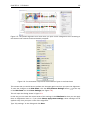
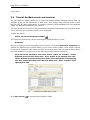
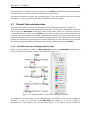
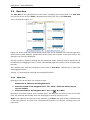
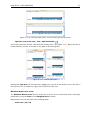
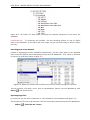
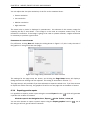
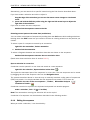
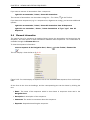
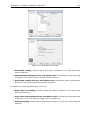
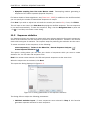
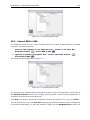
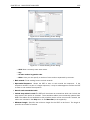
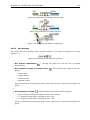
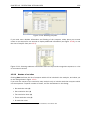
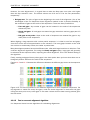
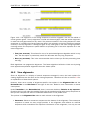
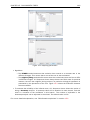
Figure 4.1: Preferences include General preferences, View preferences, Colors preferences, and
Advanced settings.
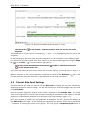
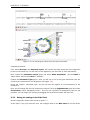
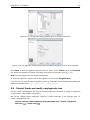
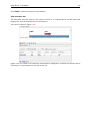
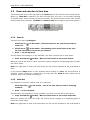
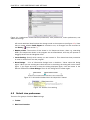
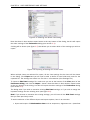
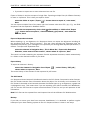
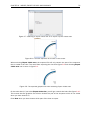
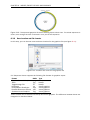
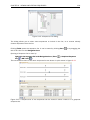
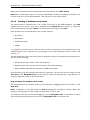
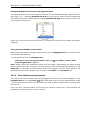
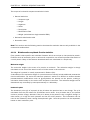
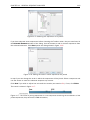
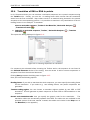
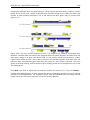
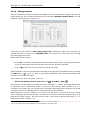
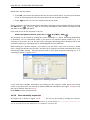
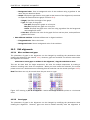
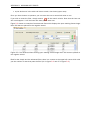
will reveal additional details about the change made to the sequence (see figure 4.3). Note
that no matter whether Audit Support is checked or not, all changes are also recorded in
the History ( ) (see section 7).
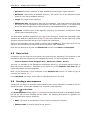
• Number of hits. The number of hits shown in CLC Sequence Viewer, when e.g. searching
NCBI. (The sequences shown in the program are not downloaded, until they are opened or
dragged/saved into the Navigation Area.
• Locale Setting. Specify which country you are located in. This determines how punctation
is used in numbers all over the program.
• Show Dialogs. A lot of information dialogs have a checkbox: "Never show this dialog
again". When you see a dialog and check this box in the dialog, the dialog will not be shown
again. If you regret and wish to have the dialog displayed again, click the button in the
General Preferences: Show Dialogs. Then all the dialogs will be shown again.
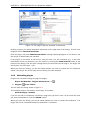
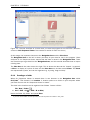
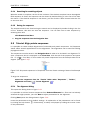
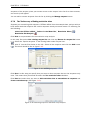
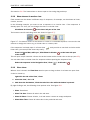
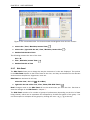
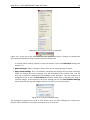
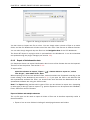
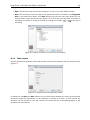
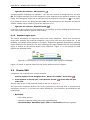
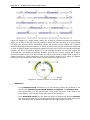
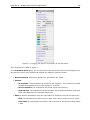
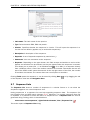
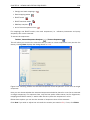
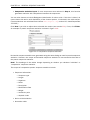
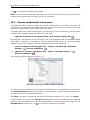
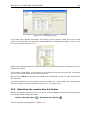
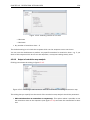
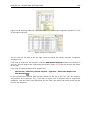
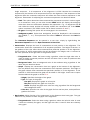
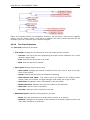
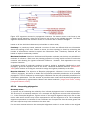
Figure 4.2: Annotations added when the sequence is edited.
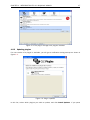
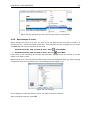
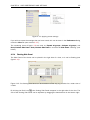
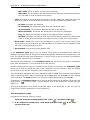
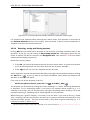
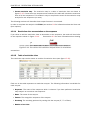
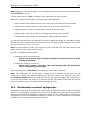
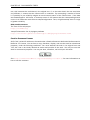
Figure 4.3: Details of the editing.
4.2
Default view preferences
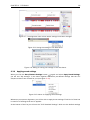
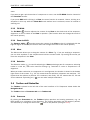
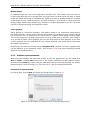
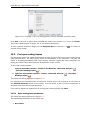
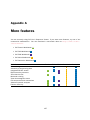
There are five groups of default View settings:
1. Toolbar
2. Side Panel Location