1
Dr. Frank Lee
David Lally
Evan Boucher
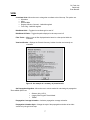
EDIT
Enter New Channel – Displays the “Set Channel” window.
Edit Existing Channel – Displays the “Edit Existing Channel” window. Through this window, the
user can choose an existing channel from a list to edit or delete. One can also create a
new channel from this window. Both of these options bring the user to the “Set Channel”
window.
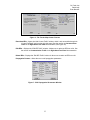
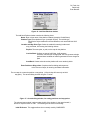
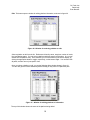
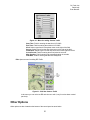
Radio Type Definition – Displays a reference window that allows the user to look up and
compare specs on different radio types. Select a radio from the list, and then there are
many different parameters that can be viewed (See Figure 5).
Figure 5 - The Radio Type Definition Windows
Undelete Platform – Allows a user to bring back a deleted platform.
Edit WayPoints – Allows a user to select a platform from a list to edit its way-points. This menu
is also accessible through the “Platforms >Edit” option on the right side panel, as well as
through double-clicking a way-point on the map. See the section on Platforms in the
Right Hand Tool Panel documentation (Figure 20).
Delete WayPoints – Deletes selected waypoints
Edit Map Setup – Allows one to create a new custom map. It uses the following steps:
•
•
•
•
Prompts to create a name.
Prompts to enter map coordinates (in degrees) to set up the north, south, east, and west
boundaries of the map.
Directions on using “step2.html” and an image editing program to save the map are displayed here.
It then prompts the user to compress the final map image.
5