1
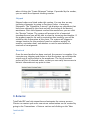
labels, grouping into Bills of Lading (BOL), and default shipment to
distribution centers (DC) can also be setup.
The “Contacts” tab lets you create multiple contacts for each client. This
is useful when more than one point of contact exists for a client (for
example, someone in the billing department, in purchasing, etc.) A new
contact can be created by clicking the “New Contact” button.
The “Communications” tab keeps record of all incoming and outgoing
communications with the selected client. New communications can be
created using the “New Communication” button. The communication
channel, time, subject, and details can be entered and will then be
displayed in this section.
The “Follow Ups” tab can be used whenever a follow-up contact is
required with the client, or when a list of pending and/or completed
follow-ups is required. This lets you schedule future tasks and see a
report of all pending tasks under Clients > Follow-ups.
Multiple client properties, or characteristics, can be saved in the client
record. Example of common properties include birthday, preferred
football team, number of employees, topics to avoid, etc. This helps the
sales team with valuable information, and can serve as an additional filter
when creating, for example, a mail or other campaign.
A set of tabs display sales orders for the selected client separated by
current order status (open, released, packed, shipped, canceled). Each
contains a list of any order in the selected status for the selected client.
The “Finance” tab presents a list of all client invoices, credit memos,
client payments, and outgoing payments, along with the current balance
of the client’s account. This report can be filtered by date and/or by
transaction type. You can click any of the transaction in the list to see its
details.
The “Returns” and “Chargebacks” tabs display and returns or chargebacks
associated with the client.
11. Vendors:
The existing vendor list is displayed at Vendors > Vendor List. You can
filter the list by name and geographic location. You can click on any
vendor on the list to see vendor details.
TotalCode ERP 21