1
7.2 GCL Configuration Environment
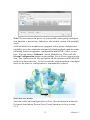
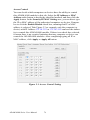
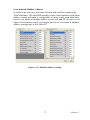
As we have mentioned in Section 5.3.3, when you click the item list representing the ADAM-6000 module in the Module Tree Display area,
there will be two item lists appearing below: All Channel Configuration
and GCL Configuration list item. You can configure all GCL related
setting by clicking the GCL Configuration item list.
For the two features Peer-to-Peer and GCL, only one of them can be
enable at one time. If you enable Peer-to-Peer function before, when you
click the GCL Configuration and launch the GCL configuration
environment, you will find that it is disabled by default. Once you click
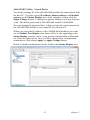
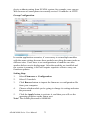
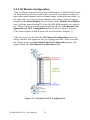
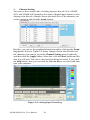
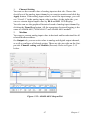
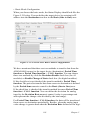
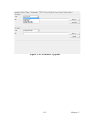
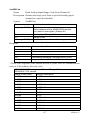
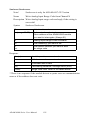
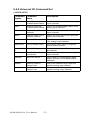
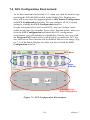
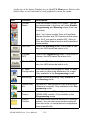
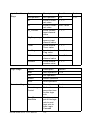
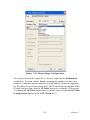
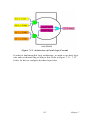
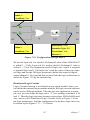
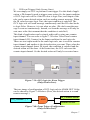
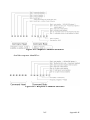
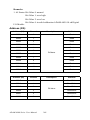
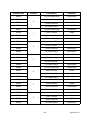
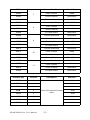
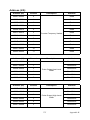
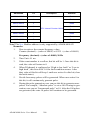
the Program GCL button (refer to table below) to enable the GCL feature, the Peer-to-Peer function will be disabled. Below is the image (Figure 7.1) of the Status Display area after you have clicked the GCL
Configuration item list.
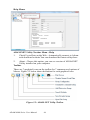
GCL Menu
Logic
Rule Set
Individual Logic
Rule Configuration
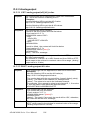
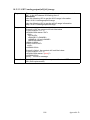
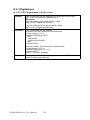
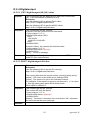
Figure 7.1: GCL Configuration Environment
191
Chapter 7