1
yet)
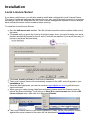
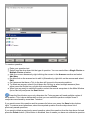
If you want to completely reset the question text and answers, then right-click the mouse in the
answers window and select 'Clear All'
Analysing the Results
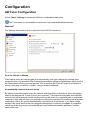
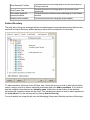
As students submit their answers, the results are displayed in the Results columns and in the
Status column of the main window. By scanning over the Status column, you can easily see who
has not yet answered and also actual answers from those who have.
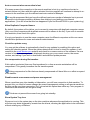
To save the results, press the Export button. You will be prompted to specify a folder and
filename for the results file. The results are stored in HTML format and can be later opened using
any web browser or imported into a spreadsheet package for further analysis.
Ending or Resetting the Feedback
When you have finished, press the End button to stop any further processing of replies. The
Question Polling will also automatically end if you click on one of the other tabs on the right to
change the view.
Self-Paced Questions
Menu: Tools - Self-Paced Questions
The Self-Paced Questions system allows longer and more in depth testing of students than the
single question polls, but is designed along a similar system.
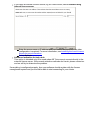
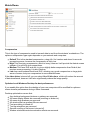
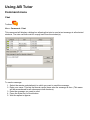
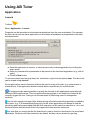
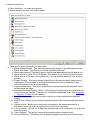
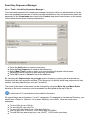
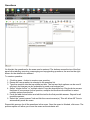
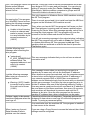
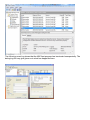
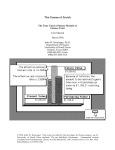
When opening the Self-Paced Questions module, you will get the following window:
The top row of buttons are for options which affect the entire test, saving and loading allow
completed tests to be copied between computers, preview will show you the test as the pupils
will see it and do a dry run through it. Save result and export are for dealing with the results after
the test has been taken, and start, stop and clear deal with running the test once it has been