1
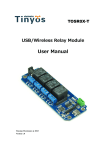
TOSR-04-5 TOSR-0X USB/Wireless Relay Module User Manual Tinyos Electronics @ 2014 Version 1.4 www.tinyosshop.com INTRODUCTION This USB/Wireless Relay Module allows computer control switching of external devices by using the USB port of your computer! Meanwhile, It has a wireless extension port, can work with XBEE or Bluetooth Bee or Wifly Module, which mean now you can control your device by zigbee or Bluetooth or WiFi ! The TOSR04 module can powered by USB bus or DC power and provides four volt free contact relay outputs with a current rating of up to 10 Amp each. We have three kinds USB/Wireless Relay Modules(2/4/8 channel).Here we use 4 channel module for demo. SPECIFICATIONS Number of Relays:2/4/8 Rated voltage:DC 5V Relay switching power:10A 250VAC Baud rate:9600 Communication Port:USB/Wireless Support Xbee/Bluetooth/WiFi Control Supply voltage:USB powered or 5V DC* *If you use 8 Channel USB relay module you must use a DC5V power supply IMPORTANT DISCLAIMER This device connects to the USB port of your computer and can be used to control external devices connected to its onboard relays. Incorrect wiring or shorts on the board can potentially cause damage to the controller itself,your computer's USB controller and/or your computer's motherboard if an external voltage make its way to the USB bus or the USB port is shorted. Extreme care must be taken when using this device to avoid any damage to your equipment. In particular,make sure you always disconnect the device from the USB port as well as any other power source when working on the device. Tinyos Electronics,it's shareholder,employees,suppliers,distributors and/or resellers are not liable for any damage or loss of data as a result of the use of this device, including special,incidental,or consequential damages resulting from the use of this device,or under any legal theory,including lost profits,downtime,goodwill,damage to or replacement of equipment or property,and any costs or recovering or reproducing any data stored in www.tinyosshop.com computers connected to this device. Your use of this circuit indicates your acceptance of these terms Module overview www.tinyosshop.com Commands This module operates with an easy to use command set as described in the table below. How to use USB Control Mode: Step1:Intall the Driver This module uses FT232RL USB to UART chip . Before using it you will need to download the FT232RL Driver. Connect the module to computer and windows will detect it and ask for the drivers. Point windows to the inf folder and it will install the driver. A new com port will now appear. www.tinyosshop.com Step2:Run HyperTerminal The TOSR relay module is controlled using serial command. We use HyperTerminal provided with Windows, but your favorite terminal should work fine. Be sure to set the communication speed to 9600 8-N-1 and disable Flow control. Connect the module to computer with USB cable, open the port and send test command you will see the relay on or off. www.tinyosshop.com COM Port Setting Send ASCII ʻdʼ->All relay on Send ASCII ʻnʼ-> All relay off www.tinyosshop.com Wireless Control Mode: Xbee Remote Control Xbee module is a kind of very popular 2.4G module from Digi (formally Maxstream). These module allow a very reliable and simple communication between microcontroller,computer,systems,really anything with a serial port! Here we use Xbee S1 module for demo. These modules take the 802.15.4 stack (the basis for Zigbee) and wrap it into a simple to use serial command set. Point to point and multi-point networks are supported. If you want building a mesh network, you can choose a S2 series module. Step1: Plug Xbee to TOSR relay module Plug Xbee module to TOSR relay module and make sure UART setting switch on ‘Micro’ postion. www.tinyosshop.com Step2: Set Power jumper to DC power mode USB power to DC power mode Here we use remote control. We can’t provide power by USB port in this situation in the most time. So, we need set the power jumper to DC power mode, and then power the module by DC 5V power supply. www.tinyosshop.com DC 5V power supply Step3: Plug another Xbee to USB adapter When connect your Xbee USB adapter to your computer USB port. Windows will detect it and ask for the drivers. Point windows to the FT232RL driver folder and it will install the driver. A new com port will now appear. Step4: Send command Just use Hyper Terminal l same as connected with USB cable directly. Send test www.tinyosshop.com command and the relay will be on or off. COM Port Setting Send ASCII ʻdʼ->All relay on Send ASCII ʻnʼ-> All relay off www.tinyosshop.com Bluetooth Remote Control The Tinyos Bluetooth Bee is a Bluetooth wireless module Based on CSR BC417143 Bluetooth chipset. It has compatct size and the pinout is compatible with XBEE which is suitable for all kinds of microcontroller systems who ha ve 3.3V power out, the module can use the AT commands to set baud rate.The Bluetooth Bee module comes with an onboard antenna, the antenna provides better signal quality. I t acts like a transparent serial port, which works with a variety of Bluetooth adapter and Bluetooth phone. Step1: Plug Bluetooth Bee to TOSR relay module Plug Bluetooth Bee module to TOSR relay module and make sure UART setting switch on ‘Micro’ postion. www.tinyosshop.com Step2: Set Power jumper to DC power mode USB power to DC power mode Here we use remote control. We can’t provide power by USB port in this situation in the most time. So, we need set the power jumper to DC power mode, and then power the module by DC 5V power supply. www.tinyosshop.com DC 5V power supply Controlled by computer If you computer does not support bluetooth, you may need a bluetooth USB dongle like this: If you windows bluetooth drivers can’t use, you need download BlueSoleil to use. If your computer already have bluetooth, just skip this step. Connect with BluetoothBee and the default Pair number is 1234. Then you can use the Bluetooth link com port by Hyper Terminal and send test command. www.tinyosshop.com Send ASCII ʻdʼ->All relay on Send ASCII ʻnʼ-> All relay off Controlled by mobile phone Here we test it use a android mobile phone. First, you need to install an application like BlueTerm .It’s a free application on Google Play. www.tinyosshop.com Connect device->select BluetoothBee->then you will find BluetoothBee blue STATE LED turn ON. Send ASCII command -’d’ turn all relays on Send ASCII command -’n’ turn all relays off www.tinyosshop.com WIFI Remote Control The RN-XV WiFly WiFi module is based upon Roving Networks' robust RN-171 Wi-Fi module and incorporates 802.11 b/g radio, 32 bit processor, TCP/IP stack, real-time clock, crypto accelerator, power management unit and analog sensor interface.The module is pre-loaded with Roving firmware to simplify integration and minimize development time of your application. In the simplest configuration, the hardware only requires four connections (PWR, TX, RX and GND) to create a wireless data connection. www.tinyosshop.com Step1: Configuring wifly module First, we need configuring the wifly module. Plug your wifly module to Xbee USB adapter. With your module plugged into USB, open up the port in HyperTerminal. You may see some data from the unit or a status message (it’s ok if you don’t see it). Type $$$ (without hitting return) to enter command mode. module’s wifi settings (hit return after each command): set wlan phrase <your wpa password> set wlan ssid <your ssid> Now you can setup the www.tinyosshop.com set wlan join 1 save reboot The module will power-cycle and the green status LED will start blinking. After 5-10 seconds it should start blinking more slowly, which indicates that it has successfully connected to your WiFi network. If your terminal session is still open, you should see a status message that indicates its success and its IP address (which you’ll need soon). *Our test network ssid is Tinyos3f. Wlan phrase is 0000000000 Because it outputs status messages when the module starts. It may cause the relay action. So you may need to set the module to silent mode. Here is the command: set sys printlvl 0 save reboot And if you want a fixed IP address. Here is the command: set ip a <your IP> set ip dhcp 0 save reboot www.tinyosshop.com If we use a smart phone APP to control this relay module. When the phone out of WIFI signal area may cause dead connection. We need to closing the TCP connection in this situation. Here is the setting command. It’s important. set comm idle 5 save reboot More details about wifly module please download the user manual in our webstore. Step2: Plug WiFly to TOSR relay module Plug WiFly WIFI module to TOSR relay module and make sure UART setting switch on ‘Micro’ postion. Step3: Set Power jumper to DC power mode www.tinyosshop.com USB power to DC power mode Here we use remote control. We can’t provide power by USB port in this situation in the most time. So, we need set the power jumper to DC power mode, and then power the module by DC 5V power supply. DC 5V power supply Step4: Send test command Controlled by computer You can send a test command by Putty program. www.tinyosshop.com Send ASCII command ‘d’ ->All relays on www.tinyosshop.com Controlled by mobile phone Here we test it use a iphone mobile phone. First, you need to install an application like WiSnap.It’s a free application on AppStore. Click Wireless Terminal and connect wifly module, then you can send test command to control the relay module. www.tinyosshop.com Send ASCII command -’d’ turn all relays on Send ASCII command -’n’ turn all relays off www.tinyosshop.com By now, these 3 examples are successfully finished. In theory, it also can be controlled under IOS system(Iphone) or android system via WIFI and Bluetooth, just test it by yourself! And welcome to communicate with our engineer!