1
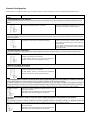
Network Configuration
Switch must be in Configuration position and ʻUpʼ button pressed for 2 seconds followed by one of the following Remote Button Presses.
Remote Button
Press
Action on Z-Wave Device
Notes
1: Including Device to the Remote
By Including a Z-Wave Devices to the remote they become a part of the network and can be controlled by the remote and other devices in the
network.
“Up” Button one time
Press the Inclusion Initiator of the Device to be Included
(normally an Operation Button of a product).
Note: When a Device is Included to the Network it
cannot be controlled by the Remote as is must be
Associated to the Remote Operation Buttons.
2: Excluding Device from the Remote
By Excluding a Z-Wave Device from the remote they will be removed from the network and can no longer be controlled by the remote and other
devices in the network.
“Down” Button one time.
Press the Exclusion Initiator of the Device to be Excluded
(normally the same button as the Inclusion Initiator).
Note 1: When the Device is Excluded from the
Network it can be moved to another location and be
re-Included to the same Network or be Included into
another Network.
Note 2: When Excluding a Device from a Network,
its Association to the Remote Operations Buttons
will also be deleted.
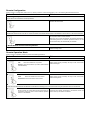
3: Create Assigned Association
Assigned Association is a “binding” between two devices enabling one of them to control the other, e.g. movement sensor switches On/Off a
lamp due to a movement.
“Up” Button two times.
1: With Remote Control in hand press the Association
Initiator on the Device to be controlled.
2: With Remote Control in hand press the Association
Initiator on the Device controlling the other device.
4: Remove Assigned Association
Removes the “binding” between two devices.
“Down” Button two times.
1: With Remote Control in hand press the Association
Initiator on the Device to be controlled.
2: With Remote Control in hand press the Association
Initiator on the Device controlling the other device.
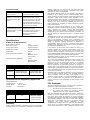
5: Including another Controller to the Remote and/or Replicating Network Information to another Controller
In basic Z-Wave Networks two types of Controllers exist: (1) Primary Controllers and (2) Secondary Controllers.
The Primary Controller is the one containing the updated Network Information. Every time Network changes are made (Devices Included or
Excluded) the Network Information of the Primary should be Replicated to all the Secondary Controllers to obtain optimal network performance.
To Replicate the Network from the Remote Control (if Primary) to another Controller (Secondary) the following steps should be followed:
“Up” Button one time
Press the Controller Replication Receive initiator on the
Secondary Controller.
Replication will start and Remote Control LED Indicator will
blink Green when transferring Network Information.
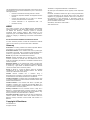
6: Include the Remote to another Controller and/or Replicating Network Information from another
Controller
When Including the remote to another Controller the remote automatically becomes a Secondary Controller. To Replicate the Network
Information to the Remote Control (if Secondary) from another Controller (Primary) following steps should be followed:
“Up” Button four time
Press the Controller Replication Transmit initiator on the
Primary Controller.
Replication will start and Remote Control LED Indicator will
blink Green when transferring Network Information.