1
LEO Course Editor – User Manual
•
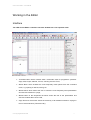
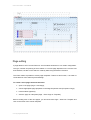
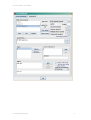
Module Properties Area which displays the properties of an active module
("Properties" tab), as well as the feedbacks defined for the module ("Feedbacks" tab)
and the module's position on a page ("Position" tab),
•
Page Editing Area which displays a page with inserted modules that can be freely
edited in order to create a final shape of a course page,
•
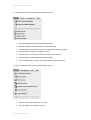
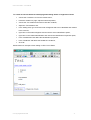
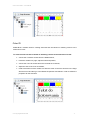
Tabs which make it possible to move between the opened projects (e.g. NONAME in
the picture below), as well as switch the view between project view ("Zpg") and Flash
view ("Flash"). Here, it is also possible to block or unblock a page ("Lock/Unlock
page"), as well as switch the page view to a view without the module outlines ("Toggle
outlines").
Editor's elements
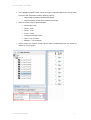
The Editor's elements have been grouped in separate categories and areas in the interface:
•
Command Menu,
•
Button Menu,
•
Module Menu,
•
Page Structure Area,
•
Module Properties Area,
•
Page Editing Area.
Command Menu
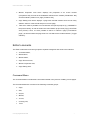
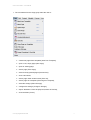
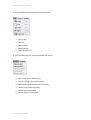
The Command Menu includes basic commands needed in the process of editing course pages.
The Command Menu bar consists of the following command groups:
•
Page,
•
Edit,
•
Project,
•
Module,
•
Course,
•
Learning unit,
•
Tools.
© Young Digital Planet 2009
7