1
4.
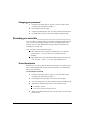
To retrieve a parked call, enter the extension where the call is parked, or
press #.
Note: To retrieve a call parked at your own extension, you must enter
your extension.
Creating conference calls _______________________________
You can conference up to 7 calls together. The calls can be any combination of
internal and external calls.
To create a conference call
1.
Place a call to one of the parties you want to conference.
2.
Select the Conference feature:
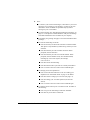
Q On the Polycom SoundPoint L telephone, do either of the following:
Q Press the Conference button.
Q Press the Menu button to refresh the soft key labels in the LCD
display, and then press the button labeled Confer.
Q On the 2500 or CLASS telephone, press Flash 79#.
3.
Repeat steps 1-2 to conference in the rest of the parties.
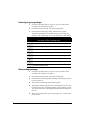
If a party is unavailable, do one of the following to retrieve the previous
party:
Q On the Polycom SoundPoint L telephone, press the Menu button to
refresh the soft key labels in the LCD display, and then press the
button labeled Rtrv.
Q On the 2500 or CLASS telephone, press Flash *60.
Note: If you cannot create a conference call, or if you cannot conference a
specific TeleVantage CTM Suite user by using these instructions, the cause may
be the way that user privileges are set up in your company. See your TeleVantage
CTM Suite administrator.
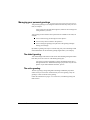
Terminating conference calls
Normally, a conference call ends with all parties hanging up at roughly the same
time. If you leave the conference early, however, the conference continues
without you. The other participants can continue to talk, even if you initiated the
conference, and your company continues to pay for the outgoing calls used to
create the conference. To avoid this, terminate the conference by having each
participant hang up.
CHAPTER 5. ANSWERING AND HANDLING CALLS
5-7