1
HC Plus User Manual
Chapter 6 Service Maintenance
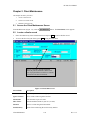
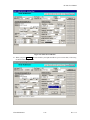
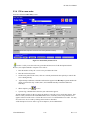
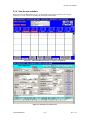
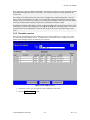
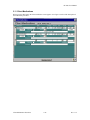
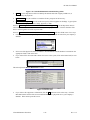
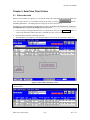
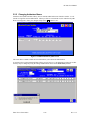
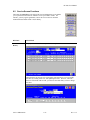
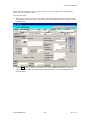
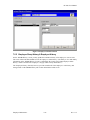
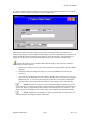
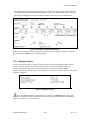
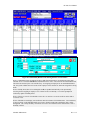
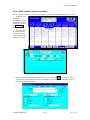
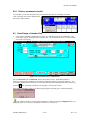
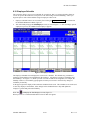
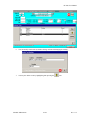
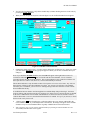
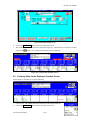
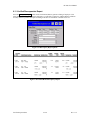
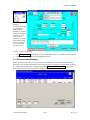
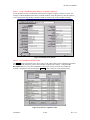
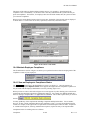
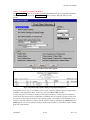
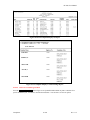
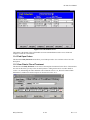
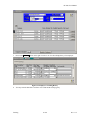
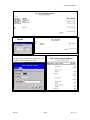
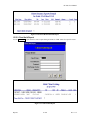
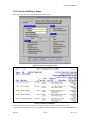
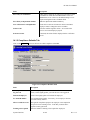
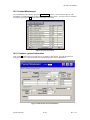
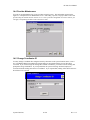
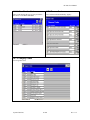
On the bottom of the Client Maintenance screen is a scrollable list of services provided to the client. You
may add a new service by clicking on the last blank row. If you click on a current service, you will see all
the details of that service.
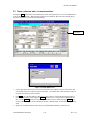
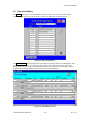
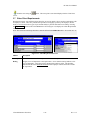
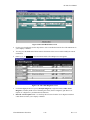
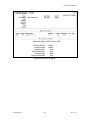
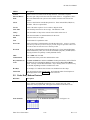
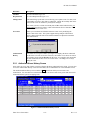
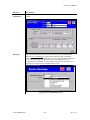
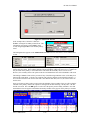
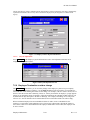
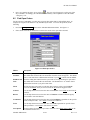
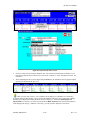
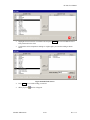
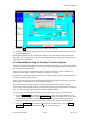
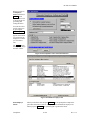
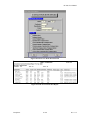
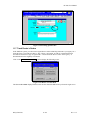
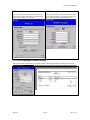
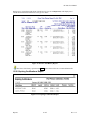
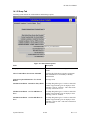
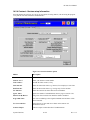
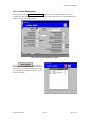
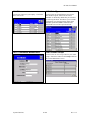
To view the contract data for that service, press the contract button to the left of the contract name and
Figure 14-8 General Contract Information appears.
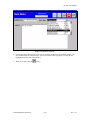
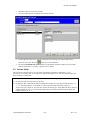
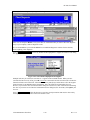
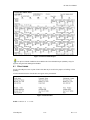
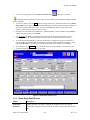
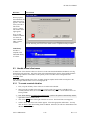
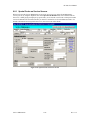
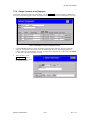
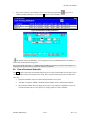
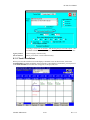
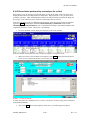
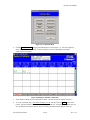
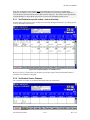
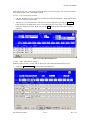
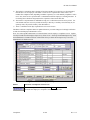
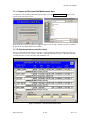
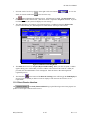
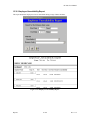
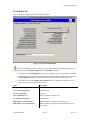
After entering a new service, you will be taken to the order entry screen; upon filling it out, the client
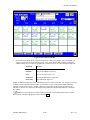
schedule screen will appear.
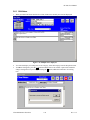
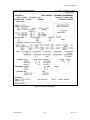
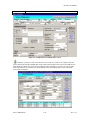
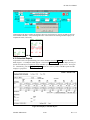
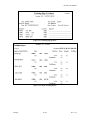
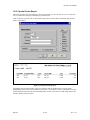
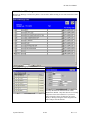
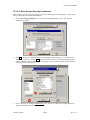
Figure 6-1: Incomplete Service Maintenance Screen
6.1
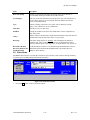
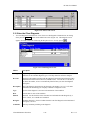
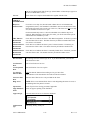
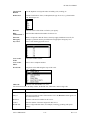
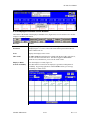
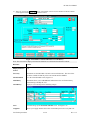
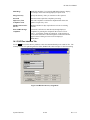
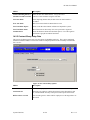
Service Screen Field Descriptions
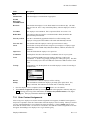
SERVICE
FIELDS
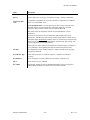
DESCRIPTION
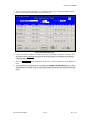
Contract
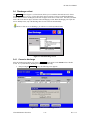
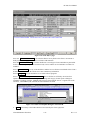
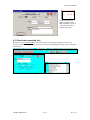
Use the dropdown to assign a contract. Hitting the Contract button to the left of the
dropdown will bring up a screen where you can view the contract’s details.
Fiscal ID
Corresponds to the client number of the client being billed if the client has more than
one service; otherwise, it corresponds to the service number.
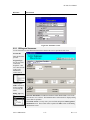
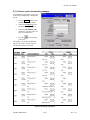
Category
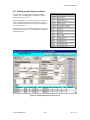
These are shorthand codes identifying the different institutions that provide services.
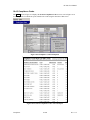
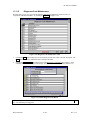
See the category table, section 14.7.3 which is accessed by pressing Special functions
Î Codes Maintenance Î Category. (Note: If the category is DFTA, different fields
Service Maintenance
6-71
Rev 11.5