1
SoftLINK 12
User Defined Tools
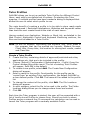
As well as allowing a Tutor to launch applications at Student
workstations, you can automatically run a task on a Tutor workstation
using a Defined Tool.
Add a Tool
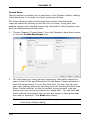
1. Choose {School}{Tools – Edit} from the Control window drop down
menu.
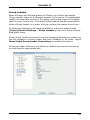
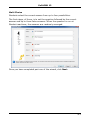
2. The User Defined Tool dialog will appear.
3.
4.
5.
6.
7.
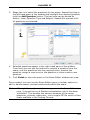
Click the Add button.
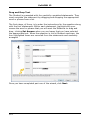
The Add Tool dialog will appear.
Enter the required information.
Click OK. The new tool will be listed on the Tools menu.
Click Close.
Run a Tool
1. Choose {School}{Tools} from the Control window drop down menus.
2. Select the tool you wish to run. The Tool will automatically run.
Edit a Tool
1. Choose {School}{Tools – Edit} from the Control window drop down
menus.
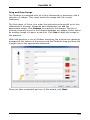
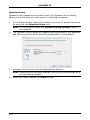
2. The User Defined Tool dialog will appear.
3. Select the tool you wish to edit.
4. Click the Edit button.
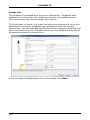
5. The Edit dialog will appear.
176