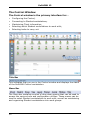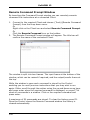
1
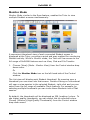
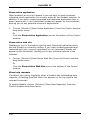
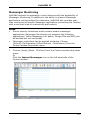
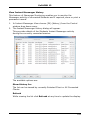
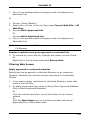
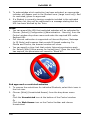
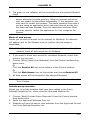
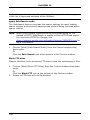
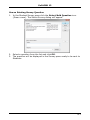
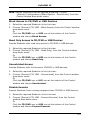
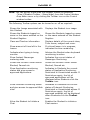
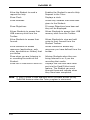
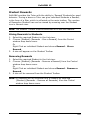
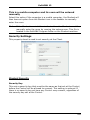
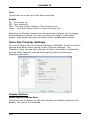
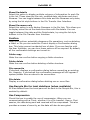
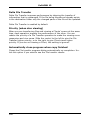
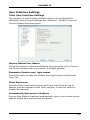
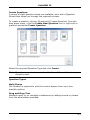
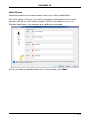
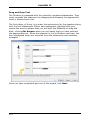
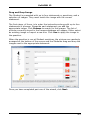
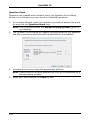
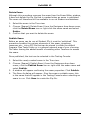
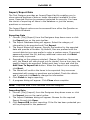
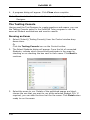
SoftLINK 12 Starting the Installation Download your copy of SoftLINK from http://www.acs-linksystems.com/demo-request/SoftLINK-demo.cfm Click the appropriate language from the menu and select the option to install SoftLINK. Select which installer to use: setup.exe or MSI file. If an Active Directory deployment is required you will need to install using the MSI file. The SoftLINK installation will start displaying a Welcome screen. Click Next to continue. Notes: If you are upgrading your Windows operating system, you must uninstall SoftLINK prior to upgrading. SoftLINK can then be reinstalled once the operating system upgrade has been completed. When installing ensure you are logged in as an Administrator. When installing SoftLINK on Windows 7, Windows 2008 Server R2, Windows 8 and Windows 2012 Server the Filter Driver may not be installed if you do not have the required Service Pack and hotfixes. You can still proceed with the SoftLINK installation without the Filter Driver but some Internet Control features will be unavailable, including Block FTP and SafeSearch. The Messenger Monitoring feature will not be available as well. For further information please contact our Technical Support team http://support.acs-linksystems.com/ SoftLINK License Agreement The SoftLINK License Agreement will be displayed. Please read the License Agreement carefully and select ‘I accept the terms in the License Agreement’ and click Next to continue. If you reject the License Agreement, ‘I do not accept the terms in the License Agreement’ click Cancel. SoftLINK will not be installed and you will be directed to exit from the install program. License Information Select Register and enter the SoftLINK license details you have been provided with. If you are evaluating SoftLINK, select 30 day evaluation. 7