1
SoftLINK 12
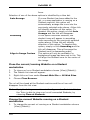
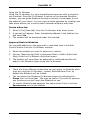
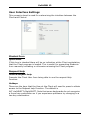
Full Screen
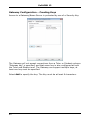
Checking this options will force the Control to view a Client in Full Screen
mode rather than in a windowed mode.
Scale to Fit
Check this option if you want the contents of the view window to be
automatically shrunk to fit the sizeable frame.
Disconnect when closed
Check this option to disconnect from a Client when a View window is
closed.
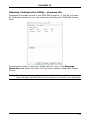
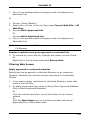
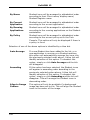
Screen Scrape
SoftLINK’s favored, and the most efficient, method for capturing screen
data is to hook into the Video Driver of the workstation being viewed.
However, there may be occasions when this method will not work
because certain applications bypass the driver. In these circumstances
you can enable screen scrape mode in order to take a snapshot of the
screen. Although this will have a greater impact on the network it will at
least provide an accurate representation of the Client’s screen.
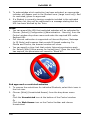
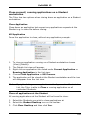
Scrollbars
You can turn off scrollbars on the view windows by checking this option.
This is useful when using Auto-Scroll, as you gain a little extra
workspace.
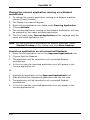
Use Compression
Check this box to enable compression when viewing a Client’s screen. The
state of this checkbox is also reflected in the General tab.
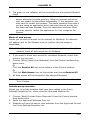
Wallpaper
Check this box if you want the Client’s wallpaper to be visible when
viewing. Normally this is turned off to improve performance, so expect
the screen update speed to be impacted by selecting this option.
Blank Client screen
This enables the Control to blank the client screen in any of the View
modes.
279