1
SoftLINK 12
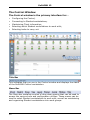
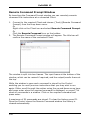
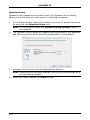
The Control window will be displayed and the Title bar will indicate that
the Show is suspended. You can now continue to use the Control
workstation without the Clients seeing what you are doing. The Client
screens will still display the previous Show.
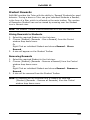
Resume a Show while Suspended
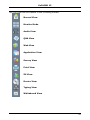
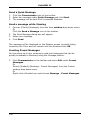
1. Click Resume on the Control window toolbar.
Or,
1. Choose {Student}{Show - Resume} from the Control window drop
down menu.
2. Clients will now see the application currently displayed at the Control.
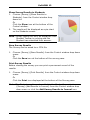
3. The Showing dialog will be displayed on the Control screen from
which you can choose to End, Resume or Continue the Show.
End a Show while Suspended
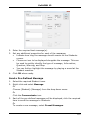
1. Choose {Student}{Show - End Show} from the Control window drop
down menu.
2. Clients will now see their own display.
Set a Show Leader while Suspended
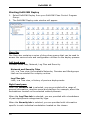
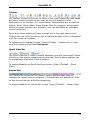
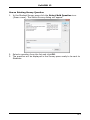
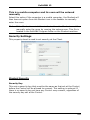
With the Show suspended, the Control can assign Show Leader status to
one of the selected Clients. This unlocks the mouse and keyboard of the
Client, enabling them to take over the demonstration. The Control
continues to oversee the Show and can End the Show as required.
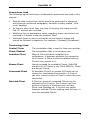
Show Leader
While the Control screen is being shown to the class, it may be
appropriate for a Student to take over the demonstration. For this
purpose, the Control can assign Show Leader status to a selected
Student. The mouse and keyboard of the Show Leader’s PC are unlocked
and they can continue the presentation on the Control’s behalf.
The Control can still interact simultaneously with the Show Leader and
can suspend or end the session as required.
Create a Show Leader
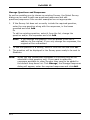
1. Start Showing the Control screen to Students as normal.
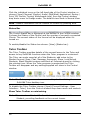
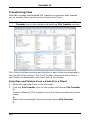
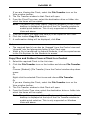
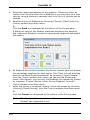
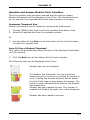
2. When you are ready to create a Show Leader, click the SoftLINK
button on the taskbar.
122