1
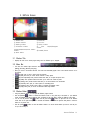
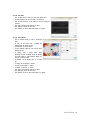
5.12.8. Pattern Overlay
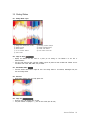
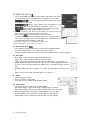
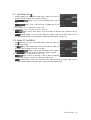
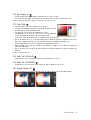
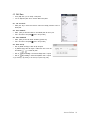
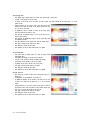
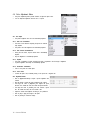
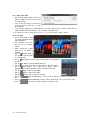
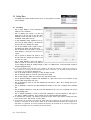
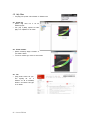
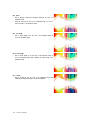
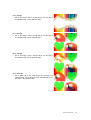
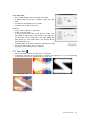
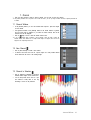
Ÿ Click on [Pattern Overlay] to wrap a layer image with a pattern.
Ÿ In [Synthesis Mode], set the mode to synthesize a pattern and a layer
image.
Ÿ In [Opacity], set the transparency level for a pattern.
Ÿ In [Pattern], select a pattern to wrap it with.
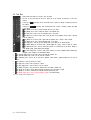
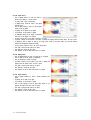
5.12.9. Line
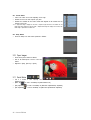
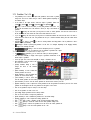
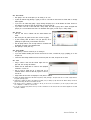
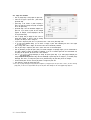
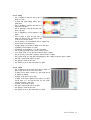
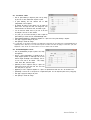
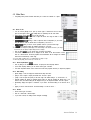
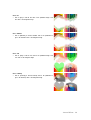
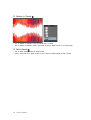
Ÿ In [Line], create an edge line to a layer image.
Ÿ In [Size], set the line thickness.
Ÿ In [Location], set the location where an edge line will be created. If you
select Outside, an edge line will be created outside a layer image and if
you select Inside, it will be created inside a layer image. Selecting Both
means that half of it will be located outside a layer while the other half
will be located inside a layer.
Ÿ In [Synthesis Mode], set the mode to synthesize an edge line and an image.
Ÿ Click on [Color Box] to set the color for an edge line.
Ÿ In [Opacity], set the transparency level for an edge line.
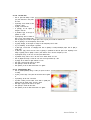
5.13. Layer Mask
Ÿ
Ÿ
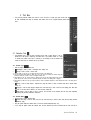
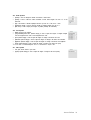
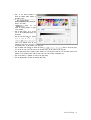
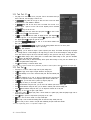
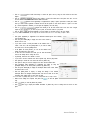
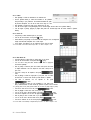
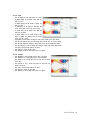
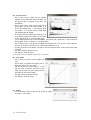
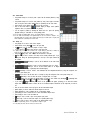
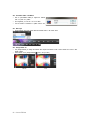
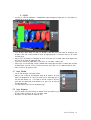
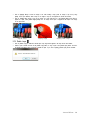
Click on [Layer Mask] to fine-tune the opacity level of a layer image.
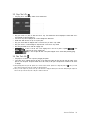
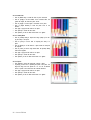
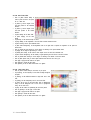
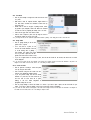
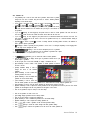
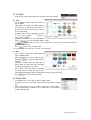
A white area in [Layer Mask] has the opacity level of 100. Black has the opacity level of 0. If you use [Layer Mask],
you will be able to crop out and synthesize images into various forms.
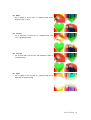
Background image
Synthesized image
Layer mask
Final image
Hancom EzPhoto 107