1
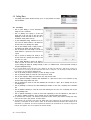
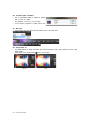
4.3.16.26. REV Effect
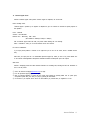
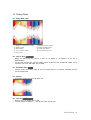
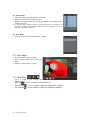
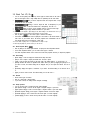
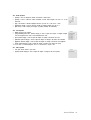
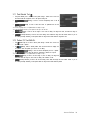
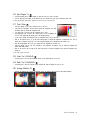
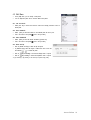
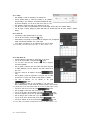
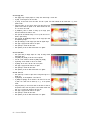
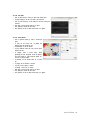
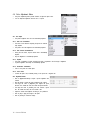
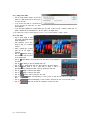
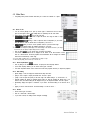
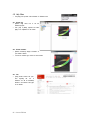
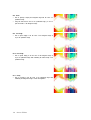
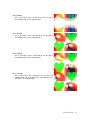
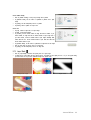
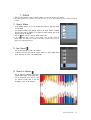
Ÿ Click on [REV Effect] to make your photo with shaking lines.
Ÿ Set [Max Height] to set the max width of the waveform.
Ÿ Click on [Line Interval] to set the interval for the lines forming the
waveform.
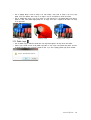
Ÿ Click [OK] to apply the filter effect to the photo.
Ÿ Click [Cancel] to cancel the filter action.
Ÿ Click [Preview] to see the filter's effect before it is applied.
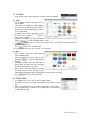
4.3.16.27. Roman Mosaic
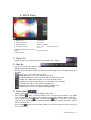
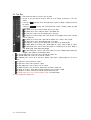
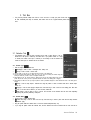
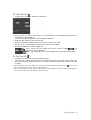
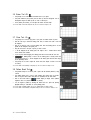
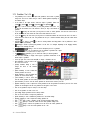
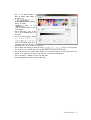
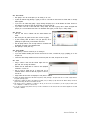
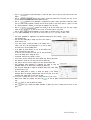
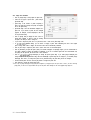
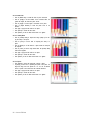
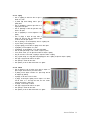
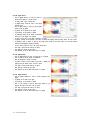
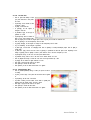
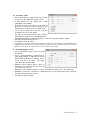
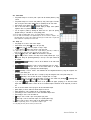
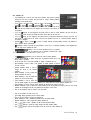
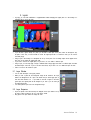
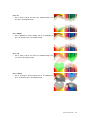
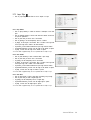
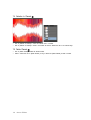
Ÿ Click on [Roman Mosaic] to make a mosaic-style
photo.
Ÿ In [Tile], set the mosaic size. In [Width] and
[Height], enter the desired tile size.
Ÿ In [Borderline], set the tile interval.
Ÿ In [Color Selection, select the color to fill the space
between the tiles.
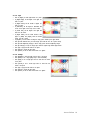
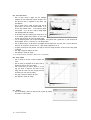
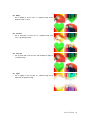
Ÿ In [Shape], select a mosaic shape. Select
[Rectangle] to make rectangular mosaic tile patterns
and select [Circle] to make trapezoid shaped mosaic tiles in circular shapes.
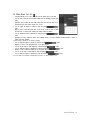
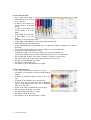
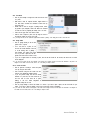
Ÿ In [Shadow], set the shadow effect for a mosaic
tile.
Ÿ In [Angle], set the direction of shadow.
Ÿ In [Limit], set the degree of shadow.
Ÿ In [Shape], set the color of shadow.
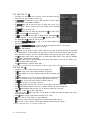
Ÿ Click [OK] to apply the filter effect to the photo.
Ÿ Click [Cancel] to cancel the filter action.
Ÿ Click [Preview] to see the filter's effect before it is applied.
Hancom EzPhoto 69