1
3.10. Shape Tool <U>
Ÿ
Ÿ
Ÿ
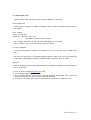
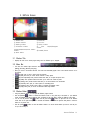
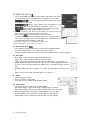
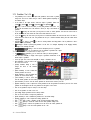
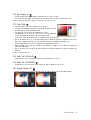
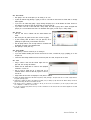
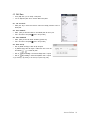
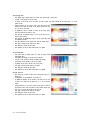
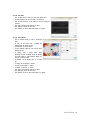
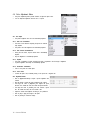
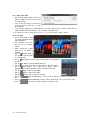
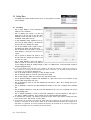
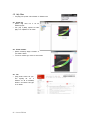
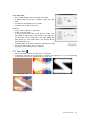
The [Shape] tool is used to draw various shapes.
In
[Mode], you can select the purpose of using a shape.
A shape drawn in [Shape Layer] will be a new mask layer.
v In [Shape Layer], you cannot use the functions such as [Paint Bucket] or [Pixel Paint]. As well, any
function for which the pointer shows ( ) cannot be used in [Shape Layer].
Ÿ
Ÿ
Ÿ
Ÿ
Ÿ
Ÿ
Ÿ
Ÿ
Ÿ
Ÿ
Ÿ
Ÿ
Ÿ
Ÿ
Ÿ
Ÿ
Ÿ
Ÿ
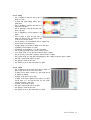
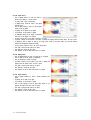
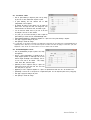
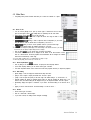
Using the [Path] menu, draw a shape that will become a new path.
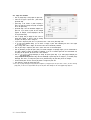
[Pixel Paint] is used to create a new shape in the currently selected layer. If you
select [Pixel Paint], the [Thickness]~[Anti-alias] at the top of the option window will
be activated.
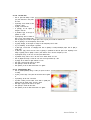
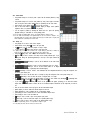
[Thickness] is used to set the thickness of the outer border
of a shape.
[Opacity] is used to set the transparency level for a shape.
[Radius] is used to set the minimal radius for an ellipse and
the radius of the edge of [Rectangle with Rounded Edges].
[Borderline] is used to create an outer borderline with the designated thickness by using the foreground color
set in the [Color Picker] tool.
[Fill] is used to fill the inner area of a shape by using the background color in the [Color Picker] tool.
[Anti-alias] is used to soften the curves or diagonal lines of a shape.
In
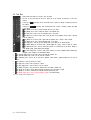
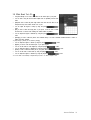
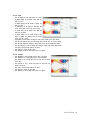
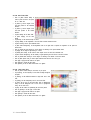
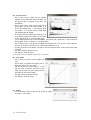
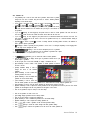
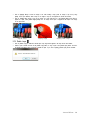
[Shape], you can select the desired shape you want to draw. Select from [Rectangle( )], [Rectangle with
Rounded Edges( )], [Circle( )], [Line( )] and [User Defined( )].
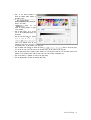
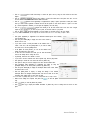
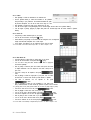
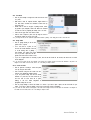
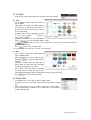
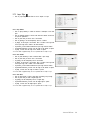
If you select
[User Defined], the screen on the right side will appear, prompting you to select the desired
shape. Click the arrow button to launch the list of user-defined shapes.
Double-click the desired shape that you want to use.
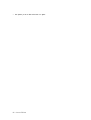
Click the arrow button in the top right to edit the user-defined shapes.
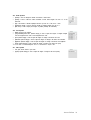
[Delete Shape] deletes the selected shape from the list.
[Shape Resetting] initializes the list of user-defined shapes.
[Load Shape] retrieves the list of other user-defined shapes saved.
[Save Shape] saves the edited list.
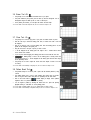
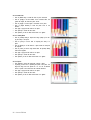
[Area] is used to create a layer in the [Shape Layer] mode.
[New Area] is used to create each shape as a separate [Mask Layer].
[Add to Area] is used to add a shape to the selected [Mask Layer].
v For more on [Mask Layer], refer to ‘5.13. Layer Mask’ in ‘Chapter 5. Layer’.
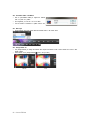
v In the [Shape] tool menu, press the <Alt> key to view the colors.
38 Hancom EzPhoto