1
3. Tool Box
Ÿ
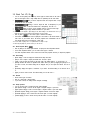
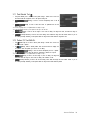
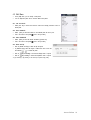
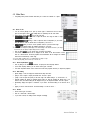
The [Tool Box] includes multiple tools. Click on a tool and use it to modify your photo. Some tools can
be used immediately after they are selected, while others must be set in [Option Window] before being
used.
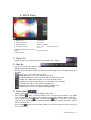
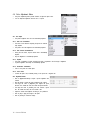
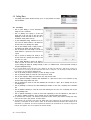
3.1. Selection Tool
Ÿ
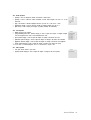
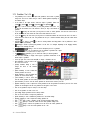
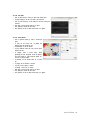
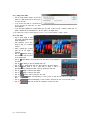
The [Selection] tool is used to select a desired area to paint or apply effects to. The selected area in the photo is marked by the dotted line. If you perform actions on a layer
or channel, the content in the layer or channel you are working on will be selected. The
content in other layers or channels will not be selected.
3.1.1. Selection Type
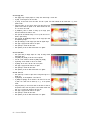
Ÿ Sets the shape of the selected area.
Ÿ
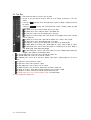
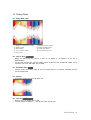
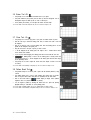
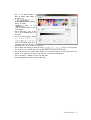
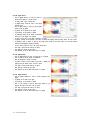
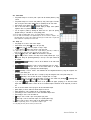
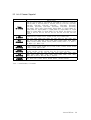
[Rectangle] is used to select a rectangular area. Hotkey <M>
Ÿ
[Circle] is used to select a circular area.
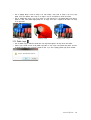
v Using the <Shift> & <Alt> keys, you can adjust the shape and mode of the selected area.
v Click and drag while holding down the <Shift> key to add a new area to the existing area selected. Drag while
pressing the <Shift> key to make a circular or rectangular selection area.
v While holding the <Alt> key, drag the pointer to delete the new area from the existing selection area. Drag the
pointer and press the <Alt> key to make a symmetrical selection area based on the starting point of dragging.
v While holding the <Shift> and <Alt> keys, drag the pointer to create a symmetrical rectangular or circular selected area based on the starting point of
dragging.
Ÿ
Ÿ
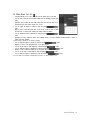
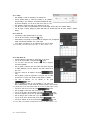
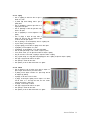
[Snare] is used to freely shape a selected area. Drag the pointer to create a selected area with a desired shape.
Hotkey <L>
[Polygon] is used to select polygon shaped areas. Click and drag to draw a line from the starting point. Each time
you click, a new line will be started. If you want to finish, double-click.
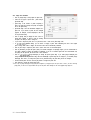
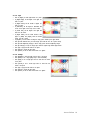
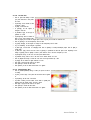
[Magic Stick] is used to select a color in a photo. The area that can be selected with one click varies depending
on [Limits] and [Proximity Selection]. Hotkey<W>
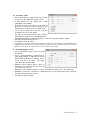
3.1.2. Selection Mode
Ÿ Set the mode to create selected areas.
Ÿ
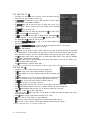
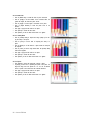
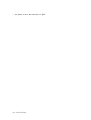
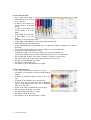
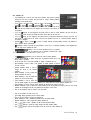
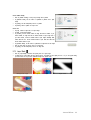
[Create New Area] is used to select one area only. Click and drag to select a photo area with the shape selected
in [Selection Type].
Ÿ Drag the pointer within the selected area to move the selected area(dotted line) only.
Ÿ If you drag the pointer outside the selected area, the first selected area will be canceled and the new area will be
Hancom EzPhoto 29