1
18
Chapter 3
Parameters, Alarms, and LEDs
2
Click Options, and then click Add.
3
Enter the IP address of the frame that contains your module, or the frame that contains a
6800+ETH module that provides access to your module.
4
Click OK to close the Add Host dialog box, and then OK again to close the Discovery
Options dialog box.
5
Click Start. This triggers Navigator to run a discovery. When the discovery finishes,
Discovery Completed is displayed in the Discovery pane.
6
Click Save to save the results of your discovery to the Discovery folder of the Navigation
pane.
7
Switch to Control mode by selecting Operational Mode > Control from the main menu.
8
Double-click DAPM6802+ in the Navigation pane. The Control window opens displaying
the module’s controls.
You can now switch to Control mode by selecting Operational Mode > Control from the
main menu. Double-click DAPM6802+ in the Navigation pane. The Control dialog box
opens displaying the module’s controls.
Reading Hardware and Software Versions
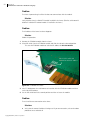
To determine the hardware version number for DAPM6802+ modules, follow these steps:
1
Discover the frame that contains the module, and save results of your discovery.
2
In the Navigation pane, right-click the module and select Configuration.
3
In the Configuration dialog box, select the Version tab.
4
In the Item Name list, look at the Hardware menu item. If it is expandable and provides a
version number, then the revised specifications apply to your module. If the Hardware
menu item is non-expandable and provides no version information, then the original
specifications apply.
Changing Parameter Settings Using a Web Browser
1
Access your frame using a web browser.
2
Login to the 6800 Control Interface.
3
In the Navigation pane, click the slot that contains your APM6803+ module.
4
Parameter categories will be displayed and you can drill down.
Most of the screenshots in this manual have been taken through the web browser interface
for DAPM6802+.
Recalling Factory Default Parameter Settings
You can set all parameter settings back to the factory defaults by going to Parameters >
General and selecting Yes from the Factory Recall drop down list. Once default settings
are restored, you will see Factory Recall set to ---
Reading Hardware and Software Versions
To determine the hardware version number for DAPM6802+ modules, follow these steps:
Copyright © 2012, Harris Corporation