1
ION Enterprise Administrator’s Guide
Configuring the Modbus Master Site Parameters
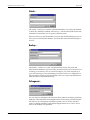
Data Bits
This parameter specifies the number of data bits - bits that contain information
or data - supported by the site. Supported values range from a minimum of 4
and a maximum of 8.
Adding Modbus Devices
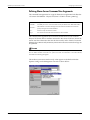
1.
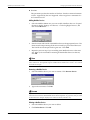
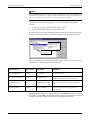
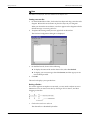
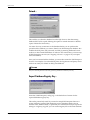
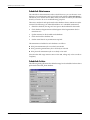
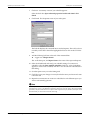
Select the Modbus Master site you want to add a Modbus device to. Expand
the tree to display 'Settings' and 'Devices'. Click to highlight 'Devices', and
then click Add Device.
2.
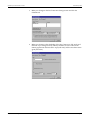
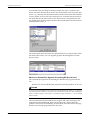
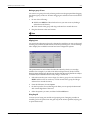
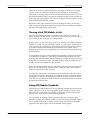
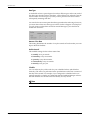
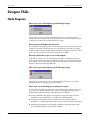
Enter the Name and Unit ID of the Modbus device in the appropriate boxes. The
Name must be unique among all the sites serviced by a given Virtual Processor.
The Unit ID must be unique inside a given site. Click Add.
3.
Repeat the previous step if you are adding more Modbus devices to the same
site. When you have finished connecting all the Modbus devices to that site,
click OK.
NOTE
A Modbus device name cannot contain spaces. It should start with a letter, followed by letters, numbers
and/or underscores. The supported range for a Modbus device Unit ID is from 1 to 247. “0” is reserved
for broadcast messages.
Renaming a Modbus Device
1.
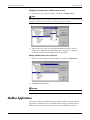
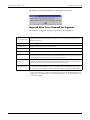
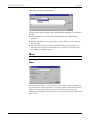
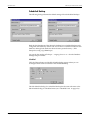
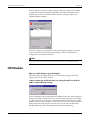
Select the Modbus device you want to rename. Click Rename Device
.
2.
Type in the new name. Click OK.
CAUTION
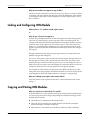
If you rename or delete Modbus devices, all Modbus Export or Modbus Import modules that previously
referred to that renamed or deleted Modbus device will be mapped to “not_a_device” when you restart
the Virtual Processor. Designer displays these modules as off-line (outlined in red).
Deleting a Modbus Device
Chapter 2 - ION Enterprise Nodes
1.
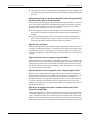
Select the Modbus device you want to delete.
2.
Click Delete Device. Click OK.
Page 29