1
Galleries
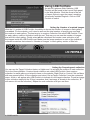
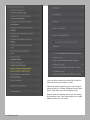
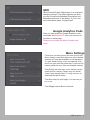
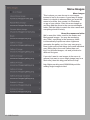
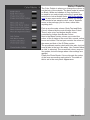
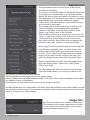
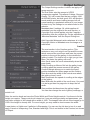
The next sections are for the galleries. In the figure on
the left, I’ve shown 3 of the gallery controls, but there are
actually 7, but 4-7 are each identical in operation to 2 & 3.
Swap
Partly because of user request and because it sits better
with using Gallery 1 as a home page, you can now swap
the About, Blank and Contact pages to the end of the menu.
Simply tick the box to move these to the end of the menu.
You can also swap the external link positions
Gallery Setup
This section is there to remind you that galleries must be
consecutive, or Lightroom will ignore those images. Gallery
2 must come after Gallery 1 and Gallery 3 must come after 2
and 1, up to the 7 available galleries.
Single Gallery
Click Create Single Gallery to have all images appear as
a one page gallery. Include Single Gallery Text places text
before the photos in a non CMotion gallery. The headine
and text are editable. Finally the Home and Home link
buttons place a link that can be used to bring the viewer
to somewhere else on the site. By default it goes up one
level on the site, based on the assumption that single page
galleries go in their own folder, making it go down one level.
Gallery 1
As Gallery 1 is a special case, we’ll deal with it first here
and the look at normal galleries. Back on the home page
we mentioned that we can use Gallery 1 as the home page.
When this is ticked only the Number of Images setting will
apply to the gallery. Otherwise settings are as for a normal
gallery.
Normal Gallery Settings
For Gallery 1 in non home page mode, and Galleries 2-7 the
following settings are available:
Include Gallery tickbox lets you include the gallery. 1-3 are
on by default, while 4-7 are off. Remember to include these
in order, and don’t skip one!
Gallery [1-7] Name sets the name that appears in the menu.
Gallery [1-7] Link allows to to name the page as you like..
e.g. people.html
Number of Images sets the number of images you want
to appear in this gallery. Make sure to have exactly the
right number selected based on your image selection in
the collections,e.g. if you have a total of 100 images for 4
galleries with a 35 in the first gallery, 25 in the 2nd and 20 in
both the 3rd and 4th. then put these number 35, 25, 20, 20 in
the respective Gallery numbers input box.
LRB Portfolio - 9