1
DALiM WEBLiNK User manual
Uploading files
Overview
2
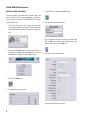
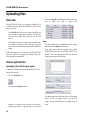
Click on the Upload icon displayed in the line of the workflow to which you want to upload files:
DALiM WEBLiNK allows you to remotely upload files in
workflows running on the DALiM TWiST server. This can be
done in two ways:
•
In the Workflows window you can choose a workflow and
then select files to upload to this workflow. These files are
located on the machine from which you run the Web
browser.
•
In the Jobs window you can select files and then choose
the workflow to which these files will be sent. These files
are located on the machine hosting the DALiM WEBLiNK
Engine.
If the printer queue has been exported in the DALiM TWiST
Editor, you will be able to change some settings of the workflows through the exported PPD.
Notes
You cannot upload files to a workflow that is not running,
and in this case the Upload icon is inactive.
3
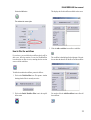
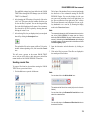
If the printer queue has been exported in the DALiM
TWiST Editor (please refer to the DALiM TWiST “User
Manual”), this screen displays the PPD and allows to
change some settings of the workflow:
How to upload files
Uploading files with the java applet
To upload files found on the machine from which you are running the Web browser:
1
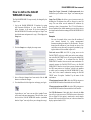
Click the Workflows icon:
This opens the Workflows window.
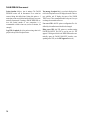
The Server drop-down list displays the list of all running
servers, as well as an “empty” choice. If you select the
“empty” choice, load-balancing on all running servers is
automatic. If you select one of the servers, there is no loadbalancing and the file is uploaded only to the selected
18
server.